








Thunderbird can open with an empty-looking account after a migration even when the old messages still exist. The application may have selected a new profile, connected to a different server folder, or lost a reference to local mail storage. Those situations differ from physical deletion. First preserve the old profile and identify the type of account involved. Then recover the right mail source without allowing a new setup to overwrite the remaining evidence.
Quick answer: locate the messages before rebuilding the account
Check the active profile, compare the server mailbox, and inspect any surviving old profile. For an intact profile backup, Thunderbird’s supported import workflow offers a free recovery route. For local mailbox files, importing copies into Local Folders can preserve messages independently of the server. If only a folder index is wrong, a folder repair may help, but it cannot recreate message bodies that the underlying storage no longer contains.
Thunderbird and its native recovery features are free. However, a successful account login does not prove that local-only messages survived. POP mail, IMAP mail, Local Folders, and saved EML messages can require different searches. Write down the missing folder names, approximate date range, and a few recognizable subjects before testing candidates. This gives you a practical way to distinguish an empty new profile from a recovered archive.
Identify the mail source
IMAP, POP, and local archives
An IMAP account normally reflects server-side mail, although a local offline store may contain useful material. A POP account may hold messages locally that the server no longer retains. Local Folders provide another separate location. Therefore, do not assume that adding the account again restores every archive. Compare the old folder structure and the account configuration before changing synchronization or deleting an apparently obsolete profile.
Open the provider’s normal webmail interface where available and inspect the relevant server folders. This is a diagnostic comparison, not permission to move or delete messages. If the missing mail exists online, investigate account identity, folder subscription, and synchronization. If it exists only in the old Thunderbird profile, preserve that local source before reconnecting anything. A server mailbox cannot supply local-only messages it never stored.
Profiles are separate from the installed program
Use Thunderbird’s Troubleshooting Information to identify the active profile folder. Then compare it with other legitimate profile locations from the migration. Preserve a complete readable copy with Thunderbird closed. Reinstalling the program does not automatically select the intended profile, so a fresh installation can look empty without proving that the previous mail vanished. Record which profile produced each recovery candidate and avoid mixing its files casually with another profile.
Also preserve the original account and folder names in your notes. Several profiles can contain similar addresses or archives from different years. A large profile is a clue, not proof of the current mailbox. Check recognizable subjects, senders, and the latest message dates. Furthermore, include attachments and folder hierarchy in the acceptance test. An archive that restores message headers but not bodies is not equivalent to a usable recovered mailbox.
Free route 1: import an intact old profile
- Close Thunderbird and preserve complete copies of the current and old profiles.
- Start Thunderbird and open its supported Import workflow for a backed-up profile.
- Select the appropriate profile folder or supported exported archive for your version.
- Inspect the imported messages and folders before replacing or removing any original profile.
Use this route when the old profile remains readable and contains the required mail. The supported import interface is preferable to guessing which configuration files belong together. However, confirm the importing version and archive requirements in current Mozilla guidance. A profile folder and a ZIP export are different input forms. If the interface expects one, do not manufacture the other by renaming a file extension.
Compare the imported archive independently
Check several old and recent messages, including one with an attachment and one in a nested folder. Then inspect the missing date range specifically. An import can succeed while using an outdated backup. Keep the original profile untouched until you establish which messages survived. Also note whether the recovered folders remain local or connect to a server account, because that affects later synchronization behavior.
Avoid using the import as an immediate cleanup opportunity. Duplicate accounts or folders may look untidy, but deleting them too early can remove the only copy of a missing archive. First establish a verified recovered set and an independent backup. Afterwards, plan any consolidation through the normal mail workflow. Keep a clear record of which profile supplied the accepted messages so a later migration does not repeat the same confusion.
Free route 2: reconnect the correct existing profile
- Identify the old profile folder and preserve it with Thunderbird fully closed.
- Use Thunderbird’s documented profile management interface for the installed version.
- Select or connect the verified profile without creating an empty replacement over it.
- Open Thunderbird and compare accounts, Local Folders, and recognizable message dates.
A profile selection problem can make mail appear lost after an update or Windows migration. Reconnecting the correct profile may restore the familiar environment without importing individual folders. However, verify the profile’s content and compatibility first. Do not repeatedly launch an old profile in several different Thunderbird versions as an experiment. Keep an unchanged copy so an upgrade or configuration change does not consume your only recoverable source.
Confirm the correct Windows user context
The profile may belong to the earlier Windows account rather than the current one. Inspect legitimate old account folders and migration copies with proper access. A profile in another user’s directory is not automatically the right one just because its name looks familiar. Compare the account details and message content. Also record whether the profile used a custom mail location outside its normal folder.
Custom storage paths matter because copying the profile alone may omit the actual local mail. Inspect the account’s Local Directory information when the profile can open. Preserve the referenced storage separately if necessary. This explains some migrations where preferences return but a large archive remains missing. The goal is to reconnect a complete mail environment, not merely restore the program’s appearance and account names.
Free route 3: import mailbox copies into Local Folders
- Preserve the closed old profile and identify the actual mailbox format.
- Copy the relevant mailbox files and required folder structure to a separate workspace.
- Use a supported import route, such as an appropriate current ImportExportTools NG workflow for MBOX.
- Import into Local Folders, then verify message bodies, dates, and attachments.
This route can rescue mail independently when the old profile cannot serve as the working environment. However, Thunderbird can use different message storage arrangements, so do not assume every folder uses MBOX. An MSF file is an index rather than a complete message archive. Importing an index cannot recreate the messages it once described. Identify the actual source and follow the format-specific instructions on a preserved copy.
Keep nested folders and mailbox identity clear
Mailbox archives can depend on surrounding folder structure. Preserve that structure during copying rather than flattening everything into one directory. Also use distinct names for imported recovery folders. This makes it easier to compare candidates without merging unrelated archives immediately. If several files share common names such as Inbox, record their source account and profile so you do not mistake an old account’s messages for the current one.
After import, open representative messages fully. Search results and subject lines alone do not prove that the bodies or attachments remain readable. Check a large message and one from the end of the missing period. Furthermore, compare the recovered folder count with the expected archive structure. A partially imported hierarchy can look convincing at the top level while omitting important subfolders.
Free route 4: repair a folder index when message storage survives
- Preserve the affected profile and underlying mailbox before changing it.
- Open the relevant folder’s Properties interface in Thunderbird.
- Use the documented Repair Folder function when an index problem fits the symptoms.
- Recheck message visibility, date range, bodies, and attachments after rebuilding.
Folder repair can help when Thunderbird’s index does not match existing message storage. It is not a deleted-mail recovery guarantee. For an IMAP folder, consider the server state and local offline availability before testing. A refresh that reflects the server may not preserve locally cached material you were hoping to inspect. Therefore, protect that material first and distinguish rebuilding an index from restoring missing message bytes.
Do not compact the only recovery source first
Compaction serves normal mailbox maintenance, but it is not a universal recovery step. If you are investigating removed messages or uncertain local storage, preserve the mailbox before maintenance changes it. Also avoid manually editing status flags in the sole original based on an unrelated forum example. A controlled import of an unchanged copy provides a clearer recovery path than a sequence of undocumented mailbox alterations.
If repair does not change the result, record that outcome and move to another source. Repeatedly rebuilding the same index does not create messages that the mailbox lacks. Compare the server, an old profile, independent exports, and any saved EML files. This evidence-based sequence keeps the investigation focused and helps you identify whether the remaining task is message recovery, folder reconstruction, or account configuration.
Use existing EML exports and correspondence copies
Saved EML messages can preserve individual mail items outside a profile. Inspect your own exported archives and project correspondence folders for relevant messages. Keep their original names and source locations recorded, then open copies through an appropriate mail application. Check sender, recipients, date, body, and attachments. A filename that resembles a subject does not independently establish that the message is complete or belongs to the missing conversation.
If only a small set of important messages is missing, an existing exported correspondence package may solve the immediate need without restoring an entire profile. Keep that limited result clearly labeled. It may preserve the essential communication while omitting folder organization, flags, or thread context. Document what you restored so a colleague does not assume the whole mailbox has returned merely because the urgent attachment is available again.
A worked migration example
Suppose a user moves to a new Windows installation, adds an IMAP account, and sees current Inbox mail but no older project archive. Webmail also lacks that archive. The old profile contains substantial Local Folders storage. First preserve both profiles. Then use a supported profile import or mailbox import into separate local recovery folders. Adding the IMAP account repeatedly would not retrieve mail that existed only in the local archive.
Next, compare the project folders, the oldest and newest relevant messages, and several attachments. If the archive appears complete, save an independent backup before reorganizing it. Only then decide whether to keep it local or copy selected messages through the normal server workflow. Avoid moving the sole recovered set directly into an uncertain synchronized account. A verified local baseline gives you a way back if later synchronization behaves unexpectedly.
Validate mail content and chronology
Check the expected accounts, nested folders, missing date range, message bodies, and attachments. Also inspect conversations where several replies share similar subjects. An archive can contain the original message while missing later answers. Search by sender and date as well as subject. Then close and reopen Thunderbird to confirm the recovered set remains accessible beyond the import session. This establishes a durable result rather than a temporary search view.
Keep a small recovery inventory with the accepted archive. Record its source profile, recovery date, known omissions, and backup location. Preserve the original candidates until review finishes. Also keep recovery copies separate from live synchronized mail until you understand their behavior. That boundary helps prevent a server-side change from consuming the only local evidence and makes future migrations easier to verify.
Compare mailbox candidates systematically
Build a message acceptance sample
Choose a small sample that represents the missing archive: an early message, a recent reply, a nested-folder item, and a message with a substantial attachment. Record sender, date, and a recognizable phrase. Apply the same sample to every imported candidate. This makes it easier to compare profiles without relying on a folder count that may include empty folders or duplicated messages.
Also inspect the end of the missing period. A backup can contain years of mail while omitting the final month that matters most. If a candidate restores the older archive but lacks recent replies, preserve it as a useful partial result. Then look for a complementary server or device copy. Do not discard a complete earlier archive merely because it is not the newest source.
Separate duplicates from genuinely different messages
Two imported messages can share a subject and sender while containing different replies or attachments. Compare their actual content before consolidating them. An apparent duplicate can be a later correction that belongs in the recovered conversation. Conversely, repeated imports can create identical local copies that make the archive harder to review. Keep recovery folders distinct until you establish which set should become authoritative.
Avoid automatic bulk cleanup during the investigation. First preserve a verified recovered baseline and document known duplicate groups. Then use the normal mail-management workflow to consolidate if necessary. This keeps content recovery separate from organization. It also gives you a way to revisit a message that a later comparison reveals was a distinct reply rather than an unnecessary duplicate.
Inspect attachments and conversation context
Open the actual attachment
An attachment icon does not prove that the attachment bytes remain readable. Open representative files through an appropriate application and compare their identity. A recovered message may preserve its body while an attachment remains incomplete. Also inspect the filename and size against the expected project material. Record any partial attachment separately rather than labeling the whole conversation complete after reading only the message text.
For an important document, check its beginning, ending, and any crucial section. If a separate project copy supplies the missing attachment, preserve that source and document the substitution. The recovered email may still provide useful date and sender context. However, a replacement document is not proof that the original mail attachment survived unchanged. Keep those sources associated without confusing their provenance.
Preserve chronology during reconstruction
Read several messages around an important decision rather than only the one whose subject looks relevant. A later reply can reverse an earlier instruction. Also inspect quoted text and attachments that distinguish the final version. If you rebuild a conversation from separate EML files, keep original dates and source notes. A folder sorted by recovery time can present a misleading sequence that differs from the actual correspondence.
When exact chronology remains uncertain, state that limitation. Do not infer a missing approval from a related subject or a partial quotation. A recovered archive can support research or reading access without proving every communication in the chain survived. This matters when colleagues use the material to resume a project. Give them a clear description of the recovered date range and known gaps.
Handle mixed migration sources
Combine server mail and local archives deliberately
Suppose current Inbox messages remain on the server while older project mail survives only in Local Folders. Preserve both sets and identify the boundary between them. Do not replace a healthy current account merely to restore the local archive. Import the archive into a separate local recovery area, inspect it, and then decide how it belongs in the normal mail workflow.
Also consider whether the same conversation spans both sources. Compare representative replies so you do not mistake a local historical copy for the current full thread. Keep the recovery inventory concise: account, folder, time range, and source profile. This helps another user understand which material is live server mail and which is an independently recovered archive that should receive its own backup.
Keep account settings separate from recovered content
Recovering account preferences can be convenient, but it is not always necessary to recover messages. An old profile may contain outdated server settings or unavailable authentication configuration. Preserve the content first and use current provider guidance for account access. Do not weaken connection security or repeatedly change credentials as a mailbox recovery shortcut. A local archive import can remain useful even when the old account no longer connects.
If you establish a new working profile, document where its accepted local archive resides. Test it after closing and reopening the application. Also confirm that the archive no longer depends on a temporary extracted folder. This makes the recovery durable and prevents another migration from copying only the new profile settings while overlooking the actual mail storage.
Decide when a limited recovery meets the need
Prioritize irreplaceable correspondence
If the entire mailbox cannot be reconstructed, identify the messages and attachments that no other project source preserves. Recover those first using verified candidates. A small complete correspondence set can solve an urgent operational need while the broader archive remains under investigation. Label that result accurately. Do not let the successful return of one important attachment imply that all historical folders are complete.
Keep a list of the remaining gaps with concrete date ranges or subjects. This supports a focused follow-up search instead of repeated broad imports. Also retain any partial mailbox that may hold useful bodies. Another comparison or supported extraction method may later recover more. Preserving the evidence gives you options without delaying use of the content already verified.
Establish a tested archive backup
After acceptance, create an independent backup of the actual recovered mail and relevant profile structure. Test a representative restore into a separate location. Open a message body and attachment, and inspect a nested folder. This tests content and organization together. Merely checking that a backup directory has a large size does not establish that the mailbox can be restored through a supported workflow.
Document the authoritative profile, custom mail paths, and recovery source. Keep obsolete candidates clearly separated from production mail. Finally, preserve important project correspondence according to the normal retention workflow. The next recovery should have several concrete sources: a complete closed profile, independent message exports, and verified server content where the account actually stores it.
When PandaOffice Drecov may help
A storage scan becomes relevant when the profile, mailbox, or saved message file is actually absent from supported local storage. PandaOffice Drecov does not restore a mail server’s history or guarantee repair of Thunderbird mailbox structures. Check current support for the actual file type and inspect available results. Recovering an MSF index alone cannot replace the message bodies, and a familiar mailbox filename does not prove that every message survived.
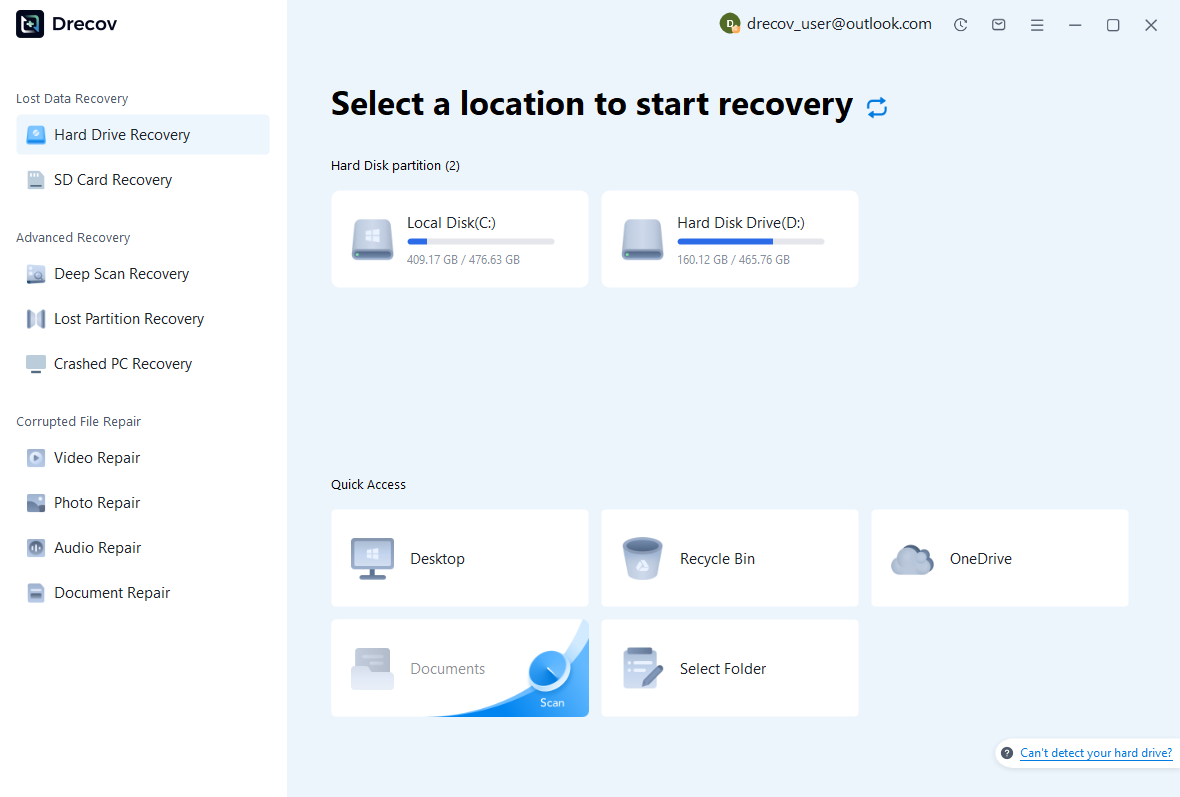
Step 1: select the mail storage source
Identify the disk that held the old profile or custom Local Directory. It may differ from the Thunderbird installation disk. Avoid installing recovery software or downloading fresh mail there while investigating deletion. If the source disconnects or repeatedly fails to read, stop repeated scans and assess its condition. A reliable storage read matters before any utility can supply useful mailbox candidates.
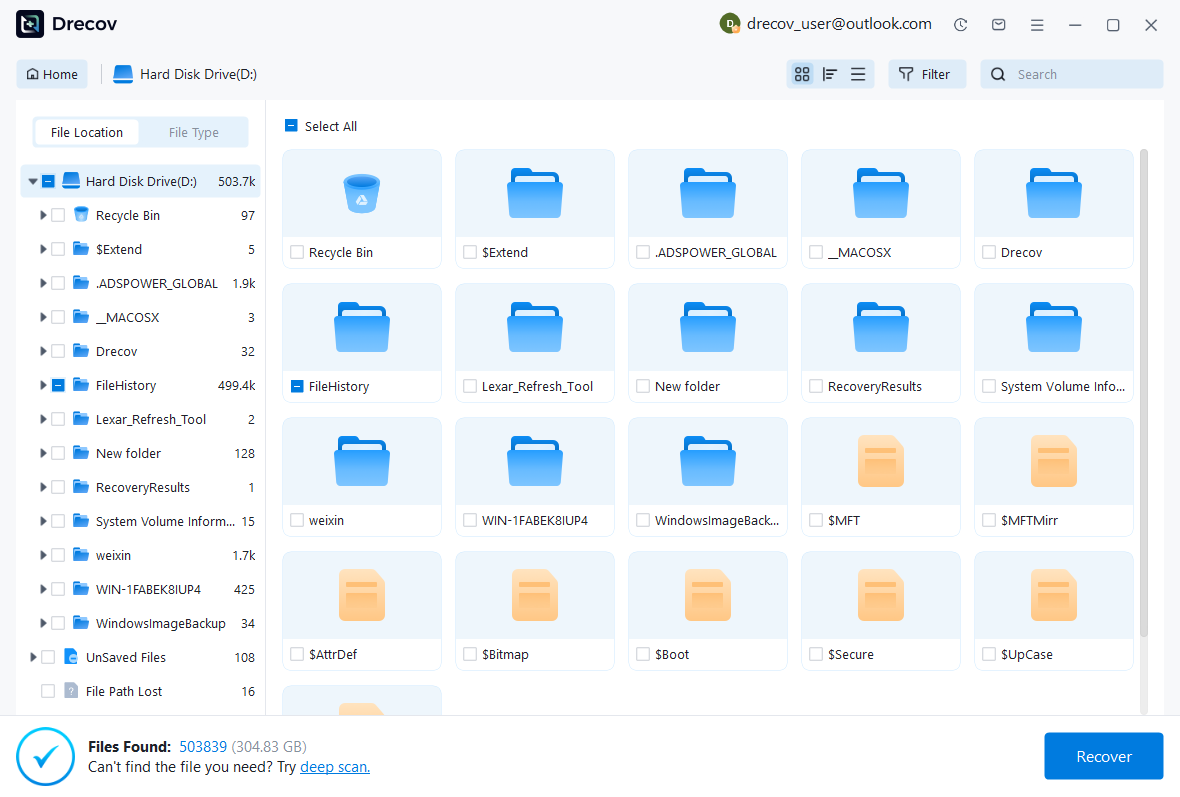
Step 2: compare plausible mail candidates
Use available path, date, name, and format filters. Preserve several plausible mailbox versions and relevant folder structure when possible. A large file may still contain incomplete data, while an earlier copy may provide a usable archive. Keep candidate origins documented. Also look for independent EML exports where they matter, because a small set of intact messages can complement a partly recovered mailbox.
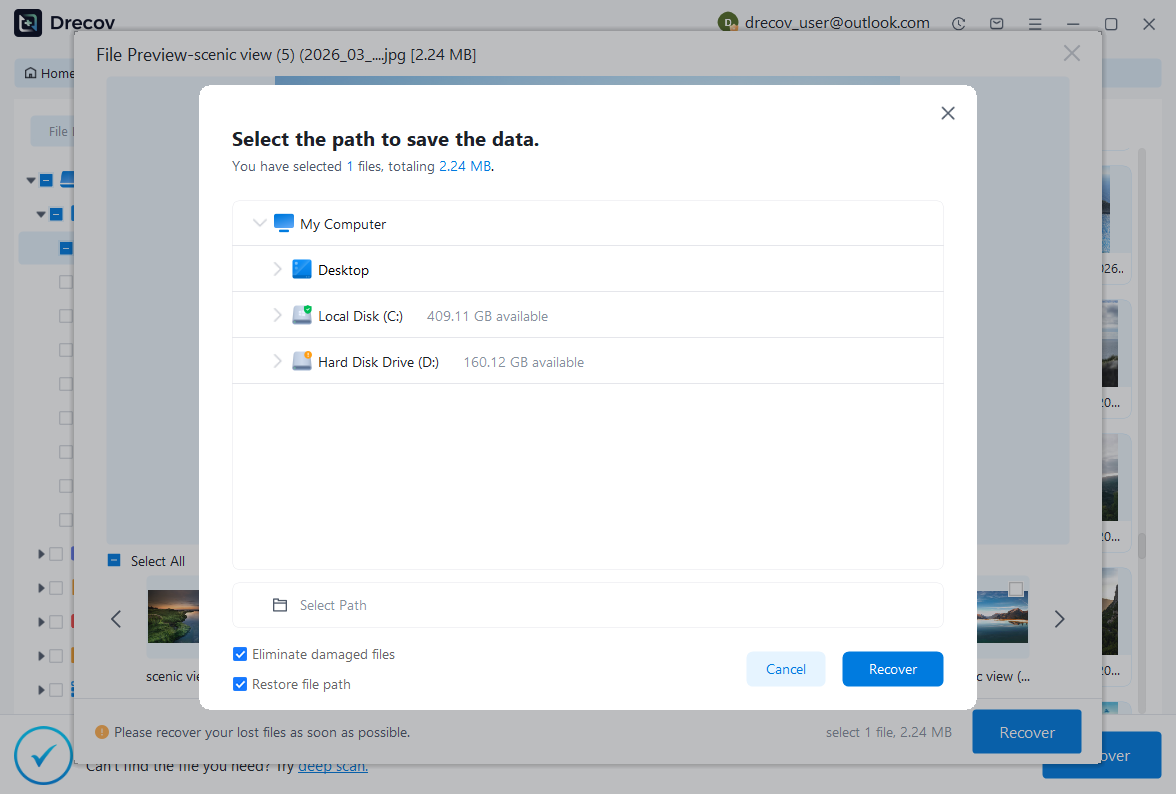
Step 3: recover elsewhere and inspect through Thunderbird
Save useful candidates to a different healthy physical disk. Review licensing and preview limitations before purchasing. Then test copies with the appropriate Thunderbird import workflow. A proprietary mailbox may not offer a complete preview, so acknowledge that uncertainty. Finally, inspect actual bodies and attachments across the missing period before accepting the archive. Storage retrieval supplies candidates; mail-level validation determines their practical value.
Prevent the next migration gap
Before retiring a computer, inventory server mail, POP storage, Local Folders, and custom paths separately. Preserve a complete closed-profile backup and test that a copy opens or imports correctly. Also keep important correspondence in a supported independent export where your workflow requires it. A screenshot of the folder pane is useful context, but it is not a backup of the messages behind those folder names.
After recovery, document which profile is now authoritative and where its actual mail storage resides. Keep meaningful archive checkpoints independently of the live account. Then test a representative restored message with an attachment. This protects both mailbox organization and content, giving a future incident several distinct recovery routes rather than relying on reinstalling Thunderbird and hoping the account login contains everything.
Related recovery resources
Explore the relevant recovery options: Email file recovery, Hard drive recovery.
For another recovery case and its practical checks, read the related recovery guide.
Check the vendor guidance for the installed version: official recovery documentation 1, official recovery documentation 2, official recovery documentation 3.





