







Cloud storage and collaboration tools have completely changed how people work, share files, and manage documents. Among Microsoft’s most popular productivity solutions, SharePoint and OneDrive are often confused with one another. Many users ask the same question: what is the difference between sharepoint and onedrive? At first glance, both platforms seem similar because they both allow users to store, sync, and share files online. However, their purposes, features, and ideal use cases are very different.
This guide explains the key differences between SharePoint and OneDrive, how they work together, when to use each one, and which platform fits your needs best. Furthermore, we will delve into critical data maintenance strategies, showing you exactly how to secure your digital assets and handle unexpected data loss scenarios across these environments.
What Is OneDrive?
Microsoft OneDrive is Microsoft’s cloud-based file storage service. It allows users to save files online, sync them across devices, and access documents from anywhere with an internet connection.
OneDrive works similarly to cloud storage services like:
- Google Drive
- Dropbox
- iCloud
Its main focus is personal file storage and individual productivity. Every Microsoft 365 user typically receives dedicated OneDrive storage linked directly to their account. Microsoft explains that OneDrive provides users with access to all their personal work or school files while maintaining synchronization across desktops, laptops, tablets, and smartphones.
Main Features of OneDrive
| Feature | Purpose |
| Cloud file storage | Store files online |
| Device synchronization | Access files anywhere |
| Personal document management | Organize private files |
| File sharing | Share with selected people |
| Offline access | Work without internet |
| Automatic backup | Protect important files |
OneDrive is best suited for personal documents, draft files, temporary work files, private projects, and individual productivity. You can think of OneDrive as your own digital backpack. You carry your files with you everywhere, but you remain the primary owner and manager of the content.
Microsoft SharePoint is a web-based collaboration and content management platform built for organizations and teams. Unlike OneDrive, SharePoint focuses heavily on team collaboration, document management, communication, and workflow automation.
Microsoft describes SharePoint as the content services platform powering collaboration across Microsoft 365 applications like Teams, Outlook, and Yammer. SharePoint is much more than simple cloud storage. It allows businesses to:
- Create intranet sites
- Manage company documents
- Build workflows
- Share knowledge
- Automate processes
- Control permissions organization-wide
| Feature | Purpose |
| Team collaboration | Shared workspace |
| Document libraries | Centralized file storage |
| Intranet creation | Internal company portals |
| Workflow automation | Process management |
| Advanced permissions | Controlled access |
| Version history | Document tracking |
SharePoint works like a digital office building. Different departments, teams, and projects all have shared spaces where employees collaborate and manage information together.
The simplest explanation is this: OneDrive is for individual work, while SharePoint is for team collaboration. Many IT professionals use the phrase: “OneDrive is for Me. SharePoint is for We.” This explanation appears frequently in IT communities and Reddit discussions because it perfectly summarizes the core difference between the two platforms when addressing what is the difference between sharepoint and onedrive.
| Feature | OneDrive | SharePoint |
| Main Purpose | Personal storage | Team collaboration |
| Ownership | Individual user | Organization/team |
| Best For | Private files | Shared documents |
| Collaboration | Limited sharing | Advanced collaboration |
| Website Creation | No | Yes |
| Workflow Automation | Basic | Advanced |
| Intranet Features | No | Yes |
| File Sync | Yes | Yes |
| Integration with Teams | Yes | Yes |
| Permission Management | Simple | Advanced |
One reason users get confused when analyzing what is the difference between sharepoint and onedrive is because SharePoint and OneDrive are deeply connected behind the scenes. Microsoft confirms that SharePoint actually powers many Microsoft 365 file services, including OneDrive and Teams file storage.
This means that files shared in Microsoft Teams are often stored in SharePoint, and personal files synced through OneDrive may use SharePoint infrastructure. Both platforms integrate seamlessly within Microsoft 365. Think of SharePoint as the engine underneath the hood, while OneDrive acts as the personal user interface for individual file storage.
Real-World Example
Imagine a marketing employee working on a presentation. The early drafts stay in OneDrive because the employee is working independently. Once the presentation matures, the final team-approved versions move to SharePoint, allowing all team members to collaborate through SharePoint libraries. This workflow keeps personal work separate from official company documents.
When to Use OneDrive
OneDrive works best when files belong primarily to one individual.
Ideal OneDrive Use Cases
- Personal Work Files: If you’re working alone on draft documents, notes, research, personal spreadsheets, or temporary projects, OneDrive is usually the better choice.
- Remote File Access: OneDrive automatically syncs files across devices. You can start editing a document on your office computer and continue on your laptop or smartphone later.
- Simple File Sharing: You can easily share files with coworkers or friends using links and permissions. Microsoft states that OneDrive offers a consistent file experience across mobile devices, desktops, and the web.
Advantages of OneDrive
- Easy to use
- Simple synchronization
- Great for individual productivity
- Excellent mobile support
- Fast file access
Limitations of OneDrive
- Limited collaboration structure
- Not ideal for company-wide management
- Files tied to individual accounts
- Less advanced governance controls
SharePoint becomes essential when teams need centralized collaboration and structured document management.
- Team Collaboration: SharePoint shines when multiple employees need access to shared files, workflows, and communication systems.
- Company Intranet: Businesses often build HR portals, employee dashboards, training centers, and company news pages using SharePoint.
- Document Control: SharePoint offers advanced version history, permission settings, approval workflows, and metadata management. This makes it ideal for large organizations managing sensitive documents.
- Advanced collaboration tools
- Enterprise-level security
- Workflow automation
- Centralized file management
- Integration with Microsoft Teams
- Steeper learning curve
- More complex administration
- Requires planning and governance
Some Reddit users explain SharePoint as “a web content management system for collaboration” rather than simple cloud storage, which highlights another layer of what is the difference between sharepoint and onedrive.
Businesses often use both services together rather than choosing only one.
Best Practice Strategy
| File Type | Recommended Platform |
| Personal drafts | OneDrive |
| Team documents | SharePoint |
| Company policies | SharePoint |
| Temporary files | OneDrive |
| Department resources | SharePoint |
This layered approach creates better organization and security. According to Microsoft, SharePoint supports broader content collaboration and business applications, while OneDrive focuses primarily on individual file experiences.
Security configuration is another major area where what is the difference between sharepoint and onedrive becomes apparent.
OneDrive Security
OneDrive provides robust file encryption, personal sharing permissions, basic recovery options, and account-level protection. It is designed to keep your personal workspace private and secure.
SharePoint includes enterprise permission controls, compliance management, data governance, advanced auditing, and information protection policies. Large organizations typically prefer SharePoint for regulated environments because it offers more advanced administrative controls.
Integration With Microsoft Teams
Many users don’t realize that Microsoft Teams relies heavily on SharePoint and OneDrive to manage its underlying assets.
How Teams Uses Both Platforms
- Personal chat file sharing: Stored in OneDrive
- Team channel files: Stored in SharePoint
Microsoft confirms that SharePoint powers collaborative file storage across Microsoft 365 applications. This integration creates a seamless collaboration experience across Teams, Outlook, Word, Excel, and PowerPoint.
Neither platform is universally “better.” The right choice depends entirely on your needs.
Choose OneDrive If:
- You need personal cloud storage
- You mostly work independently
- You want simple syncing
- You need quick personal access
- Your team collaborates heavily
- You need company-wide document management
- You require workflow automation
- You manage business processes
Most organizations benefit from using both together. Cloudwards recently summarized the difference by stating that OneDrive is designed for personal storage, while SharePoint is intended for structured collaboration and organizational document management.
Comprehensive Cloud Data Recovery Guide
Regardless of whether you use SharePoint or OneDrive, data loss can happen due to human error, accidental sync deletions, or system glitches. Understanding how to recover your files is crucial. We will now look at how to recover files using native tools and advanced software alternatives.
Native Cloud Recovery Options
Both platforms feature a two-stage Recycle Bin system. When you delete a file in OneDrive or SharePoint, it goes to the first-stage Recycle Bin. If deleted from there, it moves to the second-stage (Site Collection) Recycle Bin.
Method 1: Recovering Files from OneDrive Recycle Bin
- Step 1: Log in to your Microsoft 365 account and open OneDrive.
- Step 2: Click on Recycle bin in the left navigation menu.
- Step 3: Select the files or folders you wish to retrieve, and click Restore at the top of the page.
- Step 1: Navigate to your SharePoint site where the files were located.
- Step 2: Click on Recycle bin in the left-hand menu. If it’s not visible, click the gear icon for Site contents to find it.
- Step 3: Check the items you want to recover and hit the Restore button.
- Step 4: If the files are missing, scroll down to the bottom of the page and click on the Second-stage recycle bin link to check administrative backups.
Warning Prompt: Items in the Microsoft 365 Recycle Bin are typically retained for a maximum of 93 days. If files are permanently emptied from the second-stage Recycle Bin or if the retention period expires, native recovery becomes impossible without administrative backups.
Local Data Recovery Methods
When cloud files are synced locally to a Windows PC or Mac, they leave footprints on the hard drive. If local synchronization files are modified or accidentally deleted outside the cloud retention period, you can attempt recovery using native desktop features or dedicated data recovery software.
Method 3: Restoring via Windows File History
If you had File History enabled on your local machine prior to data loss, you can reverse local folder modifications.
- Step 1: Press the Windows Key + E to open File Explorer.
- Step 2: Navigate to your local OneDrive or SharePoint synced folder path (usually located under
C:\Users\[YourUsername]\OneDriveorC:\Users\[YourUsername]\[OrganizationName]). - Step 3: Right-click the folder and select Properties, then switch to the Previous Versions tab.
- Step 4: Review the available timestamps, choose the desired version, and click Restore.
Method 4: Advanced Recovery via PandaOffice Drecov Data Recovery Software
When files are missing from the cloud Recycle Bin and local backups are unavailable, specialized data recovery software offers the best chance of survival. Local sync logs, cache files, and deleted hard drive clusters can be reconstructed. In this section, we will explore the PandaOffice Drecov data recovery software as a premier professional solution for retrieving lost local cloud directory components.
⚠ Warning: Never download or install the utility onto the exact same drive partition where the deleted cloud sync folder was located. Doing so can overwrite the sectors containing the deleted files, making them permanently unrecoverable.
The PandaOffice Drecov data recovery software operates by executing deep sector-level scans across local storage media, tracking file remnants even after directories have been wiped or uninstalled. Follow these precise execution steps to recover local data blocks:
- Step 1: Select the Synced Target Location. Launch the interface. On the main dashboard, map out your local storage architecture. Under the drive selection pane, choose the local partition (typically
C:drive) where your OneDrive or SharePoint synchronization cache resided. Alternatively, you can click Select Folder and explicitly input the directory path.

- Step 2: Execute the Deep Scanning Algorithm. Click the Scan button. The utility will automatically initiate a quick scan followed by a thorough deep scan. You can monitor the real-time tracking panel, which categorizes found elements by file type (e.g.,
.docx,.xlsx,.pdf).

- Step 3: Filter and Preview Recoverable Documents. Once the scan completes, utilize the search and filter functions within the tool to narrow down results. If you are searching for missing spreadsheets or presentations, type the extension or file name directly into the search bar. Use the built-in Preview tool to verify that the text or image content within the file is intact before proceeding.
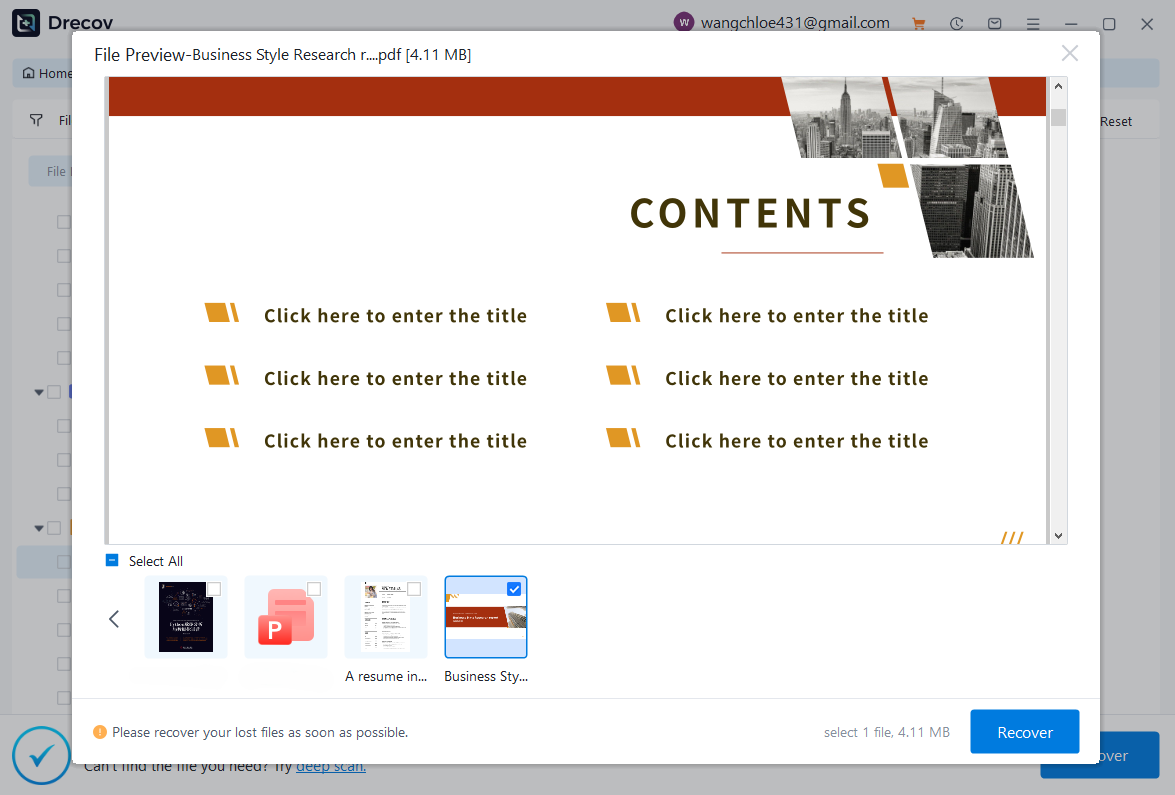
- Step 4: Export to a Secure Directory. Select the checkboxes next to the files you wish to reclaim. Click the Recover button. A system prompt will appear asking you to specify a storage destination. Select an external hard drive, a secondary network volume, or a separate partition to safely extract your files.
Internal Reference Directory
After managing critical file assets or reconfiguring system endpoints, you may need to resolve other common system or application configurations. Review our structural technical documentation below for quick guidance:
- To restore web credentials or configurations after a browser reset, read our guide on how to get your Google Chrome bookmarks back.
- For users migrating Mozilla profiles, check our resource detailing where Firefox bookmarks are stored on your PC.
- To locate lost web paths within the default application directories, refer to where is the Firefox bookmarks location to find your data instantly.
Conclusion
Understanding the difference between SharePoint and OneDrive is essential for optimizing Microsoft 365 workflows. OneDrive serves as your personal digital locker for individual drafts, while SharePoint provides a centralized, collaborative powerhouse for team-wide document management.
However, cloud sync mismatches, accidental deletions, or expired retention windows can still cause unexpected data loss on both platforms. When native recycle bins fall short, deploying specialized local solutions like PandaOffice Drecov data recovery software becomes critical. By performing deep cluster scans on your local synced storage, this tool ensures your files remain fully retrievable even after being permanently wiped from the cloud. Ultimately, combining a strategic platform structure with robust recovery software offers the best data protection for individuals and modern businesses alike.






