







Cloud storage has become an essential part of modern computing, yet many users find themselves staring at their taskbars wondering exactly what is microsoft onedrive and why it keeps syncing their files. Microsoft OneDrive is integrated deeply into Windows, acting as a bridge between your local computer and the cloud. However, this synchronization can sometimes lead to accidental deletions, syncing errors, or misplaced data. If you have ever lost an important document due to a cloud sync mishap, you know how frustrating it can be. Fortunately, professional data recovery solutions like PandaOffice Drecov data recovery software exist to help you rescue lost files when native cloud recycle bins fail.
Understanding the Basics of What is Microsoft OneDrive
To put it simply, what is microsoft onedrive is Microsoft’s proprietary cloud storage service that comes pre-installed on modern Windows operating systems. It allows you to save files, photos, and documents online so you can access them from any device.
Common Issues and Challenges with OneDrive
While convenient, OneDrive introduces unique data management hurdles. Users frequently experience accidental file deletion, where deleting a file on one device removes it from the cloud and all other connected links. In addition, sync conflicts can overwrite newer file versions with older ones. Furthermore, storage quota limits can block file updates, leaving local data vulnerable if a system crash occurs.
How to Use OneDrive and Manage What is OneDrive on My Computer
What is OneDrive on My Computer?
When you log into Windows, OneDrive creates a specialized folder on your hard drive. This folder looks like a standard directory, but it functions as a portal. Files dropped here automatically upload to Microsoft servers. This answers the common question regarding what is onedrive on my computer—it is a local cache that mirrors your cloud storage space.
Essential Methods for Cloud Sync and Local Management
Understanding how to use onedrive effectively requires mastering its file status states. OneDrive utilizes three distinct status icons in File Explorer:
- Cloud Icon: Indicates the file is online-only, saving local disk space.
- Green Checkmark: Indicates the file is stored locally and will be available offline.
- Solid Green Circle: Indicates a file is marked as “Always keep on this device.”
To optimize your storage, right-click the OneDrive icon in the system tray, navigate to Settings, and manage your backup folders. However, if synchronization fails or files disappear entirely during a sync cycle, you must shift your focus toward onedrive files recovery.
OneDrive Files Recovery Solutions
When files vanish from your synced folders, you need reliable recovery methods. Below are the two most effective strategies to retrieve your data.
Method 1: Utilizing the Native OneDrive Recycle Bin
Before attempting advanced technical fixes, check the cloud-based repository. Microsoft retains deleted items for a limited duration before permanent erasure.
- Navigate to the official Microsoft OneDrive login page using your web browser.
- Sign in with your registered Microsoft account credentials.
- Click on the Recycle Bin option located in the left navigation menu.
- Select the checkboxes next to the items you wish to retrieve.
- Click the Restore button at the top of the interface to return the items to their original folders.
Method 2: Advanced Recovery via PandaOffice Drecov Data Recovery Software
If you emptied the cloud recycle bin, or if local files were corrupted during a sync conflict, native tools will not suffice. This is where PandaOffice Drecov data recovery software becomes indispensable.
PandaOffice Drecov is a professional-grade data retrieval utility designed to scan deep storage sectors. It bypasses operating system restrictions to piece together deleted fragments from your hard drive. It supports various file systems including NTFS, FAT32, and exFAT, making it ideal for standard drives, external media, or specialized browser data issues. For instance, if you encounter unrelated browser issues, you can learn how to get your Google Chrome bookmarks back using similar deep-scan logic.
⚠ Warning: Install it on a drive different from the one where your data was lost to prevent overwriting.
Step-by-Step Recovery Guide with Drecov
Follow these precise steps to recover your lost OneDrive data from your local drive storage.
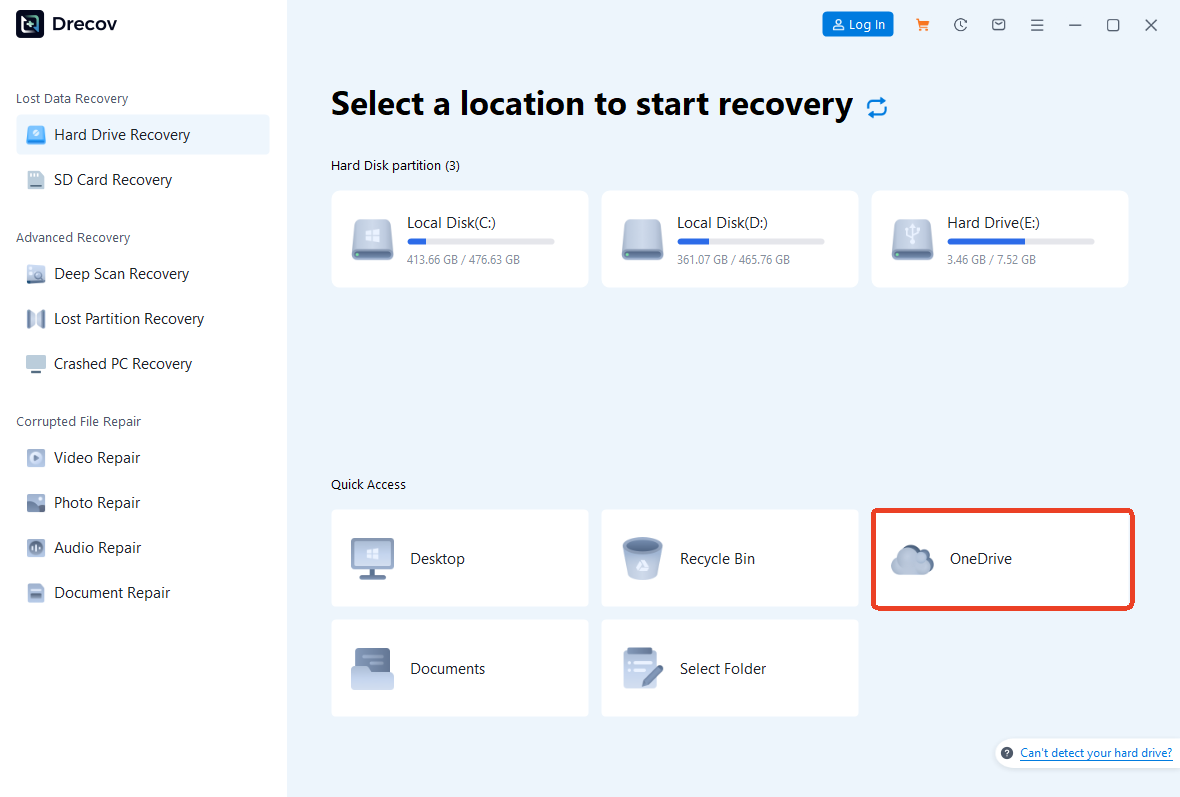
Step 1: Target the OneDrive Storage Directory
Select the specific drive where your local OneDrive cache resides. On most Windows systems, this is the C drive. Alternatively, navigate directly to the user path structure.
Step 2: Execute the Deep Scan Mode
Click the Scan button to initiate the data extraction process. The software will run a quick scan followed automatically by a sector-by-sector deep scan.

Step 3: Filter and Restore Your Files
Browse the scan results using the file type preview panel. Locate your lost OneDrive documents or media files. Mark the checkboxes next to your missing files, click Recover, and select a safe external storage destination to complete the process.
Alternative or Complementary Methods
If you prefer to try alternative system configurations before deploying third-party solutions, you can utilize built-in Windows administrative features.
System Restore and Manual Cache Rebuilds
Windows maintains shadow copies of files through System Restore points. You can attempt to roll back your local folder state to an earlier point in time.
| Method | Pros | Cons |
| Windows Shadow Copies | Free, built-in tool, no downloads required | Depends on pre-existing restore points, often fails if drive space is low |
| OneDrive Version History | Easy web interface, tracks changes over 30 days | Only works if the file was successfully uploaded to the cloud before deletion |
| PandaOffice Drecov Data Recovery Software | Recovers permanently deleted data, works offline, deep sector scanning | Requires software installation, needs available drive space for recovery |
Managing System Startup Resource Conflicts
Sometimes background software conflicts block OneDrive from syncing properly, leading users to believe data is lost. If your computer experiences slow boot times or sync stutles, you might need to manage your startup applications. For example, learning how to stop Steam from opening on startup can free up system resources, allowing OneDrive services to sync correctly without crashing.
Tips & Best Practices for Data Integrity
Maximizing your data recovery success requires a careful approach to system management. Missteps can turn temporary data loss into permanent file destruction.
- Stop Writing New Data Immediately: When you realize files are missing from what is onedrive on my computer, cease all downloading, web browsing, and file creation. New activities write data to the drive, which can overwrite the sectors containing your deleted files.
- Recover to an External Drive: Always export recovered files to an external flash drive or secondary hard disk. If you are dealing with external media, you can refer to a guide on how to recover deleted files from USB flash drive safely.
- Disable Unstable Sync Settings: If you notice files disappearing frequently, pause OneDrive syncing temporarily via the taskbar menu, then check your cloud account settings on the official Microsoft OneDrive Support Documentation web portal to verify your configuration.
Frequently Asked Questions
What is Microsoft OneDrive and do I really need it?
Microsoft OneDrive is a built-in cloud service that saves your files to secure online servers. You do not strictly need it to run Windows, but it offers excellent backup advantages and seamless remote access across multiple devices.
How to use OneDrive to prevent data loss?
You should enable the PC folder backup feature within the account settings menu. This ensures your Desktop, Documents, and Pictures folders mirror directly to the cloud in real time.
What is OneDrive on my computer doing when it uses high CPU?
OneDrive is likely indexing large file changes or resolving a file version conflict. If it gets stuck indefinitely, resetting the application via the command prompt will usually resolve the high resource usage.
How does OneDrive files recovery work if the online bin is empty?
When the online bin is empty, the data might still exist on your local hard drive sectors. Using PandaOffice Drecov data recovery software allows you to scan those sectors and rebuild the missing files before the operating system repurposes that storage space.
Is PandaOffice Drecov data recovery software safe for cloud folders?
Yes, it operates in a read-only mode on your storage media. It safely extracts file remnants without altering your existing OneDrive cloud configuration or modifying current system files.
Conclusion
Understanding what is microsoft onedrive and mastering how to use onedrive can significantly improve your digital workflow. However, cloud synchronization is never entirely foolproof. When sync errors or accidental deletions bypass standard safety nets, implementing a reliable onedrive files recovery plan is vital.
Using PandaOffice Drecov data recovery software gives you a powerful tool to handle severe data loss situations. Do not wait for a critical system failure to think about data security. Combine the cloud capabilities of OneDrive with local backup strategies, and keep a dedicated recovery tool ready to protect your digital life.






