







If Firefox keeps crashing, it can be frustrating—especially if it happens at startup or while browsing important data. You are not alone; browser instability is a common hurdle for many users. Whether you are dealing with a sudden “tab crash” or the entire application vanishing, this complete troubleshooting guide will help you fix the issue step by step. This guide applies to Mozilla Firefox on both Windows and macOS systems.
Why Does Firefox Keep Crashing?
Before we dive into the solutions, it is essential to understand the “why” behind the instability. Technical conflicts often trigger these interruptions. Generally, Firefox keeps crashing due to:
- Corrupted profile files: Your user data becomes unreadable.
- Faulty extensions: Third-party add-ons conflicting with the core engine.
- Outdated browser version: Missing critical stability patches.
- Hardware acceleration conflicts: Issues between the browser and your GPU.
- Graphics driver problems: Incompatible display software.
- Antivirus interference: Security software over-blocking browser processes.
- Damaged system files: OS-level corruption affecting application execution.
Let’s fix it methodically to restore your browsing experience.
Restart Your Computer First
Before attempting advanced technical configurations, perform a cold restart.
- Close Firefox completely (ensure the process is killed in Task Manager via
Ctrl + Shift + Esc). - Restart your computer to clear the RAM.
- Open Firefox again.Temporary memory leaks or background process hangs often cause intermittent crashes. If the problem persists, move to the next step.
Start Firefox in Troubleshoot Mode (Safe Mode)
If Firefox keeps crashing upon opening, Troubleshoot Mode is your best diagnostic tool. This mode temporarily disables extensions, themes, and hardware acceleration.
- On Windows or Mac: Hold the
Shiftkey (Windows) orOptionkey (Mac) while clicking the Firefox icon. - Alternative (Windows): Press
Windows + R, typefirefox -safe-mode, and press Enter. - In the dialog box, click Open.
If Firefox works perfectly in this mode, the culprit is likely an extension or a graphics setting.
Disable Problematic Extensions
If the browser is stable in Safe Mode, you must identify the rogue add-on.
- Open Firefox normally.
- In the address bar, type
about:addonsand press Enter. - Disable all extensions.
- Restart Firefox and re-enable them one by one.The specific extension that triggers the crash should be removed permanently. You can find alternatives on the Firefox Add-ons Gallery.
Ensure You Are Running the Latest Version
Outdated software is a security risk and a leading cause of instability.
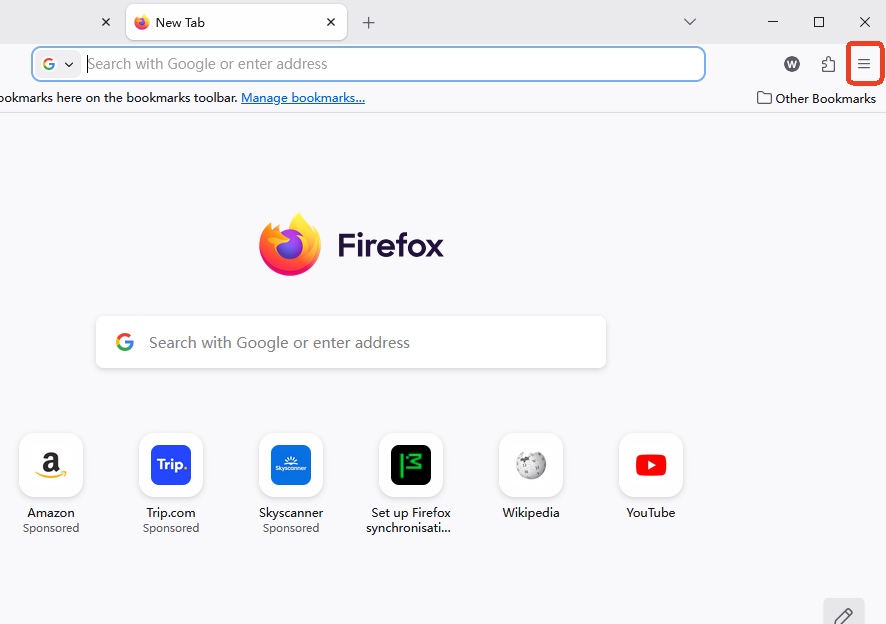
- Click the Menu button.
- Go to Help → About Firefox.
- Firefox will automatically check for updates and download them.Using the latest version of Mozilla Firefox ensures you have the most recent bug fixes and engine optimizations.
Disable Hardware Acceleration
Hardware acceleration offloads text and image rendering to your GPU. However, if your drivers are incompatible, Firefox keeps crashing during media playback.
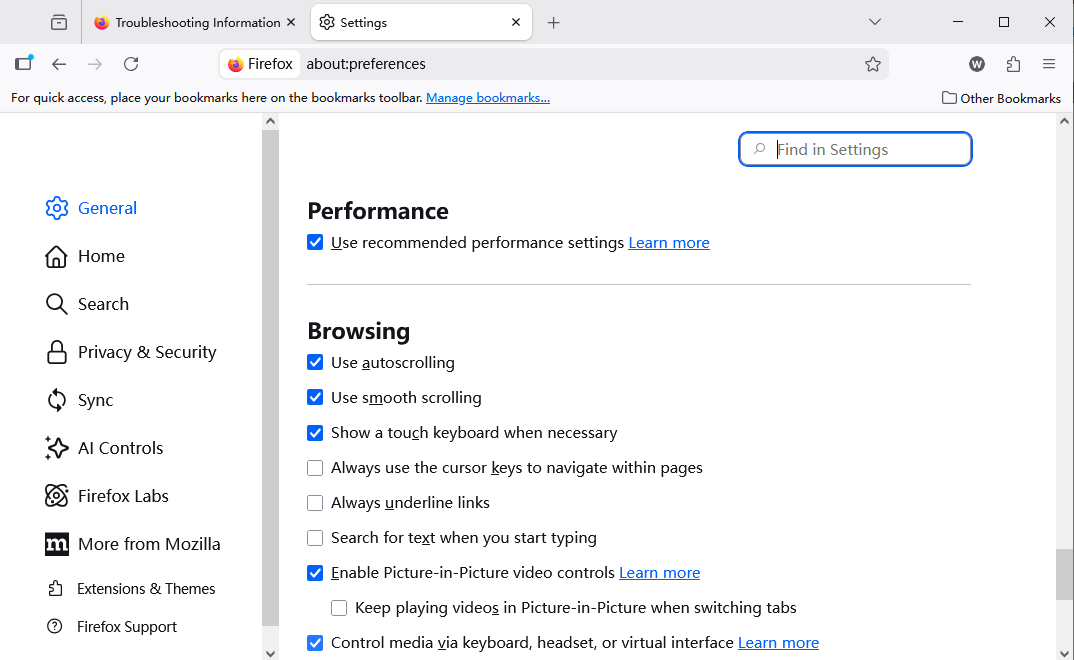
- Type
about:preferencesin the address bar. - In the General panel, scroll down to Performance.
- Uncheck “Use recommended performance settings”.
- Uncheck “Use hardware acceleration when available”.
- Restart Firefox.
Create a New Firefox Profile
A corrupted profile is a “hidden” reason why Firefox keeps crashing. Creating a fresh profile resets the browser without deleting your old data immediately.
- Press
Windows + R, typefirefox.exe -P, and press Enter. - Click Create Profile and follow the wizard.
- Launch Firefox with the new profile.
Data Recovery: Using PandaOffice Drecov for Lost Profile Data
If you accidentally delete your original profile or find that your bookmarks and passwords disappeared during a crash, PandaOffice Drecov is the professional choice for data restoration. This tool is specifically optimized to retrieve .sqlite and json files used by Firefox.
Follow these steps to recover your Firefox data:
- Step 1: Select Search Path: Launch PandaOffice Drecov. Select the drive where your OS is installed (usually
C:). Navigate to the path:C:\Users\[YourName]\AppData\Roaming\Mozilla\Firefox\Profiles\.

- Step 2: Deep Scan for Database Files: Click “Scan”. The software will identify deleted or corrupted files. Look specifically for
places.sqlite(bookmarks) andkey4.db(passwords).

- Step 3: Preview and Filter: Use the filter tool to sort by “Date Modified.” PandaOffice Drecov allows you to see the file size to ensure you are recovering the correct profile version.

- Step 4: Restore to Safe Location: Click “Recover”. For more detailed strategies on this process, you can explore proven methods to retrieve lost bookmarks.
Do not save the files back into the original Mozilla folder immediately; save them to your desktop first to prevent overwriting.
Once recovered, you can manually drop these files into your new Firefox profile folder to restore your digital life. You can learn more about file structures at the Mozilla Support Page.
Clear Firefox Cache and Junk
Corrupt cached web content can cause “Access Violation” errors.
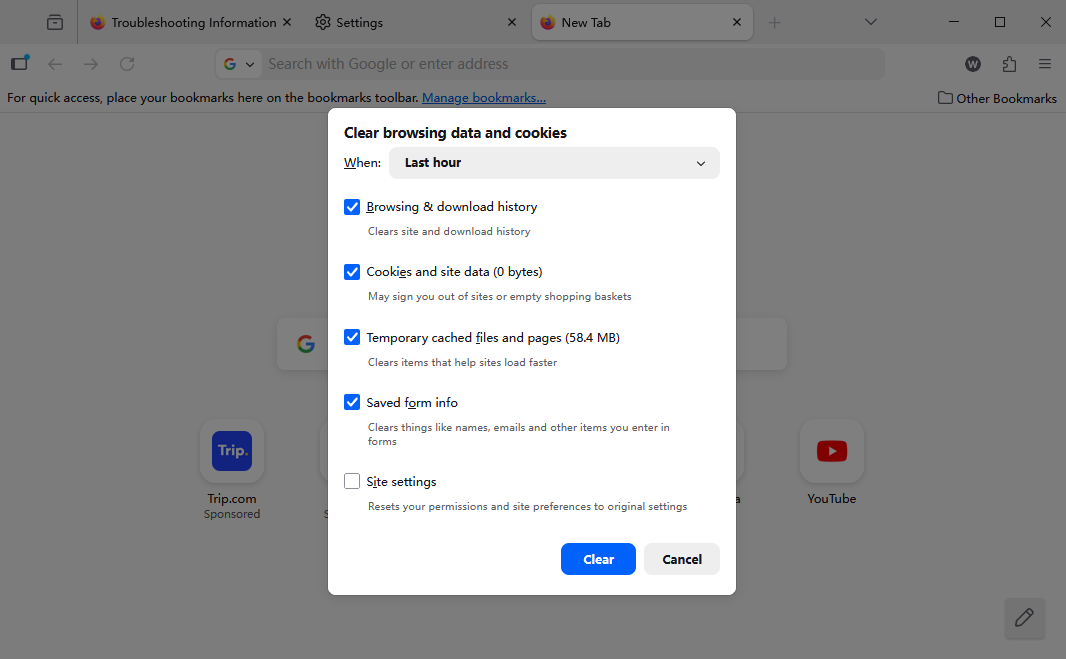
- Press
Ctrl + Shift + Delete. - Set the time range to “Everything”.
- Select “Cache” and “Cookies”.
- Click Clear Now.
Update Graphics Drivers (Windows)
Since Firefox relies heavily on the GPU for rendering, outdated drivers are a common bottleneck.
- Press
Windows + Xand select Device Manager. - Expand Display adapters.
- Right-click your GPU (Intel, NVIDIA, or AMD) and select Update driver.
- Choose Search automatically for drivers.
Reinstall Firefox Completely (Clean Reinstall)
If all else fails and Firefox keeps crashing, a “clean reinstall” is required. This involves removing the program and its leftover system folders.
- Press
Windows + R, typeappwiz.cpl, and uninstall Mozilla Firefox. - Manually delete these folders:
C:\Program Files\Mozilla Firefox\%APPDATA%\Mozilla\%LOCALAPPDATA%\Mozilla\
- Restart your computer.
- Download a fresh installer from the official Mozilla website.
Advanced Troubleshooting (Registry & Accessibility)
For technical users, the Windows Registry or Accessibility services might be the root cause.
- Disable Accessibility Services: Type
about:configin the address bar. Search foraccessibility.force_disabled. Double-click to set the value to1. This prevents external software from injecting code into Firefox processes. - Registry Check: Ensure no orphaned keys exist in
HKEY_CURRENT_USER\Software\Mozilla. (Always back up your registry before making changes).
Proactive Measures to Prevent Future Crashes
To ensure your browser remains smooth and stable in the future, it is highly recommended to perform these maintenance tasks regularly:
- Monitor the Browser Task Manager: Press the Shift + Esc shortcut to open the built-in Firefox Task Manager. This allows you to monitor memory usage per tab in real-time. Closing tabs that cause CPU spikes can prevent a full browser collapse.
- Keep Your Operating System Current: Browser stability relies heavily on underlying system components. Ensure your Windows or macOS is up to date to receive the latest security patches and system-level fixes.
- Limit Active Extensions: Even dormant extensions can consume resources or create conflicts. Every few months, review your
about:addonslist and remove any third-party tools you no longer use. - Optimize Your Disk Health: Use the Windows Defragmenter or macOS Disk Utility to check your drive. If your system storage is nearly full (less than 10% remaining), Firefox may fail to write temporary files, causing Firefox keeps crashing errors.
- Periodic “Refresh” Feature: If you notice the browser becoming sluggish, use the “Refresh Firefox” feature located in
about:support. This resets the browser to its default state and removes extensions while preserving your vital bookmarks and passwords.
Firefox Tabs Keep Crashing FAQs
1. Why does Firefox crash only on specific websites?
This is usually a JavaScript or hardware acceleration issue. Try disabling “WebRender” in about:config or clearing the cache for that specific site.
2. Can PandaOffice Drecov recover my open tabs?
Yes. If you recover the sessionstore.jsonlz4 file using PandaOffice Drecov, you can restore your previous session even after a catastrophic crash.
3. Does my antivirus cause Firefox to crash?
Sometimes. Security suites like Bitdefender or Norton may use “SSL Scanning” which can conflict with Firefox’s certificate handling. Try adding Firefox to the exclusion list.
Conclusion
If Firefox keeps crashing, the issue is usually caused by corrupted profiles, faulty extensions, outdated drivers, or hardware acceleration conflicts. By following the steps above methodically—from Safe Mode diagnostics to a clean reinstall—you can identify and fix the root cause.
In most cases, creating a new Firefox profile or disabling hardware acceleration resolves the problem quickly. Don’t forget that if data loss occurs during these crashes, a tool like PandaOffice Drecov is essential for bringing back your bookmarks and history. Keep your browser updated and your drivers current to ensure a smooth, crash-free browsing experience in 2026.






