







Imagine this: You are preparing for a major career transition. For months, you have been saving every job listing, industry blog, and portfolio template you encountered. Your Chrome bookmark bar, once a neat row of essentials, has transformed into a cluttered jungle of “Dead Links” and outdated resources. One morning, you click a saved link only to find the page no longer exists. You realize your digital workspace is a mess, slowing down your browser and your productivity. This is the moment you need to know how to remove bookmarks from google chrome efficiently to reclaim your digital focus.
Whether you are tidying up after a big project or trying to fix a synchronization error that duplicated your folders, managing your browser data is a fundamental digital literacy skill. In this comprehensive guide, we will explore the mechanics of Chrome’s storage system and provide a step-by-step roadmap to cleaning your workspace.
Understanding Your Digital Breadcrumbs: How Chrome Stores Data
Before we dive into the “how-to,” let’s look at the “what” and “why.” Chrome bookmarks are essentially small pieces of metadata. When you click that star icon, Chrome doesn’t save the actual webpage; it saves a pointer—a URL combined with a title and a timestamp.
The Function of Chrome Bookmarks
Think of bookmarks as the index of a massive library. Instead of wandering through the stacks (the vast internet) every time you need a specific book, you keep a personalized index card on your desk. This system allows for:
- Instant Access: Bypassing search engines to reach frequent destinations.
- Organization: Categorizing complex research into folders.
- Syncing: Accessing the same “library index” across your phone, tablet, and laptop.
However, libraries can become overcrowded. Users often find themselves facing “link rot”—where bookmarks point to 404 errors—or simply data fatigue. When the index becomes larger than the library itself, it’s time for a purge.
From Organization to Data Loss: The Recovery Principle
A common fear when learning how to remove bookmarks from google chrome is the “oops” moment—accidentally deleting a crucial folder. To understand how to manage this, you must understand the principle of data recovery.
When you delete a bookmark, Chrome doesn’t immediately “shred” the data. Instead, it marks that specific space in its Bookmarks file as “available.” It’s like erasing a pencil mark on a map; the paper is still there, but the path is hidden. As long as you don’t write new data over that spot, the “ghost” of that bookmark remains. This is the same logic used in recovering files from an emptied recycle bin, where the system waits for new information to overwrite the old.
Comprehensive Methods: How to Remove Bookmarks from Google Chrome
There isn’t just one way to clean your browser. Depending on whether you want to remove a single link or perform a mass exodus of data, you can choose from the following methods, ranked from the simplest built-in tools to advanced recovery and management software.
Method 1: The Quick-Action Right-Click (Best for Single Links)
If you only have one or two pesky links cluttering your bar, the most direct approach is the context menu.
- Step 1: Open your Google Chrome browser.
- Step 2: Locate the bookmark you wish to delete on the Bookmark Bar (just below the address bar). If you don’t see it, press
Ctrl+Shift+B(Windows) orCmd+Shift+B(Mac). - Step 3: Right-click on the specific bookmark.
- Step 4: Select Delete from the dropdown menu.
Warning: This action is immediate. Chrome does not ask “Are you sure?” when you delete a single item from the bar.
Method 2: Professional Management with PandaOffice Drecov
Sometimes, manual deletion isn’t enough—especially if you’ve accidentally deleted the wrong thing or are dealing with corrupted browser profiles. For users who want a professional-grade safety net, PandaOffice Drecov is the premier tool for data integrity.
While its primary fame comes from deep system scans, it is exceptionally useful when you need to recover bookmarks that were removed prematurely or lost during a browser crash.
- Step 1: Launch the application and select the drive where your Chrome profile is stored (usually the C: Drive).

- Step 2: Use the “Deep Scan” feature. This tool looks for those “ghost” files mentioned earlier—specifically the
Bookmarks.bakfile that Chrome creates as a hidden backup.

- Step 3: Preview the found files. Drecov allows you to see the HTML structure of your old bookmarks.

- Step 4: Select the desired files and click Recover. You can then re-import this file into Chrome to restore your balance.
Using a dedicated tool provides peace of mind that learning how to remove bookmarks from google chrome won’t lead to permanent data loss.If you are also using other browsers, you might find similar management techniques useful, such as expert methods for Firefox bookmark recovery.
Method 3: The Bookmark Manager (Best for Bulk Deletion)
If you need to delete dozens of links at once, the Bookmark Manager is your command center.
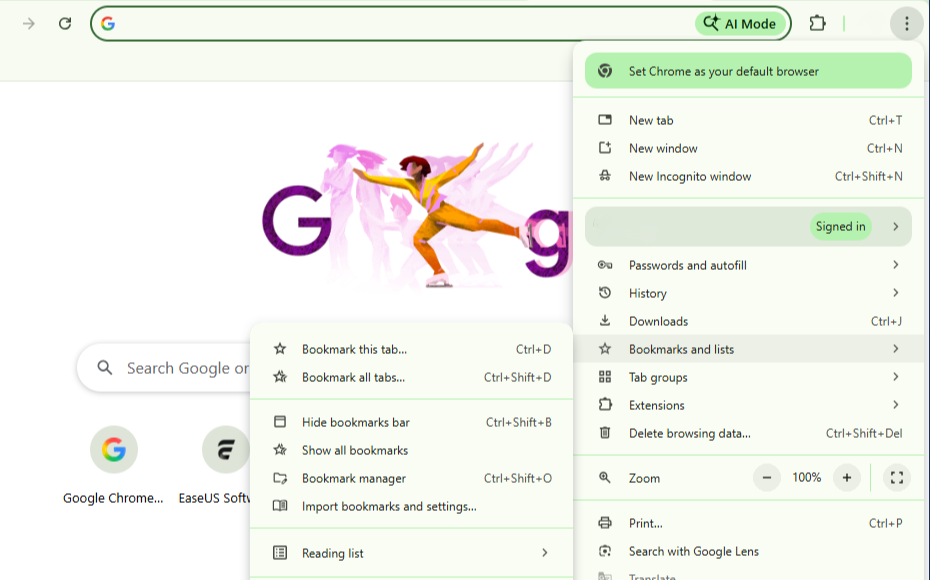
- Step 1: Click the three vertical dots in the top-right corner of Chrome.
- Step 2: Hover over Bookmarks and Lists and select Bookmark Manager. (Shortcut:
Ctrl+Shift+O).
- Step 3: To delete multiple items, hold down the
Ctrlkey (Windows) orCmdkey (Mac) and click each bookmark you want to remove. - Step 4: Once selected, click the Delete button at the top right of the page.
- Step 5: If you want to delete an entire folder, right-click the folder name in the left-hand sidebar and select Delete.
Method 4: Clearing “Mobile Bookmarks” and Synced Data
Many users forget that Chrome syncs across devices. If you delete a bookmark on your PC but it stays on your phone, it might reappear later due to a sync conflict.
- Step 1: In the Bookmark Manager, look for the folder labeled Mobile Bookmarks.
- Step 2: Audit these links; often, mobile browsing leads to a lot of “junk” saves.
- Step 3: To ensure they stay gone, check your Google Sync settings. Go to
Settings > You and Google > Sync and Google Services.
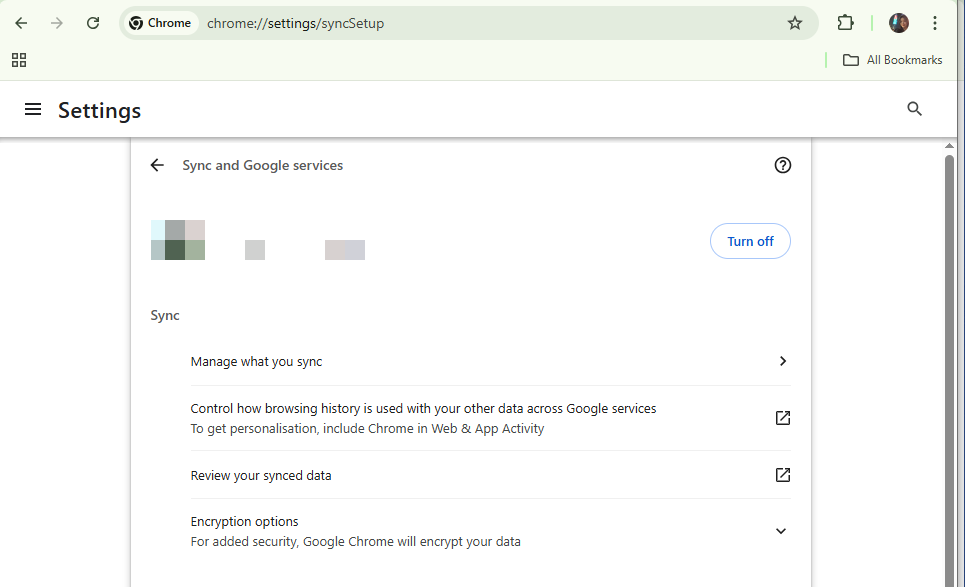
- Step 4: Ensure “Bookmarks” is toggled on so that deletions propagate to all your devices instantly.
Method 5: Resetting Chrome to Default (The “Nuclear” Option)
If your browser is plagued by malware or “junk” extensions that keep adding unwanted bookmarks, a full reset might be necessary.
- Step 1: Go to Chrome Settings.
- Step 2: Click on Reset settings in the left sidebar.
- Step 3: Select Restore settings to their original defaults.
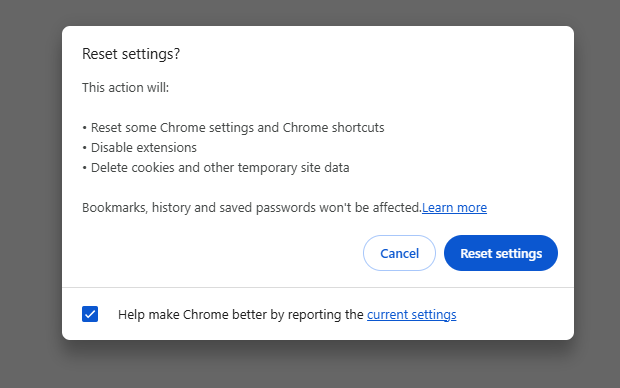
- Step 4: Confirm by clicking Reset settings.
Note: This will disable all extensions and clear temporary data like cookies, but it is the most effective way to “clean house” if your bookmarks are being manipulated by external software.
Proactive Habits: Preventing Bookmark Overload and Data Loss
Learning how to remove bookmarks from google chrome is only half the battle. The other half is ensuring you never have to do a massive cleanup again. Here are a few expert tips:
- The “One-In, One-Out” Rule: Every time you add a new bookmark to your bar, try to delete an old one that you haven’t clicked in a month.
- Use Descriptive Folders: Instead of a long list, use folders like “Finance,” “Travel 2026,” or “Work Projects.”
- Manual Backups: Periodically export your bookmarks as an HTML file. In the Bookmark Manager, click the three dots at the top right and select Export bookmarks. Store this file in a cloud service—but be careful if you are trying to remove OneDrive personal from your PC; ensure you have a local copy too.
- Official Support: For specific technical glitches regarding your Google Account sync, always refer to the Official Google Chrome Help Center.
Delete Search History On Google Chrome FAQs
Q1: Does deleting a bookmark also delete the history of that website?
No. Bookmarks and History are two separate databases. Deleting a bookmark removes the shortcut, but the record of your visit remains in your “History” (Ctrl+H) until you clear your browsing data.
Q2: Why do my deleted bookmarks keep coming back?
This is usually a Sync Conflict. If you have Chrome open on another device (like an iPad or an old laptop) that hasn’t synced the deletion yet, it might “re-upload” the bookmarks to the cloud. To fix this, log out and back into your Google account on all devices.
Q3: Can I recover a bookmark I deleted 5 minutes ago without software?
Yes! If you are still in the Bookmark Manager and you just deleted something, immediately press Ctrl+Z (Windows) or Cmd+Z (Mac). This acts as an “Undo” command for your last action.
Q4: Is there a limit to how many bookmarks I can have?
While there isn’t a hard “number,” having thousands of bookmarks can significantly slow down the Chrome UI and increase the size of your local profile folder, potentially leading to performance lag.
Conclusion
Mastering how to remove bookmarks from google chrome is more than just a technical chore; it is about maintaining your digital environment. By using the right-click method for quick fixes, the Bookmark Manager for bulk cleaning, and tools like PandaOffice Drecov for safety, you ensure your browser remains a tool for productivity rather than a source of clutter.
Remember to periodically export your data and keep your sync settings in check. A streamlined bookmark bar saves you seconds every hour—and in the digital age, those seconds add up to a much more focused and enjoyable browsing experience.






