







You just hit “Empty Recycle Bin,” and a second later, your stomach drops. That folder you thought was a duplicate was actually your quarterly report or a year’s worth of travel memories. It feels like a permanent loss, leaving you searching for a way to recover file from emptied recycle bin locations immediately. However, in the world of data forensics, “deleted” rarely means “gone.” If you act quickly, you can successfully recover file from emptied recycle bin sectors before they are overwritten by new system data.
If you need to recover file from emptied recycle bin storage, you are in the right place. Whether you are a tech enthusiast or a total beginner, these three proven methods will help you reverse that “permanent” deletion and get your digital life back on track.
1. The Core Principle: Why Recovery is Possible
When Windows empties the bin, it doesn’t “shred” your data. Instead, it deletes the index pointer and marks the space as Unallocated. Your file is essentially a ghost—it exists on the drive, but the system is allowed to write over it at any time. To successfully recover file from emptied recycle bin contents, you must act before new data takes that spot.
2. Three Proven Methods for Immediate Recovery
Method 1: Professional Rescue via PandaOffice Drecov
For most users, this is the most reliable path. PandaOffice Drecov is engineered to scan those “unallocated” sectors that Windows can no longer see.This tool is indispensable for scenarios such as:
- Accidental Desktop Deletions: Instantly retrieving files wiped from your local workspace.
- Disk Formatting Errors: Salvaging files from drives that have been completely wiped.
- External Media Rescue: Recovering lost data from formatted SD cards or USB flash drives.
- Sync Conflict Resolution: Reversing data loss caused by PC and OneDrive errors.
- Browser Metadata Recovery: Restoring lost Chrome bookmarks and application data.
How to recover file from emptied recycle bin (Step-by-Step):
Watch our 60-second operational video above to see the PandaOffice Drecov interface in action and follow the clicks precisely.
- Step 1: Proper Installation. Download the software to a USB drive or a secondary partition. Never install it on the same drive you are trying to rescue.

- Step 2: Target the Bin. Launch the app and select the “Recycle Bin” icon or the C: Drive from the main dashboard.
- Step 3: Deep Scan. Click Scan. As the video demonstrates, the Deep Scan mode will begin reconstructing file headers from the raw disk data.

- Step 4: Filter by Type. Use the “File Type” sidebar (Photos, Documents, Videos) to quickly find your lost items. Preview them to ensure they are intact.

- Step 5: One-Click Restore. Hit Recover and save the files to a different drive (e.g., an external HDD).
Method 2: Restore via Windows File History
If you had a backup drive connected, Windows might have a “shadow copy” of your file.
- Step 1: Right-click the folder where your file lived before the bin.
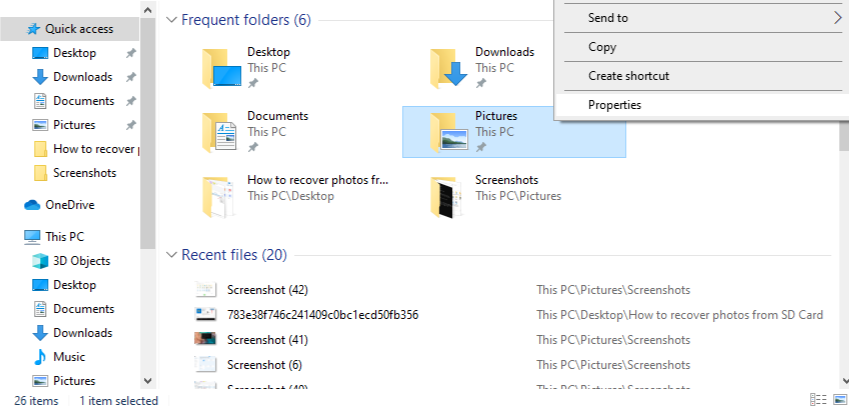
- Step 2: Select Restore previous versions.
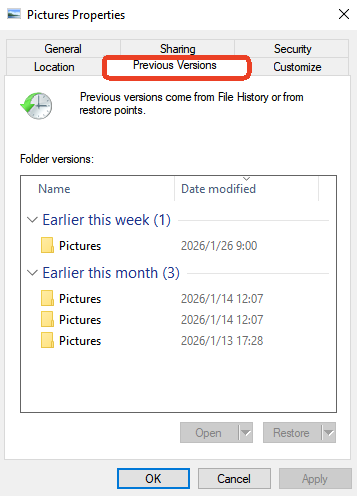
- Step 3: Browse the dated snapshots and click Restore on the most recent one.
Method 3: Windows File Recovery (CMD)
A free tool from Microsoft for those comfortable with the command line.
- Step 1: Download Windows File Recovery from the Store.
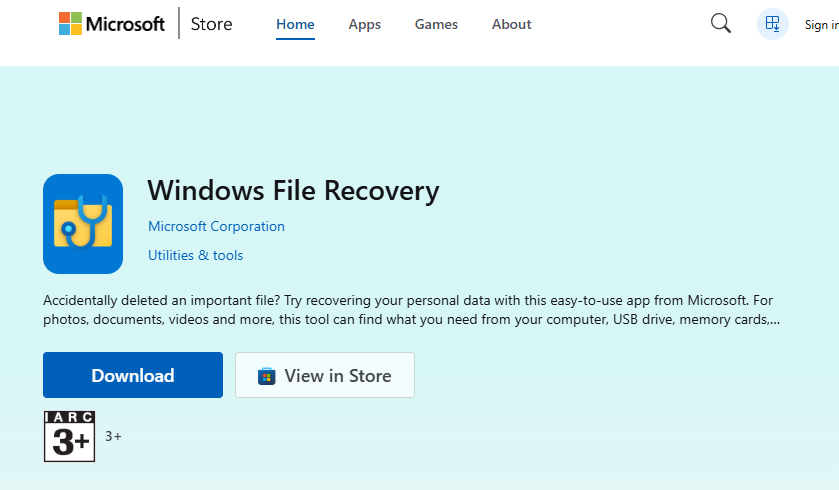
- Step 2: Run:
winfr C: D: /extensive /n \$Recycle.Bin\
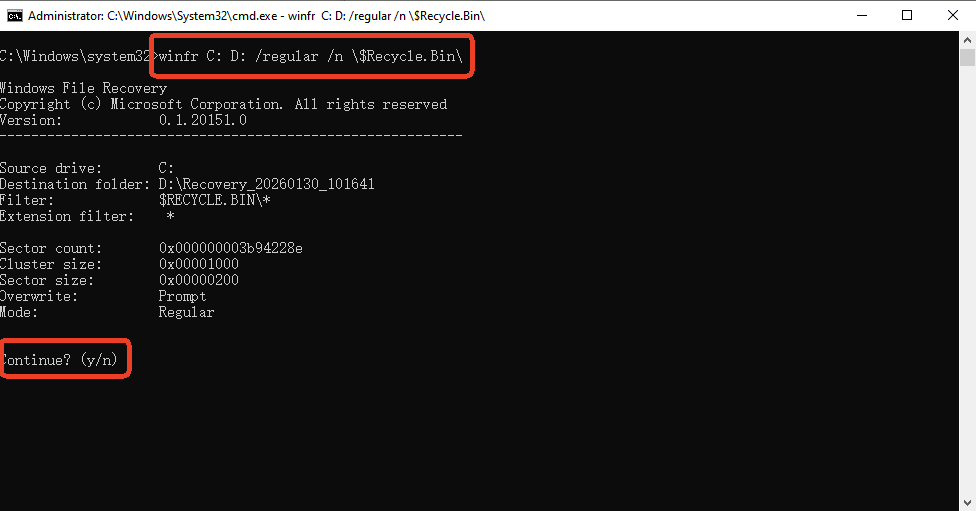
- Step 3: The tool will search the hidden system bin directory and export found files to your D: drive.
⚠️ Beginner Alert: Method 3 is powerful but risky if you mistype commands. For a “click-and-recover” experience with a 99% success rate, PandaOffice Drecov (Method 1) is the safer choice.
3. Comparison of Recovery Methods
| Feature | PandaOffice Drecov | File History | WinFR (CMD) |
| Success Rate | Highest | Moderate | Moderate |
| Video Guide | Yes | No | No |
| Difficulty | Easy | Medium | Hard |
| Best For | All Scenarios | Backed-up files | Tech Experts |
4. Common “Empty Bin” Scenarios: Identifying the Risk
Understanding how data is lost helps you recover file from emptied recycle bin folders more effectively. Here are the most frequent culprits:
- The “Clean-Up” Habit: Users who habitually right-click and “Empty Recycle Bin” to save space, only to realize later they needed a file.
- The Over-Sized File: Files too large for the bin bypass it entirely. Windows “permanently” deletes them instantly.
- The Shift+Delete Shortcut: A power-user move that skips the bin altogether, making professional software a necessity.
- Storage Optimization: Windows “Storage Sense” automatically emptying your bin every 30 days without a prompt.
Identifying which scenario you fall into allows you to take better preventative measures for the future.
5. Preventative Measures: Your Data Safety Checklist
- Adjust Bin Properties: Right-click the Bin > Properties. Check “Display delete confirmation dialog” and increase the disk quota.
- Enable File History: Set up an external drive for automatic hourly backups.
- Cloud Safeguards: Use OneDrive or Dropbox for real-time syncing of your “Documents” and “Desktop” folders.
6.High-Frequency Recovery Questions
1.Is there a time limit to recover file from emptied recycle bin?
There is no strict “timer,” but there is a “usage limit.” The more you use the computer, the higher the chance that Windows will overwrite the deleted file’s space. Act immediately for the best results.
2.Can I recover files if the Recycle Bin icon is missing?
Yes. The icon is just a shortcut. The data still resides in the hidden $Recycle.Bin folder. Tools like PandaOffice Drecov can access this hidden directory even if the icon is gone.
3.Does emptying the bin on an SSD make recovery impossible?
Not impossible, but harder due to TRIM. If you use PandaOffice Drecov and start the scan immediately after the deletion, you can often intercept the data before the SSD’s internal cleanup finishes.
4.Will a “System Restore” bring back my emptied files?
No. System Restore only reverts Windows settings and programs. It does not touch your personal files (DOCX, JPG, MP4). You must use recovery software for personal data.
5.Are free recovery tools safe?
Be cautious. Many “free” tools are bundled with adware or have strict file size limits. A reputable, professional tool ensures your drive isn’t further damaged during the scan.
Conclusion
To recover file from emptied recycle bin storage successfully, you must prioritize speed and use the right tools. While Windows offers native safety nets, a dedicated solution like PandaOffice Drecov provides the deep-scanning power and visual guidance needed for high-stakes recovery.






