







Have you ever accidentally overwritten a crucial spreadsheet or closed an Excel workbook without saving your hours of hard work? This common digital nightmare happens to professionals daily. Fortunately, learning how to recover previous version of excel file documents is entirely possible, whether you need to retrieve an unsaved draft or revert to an older iteration. This comprehensive guide will walk you through the ultimate recovery strategies, ensuring you never lose critical data again.
While manual methods sometimes work, they are often limited by your system settings. Consequently, utilizing specialized data recovery tools is the most reliable approach. We highly recommend PandaOffice Drecov data recovery software as your primary solution for reclaiming lost, overwritten, or corrupted spreadsheets instantly.
Understanding the Basics of How to Recover Previous Version of Excel File
When you want to find previous version of excel file data, it helps to understand how Windows and Microsoft Office handle temporary data. Excel creates hidden shadow copies and temporary backups while you work. However, if your system crashes or AutoRecover was disabled, finding these files becomes incredibly difficult. Common challenges include accidental overwriting, unexpected power outages, and severe file corruption.
Furthermore, manual retrieval methods often fall short if the files were deleted from the Recycle Bin or if the file system became corrupted. This is where dedicated professional software steps in. PandaOffice Drecov data recovery software is an advanced data retrieval tool engineered specifically to scan deep within your storage drives to locate residual spreadsheet fragments.
⚠ Warning: Install it on a drive different from the one where your data was lost to prevent overwriting.
You can rely on Drecov across various data loss scenarios. For instance, it excels when you need to recover files after an accidental disk format or a sudden malware attack. For other technical system troubleshooting, you can explore the PandaOffice Steam No Licenses Guide to fix Windows gaming registry errors. If you work across multiple platforms, the PandaOffice PS3 ISO USB Guide provides insight into external drive configurations. Additionally, if you struggle with modern web downloads, the PandaOffice ChatGPT Download Fix resolves browser-based saving blockages.
Solutions to How to Recover Previous Version of Excel File Issues
Method 1: Using Excel AutoRecover and Version History
Microsoft Excel features built-in safety nets designed to restore previous version of excel file drafts automatically. These features rely on the AutoRecover function, which saves your progress at designated intervals.
- Step 1: Open the existing Excel workbook where you want to excel restore previous version data.
- Step 2: Click on the File menu at the top left corner of the screen.
- Step 3: Select Info from the sidebar menu to view the workbook properties.
- Step 4: Look for the Version History section to inspect older iterations. Alternatively, click Manage Workbook and select Recover Unsaved Workbooks to find temporary files located at the default storage path
C:\Users\YourUsername\AppData\Local\Microsoft\Office\UnsavedFiles.
Method 2: The Advanced Recovery Method via PandaOffice Drecov
If the built-in Microsoft features fail, or if you accidentally deleted the original file, PandaOffice Drecov data recovery software provides the definitive answer on how to restore previous version of excel files. Drecov reads the raw sectors of your hard drive to reconstruct old file versions that Excel itself can no longer see.
⚠ Warning: Install it on a drive different from the one where your data was lost to prevent overwriting.
- Step 1: Launch the software and select the local disk or specific folder where your spreadsheet used to reside.

- Step 2: Click the Scan button to initiate a comprehensive deep scan of the storage sector.

- Step 3: Filter the scan results by selecting the
.xlsxor.xlsfile extensions to quickly find previous version of excel file candidates.
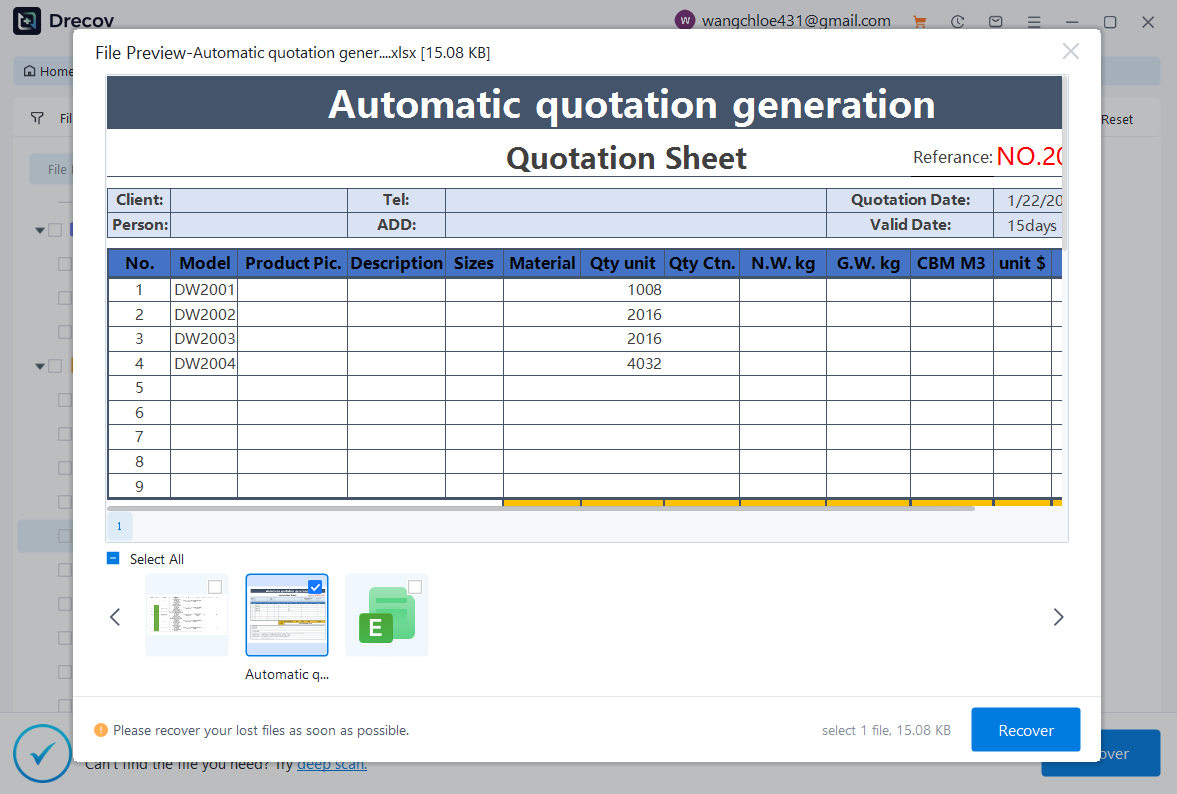
- Step 4: Preview the recovered spreadsheets, select the correct historical version, and click Recover to save it securely to an external storage drive.
Method 3: Utilizing Windows File History
Windows includes a built-in backup mechanism called File History. This tool helps users recover earlier version of excel file documents if they previously enabled the backup feature on their operating system.
- Step 1: Navigate to the folder where your Excel file is currently stored.
- Step 2: Right-click on the specific spreadsheet and select Restore previous versions from the context menu.
- Step 3: Review the list of available snapshots compiled by Windows Backup.
- Step 4: Highlight the preferred timestamp and click the Restore button to copy it back to its original location.
Alternative or Complementary Methods
Aside from the primary strategies outlined above, you can try several manual workarounds to recover previous version of excel file structures. One classic method involves searching your system for temporary files using the extension .tmp. Excel frequently creates these temporary files in the same directory as the working document.
Another option is checking cloud storage backups like Microsoft OneDrive or Google Drive. If your file was synced online, you can right-click the file within your web browser to access an extensive cloud-based version history log.
| Recovery Method | Success Rate | Pros | Cons |
| PandaOffice Drecov | Extremely High | Recovers deleted, formatted, or corrupted older versions | Requires a software download |
| Excel AutoRecover | Moderate | Fast, built into the application, completely free | Fails if Excel was closed normally or if AutoRecover was disabled |
| Windows File History | Moderate | System integrated, handles long-term historical versions | Requires manual setup before data loss happens |
| Cloud Version History | High | Accessible from any device, precise time tracking | Requires active internet sync prior to the issue |
Tips & Best Practices for Restoring Excel Files
To maximize your chances when executing a restore previous version excel process, you must act quickly. Avoid saving new documents to the drive where the lost Excel file was located, as new data will overwrite the historical sectors.
Furthermore, configure your Excel settings to maximize safety. Go to File, choose Options, select Save, and reduce the AutoRecover save interval from ten minutes down to five minutes. Always check the box that keeps the last autorecovered version if you close without saving.
Meanwhile, never interrupt an active data recovery scan. If you are using software to uncover an excel previous version, let the scan finish completely to preserve file metadata. For more information on how Microsoft handles file backups natively, you can review the official Microsoft Support Documentation on document recovery.
Frequently Asked Questions
How to recover a previous version of an excel file if it was overwritten?
You can right-click the file in Windows Explorer and choose Restore previous versions to use File History. If that option is blank, deploy PandaOffice Drecov data recovery software to scan the drive for older deleted remnants of that specific file name.
What is the quickest way to find a deleted or lost excel previous version?
The fastest manual method is checking the OneDrive Version History panel online. However, if the file was stored locally on your hard drive, running a targeted scan with Drecov is the most efficient way to recover old version of excel file caches.
Can I restore excel to previous version status using a keyboard shortcut?
No direct global hotkey exists to roll back file versions after a save and close operation. However, while the document remains open, you can press Ctrl + Z repeatedly to undo recent modifications before saving.
Why is the option to restore previous version in excel greyed out?
This issue typically occurs because Windows File History was never turned on, or because the file is not stored in a synced cloud folder. In this case, professional recovery utilities are required to parse the drive sectors.
Is restoring a previous version of an excel file safe for my current system?
Yes, extracting an older version is completely safe. To maintain data integrity, always save the restored version under a modified name like Budget_2026_Recovered.xlsx so you do not accidentally damage your current working draft.
Conclusion
Mastering how to recover previous version of excel file data ensures that an accidental keystroke or sudden power outage will never ruin your productivity. While Microsoft built-in tools offer basic protection, they often fail during complex data loss events.
Consequently, using PandaOffice Drecov data recovery software provides the ultimate safety net for your business spreadsheets. Download Drecov today to protect your workspace, implement automated cloud backups, and maintain proactive control over your digital records.






