







Cloud storage has revolutionized how we handle digital assets, but it often brings a unique set of challenges. Whether you are wondering how to access OneDrive for the first time or you have accidentally deleted a critical file and need recovery solutions, understanding the ecosystem is vital. In this comprehensive guide, we will explore every method to reach your files and, more importantly, how to get them back if they vanish.
Understanding the OneDrive Ecosystem
Before diving into the technical “how-to,” we must understand what OneDrive actually is. Microsoft OneDrive is a robust cloud-hosting service that allows users to sync files and later access them from a web browser or a mobile device. However, synchronization is a double-edged sword. If you delete a file on your local machine, the cloud version often disappears too. This is why learning how to access OneDrive correctly is the first step in a broader data management strategy.
Why Accessing OneDrive Properly Matters
Many users struggle with the interface, leading to “ghost” files or sync errors. By mastering the various entry points—web, desktop, and mobile—you ensure that your data remains redundant and safe. If you find yourself asking, “how do i access OneDrive when my computer won’t boot?” or “Where are my files hidden?”, this guide provides the roadmap.
How Do I Access OneDrive: Exploring the Primary Methods
If you are sitting at a device that isn’t yours, or if your local app is acting up, the web portal is your most reliable friend. This method is the “master key” to your data.
Method 1: Accessing OneDrive via Web Browser
- Step 1: Open your preferred web browser (Google Chrome, Microsoft Edge, or Safari).
- Step 2: Navigate to the official OneDrive login page.
- Step 3: Enter your Microsoft account credentials (email and password).
- Step 4: Once logged in, you will see your file dashboard. From here, you can upload, download, or share documents directly.
Pro Tip: If you are on a public computer, always use “Incognito” or “Private” mode to ensure your credentials aren’t saved locally after you finish.
Method 2: Accessing OneDrive on Mobile Devices
In our mobile-first world, knowing how to access OneDrive on the go is essential for productivity.
- Step 1: Download the OneDrive app from the Google Play Store or Apple App Store.
- Step 2: Open the app and sign in with your Microsoft ID.
- Step 3: Enable “Camera Upload” if you want your photos to back up automatically.
- Step 4: Navigate through your folders using the touch interface. You can even mark files for “Offline Access” so they are available without an internet connection.
How to Access OneDrive on PC: Integration and Synchronization
For Windows users, the experience is designed to be seamless. The integration with File Explorer makes the cloud feel like just another hard drive on your machine.
Direct Access via File Explorer
On most modern Windows 10 and 11 systems, OneDrive is pre-installed. You can find it by looking for the “Blue Cloud” icon in the taskbar or the “OneDrive” folder in the left-hand sidebar of any folder window.
- Step 1: Press the Windows Key + E to open File Explorer.
- Step 2: Locate the OneDrive – Personal (or Business) icon in the navigation pane on the left.
- Step 3: Double-click the icon to view synced files. These files are living on your hard drive but are being mirrored to the cloud.
Using the OneDrive Settings Menu
Sometimes the folder doesn’t appear. If you need to troubleshoot how to access OneDrive on PC, checking the system tray is your best bet.
- Step 1: Look at the bottom right of your screen (near the clock) for the cloud icon. If it’s hidden, click the “Up Arrow” to show hidden icons.
- Step 2: Right-click the cloud icon and select Settings.
- Step 3: Under the “Account” tab, ensure your account is linked. If not, click Add an account and follow the prompts.
Advanced Access: Using Command Prompt and Registry
For power users, sometimes the GUI (Graphic User Interface) fails. In these cases, you might need to use more technical paths to force the application to reset or reveal its location.
Finding the Local Path
The default path for your OneDrive folder is usually:
C:\Users\[YourUsername]\OneDrive
If you have moved it and forgotten where, you can find the path via the Registry Editor:
- Press Windows + R, type
regedit, and hit Enter. - Navigate to:
HKEY_CURRENT_USER\Software\Microsoft\OneDrive - Look for the
UserFolderstring to see exactly where your files are stored.
When Things Go Wrong: Data Loss in the Cloud
It is a common misconception that cloud storage is a “backup.” In reality, OneDrive is a sync service. If a virus encrypts your local files, or if you accidentally shift-delete a folder, those changes are instantly pushed to the cloud.
If you’ve searched for how to access OneDrive only to find your folders empty, don’t panic. There are several layers of recovery we can attempt before all is lost.
Layer 1: The OneDrive Recycle Bin
OneDrive has its own internal trash can that keeps files for 30 days (for personal accounts) or 93 days (for work/school accounts).
- Step 1: Log in to OneDrive via a web browser.
- Step 2: On the left-hand menu, click on Recycle Bin.
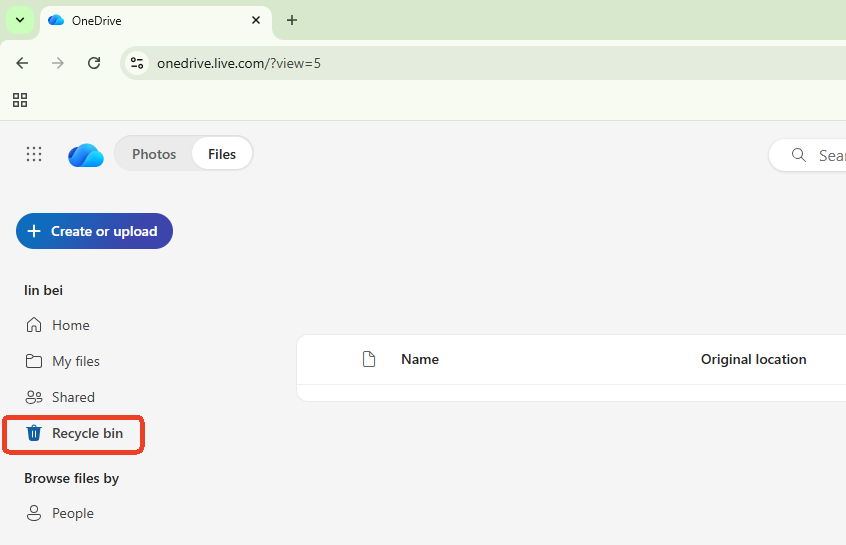
- Step 3: Select the files you need and click Restore.
Layer 2: Version History
If a file was overwritten rather than deleted, OneDrive keeps previous versions of Office documents.
- Step 1: Right-click the file in File Explorer.
- Step 2: Select Version History.
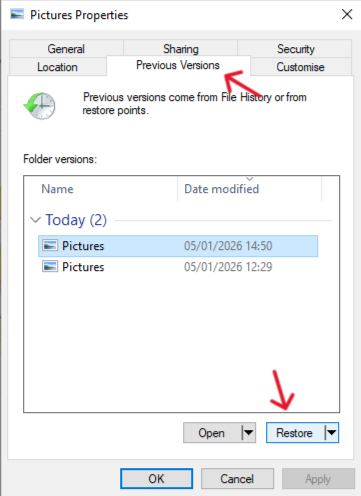
- Step 3: A list of timestamps will appear; choose the version you want to revert to.
Comprehensive Data Recovery with PandaOffice Drecov Data Recovery Software
When the built-in Recycle Bin is empty and the files are gone from both your PC and the cloud, you need professional-grade intervention. This is where PandaOffice Drecov data recovery software comes into play. It is designed to scavenge your local hard drive for “deleted” bits of data that haven’t been overwritten yet—including files that were once in your OneDrive sync folder.
Why Use PandaOffice Drecov?
Unlike standard undelete tools, PandaOffice Drecov uses deep-scan algorithms to reconstruct file headers. This is especially useful for OneDrive users because when the cloud app deletes a file locally to “save space,” it often leaves a trace on the disk that can be recovered.
⚠ Warning: Do not install the software on the same drive where the lost files were located, as this might overwrite the data you are trying to save. Launch the program and select the drive (usually C:) where your OneDrive folder was mapped.
Step-by-Step Recovery with PandaOffice Drecov
Follow these steps carefully to maximize your chances of getting your data back.
- Step 1: Initiating the Scan. Click the Scan button. The software will perform a Quick Scan first, followed by a Deep Scan. The Deep Scan is vital for cloud-synced folders because it looks for file fragments in the unallocated space of your drive.

- Step 2: Filtering and Previewing. Once the scan is complete, use the sidebar to navigate to the path where your OneDrive files lived (e.g.,
C:/Users/Name/OneDrive). PandaOffice Drecov allows you to preview images and documents before recovery to ensure the file isn’t corrupted.

- Step 3: Executing the Recovery. Select the boxes next to the files you wish to retrieve. Click the Recover button and choose a different storage location (like an external USB drive) to save the restored files.
Key Warning: The moment you realize files are missing, stop using the computer immediately. Every new file created or webpage browsed writes new data to the disk, which could permanently destroy the “invisible” deleted files.
Refining Your OneDrive Experience
Once you have recovered your data, it’s time to optimize your setup to prevent future headaches. Managing how the application interacts with your Windows OS is key to maintaining a clean and fast system.
If you are looking to modify your setup, you might find these resources helpful:
- How to disable a folder from OneDrive and recover lost files
- How to remove OneDrive from File Explorer: A step-by-step guide
- How do I completely remove OneDrive Personal from my computer?
Best Practices for Cloud Safety
- Two-Factor Authentication (2FA): Always enable 2FA on your Microsoft account. This prevents unauthorized people from learning how to access OneDrive and stealing your private data.
- Files On-Demand: Use the “Files On-Demand” feature to see your files in File Explorer without taking up space on your hard drive. However, remember that these files are only in the cloud; if you lose internet access, you lose the file.
- Regular Backups: Don’t rely solely on sync. Periodically copy your most important OneDrive folders to an external physical drive.
Troubleshooting Common OneDrive Errors
Even after you know how to access OneDrive, you might encounter technical glitches. Here are the most common issues and their fixes:
The “Processing Changes” Loop
If OneDrive is stuck “processing changes” for hours, it usually means a file is locked by another program or the cache is corrupted.
- Fix: Restart the OneDrive app. If that fails, reset it by pressing Windows + R and typing:
%localappdata%\Microsoft\OneDrive\onedrive.exe /reset.
Credential Request Loops
Sometimes, the app will keep asking you “how do i access OneDrive” by repeatedly prompting for a password.
- Fix: Go to Control Panel > User Accounts > Credential Manager. Select Windows Credentials and remove any entries related to “OneDrive” or “MicrosoftAccount.” Restart the PC and log in fresh.
Conclusion
Learning how to access OneDrive is about more than just clicking an icon; it’s about understanding the bridge between your local hardware and the digital cloud. By utilizing the web portal for emergency access, the PC integration for daily work, and PandaOffice Drecov data recovery software for those inevitable “oh no” moments, you become the master of your own digital domain.
The cloud is a powerful tool, but it requires a pilot who knows the controls. Keep your software updated, stay vigilant with your sync settings, and always have a recovery plan in your back pocket. Whether you are accessing files on a PC, a Mac, or a smartphone, the principles of data integrity remain the same: verify, sync, and back up.






