







In the world of modern computing, the ability to maintain a functional system often depends on the small software bridges known as drivers. If you have ever wondered how to copy usb driver files to ensure your hardware remains functional after a system wipe or a hardware migration, you are in the right place. This guide serves as a comprehensive resource for users looking to master the art of driver management and data integrity.
What Is a USB Driver and Why You May Need to Copy It
Understanding Device Drivers
A USB driver is like a translator between your computer’s operating system and your hardware device. Without it, your system simply wouldn’t understand how to communicate with a USB device—whether that’s a flash drive, keyboard, printer, or external hard disk. Think of drivers as instruction manuals written in a language your computer can understand. Without them, even the most advanced hardware becomes useless.
Modern operating systems such as Windows 10 and 11 automatically install many drivers. But here’s the catch—those drivers aren’t always available offline. If you reinstall your system or work on a device without internet access, you might suddenly realize how essential it is to have a backup of your USB drivers ready. Understanding how to copy usb driver packages manually or via automation is a skill every power user should possess.
Common Situations for Copying USB Drivers
So, when would you actually need to copy a USB driver? More often than you think:
- Reinstalling Windows: A fresh start is great, but hunting for drivers afterward is a nightmare.
- Setting up a new PC without internet: Ethernet or Wi-Fi drivers are often needed just to get online.
- Troubleshooting hardware issues: Sometimes a “clean” copy of a driver is the only fix for glitches.
- Migrating drivers to another machine: If you have identical hardware on two PCs, a quick usb copy saves hours.
Backing up drivers is often compared to saving your house keys—you might not need them every day, but when you do, nothing else will replace them. According to recent technical guides, backing up drivers significantly reduces setup time after system crashes or reinstallations.
Where USB Drivers Are Stored in Windows
DriverStore Folder Explained
All drivers installed on your system are stored in a protected location called:
C:\Windows\System32\DriverStore\FileRepository
This folder acts as a central library where Windows keeps all driver packages. Instead of installing drivers directly into active system folders, Windows first places them here. This makes it easier to manage updates, rollbacks, and installations. Imagine it as a warehouse where all tools are stored before being used on a job site. When you learn how to copy usb driver files, this is the primary location you are interacting with.
How Windows Manages Drivers
Windows uses a system called driver staging, where drivers are stored before being activated. This means:
- Drivers are safely archived in the FileRepository.
- Multiple versions can exist simultaneously to allow for rollbacks.
- The system can reinstall drivers automatically if the hardware is plugged back in.
This architecture is why copying drivers isn’t as simple as grabbing a single .sys file—you often need the entire driver package, including .inf, .cat, and .dll files.
Requirements Before Copying USB Drivers
Hardware Requirements
Before you begin the process of learning how to copy usb driver contents, make sure you have the following hardware ready:
- A USB flash drive: We recommend 8GB or more to accommodate all system drivers.
- A Windows PC: This is your source system where the drivers currently reside.
- Optional – Second PC: This serves as the target system if you intend to move the drivers.
Software and Permissions
To perform these operations successfully, you will need:
- Administrator access: Most driver folders are protected by system permissions.
- Command Prompt or PowerShell: Essential for using built-in Windows export tools.
- Basic file navigation knowledge: You should be comfortable moving files between folders.
Without admin privileges, you won’t be able to access or export drivers properly, as the Windows FileRepository is heavily guarded to prevent malware from tampering with hardware instructions.
Method 1: Copy USB Driver Manually
Locate Driver Files
You can manually navigate to the DriverStore folder and locate the driver files. However, this method is not beginner-friendly because drivers are stored in complex folder names (e.g., usbstor.inf_amd64_...). Still, if you are determined to perform a manual copy usb stick operation for your driver files, follow these steps:
- Step 1: Open Device Manager by right-clicking the Start button.
- Step 2: Find your specific USB device under “Universal Serial Bus controllers.”
- Step 3: Right-click the device, select Properties, and go to the Driver tab.
- Step 4: Click Driver Details to see the exact file names.
- Step 5: Note the names and search for the corresponding folder in the
FileRepository.
How to copy a usb stick for Driver Backup
Once you have identified the folder:
- Step 1: Right-click the folder containing the driver package.
- Step 2: Select Copy.
- Step 3: Navigate to your external USB drive.
- Step 4: Create a new folder named “Driver Backup” and Paste the files there.
Warning: Manual copying may miss dependencies or registry entries, which can cause installation failures later. It is almost always better to use the automated methods described below.
Method 2: Copy USB Drivers Using Command Prompt
This is the most reliable “pro” way to handle the task of how to copy usb driver data.
Using DISM Tool
Windows provides a powerful built-in tool called DISM (Deployment Image Servicing and Management). It allows you to export all third-party drivers in one go.
- Step 1: Plug in your USB drive and note its drive letter (e.g., E:).
- Step 2: Search for CMD, right-click it, and select Run as Administrator.

- Step 3: Type the following command and press Enter:
dism /online /export-driver /destination:E:\DriverBackup - Step 4: Wait for the process to complete. You will see a “The operation completed successfully” message.
This command exports all third-party drivers to your USB drive. It’s fast, efficient, and ensures no files are missed.
Using PnPUtil Tool for usb copy
Another method uses PnPUtil, which is often faster for specific driver exports:
- Step 1: Open Command Prompt as an Administrator.
- Step 2: Create a destination folder on your USB drive.
- Step 3: Enter the command:
pnputil /export-driver * E:\Drivers - Step 4: Windows will now “stage” and copy every driver package to your drive.
Think of DISM and PnPUtil as professional packing services—they don’t just move your items; they organize them properly into subfolders that Windows can easily scan later.
Method 3: Using Third-Party Driver Backup Tools
Advantages of Automation
If the command line feels intimidating, third-party tools simplify the process of how to copy usb driver files:
- One-click backup: No need to type long strings of code.
- Automatic driver detection: These tools highlight which drivers are missing or need backup.
- User-friendly interface: Visual progress bars and easy folder selection.
Popular Tools Overview
Some well-known tools include:
- Driver Booster: Great for keeping things updated.
- Double Driver: A classic, lightweight tool specifically for backup.
- Driver Easy: Useful for identifying obscure hardware.
These tools are especially useful if you’re not comfortable with command-line operations or if you need to batch-process multiple computers.
The Ultimate Solution: PandaOffice Drecov for Driver and Data Safety
While backing up drivers is crucial, losing the data on your USB drive is often a much bigger disaster. This is where PandaOffice Drecov becomes your best friend. Drecov is a professional-grade data recovery product designed to rescue files from USB sticks that have been formatted, corrupted, or accidentally deleted.
⚠ Warning: Install it on a drive different from the one where your data was lost to prevent overwriting.
If you are learning how to copy usb driver files and suddenly realize your USB stick is unreadable, don’t panic. Follow these steps to use PandaOffice Drecov:
- Step 1: Connect your USB. Plug the “problem” USB stick into your computer.

- Step 2: Select the Drive. Launch Drecov and select your USB drive from the list of available storage devices.

- Step 3: Scan for Files. Click the Scan button. Drecov will perform a deep dive into the sectors of your USB to find lost driver backups or personal files.

- Step 4: Preview and Recover. Once the scan is complete, browse the files. You can preview images or documents before clicking Recover to save them to a safe location on your hard drive.
Warning Prompt: Never recover files back onto the same USB stick you are scanning. This can overwrite the data you are trying to save! Always save recovered drivers or files to your local C: or D: drive first.
After securing your drivers and data, you may find these additional resources helpful:
- How to recover deleted files from USB drive
- A complete guide to USB flash drive recovery
- How to format USB to FAT32: The ultimate 128GB fix
How to Transfer USB Drivers to Another PC
Installing Drivers from USB
Once you have successfully mastered how to copy usb driver folders to your external storage, the next step is getting them onto the new machine.
- Step 1: Insert the USB into the target PC.
- Step 2: Open Device Manager.
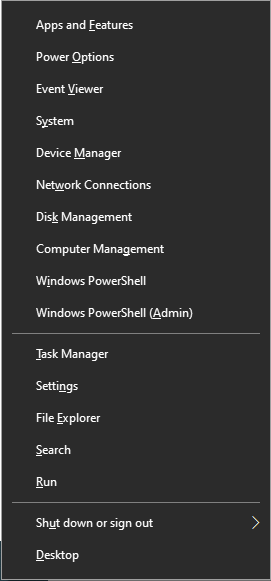
- Step 3: Right-click the device with the yellow exclamation mark and select Update driver.
- Step 4: Select “Browse my computer for drivers”.
- Step 5: Click Browse, select your USB folder (ensure “Include subfolders” is checked), and click Next.
Using Device Manager for copy usb stick installation
Windows will scan the folder, find the matching .inf file, and install the compatible drivers automatically. It’s like giving your computer a toolbox—it picks the right tool when needed. This is much more efficient than searching the web for individual installers.
Common Errors and Fixes
Driver Not Installing
Even if you know how to copy usb driver files, things can go wrong. Possible reasons include:
- Missing files: You copied the
.sysfile but forgot the.inf. - Incorrect driver version: Trying to install a 64-bit driver on a 32-bit system.
- Corrupted copy: The USB was pulled out during the export process.
Solution: Always re-export drivers using the DISM method if the manual copy fails.
Compatibility Issues
Drivers are often hardware-specific. A driver from a Dell laptop might not work on a Lenovo laptop, even if both use USB 3.0. Always match the Device model and the Windows version (e.g., Windows 11 vs. Windows 10).
Pros and Cons of Copying USB Drivers
| Pros | Cons |
| Saves massive time during system reinstallation | May not work on different hardware brands |
| Enables offline installation (no internet needed) | Requires basic technical knowledge |
| Prevents loss of “legacy” drivers no longer online | Risk of incomplete backup if done manually |
| Easy transfer via any standard USB stick | Some drivers still require online activation |
Best Practices for Driver Backup
To ensure your success in mastering how to copy usb driver procedures, follow these golden rules:
- Always use command-line export tools: DISM is the industry standard for a reason.
- Keep drivers updated before backup: Don’t backup old, buggy drivers.
- Store backups in multiple locations: Keep one copy on a USB and another in the cloud.
- Label your USB clearly: You don’t want to format the wrong drive later.
- Use PandaOffice Drecov: If your backup USB fails, use Drecov immediately to prevent permanent data loss.
Treat your driver backup like insurance—you hope you never need it, but you’ll be glad it’s there when your screen starts flickering or your USB ports stop responding.
Copy USB Driver FAQs
1. Can I copy USB drivers directly without tools?
Yes, you can manually copy folders from the FileRepository, but it is highly recommended to use DISM to ensure all associated files are included.
2. What is the easiest way to copy drivers to USB?
The “easiest” way for beginners is using a tool like Double Driver, but the “best” way is the DISM command.
3. Can I use copied drivers on another computer?
Only if the hardware components (like the motherboard chipset or the specific USB controller) are the same.
4. Do USB drivers need to be updated regularly?
Yes. Updated drivers often fix security vulnerabilities and improve the data transfer speeds of your usb copy operations.
5. Is it safe to store drivers on a USB drive?
Absolutely. Just make sure the drive is stored in a cool, dry place and isn’t used for daily file transfers to avoid wear and tear.
Conclusion
Copying USB drivers might sound like a technical task reserved for IT professionals, but once you understand the process, it becomes surprisingly straightforward. The key to learning how to copy usb driver packages effectively is not just copying files—but copying them correctly. Tools like DISM and PnPUtil make the process reliable and complete, ensuring you don’t miss critical components.
Whether you’re preparing for a system reinstall, troubleshooting hardware issues, or setting up a new machine, having a USB driver backup can save hours of frustration. Instead of hunting for drivers online, you’ll have everything ready at your fingertips. And remember, if your USB storage ever fails you, a professional tool like PandaOffice Drecov is always ready to bring your essential files back from the brink.





