







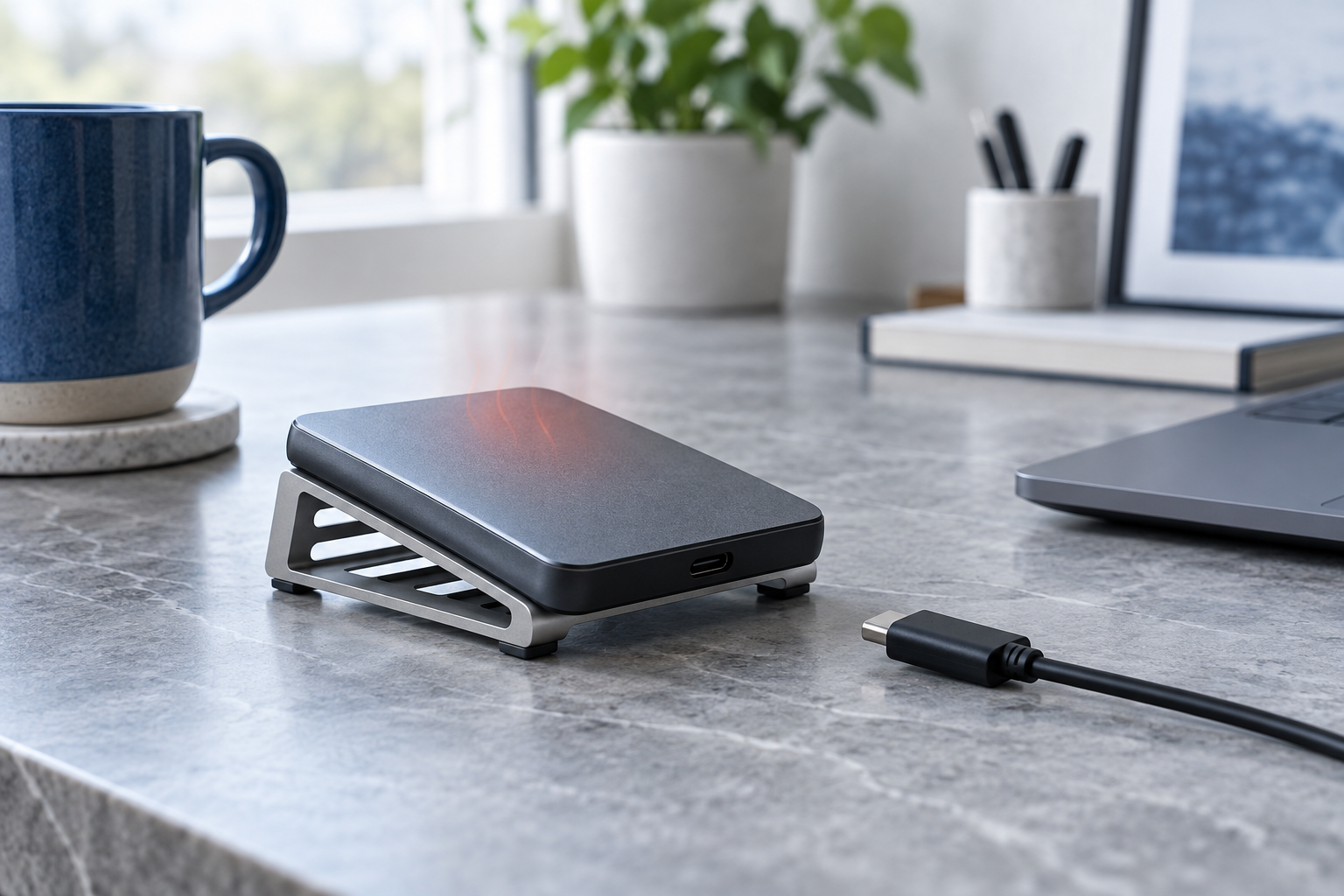
For an overheating external SSD, protect irreplaceable files and distinguish ordinary warmth from throttling, disconnects or read errors. Formatting is not a thermal repair.
Quick Answer
Disconnect an overheating external SSD and let it cool on a hard ventilated surface. Do not use a freezer or repeated stress tests. After one cool restart, copy priority files in short sessions; stop if heat, disconnects, or read errors return. For the native checks used in this diagnosis, consult the official technical guidance.
Measure the symptom without stress-testing the only copy
A warm enclosure alone does not establish overheating. Record the exact SSD model, ambient conditions, workload and any disconnect or read error. If the manufacturer’s tool exposes temperature through that USB connection, compare readings with that model’s specifications. Some USB bridges do not pass sensor data through; an absent reading is not evidence of a cool drive, and case touch is not the controller temperature.
Thermal throttling reduces speed to limit heat and may recover after cooling. Repeated disconnects, errors, an unusual smell or rapid heating at idle require stopping rather than treating the slowdown as harmless. Preserve irreplaceable files through one stable connection before further diagnostics.
Keep the external SSD on a hard ventilated surface away from other heat sources and compare one known-good, correctly rated cable and direct port after cooling. Do not copy desktop M.2 heatsink instructions into a sealed portable product: enclosure design, internal interfaces and warranty conditions differ. If instability returns, stop software scans and obtain model-specific service. Formatting or reinstalling a file system does not repair a thermal or electrical fault.
Official guidance: Samsung Portable SSD product information
Why Formatting Is Not the First Fix
A format prepares a volume for a chosen file system. Quick format mainly replaces metadata, while a full format can write across more of the volume and may eliminate additional recovery opportunities. Neither repairs mechanical damage.
Protect the Source Before Repair
Stop downloads, synchronization, repairs, initialization, and unnecessary writes to the source. Record its model, capacity, partitions, encryption state, and exact error. Use another healthy physical disk for backup and recovery output. For a closely related symptom, see the guide to SMART status bad backup and recovery before changing the source.
Free System Recovery Options to Try First
Method 1: File History or Previous Versions
File History and Previous Versions are free Windows features. They help only if a backup or usable shadow copy existed before the loss.
- Stop using the affected drive and connect a different healthy destination disk.
- Open Control Panel > System and Security > File History > Restore personal files; alternatively inspect the original folder’s Properties > Previous Versions.
- Choose a version dated before the loss or format attempt.
- Preview a representative file when possible.
- Restore to another folder or physical disk instead of overwriting the source.
- Open several restored files and make a second backup.
Method 2: Windows Backup or Time Machine
A Windows Backup or macOS Time Machine set may contain the needed files. Restore selected files elsewhere before changing the affected source.
- Connect the known backup drive without formatting or repairing the affected source.
- Open Backup and Restore in Windows, or enter Time Machine on macOS.
- Select a backup date from before the files disappeared.
- Browse to the exact folders and select critical files first.
- Restore to a separate healthy location.
- Verify dates, sizes, and contents before any format operation.
Safe Diagnostic and Recovery Steps
- Identify the physical device by model and capacity instead of relying on its drive letter.
- Test one known-good cable, direct port, reader, enclosure, or original computer without writing to the source.
- If the device clicks, repeatedly disconnects, overheats, or reports the wrong capacity, stop software scans.
- Check cloud storage, File History, Previous Versions, Time Machine, or another existing backup.
- If the device is stable, scan it read-only and save recovered files to a different physical disk.
- Open a sample of recovered files and make a second backup before any repair, initialization, or format.
Use the symptom, physical behavior, and reported capacity to choose the least invasive next step. Before taking a destructive step, compare the result with external hard drive keeps disconnecting.
Recover Missing Files Before Formatting
If files are missing, recover them before formatting. Install the recovery program on a healthy volume and never save restored data back to the source. PandaOffice Drecov.
Recover Files with Drecov
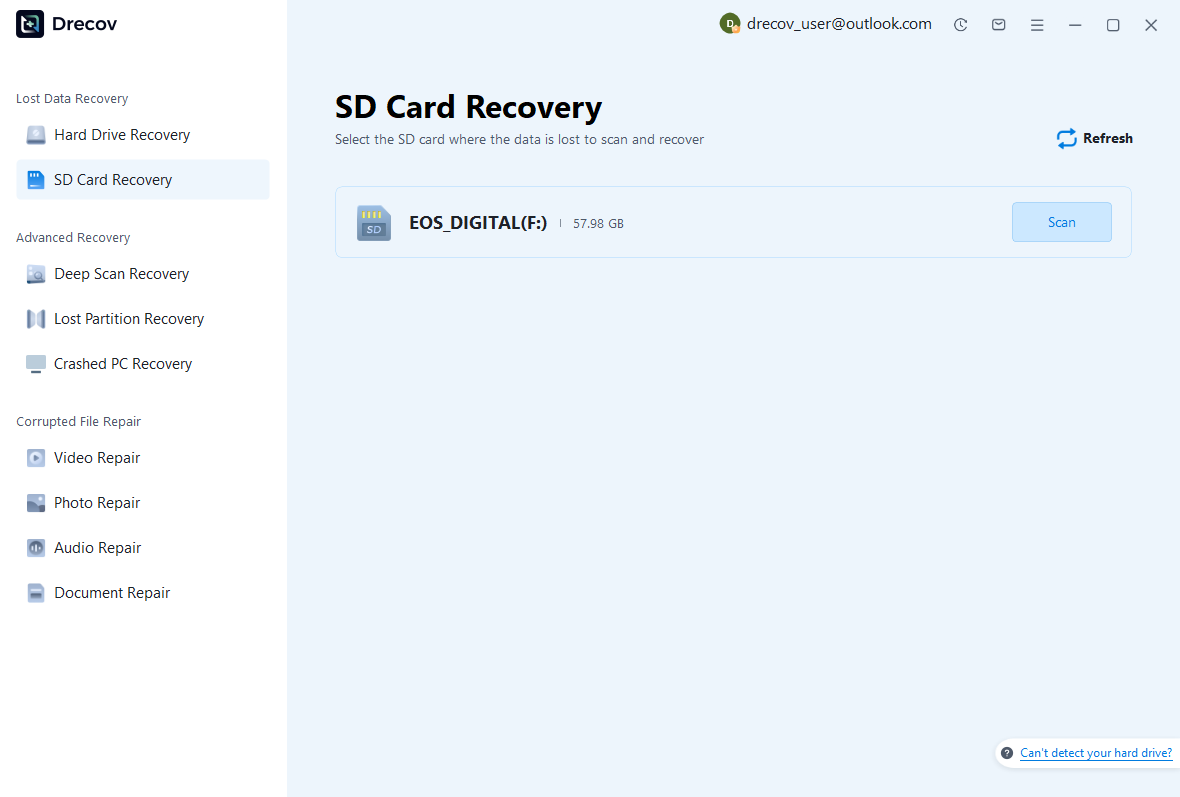
Step 1: Select the source
Open Drecov from a healthy Windows drive. Select the affected disk only after confirming its model and capacity.
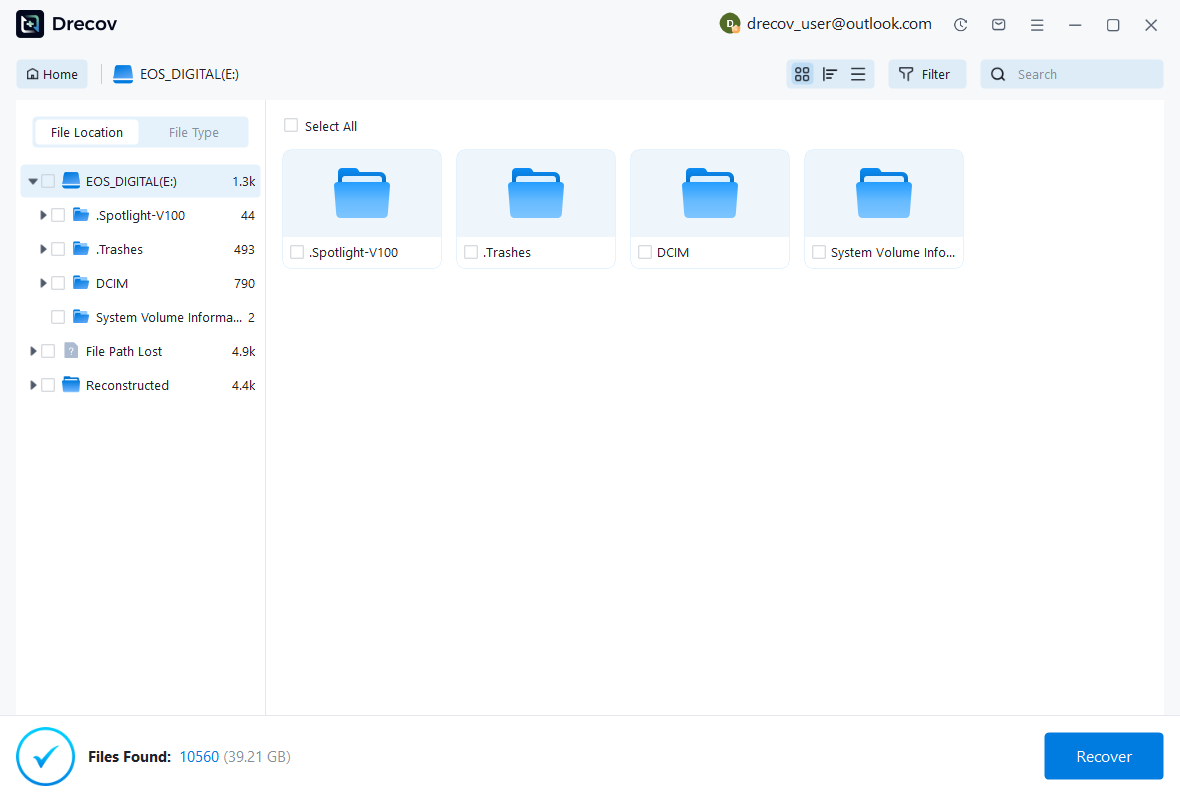
Step 2: Scan and filter
Run the initial scan, continue with Deep Scan when necessary and stable, then filter by path, type, name, size, or date.
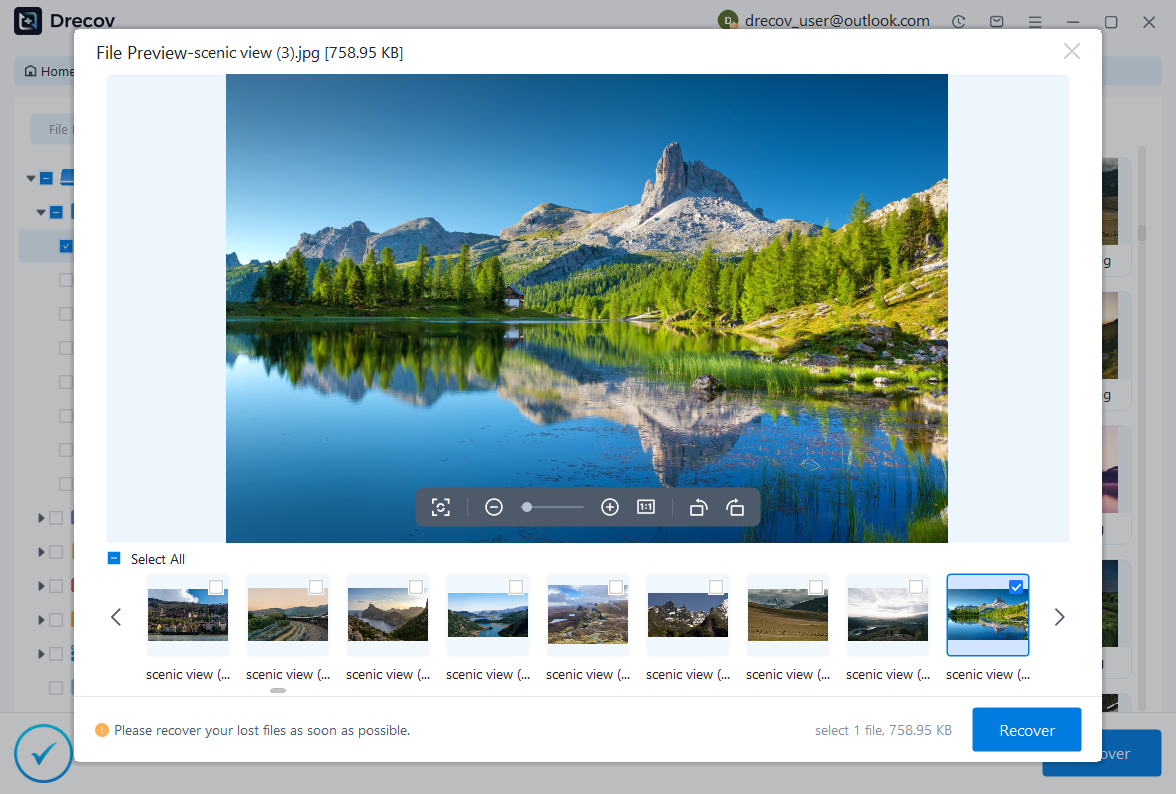
Step 3: Preview and save elsewhere
Preview supported files, choose what you need, and recover to a different physical disk. Verify several files before formatting.
Mistakes to Avoid
- Formatting when the operating system merely asks for it
- Selecting a disk by letter alone without checking capacity
- Running repair commands before copying or recovering files
- Saving recovered files to the original source
- Using full format when quick format meets a verified need
- Continuing software scans on a clicking or disconnecting drive
Frequently Asked Questions
Does formatting permanently erase every file?
It replaces file-system information and may overwrite data. Recovery can sometimes work after a quick format, but there is no guarantee and continued writing reduces the chance.
Can formatting repair physical damage?
No. Clicking, instability, wrong capacity, or overheating requires hardware-aware diagnosis.
Where should recovered files be saved?
To a different healthy physical disk with enough free space.
Final Verdict
The safe order is identify the exact SSD, stop unstable operation, preserve readable files, verify copies and obtain model-specific thermal or hardware diagnosis. Do not format solely because the SSD became hot.