







Have you ever captured a once-in-a-lifetime moment on camera, only to be met with an unplayable file error when you try to watch it? This is a frustratingly common issue for content creators, drone pilots, and everyday smartphone users alike. When files become unplayable due to sudden power loss, file transfer interruptions, or storage media corruption, you need an advanced video repair strategy to salvage your media.
Fortunately, professional software makes it incredibly simple to restore your broken media files. In this comprehensive guide, we will explore the best ways to repair corrupted video files using industry-standard techniques. We will also introduce PandaOffice Drecov data recovery software, a premier utility engineered to analyze broken file structures and rebuild them flawlessly. Let us dive into how you can fix your files and prevent future data loss.
Understanding the Basics of Video Repair
To effectively fix a broken file, it helps to understand what happens beneath the surface. Digital videos are complex containers that hold video streams, audio streams, and vital metadata like headers and indexes. When a file gets corrupted, it usually means the header or index has been damaged, leaving your media player unable to decode the actual audio and video data.
Common culprits behind these issues include:
- Abrupt camera shutdowns while recording
- Bad sectors on your SD card or hard drive
- Malware or virus attacks altering file systems
- Improper file transfer protocols
When you use a dedicated video repair tool, the software scans the file structure, identifies the missing metadata, and attempts to reconstruct the container so media players can read it again.
Introducing PandaOffice Drecov Data Recovery Software
PandaOffice Drecov data recovery software is a robust technical solution designed not just for standard file retrieval, but also for deep file reconstruction. Whether you are dealing with an mp4 video repair job or a broken MOV file from a professional DSLR, PandaOffice Drecov data recovery software uses advanced algorithms to scan raw sectors and piece together fragmented files.
⚠ Warning: Install it on a drive different from the one where your data was lost to prevent overwriting.
Beyond fixing media, this versatile tool excels at recovering lost data from a wide variety of systemic errors. For instance, if you are a gamer dealing with system glitches, you might find the steps in this Steam No Licenses Error Fix Guide highly beneficial for restoring your platform functionality. Similarly, users looking to manage external media configurations can check out this detailed PS3 ISO Games USB Installation Guide to ensure seamless file transfers.
Top Methods to Fix Corrupted Video Files and Software Errors
When your media files refuse to open or throw unexpected errors, you don’t have to lose your footage. Fortunately, you can explore a few reliable avenues to salvage your media. Below, we break down two highly effective methods to fix video software glitches, repair corrupt video files, and restore your playback seamlessly.
Method 1: Using VLC Media Player for Simple Index Rebuilds
VLC Media Player includes a built-in feature designed to repair corrupt video files on the fly, specifically for AVI formats. However, it can also act as a temporary video file repair workaround for other formats if you force a transcoding process.
- Open VLC Media Player and navigate to the top menu bar.
- Click on Tools and select Preferences.
- Switch to the Inputs / Codecs tab.
- Locate the Files section and find the option labeled Damaged or incomplete AVI file.
- Change the dropdown setting to Always fix.
- Click Save at the bottom to apply the changes.
While this method is free, it only addresses minor index issues and does not permanently modify or fix the original file structure for broader compatibility.
Method 2: Comprehensive Recovery via PandaOffice Drecov
For severe corruption across formats like MP4, MOV, MKV, and 3GP, a specialized video repair tool is required. PandaOffice Drecov data recovery software offers a dedicated Advanced Video Repair module that uses a working sample file from the same camera to rebuild the damaged code perfectly.
⚠ Warning: Install it on a drive different from the one where your data was lost to prevent overwriting.
Follow these exact steps to execute a complete corrupted video file repair using PandaOffice Drecov:
Step 1: Select the Corrupted File and Scan
Choose the Video Repair module from the main dashboard interface. Click the Add button to load your unplayable file into the queue. Furthermore, if you are pulling files directly from the web and ran into system blocks, you can refer to the Fixing Can’t Download Files From ChatGPT Error Guide to resolve underlying download restrictions. Once your file is loaded, click the Repair button to initiate the initial scanning pass.

Step 2: Utilize Advanced Repair with a Sample File
If the initial pass fails due to severe header damage, the software will prompt you to use Advanced Repair. Click the folder icon to upload a working sample video. This sample file must be recorded using the exact same camera or smartphone, and it must share the identical format and resolution as the broken file. The software will extract the healthy header parameters from this sample and apply them to the broken file.
Step 3: Preview and Export the Restored File
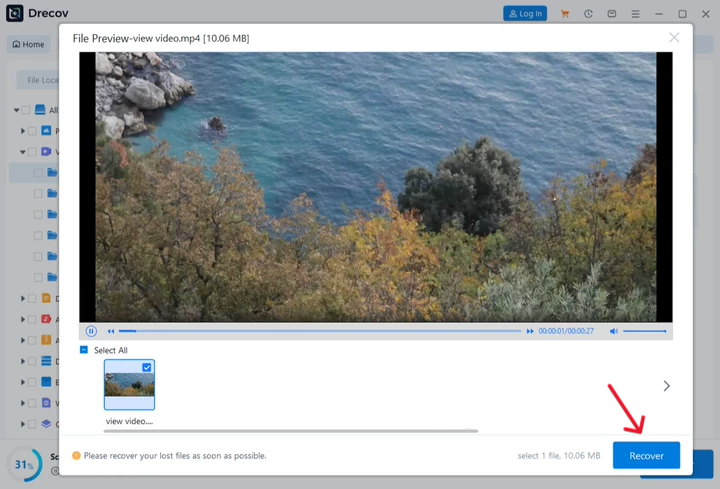
Once the processing bar reaches 100 percent, click the Preview button to verify the audio and video synchronization. If the playback is smooth, click the Save button. Choose a secure destination folder on a healthy internal or external drive and hit Confirm to finalize the export.
Exploring Other Video File Repair Software and Manual Solutions
If you want to evaluate all your options before choosing a path, looking into alternative video repair tool options or manual command-line techniques is a great next step. While specialized software offers the highest success rate, knowing the alternative methods gives you complete control over your video file repair strategy.
Software Alternatives
Several other tools exist in the tech ecosystem for media restoration. For example, Kernel Video Repair and Stellar Repair for Video are well-known commercial choices. In addition, open-source command-line utilities like FFmpeg offer highly technical users a manual way to re-encode files without headers.
Comparison Table: Repair Methods at a Glance
| Repair Method | Success Rate | Ease of Use | Supported Formats | Best Used For |
| PandaOffice Drecov | High | Very Easy | MP4, MOV, MKV, AVI, 3GP, FLV | Severe corruption, broken headers, batch processing |
| VLC Media Player | Low | Easy | Mainly AVI | Minor index errors, quick temporary fixes |
| FFmpeg Command Line | Medium | Difficult | Almost All | Advanced users comfortable with command prompts |
| Stellar / Kernel | Medium | Medium | Standard Formats | Alternative commercial scanning |
Tips & Best Practices for Maximizing Recovery Success
To keep your digital assets safe and ensure a high success rate when trying to fix corrupted video files, adhere to these professional data management guidelines:
- Always work on a copy: Never run automated fixing tools on your only original file. Always duplicate the broken file first and perform your troubleshooting steps on the copy.
- Avoid recording on low batteries: Smartphones and digital cameras often fail to write the final file header properly if the device dies mid-record.
- Safely eject storage media: Always use the Safely Remove Hardware option in your Windows taskbar tray before pulling out SD cards or external hard drives.
- Use high-speed memory cards: Low-quality SD cards often drop frames or write corrupted data blocks when recording high-bitrate 4K or 8K video streams. For more details on maintaining memory integrity, you can read the comprehensive guide on storage health standards via the SD Association Official Documentation.
Frequently Asked Questions
What causes a video file to become corrupted unexpectedly?
Video files typically corrupt when the writing process is abruptly cut off. This happens due to sudden camera power failure, pulling out an SD card while recording, system crashes, or bad sectors on a hard drive blocking the read/write process.
Can an MP4 video repair tool fix files from any camera?
Yes, a professional tool like PandaOffice Drecov data recovery software can handle files from smartphones, DSLRs, action cameras, and drones. The key to success with diverse hardware is utilizing a healthy sample file from the same device during the Advanced Repair phase.
Is it possible to repair corrupt video files for free?
You can use free media players like VLC to fix minor index errors on certain file types. However, for deep structural damage or broken file headers, free utilities usually fall short, meaning specialized recovery software is necessary.
Will the repaired video lose its original quality?
If you use a non-destructive utility like PandaOffice Drecov, the software rebuilds the file container without re-compressing the actual streams. This ensures your output file retains its original resolution, frame rate, and audio quality.
How do I know if my file is completely unfixable?
A file may be unfixable if the storage sectors where the actual video streams were held have been completely overwritten with new data. If a deep scan reveals nothing but empty zero-byte blocks, recovery is no longer possible.
Conclusion
Encountering a broken media file can bring your creative workflow to a sudden halt, but it does not have to mean permanent data loss. By using a specialized video repair tool like PandaOffice Drecov data recovery software, you can systematically reconstruct broken file headers and salvage your irreplaceable footage. Remember to always work on duplicate copies of your data, maintain healthy memory cards, and implement proactive backup strategies to safeguard your media for the long term.






