







In the modern digital era, choosing the right web browser is more than just a matter of aesthetic preference; it is a critical decision that impacts your privacy, productivity, and the safety of your personal data. If you have ever asked yourself, what is firefox, you are looking at one of the most resilient and user-centric pieces of software in the history of the internet. Since its inception by the Mozilla Foundation, Firefox has stood as a beacon of open-source development and digital rights.
However, even the most robust browsers can encounter issues. Whether it is a sudden system crash that wipes out your open research or an accidental deletion of years’ worth of curated bookmarks, knowing how to manage your data is essential. This comprehensive guide will explore the core functions of the browser, compare it with its biggest rivals, and provide expert-level solutions for recovering lost information, including the use of professional tools like PandaOffice Drecov data recovery software.
Understanding the Core: What is Firefox Browser Used For?
To truly grasp what is firefox, one must look beyond the simple act of visiting websites. While every browser can load a URL, Firefox is engineered with a specific philosophy: the internet is a public resource that must remain open and accessible to all.
Privacy as a Standard, Not an Option
The primary reason many professionals and privacy advocates choose Firefox is its Enhanced Tracking Protection. By default, the browser blocks social media trackers, cross-site tracking cookies, and fingerprinters that attempt to build a profile of your browsing habits. In 2026, where data is the new currency, this built-in defense mechanism is invaluable.
Customization and Extensions
What is Firefox browser used for in a professional workflow? It serves as a highly customizable workspace. Through the Firefox Add-ons store, users can install thousands of extensions that modify the browser’s behavior. From advanced developer tools to ad-blockers and password managers, the level of control offered is unparalleled.
Performance and Resource Management
Unlike some browsers that consume vast amounts of RAM, Firefox utilizes a multi-process architecture called “Electrolysis.” This allows the browser to run complex web applications smoothly without freezing the entire interface. It is particularly adept at handling hundreds of open tabs—a common scenario for researchers and data analysts.
The Great Debate: Is Firefox Better Than Chrome?
When users ask what is firefox, they often follow up with a comparison: Is Firefox better than Chrome? In 2026, the answer depends largely on your priorities regarding privacy and ecosystem integration.
Privacy vs. Ecosystem
Google Chrome is deeply integrated into the Google ecosystem. While this offers seamless syncing with Android and Google Workspace, it comes at the cost of data collection. Firefox, being non-profit, does not have a business model built on advertising. Consequently, Firefox often provides more granular privacy controls right out of the box.
Open Source Transparency
One of the strongest arguments for Firefox is that it is open-source. This means the source code is available for anyone to inspect. In contrast, Chrome is based on the open-source Chromium but includes proprietary Google code. For users who value transparency and security audits by the global community, Firefox is the clear winner.
Speed and Compatibility
For a long time, Chrome held the crown for speed. However, with recent updates to the Quantum engine, Firefox has closed the gap significantly. While Chrome might still have a slight edge in loading certain Google-specific services, Firefox often feels snappier when handling heavy JavaScript and multiple media streams simultaneously.
| Feature | Mozilla Firefox | Google Chrome |
| Developer | Mozilla Foundation (Non-profit) | Google (For-profit) |
| Privacy | High (Built-in tracker blocking) | Moderate (Ecosystem tracking) |
| Engine | Gecko / Quantum | Blink (Chromium) |
| Customization | Extensive | Moderate |
| Memory Usage | Optimized for many tabs | High per-tab usage |
Mastering Data Recovery: How to Recover Deleted Firefox Bookmarks
Bookmarks are the roadmap of our digital lives. Losing them due to a sync error or accidental deletion can be devastating. Fortunately, Firefox automatically creates backups of your bookmarks. If you need to know how to recover deleted Firefox bookmarks, follow these technical steps precisely.
Method 1: Using the Library Restore Feature
Firefox maintains a folder named bookmarkbackups within your profile directory. It typically keeps the last 15 days of changes.
- Step 1: Open the Firefox browser and press Ctrl+Shift+O (Windows) or Cmd+Shift+O (Mac) to open the Library window.
- Step 2: In the toolbar at the top of the Library window, click on the Import and Backup button (it looks like a star or two arrows).
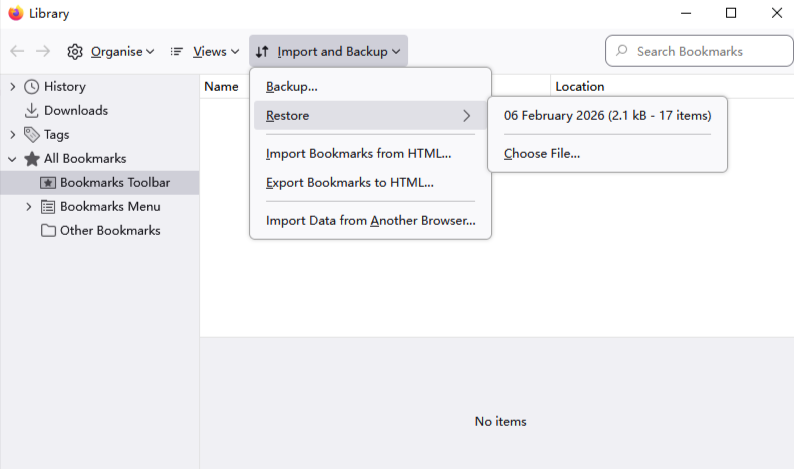
- Step 3: Hover your mouse over Restore. A list of dated backups will appear.
- Step 4: Select the date from which you want to recover.
- Warning: Restoring a backup will replace your current set of bookmarks with the ones from that specific date.
- Step 5: Click OK to confirm the restoration.
Method 2: Manual Profile Recovery
If the internal restore fails, you can manually find the files in your system.
- Step 1: Press Windows Key + R, type
%APPDATA%\Mozilla\Firefox\Profiles\, and hit Enter. - Step 2: Open your active profile folder (usually ends in
.default-release). - Step 3: Locate the
bookmarkbackupsfolder. Look for files with the extension.jsonlz4. - Step 4: You can copy these files to a safe location or use the “Choose File” option in the Library menu mentioned in Method 1 to manually point Firefox to these files.
Emergency Solutions: How to Restore Firefox Tabs After Crash
System failures happen. If your computer reboots unexpectedly, you might find your workspace empty. Learning how to restore Firefox tabs after crash is a vital skill for maintaining continuity in your work.
Method 1: The Built-In Session Restore
Usually, Firefox will prompt you to restore your session upon restarting. If it doesn’t, try this:
- Step 1: Click the Menu button (three horizontal lines) in the top right corner.
- Step 2: Select History.
- Step 3: Click on Restore Previous Session. If this option is greyed out, it means the session data might be corrupted or already overwritten.
Method 2: Using the ‘about:sessionrestore’ Page
- Step 1: In the Firefox address bar, type
about:sessionrestoreand press Enter. - Step 2: If Firefox has any record of the previous crash, it will display a list of tabs and windows.
- Step 3: Click the Restore Session button at the bottom of the page.
Method 3: Advanced Session Recovery via Profile Folder
If the automated tools fail, we must look for the sessionstore.jsonlz4 file.
- Step 1: Close Firefox completely.
- Step 2: Navigate to your Firefox profile folder:
%APPDATA%\Mozilla\Firefox\Profiles\. - Step 3: Look for a folder named
sessionstore-backups. - Step 4: Find a file named
recovery.jsonlz4orprevious.jsonlz4. - Step 5: Rename
recovery.jsonlz4tosessionstore.jsonlz4and move it to the main profile folder (the level above). - Step 6: Restart Firefox. The browser should now treat the backup as the primary session file and load your tabs.
Professional Grade Recovery: PandaOffice Drecov Data Recovery Software
Sometimes, the loss of data goes beyond what a browser’s internal settings can fix. If your Firefox profile folder has been deleted, or if a hard drive failure has corrupted your OS, you need professional intervention. This is where PandaOffice Drecov data recovery software becomes an essential tool in your arsenal.
PandaOffice Drecov is a high-performance data recovery solution designed to retrieve lost, deleted, or formatted files with a high success rate. It is particularly effective for recovering specific application data, such as Firefox profile databases (places.sqlite for bookmarks and history).
⚠ Warning: Install it on a drive different from the one where your data was lost to prevent overwriting.
How to Use PandaOffice Drecov to Recover Browser Data
Using PandaOffice Drecov data recovery software is straightforward, even for those who are not tech-savvy. Follow these steps to retrieve your lost Firefox information.
- Step 1: Select the Scan Location. Launch the program. On the main interface, select the local disk where Firefox was installed (usually the C: drive).

- Step 2: Initiation of the Deep Scan. Click the Scan button. PandaOffice Drecov will perform a “Quick Scan” followed by a “Deep Scan.” The Deep Scan is crucial for finding fragmented Firefox files that have been deleted from the file system.

- Step 3: Filter and Preview. Once the scan is complete, use the search bar to look for “.sqlite” or “.jsonlz4” files. You can also filter by the file path:
AppData\Roaming\Mozilla\Firefox\.

- Step 4: Execute Recovery. Select the files you need (especially
places.sqliteandsessionstore.jsonlz4) and click the Recover button. Choose a safe destination on an external drive or a different partition.
Further Reading and Resources
For more specialized guides on maintaining your system and optimizing your browsing experience in 2026, explore the following resources:
- Learn the technical nuances of how to install drivers for USB 3.0 to HDMI adapters on Windows 11 to expand your multi-tab Firefox workspace.
- Master your media with our 2026 guide on how to download video from Firefox browser safely and efficiently.
- Compare professional recovery options by reading about Recuva free version limitations in 2026 to see why Drecov remains the preferred choice for enterprise-level data retrieval.
The Technical Architecture of Firefox Data
To truly master data recovery, one must understand how Firefox stores information. Behind the question of what is firefox lies a complex structure of SQLite databases and compressed JSON files.
The Role of SQLite
Firefox stores your history, bookmarks, and form history in a file called places.sqlite. This is a relational database. If this file becomes corrupted, the browser may fail to load your bookmarks even if they are technically “there.” Tools like PandaOffice Drecov data recovery software are excellent at finding older versions of this database that might still be intact on the disk sectors.
The JSONLZ4 Compression
Firefox uses a specific compression format called .jsonlz4 for its session and bookmark backups. This is done to save disk space and improve read/write speeds. When performing a manual recovery, ensure that you do not try to open these files with a standard text editor, as they will appear as gibberish. You must restore them through the Firefox interface or use a specific LZ4 decompressor.
Summary of Best Practices for Firefox Users
Navigating the web safely involves more than just knowing what is firefox. It requires a proactive approach to data management. By following these best practices, you can minimize the risk of permanent data loss.
- Enable Firefox Sync: By creating a Firefox account, your bookmarks, passwords, and open tabs are encrypted and stored on Mozilla’s servers. This is the easiest way to recover data if your local machine fails.
- Regular Manual Backups: Every month, export your bookmarks to an HTML file (Import and Backup > Export Bookmarks to HTML). Store this file on a cloud service like Google Drive or Dropbox.
- Monitor Drive Health: Browser corruption is often a symptom of failing hardware. Use disk utility tools to check for bad sectors.
- Keep Recovery Tools Ready: Having PandaOffice Drecov data recovery software installed on a USB drive can save critical time when a “data emergency” occurs.
Conclusion
In conclusion, when we ask what is firefox, we are describing a tool that prioritizes the user’s agency and privacy. It is a powerful browser that, while reliable, relies on a file system that can occasionally fail. Whether you are choosing between browsers and wondering is firefox better than chrome, or you are in the middle of a crisis trying to figure out how to restore firefox tabs after crash, knowledge is your best defense.
By understanding the internal recovery mechanisms of the browser and knowing when to escalate to professional solutions like PandaOffice Drecov data recovery software, you ensure that your digital footprint remains under your control. The internet is a vast and sometimes volatile place; make sure your browser and your data recovery methods are up to the task.






