







Watching videos on YouTube has become part of daily life for millions of people around the world. Whether you use the platform for entertainment, education, music, gaming, business tutorials, or live streaming, it can be incredibly frustrating when YouTube videos suddenly stop playing. The issue of videos are not playing on youtube can happen on desktops, laptops, smartphones, tablets, smart TVs, or gaming consoles. Sometimes videos load but refuse to start. In other cases, audio works without video, or the video continuously buffers without ever playing properly.
This complete guide explains why videos are not playing on youtube and provides step-by-step solutions for fixing playback issues on Chrome, Firefox, Edge, Android, iPhone, Smart TVs, and other devices, while also covering how to recover lost local media files if your system encounters critical errors during troubleshooting.
Why Videos Are Not Playing on YouTube
Several technical issues can prevent YouTube videos from loading correctly. When you understand the underlying mechanics of streaming media, identifying the exact root cause becomes significantly easier.
Most Common Causes
| Cause | Description |
| Slow internet | Insufficient streaming speed to handle the video resolution. |
| Corrupted browser cache | Damaged temporary files causing code conflicts in the player. |
| Outdated browser or app | Compatibility issues with YouTube’s updated infrastructure. |
| YouTube server outage | Platform-side problems that affect global or regional delivery. |
| Browser extensions | Playback interference caused by ad blockers or privacy tools. |
| VPN or proxy conflicts | Restricted streaming access or extreme latency from bad routing. |
| Device performance issues | Low memory, hardware acceleration bugs, or CPU overload. |
Understanding the root cause helps solve the issue faster. Let us break down the exact diagnostic procedures and fixes.
Initial Troubleshooting Steps for Quick Fixes
Before diving into complex system modifications, you should execute basic diagnostic actions. Quite often, the reason videos are not playing on youtube lies in a temporary software hitch that you can resolve in under a minute.
Check If YouTube Is Down
Sometimes the problem is not on your device at all. Large platforms occasionally experience widespread infrastructure disruptions.
- Server outages
- Maintenance periods
- Regional disruptions
- Technical failures
To verify this, you can check YouTube’s Official Twitter/X Account or online outage monitoring platforms. If YouTube servers are down, waiting is often the only viable solution.
Restart Your Device First
A simple restart can solve many playback problems instantly. Users frequently overlook this step, yet it addresses several background limitations simultaneously.
- Clear temporary volatile memory (RAM)
- Reset local network interface cards
- Stop frozen background tasks and zombie processes
- Refresh streaming framework configurations
Whether you use a Windows PC, Mac, smartphone, or smart TV, rebooting should always be your first troubleshooting step.
Check Your Internet Connection
YouTube requires a stable, continuous internet connection for smooth playback. A fluctuating network drops data packets, leading to immediate player halting.
Signs of Internet Problems
- Endless buffering loops
- Videos stuck loading at 0%
- Frequent unexpected pauses
- Drastic automatic drops in video quality
- Playback interruptions with “Connection to server lost” errors
Speed Recommendations
| Video Quality | Recommended Speed |
| 480p | 2.5 Mbps |
| 720p HD | 5 Mbps |
| 1080p Full HD | 8 Mbps |
| 4K UHD | 20 Mbps |
You can test your current bandwidth using standard online speed test applications. Restart your router or switch from a Wi-Fi connection to a wired Ethernet cable if necessary.
Refresh the YouTube Page
Temporary loading glitches happen frequently due to minor network drops during the initial page handshake.
Quick Refresh Instructions
- On Windows: Press Ctrl + R or F5
- On Mac: Press Cmd + R
- On Mobile: Swipe downward on the screen or tap the refresh icon in your browser address bar.
This action forces the browser to reload video scripts, re-establish streaming connections, and rebuild playback components. Sometimes this simple action fixes the issue immediately.
Advanced Browser Solutions for Desktop Users
If basic solutions yield no results, the problem likely stems from your web browser configuration. Over time, web browsers accumulate immense volumes of data that can distort script execution.
Clear Browser Cache and Cookies
Corrupted cache files are one of the biggest reasons videos are not playing on youtube. Browsers store temporary data to speed up websites, but damaged files can interfere with streaming systems, preventing the player from caching the incoming video stream.
How to Clear Cache in Google Chrome
- Open Google Chrome and press Ctrl + Shift + Delete (Windows) or Cmd + Shift + Delete (Mac) to open the Clear browsing data window.
- Set the time range to All time using the drop-down menu.
- Check the boxes next to Cookies and other site data and Cached images and files.
- Click the Clear data button.
- Restart your browser completely and attempt to play the video again.
Update Your Browser
Outdated browsers may struggle with modern YouTube features and codecs. YouTube relies heavily on cutting-edge web developments to protect content and streamline delivery.
- Advanced HTML5 video player frameworks
- Modern compression codecs like VP9 and AV1
- Updated SSL/TLS security certificates
- Highly optimized JavaScript execution paths
Older browsers break compatibility with these technologies, resulting in immediate playback termination.
Update Google Chrome
- Launch Chrome and click on the three vertical dots in the top-right corner.
- Hover over Help and select About Google Chrome.
- The browser will automatically check for updates and download them.
- Click Relaunch to apply the updates.
For deep technical assistance with browser installation issues, you can visit the Google Chrome Help Center.
Disable Browser Extensions
Extensions often interfere with YouTube playback by blocking structural scripts required for the video player to initialize.
Common Problematic Extensions Include:
- Overly aggressive ad blockers
- Privacy protection tools and anti-tracking scripts
- Script blockers (e.g., NoScript)
- Third-party YouTube video downloaders
These items may block essential YouTube scripts, required promotional media elements, or streaming authentication systems.
How to Disable Extensions in Chrome
- Type
chrome://extensions/into the URL address bar and press Enter. - Toggle the switch off for each extension, focusing primarily on ad blockers and privacy managers.
- Reload the YouTube video tab to see if the issue resolves.
Try Incognito Mode
Incognito Mode disables most extensions automatically and operates on a clean slate of temporary cookies.
Open Incognito Mode
- On Windows: Press Ctrl + Shift + N
- On Mac: Press Cmd + Shift + N
Test your target YouTube video within this window. If the video plays flawlessly, your main browser profile suffers from an issue related to extensions, cache, or cookies.
Disable Hardware Acceleration
Hardware acceleration delegates intensive tasks to your Graphics Processing Unit (GPU). However, buggy graphics drivers or hardware conflicts can introduce severe video rendering flaws.
How to Turn Off Hardware Acceleration in Chrome
- Click the three vertical dots in Chrome and open Settings.
- Type Hardware acceleration into the settings search box.
- Locate the option labeled Use graphics acceleration when available and switch the toggle to the off position.
- Click the Relaunch button to apply the changes.
This setup forces software rendering via the CPU, sidestepping underlying graphics card incompatibilities.
Try Another Browser
Sometimes a buried internal bug can break a specific browser installation. Testing an alternative environment narrows down the source of the error.
- Mozilla Firefox
- Microsoft Edge
- Opera Browser
- Apple Safari (on macOS)
If the video plays perfectly on a different browser, your primary browser requires a complete reset to factory defaults or a clean reinstallation.
Mobile and Smart TV Fixes
When videos are not playing on youtube while using mobile apps or television sets, the troubleshooting steps differ slightly due to the underlying closed operating systems.
Update the YouTube App on Mobile
Outdated mobile applications frequently experience severe API playback bugs when YouTube updates its server infrastructure.
- Launch the Google Play Store (Android) or Apple App Store (iOS).
- Search for YouTube in the search bar.
- If an update is available, tap the Update button.
Updated applications contain crucial bug fixes, modern security patches, and optimized streaming compatibility patterns.
Clear YouTube App Cache on Android
Android devices allow you to clear the app cache directly without removing user account credentials.
- Unlock your device and navigate to Settings > Apps (or Applications).
- Find and select YouTube from the list of installed applications.
- Tap on Storage or Storage & Cache.
- Tap the Clear Cache option.
This clears away corrupted temporary data structures that cause the app framework to stall during video pre-buffering.
Force Restart the YouTube App
Mobile operating systems frequently preserve the state of frozen apps in the background, preventing them from self-correcting.
- On Android: Go to Settings > Apps > YouTube and tap Force Stop.
- On iOS: Swipe up from the bottom of the screen (or double-press the Home button) to bring up the App Switcher, then swipe up on the YouTube card to kill the process.
Reopen the app to initialize a brand-new, fresh playback request session.
YouTube Playback Errors on Smart TVs
Smart TVs are susceptible to memory leaks because they generally possess lower-tier processors and limited onboard storage capacity.
Smart TV Solutions Matrix
| Fix Action | Technical Purpose |
| Power Cycle TV | Unplug the power cable for 60 seconds to completely drain residual system memory. |
| Update TV Firmware | Install the latest TV OS patches to enhance system-level hardware decoding. |
| Reinstall YouTube App | Delete and download the application again to purge corrupted deployment files. |
| Reset Network Settings | Re-establish DHCP leases with your router to bypass internal TV DNS lag. |
Network and System Settings Configuration
Deep system configurations can occasionally block communication with media streaming content delivery networks (CDNs). Adjusting these options resolves hidden blockages.
Disable VPN or Proxy Services
Virtual Private Networks (VPNs) and proxies route your internet traffic through distant servers. This process can degrade streaming quality or trigger security filters.
- They introduce excessive physical latency and routing loops.
- Content delivery networks sometimes flag VPN IP pools as sources of bot networks, blocking media playback.
- Geolocation mismatches can cause server authentication failures within the video player.
Completely shut down your VPN application or clear proxy rules within your network settings panel, then retry your YouTube link.
Check Date and Time Settings
Secure web layers (HTTPS) rely heavily on precise system time validation. If your device’s internal clock drifts away from the correct time, security handshakes will fail.
- Navigate to your operating system’s clock configuration panel (Settings > Time & Language on Windows).
- Ensure that Set time automatically and Set time zone automatically are both toggled on.
- Click Sync now to force alignment with international time servers.
Correct time management allows secure video streaming keys to validate properly without generating encryption errors.
Check Device Storage Space
If your local storage drive is completely full, your web browser or mobile app will fail to create temporary buffer files.
- The streaming client cannot write video segments to the disk cache.
- Operating system virtual swap files fail to expand, leading to sudden app crashes.
Check your hard drive properties or mobile storage status. Delete unneeded files, redundant applications, and oversized media downloads to maintain at least 15% free space for seamless disk caching.
Resolving Data Loss Caused by Sudden System Glitches
When troubleshooting why videos are not playing on youtube, users often perform forced system shutdowns, hard resets, or run automated disk cleanup utilities. If your computer crashes or loses power while web browsers or editing software are writing data to your drive, local video downloads and system files can become corrupted or deleted.
If you discover that local media files or important data vanished after a browser crash, specialized recovery tools can help restore them.
Advanced Data Recovery with PandaOffice Drecov Data Recovery Software
When standard system options fail to restore missing files, leveraging PandaOffice Drecov data recovery software provides a highly effective solution. This professional recovery software uses deep-sector scanning algorithms to reconstruct missing or corrupted media fragments directly from your storage drive’s raw architecture. It supports a wide array of file configurations, including common video wrappers like MP4, MKV, AVI, and MOV.
⚠ Warning: Install it on a drive different from the one where your data was lost to prevent overwriting.
Step 1: Launch the Interface and Select Your Target Storage Drive
Open the application on your computer. The main user interface displays a comprehensive layout of all detected storage hardware, including internal solid-state drives, secondary hard disks, and attached external flash media.
- Identify the logical drive letter or device name where the missing files were stored.
- Left-click on the specific drive partition to highlight it as the target search zone.

Step 2: Execute the Deep Scanning Routine
Click the Scan button in the lower corner of the window. The software automatically initiates a dual-layered scanning process:
- Quick Scan: Rapidly parses the master file table to locate recently deleted directories and file pointers.
- Deep Scan: Performs a bit-by-bit analysis of raw data clusters to find missing media fragments that lack structural catalog paths.
You can monitor the progress bar at the top of the interface, which displays an estimated time to completion alongside a live count of discovered files.

Step 3: Use Filters to Pinpoint Your Missing Media Files
Once the scan finishes, the software organizes the discovered data by file system hierarchy and file category extensions.
- Navigate to the left-hand folder tree view and expand the Video category folder.
- Use the search field to look for specific names or extensions (e.g.,
.mp4or.mkv). - Select individual files to open the built-in preview pane, allowing you to check the video’s integrity before proceeding.
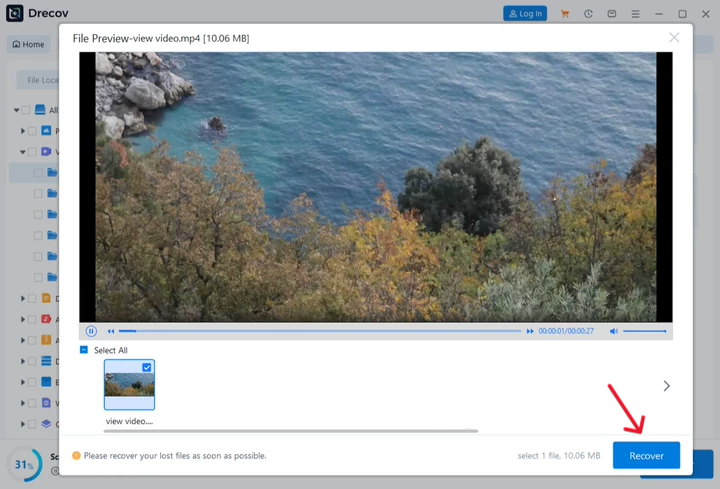
Step 4: Safely Export and Restore Your Recovered Files
Check the boxes next to the specific files or folders you want to save, and then click the Recover action button.
- A directory selection prompt will appear on your screen.
- Select a secure target location on an alternative drive or external storage unit.
- Click OK to begin saving your files.
KEY OPERATIONAL POINT: Always verify that your target recovery destination drive has enough free space to accommodate the selected files. Avoid restoring files directly back to the original source partition until you have verified that all recovered files open and play correctly.
Internal Configuration Guides for Storage and Browser Management
System optimization often requires adjusting deep software integrations, particularly cloud backup solutions like Microsoft OneDrive, which can sometimes lock down local folders or cause browser caching conflicts. Below are several resources to help you manage these system settings and resolve underlying conflicts.
If cloud sync platforms interfere with your browser’s data paths, you can use this comprehensive guide on how to remove OneDrive from File Explorer to clean up your navigation panel and prevent unwanted file locking.
Additionally, managing browser state issues is an important part of troubleshooting media player errors. If you accidentally close multiple web browser windows while trying to fix streaming playback errors, you can easily restore your workspace by learning how to delete recently closed tabs in seconds.
Finally, if OneDrive continuously uploads your local video caches and slows down your network connection, you can safely resolve the conflict by following these steps to disable a folder from OneDrive and recover lost files. This helps keep your local storage paths separate from automated synchronization streams.
Why YouTube Sometimes Buffers Constantly
Continuous buffering usually indicates that the data pipeline cannot supply information fast enough to stay ahead of the real-time video player runtime tracking clock.
- Network Congestion: Too many devices connected to a single local router consuming bandwidth simultaneously.
- ISP Throttling: Some internet service providers detect high-volume video streams and artificially limit transmission bandwidth.
- Weak Wi-Fi Signal Strength: Physical obstructions like thick walls or interference from household electronics can disrupt wireless signals.
Moving closer to your router, upgrading to a modern Wi-Fi 6 or Wi-Fi 7 access point, or connecting via a physical Ethernet cable can improve your streaming stability dramatically.
Best Practices for Smooth YouTube Playback
To prevent future instances where videos are not playing on youtube, implement these preventative maintenance habits into your routine.
- Keep Apps Updated: Update your operating system, web browsers, and mobile applications regularly to maintain compatibility with new web standards.
- Clear Cache Monthly: Periodically clear your browser cache to remove old, fragmented data before it can corrupt your settings.
- Limit Extension Usage: Only keep browser extensions enabled that you use daily. Remove unused ad blockers or script tools to minimize software conflicts.
- Use Stable Internet Connections: When streaming high-definition content, use stable networks and avoid running high-bandwidth background downloads at the same time.
- Restart Devices Weekly: Restart your computers, smartphones, and routers once a week to clear out accumulated system lag and refresh network connections.
Future of YouTube Streaming Technology
As global internet consumption scales upward, technology continues to evolve to deliver smoother playback and reduce errors across all devices.
- AI Video Optimization: Server-side machine learning models analyze network conditions in real time to adaptively adjust bitrates without causing noticeable drops in visual clarity.
- Advanced Compression Algorithms: The widespread adoption of next-generation codecs like AV1 allows high-definition and 4K content to stream smoothly while using up to 30% less bandwidth.
- Edge Computing Architecture: Deploying media content delivery networks closer to regional access points minimizes physical data transit latency, helping to eliminate buffering loops before they reach your local network.
These upcoming changes will make online video streaming faster, more stable, and highly resilient against localized device errors.
Conclusion
Experiencing issues where videos are not playing on youtube can be frustrating, especially when you rely on the platform for entertainment, learning, work, or communication. Fortunately, most playback errors are caused by manageable factors such as unstable internet connections, corrupted cache files, outdated browsers, app glitches, extension conflicts, or temporary server disruptions.
By systematically working through the troubleshooting steps outlined above—such as restarting devices, clearing cache, updating apps and browsers, disabling problematic extensions, lowering video quality, and maintaining stable internet connections—you can quickly resolve the vast majority of YouTube playback problems. Additionally, if system instability or unexpected crashes lead to local data corruption or loss during your troubleshooting process, using a reliable solution like PandaOffice Drecov data recovery software ensures that your important offline media files and documents can be safely restored.






