







USB flash drives are the unsung heroes of our digital lives. Whether you are transferring school projects, backing up sensitive work documents, or creating a bootable installer for a new operating system, these pocket-sized devices are indispensable. However, there comes a time in every drive’s life when things go wrong. Perhaps your files are corrupted, the drive is “write-protected,” or you simply want to wipe the slate clean for a fresh start. In this comprehensive guide, we will explore everything you need to know about how to format a usb drive, the technical nuances of file systems, and—most importantly—how to rescue your precious files if you formatted your drive by mistake.
Why Do You Need to Format a USB Flash Drive?
Before we dive into the “how,” it is crucial to understand the “why.” Formatting is not just about deleting files; it is about preparing the storage structure of the device so that an operating system can read from and write to it.
You might need to format usb drive for several reasons:
- Changing File Systems: You may need to switch from FAT32 to NTFS to store files larger than 4GB.
- Fixing Corruption: If your computer says the “disk needs to be formatted before you can use it,” formatting is often the only way to make the hardware functional again.
- Removing Malware: Deep-seated viruses can sometimes hide in the boot sector of a flash drive. A full format is a reliable way to sanitize the device.
- Improving Performance: Over time, file fragmentation and “ghost” data can slow down a drive. A fresh format restores its original factory speed.
Understanding File Systems: FAT32 vs. NTFS vs. exFAT
When you begin the process to format usb flash drive, your operating system will ask you to choose a file system. This choice is critical because it determines compatibility and performance.
1. FAT32 (File Allocation Table 32)
This is the oldest and most compatible file system. Almost every device with a USB port—including car stereos, game consoles, and smart TVs—can read FAT32.
- Pros: Universal compatibility.
- Cons: You cannot store a single file larger than 4GB.
2. NTFS (New Technology File System)
This is the default file system for Windows modern drives.
- Pros: Supports massive file sizes and includes security features like file encryption.
- Cons: Mac computers can usually read NTFS but cannot write to it without third-party software.
3. exFAT (Extended File Allocation Table)
Think of this as the “middle ground.” It was designed by Microsoft to replace FAT32.
- Pros: Works on both Windows and Mac; supports files larger than 4GB.
- Cons: Not as widely supported on older electronics (like old digital cameras).
How to Format a USB Drive on Windows: From Easy to Advanced
We have categorized these methods by complexity. If you are a beginner, start with Method 1. If the drive is being stubborn, move down the list.
Method 1: Using Windows File Explorer (The Easiest Way)
This is the standard procedure for 99% of users. It is quick, visual, and effective.
- Step 1: Plug your USB drive into an available port on your PC.
- Step 2: Open File Explorer (shortcut:
Windows Key + E). - Step 3: Navigate to This PC and locate your drive under “Devices and drives.”
- Step 4: Right-click the drive icon and select Format… from the context menu.
- Step 5: In the popup window, choose your desired File System (exFAT is recommended for most).
- Step 6: Keep “Quick Format” checked unless you suspect the drive has physical damage.
- Step 7: Click Start, then confirm the warning by clicking OK.
Method 2: Using Disk Management (When the Drive Doesn’t Appear)
Sometimes, a drive is “unallocated” and won’t show up in File Explorer. In this case, you must use the Windows Disk Management utility.
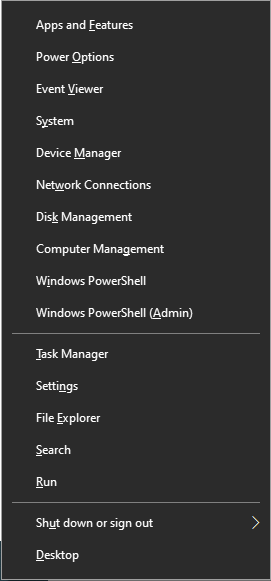
- Step 1: Right-click the Start button and select Disk Management.
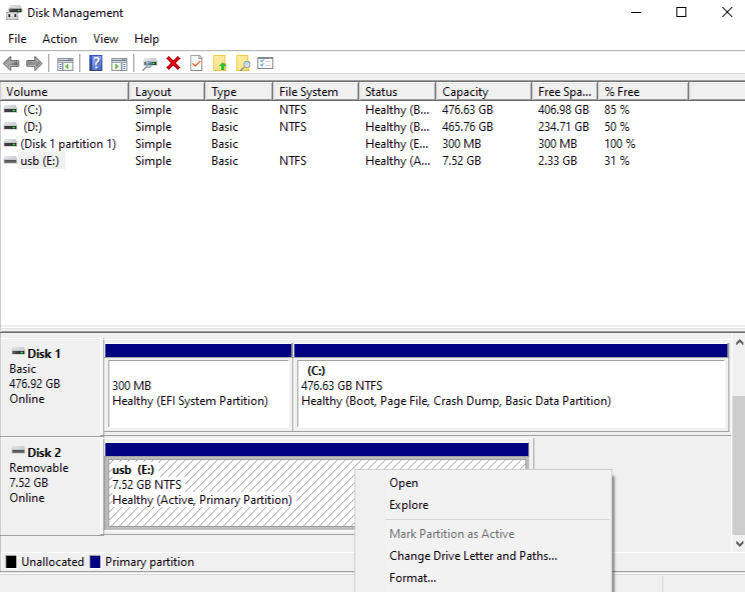
- Step 2: Locate your USB drive in the list. It usually appears as “Removable” with a black bar (unallocated) or a blue bar.
- Step 3: Right-click the block representing the drive space and select New Simple Volume (or Format if it already has a partition).
- Step 4: Follow the New Simple Volume Wizard by clicking “Next.”
- Step 5: Assign a drive letter and choose your file system.
- Step 6: Click Finish to complete the process.
Method 3: Using Command Prompt (Diskpart)
If your drive is write-protected or “Read Only,” the GUI tools might fail. This is where you use the power of the command line to format usb drive.
Warning: Be extremely careful here. Selecting the wrong disk number will erase your hard drive.
- Step 1: Click the Start menu, type
cmd, right-click it, and select Run as Administrator.

- Step 2: Type
diskpartand press Enter. - Step 3: Type
list diskto see all connected drives. Identify your USB by its size (e.g., Disk 2). - Step 4: Type
select disk X(Replace X with your USB’s number). - Step 5: Type
cleanto wipe all partition information. - Step 6: Type
create partition primary. - Step 7: Type
format fs=ntfs quick(orfs=fat32orfs=exfat). - Step 8: Type
assignto give it a drive letter, thenexit.
The Golden Rule: Back Up Before You Format
Formatting is a destructive process. It wipes the “address book” of your drive, making the data inaccessible to the operating system. Before you format usb flash drive, always verify that you have copies of your photos, documents, and videos stored elsewhere.
If you are formatting because the drive is inaccessible, you face a dilemma: you can’t back up because you can’t open the drive. This is where professional data recovery tools become your best friend.
Accidentally Formatted? How to Recover Data with PandaOffice Drecov
It happens to the best of us. You click “Format,” the bar completes, and suddenly you realize your only copy of your tax returns was on that drive. Do not panic. When you format a drive, the data isn’t actually “gone”—it is just marked as “free space” waiting to be overwritten.
PandaOffice Drecov is a professional-grade recovery tool designed to find these “invisible” files and bring them back to life.
⚠ Warning: Install it on a drive different from the one where your data was lost to prevent overwriting.
Step-by-Step Recovery Process
- Step 1: Connect the USB. Plug in the formatted flash drive and launch the software. On the main dashboard, you will see a list of drives. Select your USB drive under the “External Devices” section.

- Step 2: Start the Scan. Click the Scan button. PandaOffice Drecov will perform a “Deep Scan,” looking past the new file system to find the remnants of your old data.

- Step 3: Preview Your Files. Once the scan is complete, you can browse through folders. The software allows you to preview photos and documents to ensure they aren’t corrupted.

- Step 4: Recover. Select the files you want to save and click Recover.
Crucial Tip: Save the recovered files to your computer’s desktop or a different drive, NOT back onto the USB drive. This prevents overwriting the very data you are trying to save.
Advanced Troubleshooting for USB Drives
Sometimes, knowing how to format a usb drive isn’t enough because the hardware itself is acting up. Here are some pro tips for common issues.
The “Write Protected” Error
If Windows refuses to format the drive because it is “Write Protected,” check for a physical lock switch on the side of the casing. If there is no switch, you can often clear this state using the attributes disk clear readonly command within the diskpart tool mentioned earlier.
The Drive Shows the Wrong Capacity
If your 64GB drive only shows 2MB, it usually means the partition table is damaged. Using the clean command in Diskpart (Method 3) is the most effective way to reset the drive’s geometry and reclaim the lost space.
External Resources for Further Reading
For more technical details on file systems, you can check out Microsoft’s official documentation on NTFS. If you are looking for cross-platform compatibility tips, SD Association’s formatting standards are also a great resource.
Deepen Your Knowledge
If you found this guide helpful, you may want to explore more advanced topics regarding USB health and system optimization. Check out these detailed guides:
- Learn the secrets of how to repair a corrupted USB flash drive without losing data to save time on future fixes.
- If your computer isn’t recognizing the drive at all, read our ultimate troubleshooting guide for USB ports not working.
- Once your drive is formatted and ready, you can use it to reinstall Windows 10 from USB to fix errors and speed up your PC.
Format A USB Drive FAQs
1. Why can’t I format my USB drive to FAT32 on Windows 11/10?
Windows has a built-in limitation where it won’t let you format usb drive to FAT32 if the partition size is larger than 32GB (though it can read larger ones). If your flash drive is 64GB or 128GB, Windows will only offer NTFS or exFAT as options. To bypass this, you can use the PandaOffice Drecov utility suite or third-party command-line tools to force a FAT32 format on larger drives.
2. Does formatting a USB drive delete everything permanently?
When you format usb flash drive using the “Quick Format” option, the data is not immediately destroyed; the file system table is simply reset. This makes the files invisible to the OS, but they still reside on the memory chips. However, if you perform a “Full Format,” Windows writes zeros over the entire drive, making data recovery nearly impossible even with professional software.
3. What should I do if Windows says “Windows was unable to complete the format”?
This error usually occurs due to drive corruption, bad sectors, or the drive being currently in use by another program.
- Step 1: Close all open files from the USB.
- Step 2: Use the Diskpart method (Method 3 in our guide) to “Clean” the drive.
- Step 3: Check for physical damage. If the drive is still stubborn, it might be reaching the end of its hardware lifecycle.
4. Can I format a USB drive on a Mac to work on a Windows PC?
Yes! To ensure cross-platform compatibility, you should format usb drive using the exFAT file system.
- On a Mac, open Disk Utility.
- Select the USB drive and click Erase.
- Choose exFAT from the Format dropdown menu. This format allows you to read and write files on both macOS and Windows without any additional software.
5. Is it better to format a USB drive as NTFS or exFAT?
It depends on your primary use case. If you only use Windows and need features like file-level security and compression, NTFS is superior. However, if you move between different devices (Macs, PCs, and gaming consoles like the PS5), exFAT is the much better choice as it lacks the 4GB file size limit of FAT32 but retains broad compatibility.
Conclusion
Understanding how to manage your portable storage is a vital skill in 2026. Formatting is a powerful tool for maintenance, but it must be used with caution. By following the steps above, you can confidently format usb drive for any purpose, whether it’s for a Mac, a PC, or a smart device.
Remember, hardware can fail, and mistakes can happen. Always keep a secondary backup of your most important files. If you do find yourself in a situation where data has been lost due to a forced format or accidental deletion, tools like PandaOffice Drecov provide a safety net to ensure your digital life remains intact.





