







Seeing a blank screen with a sudden error message can be incredibly frustrating when you are trying to stream an important video. One of the most frequent interruptions users face online is the this video cannot be played error code 23301 issue. This specific error typically indicates a sudden disruption in communication between your web browser and the media streaming server. While it commonly occurs on JW Player hosted platforms, it can happen across various sites due to corrupted browser data or network glitches. Fortunately, resolving this issue is straightforward if you know the right troubleshooting steps.
Furthermore, if the underlying cause involves local corruption of your media cache or related browser files, professional data tools can help. We highly recommend using PandaOffice Drecov data recovery software to safeguard your system files and recover any lost media assets. In this comprehensive guide, we will break down exactly why the video file cannot be played error code happens and provide actionable methods to get your videos streaming smoothly again.
Understanding the Basics of This Video Cannot Be Played Error Code 23301
To resolve this issue permanently, you must first understand what triggers it. The this video cannot be played error code 23301 message is a technical code predominantly tied to HTML5 video players. It means that the media player attempted to load a video stream but failed to establish or maintain a stable connection with the host server.
Common Causes of Video Playback Failures
Several technical factors contribute to this playback interruption:
- Browser Cache Corruption: Accumulated temporary files can conflict with active website scripts.
- Conflicting Extensions: Ad-blockers or privacy extensions frequently block the video loading scripts by mistake.
- Outdated Browser Software: Older browser versions often lack the updated security certificates required to stream modern video formats.
- Network Instability: Sudden drops in internet bandwidth disrupt the continuous data packet transfer needed for live streaming.
If these technical glitches end up corrupting your downloaded files or temporary video directories, specialized utilities become necessary. This is where PandaOffice Drecov data recovery software plays a vital role. This advanced tool scans deep within your storage drives to locate, reconstruct, and restore corrupted media files or missing browser data. For instance, if you lose important web configurations while troubleshooting browser errors, you can easily discover how to get your Google Chrome bookmarks back using their secure data retrieval algorithms.
Solutions to This Video Cannot Be Played Error Code 23301 Issues
Fixing the video file cannot be played error code involves a mix of browser optimization and file system repairs. Below are the most effective strategies to eliminate the error.
Method 1: Clear Browser Cache and Cookies
Accumulated web data is the primary culprit behind streaming errors. Follow these steps to clean your browser environment in Google Chrome:
- Open your browser and press the hotkey combination Ctrl + Shift + Delete on Windows to launch the Clear Browsing Data menu.
- Set the time range drop-down menu to All Time.
- Check the boxes next to Cookies and other site data as well as Cached images and files.
- Click the Clear data button and restart your browser completely.
Method 2: Use PandaOffice Drecov Data Recovery Software
When browser errors stem from deep system corruption or accidental deletion of local video files, manual browser resetting is not enough. PandaOffice Drecov data recovery software provides an efficient solution to restore original, uncorrupted media assets directly from your hardware storage.
This utility supports all major Windows file systems including NTFS and FAT32. It is especially useful if you regularly download streams or store offline video clips that suddenly stop playing due to drive bad sectors. For example, if your external storage drives encounter similar corruption issues, you can follow a complete guide on how to recover deleted files from USB flash drive using the same powerful platform.
⚠ Warning: Install it on a drive different from the one where your data was lost to prevent overwriting.
Follow these explicit instructions to use PandaOffice Drecov data recovery software version 5.2.0 for restoring corrupted video directories:
- Step 1: Select the Target Location. On the main dashboard, select the specific drive partition where your browser cache or downloaded video files were stored. Usually, this will be your local C drive.

- Step 2: Initiate the Deep Scan. Click the Scan button to start the retrieval process. The software will execute a quick sector scan followed automatically by a deep sector scan to piece together fragmented video files.

- Step 3: Filter and Preview the Files. Use the file type filter on the left sidebar to select Video. Browse through the discovered MP4 or MKV files to find your corrupted media files.
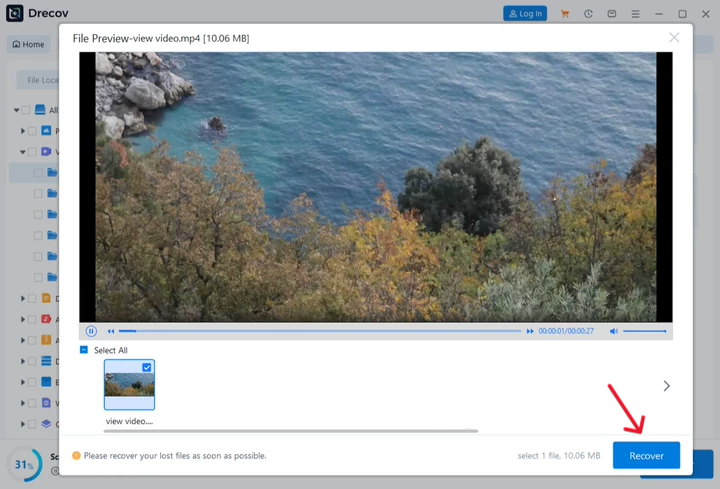
- Step 4: Recover and Save Safely. Check the boxes next to the files you wish to rescue. Click the Recover button at the bottom right corner and choose a saving destination on a completely different physical drive to prevent data overwriting.
Method 3: Disable Hardware Acceleration
Hardware acceleration shifts graphics processing tasks to your GPU. However, this feature can cause severe compatibility issues with certain HTML5 video players, resulting in the video file cannot be played error code message.
- Click the three vertical dots at the top right corner of Chrome and select Settings.
- Navigate to the System tab on the left-hand navigation panel.
- Locate the toggle switch labeled Use graphics acceleration when available.
- Flip the toggle switch to the off position.
- Click the Relaunch button that appears next to the toggle to apply changes.
Alternative or Complementary Methods
If the primary fixes do not yield results, alternative network and system modifications can bypass the this video cannot be played error code 23301 restriction.
| Method Name | Pros | Cons |
| Switching to Incognito Mode | Bypasses all extensions instantly without changing permanent browser settings. | Does not permanently fix the root issue in normal browsing mode. |
| Disabling Extensions Manually | Pinpoints the exact ad-blocker causing the playback block. | Time-consuming if you have dozens of add-ons installed. |
| Resetting Network Protocols | Refreshes the entire DNS cache and resolves hidden server communication drops. | Requires administrative privileges and system reboots. |
Resetting Network Configurations Manually
Network congestion can easily block video streams. To completely reset your network stack on Windows, follow these exact steps:
- Press the Windows key on your keyboard and type cmd into the search bar.
- Right-click Command Prompt and select Run as administrator.
- Type
ipconfig /flushdnsand press the Enter key. - Type
netsh winsock resetand press Enter to rebuild the network socket layer. - Restart your computer to establish a clean internet connection.
Sometimes, complex system integrations can cause underlying network delays or file accessibility problems. If you need to streamline your system layout by removing deeply embedded cloud applications that conflict with local file access, learning how to remove OneDrive from File Explorer step by step guide can significantly clean up your operating system paths.
Tips & Best Practices
Preventing future occurrences of the video file cannot be played error code involves maintaining an optimized system environment. Implement these habits to ensure uninterrupted video playback and peak data integrity:
- Keep Web Browsers Updated: Check for browser updates weekly because streaming protocols evolve rapidly to combat security vulnerabilities.
- Audit Ad-Blocker Whitelists: Add trusted streaming platforms to the exclusion list of your antivirus software and ad-blockers to prevent script termination.
- Avoid Storage Overcrowding: Ensure your primary system drive has at least 15% free space so that temporary video buffering files have room to compile.
- Deploy Trusted Recovery Protocols: Always keep a verified utility like PandaOffice Drecov data recovery software installed to handle unexpected file corruption immediately before bad sectors spread.
Frequently Asked Questions
Why does error code 23301 only happen on certain web browsers?
This happens because different browsers utilize distinct JavaScript engines and rendering profiles. A website script might load flawlessly on Mozilla Firefox but fail on Google Chrome due to specific cookie blocking policies or outdated extension structures inside that particular browser.
Can a slow internet speed trigger this video cannot be played error code 23301?
Yes, a slow internet connection is a major trigger. If the JW Player or HTML5 platform cannot pre-load the next segment of data within a predefined timeout window, the connection drops entirely and triggers the video file cannot be played error code message.
Is PandaOffice Drecov data recovery software safe for my operating system files?
Absolutely. The application operates in a strict read-only mode during the scanning process. This means it reads the lost information without modifying or writing over your existing system directory, ensuring complete safety. For more information on technical web issues, you can review the extensive troubleshooting logs found on major tech resources like the Google Chrome Enterprise Help Center.
Does disabling hardware acceleration degrade overall system performance?
No, it will not hurt your general PC performance. Disabling this feature merely forces the browser to process video rendering through the main CPU rather than the graphics card, which often eliminates script rendering bugs on streaming sites.
What should I do if clearing the cache does not fix the issue?
If clearing the cache fails, you should disable your extensions one by one, reset your local network protocols using the command prompt, or check if your graphics card drivers require an urgent update.
Conclusion
Resolving the this video cannot be played error code 23301 impediment requires an organized approach, starting from basic browser maintenance up to network optimization. By clearing conflicting cache data, disabling problematic graphics acceleration, and managing extension permissions, you can permanently eliminate streaming interruptions.
Meanwhile, remember that system maintenance goes hand-in-hand with data security. When local video files or browser directories become corrupted during sudden system crashes, relying on PandaOffice Drecov data recovery software is your safest bet to restore digital assets effortlessly. Take control of your digital workspace today by keeping your software updated and installing proactive recovery tools to guard against unexpected technical errors.





