







If you’ve ever tried to change your default save location on Windows and suddenly found your files going straight into OneDrive instead of your local folders, you’re not alone. Many users find themselves asking, Why Does Changing Libraries Default Go to OneDrive? It’s one of those quietly frustrating moments that makes you stop and think, “Wait… I didn’t ask for this.” And yet, there it is—Documents, Pictures, Desktop—all synced to the cloud whether you planned it or not.
Here’s the thing: this behavior isn’t random, and it’s definitely not a bug. It’s the result of how modern Windows systems are designed to integrate cloud storage directly into your daily workflow. Once you understand what’s happening behind the scenes, you’ll not only stop feeling confused—you’ll actually be able to control it. Let’s break it down properly and explore why your system insists on the cloud and how you can reclaim your local storage.
Understanding Windows Libraries and Default Save Locations
What Are Windows Libraries?
Windows Libraries are like curated collections of folders that make your life easier—at least in theory. Instead of forcing you to navigate through multiple directories, libraries group similar content types together. For example, the Documents library can include files from different locations but present them as one unified space. It’s a convenience layer, not an actual physical storage location on your hard drive.
When you save a file to a library, Windows doesn’t just randomly decide where it goes. It uses something called a default save location, which is essentially the primary folder behind that library. That location can be on your local drive, an external disk, or—this is where things start to shift—your OneDrive cloud storage. This abstraction is powerful, but it also creates confusion because, from your perspective, you’re saving to “Documents,” but behind the scenes, Windows is routing that file to a specific path. If that path changes to a cloud directory, your entire workflow changes with it.
How Default Save Locations Work
Default save locations are the backbone of how Windows handles file organization. Every library has one main folder designated as its default, and unless you manually override it, that’s where files go when you hit “Save.” The system works quietly in the background, which is usually helpful until a major update or a new account sign-in shifts the destination.
When OneDrive is enabled, Windows can automatically update these default paths to point to cloud-synced directories. Suddenly, your Documents library isn’t tied to your local C:\Users\Name\Documents anymore—it’s tied to C:\Users\Name\OneDrive\Documents. This change isn’t always obvious. You might not even notice until you check your storage space or try to access files offline. That’s why so many users feel blindsided; the system didn’t ask loudly, it just switched the preference to ensure your data is “safe” in the cloud.
What Is OneDrive and Why It’s Integrated
OneDrive’s Role in Windows
OneDrive isn’t just an optional add-on anymore—it’s deeply woven into the Windows ecosystem. Think of it as a built-in safety net for your files. Its primary purpose is to automatically back up your important data and make it accessible from anywhere, whether you’re on another computer, your phone, or even a web browser.
From Microsoft’s perspective, this integration solves a major problem: data loss. People forget to back up files, hard drives fail, and laptops get lost. By defaulting to cloud storage, the system ensures your data is always protected. While this sounds like a perfect solution, the tighter the integration, the less obvious the boundaries between local and cloud storage become. When those boundaries blur, users often feel they have lost control over their own file structure.
Automatic Sync Features Explained
The syncing feature is both a strength and a root of many frustrations. When enabled, it continuously monitors selected folders and uploads any changes to the cloud. That means your files are always up-to-date across devices—but it also means your local file system is no longer entirely local.
The most prominent feature causing this is “Folder Backup.” When you ask, “why does changing libraries default go to onedrive,” the answer usually lies in the fact that Windows views the OneDrive version of the folder as the “official” version. If you try to point a library to a local folder while syncing is active, the system may revert the change to maintain the integrity of the backup.
Why Your Libraries Default to OneDrive
Known Folder Move (KFM) Feature
This is the main culprit behind the redirecting behavior. Known Folder Move (KFM) is a Windows technology designed to automatically back up your most important folders by redirecting them into the OneDrive sync directory. Once KFM is active, your system treats the OneDrive folder as the “real” location for Desktop, Documents, and Pictures.
It’s like setting a GPS route, only for your car to keep rerouting back to the highway because it thinks that’s the safest path. You can try to save locally, but the system keeps pulling you back to the cloud. This is why, even after changing library settings, the default often snaps back to OneDrive.
Microsoft’s Cloud-First Strategy
There’s also a bigger picture here. Microsoft has been steadily moving toward a cloud-first ecosystem, where data is accessible, synced, and backed up by default. This strategy isn’t just about convenience—it’s about consistency. By encouraging users to store files in OneDrive, Microsoft ensures seamless transitions between devices and provides a unified experience. For users who prefer complete local control and privacy, however, this can feel like the system is making executive decisions on their behalf without a clear “opt-out” button.
What Triggers the Switch to OneDrive
Initial Windows Setup
During the initial setup (OOBE) of a new Windows device, you’re often prompted to sign in with a Microsoft account. Somewhere in that process, there’s usually an option—sometimes subtle—to enable OneDrive backup for key folders. Many users click “Next” quickly, not realizing they’ve agreed to redirect their entire library system to the cloud. Once enabled, the system starts redirecting folders immediately.
Software Updates and Prompts
Even if you skipped the initial setup prompts, Windows updates can reintroduce OneDrive pop-ups. These prompts often highlight benefits like “Protect your files” or “Stay productive across devices.” Once you accept these suggestions, the system automatically adjusts your library defaults. It effectively changes the “Target” path of your libraries to the OneDrive subfolders, leading to the situation where you find your files in the cloud unexpectedly.
Benefits of OneDrive Default Libraries
Backup and Recovery Advantages
Let’s be fair—there are real benefits here. Having your files automatically backed up means you’re protected against hardware failures, accidental deletions, and even ransomware attacks. If your hard drive dies today, you can log into a new machine and find every single document waiting for you. Furthermore, OneDrive includes a “Version History” feature, allowing you to roll back changes to a file if you make a mistake.
Cross-Device Accessibility
Another major advantage is accessibility. You can start working on a document on your laptop and finish it on your phone without transferring files manually via USB or email. Everything stays in sync, which is incredibly convenient in today’s multi-device world. For many, the peace of mind outweighs the frustration of the default setting change.
Downsides of OneDrive as Default
Storage Limits and Sync Issues
OneDrive’s free storage is limited (usually 5GB), and once you hit that limit, syncing stops. This can lead to confusion when files don’t update or save properly. You might see red “X” icons on your files, indicating they aren’t backed up. This creates a bottleneck where you are forced to either delete files or pay for a subscription just to keep your libraries functioning as they were.
Privacy and Performance Concerns
Some users are uncomfortable with storing sensitive files in the cloud due to privacy concerns. Additionally, if you have a slow internet connection, syncing large files (like videos or high-res photos) can hog your bandwidth and slow down your PC’s performance. These concerns make local storage a preferred option for many power users and privacy advocates.
How to Stop Libraries Defaulting to OneDrive
If you want to regain control over your file paths, you need to address the settings directly. Simply changing the library folder isn’t enough; you must tell OneDrive to stop “protecting” those folders.
windows 11 default save location to onedrive fix
To fix the default save location on Windows 11 and prevent it from reverting to the cloud, follow these steps:
- Step 1: Click on the Start menu and select Settings (the gear icon).
- Step 2: Navigate to System and then click on Storage.
- Step 3: Scroll down to find Advanced storage settings and click on Where new content is saved.
- Step 4: Here, you will see a list of categories like New Documents, New Music, and New Pictures. Change each dropdown menu from “OneDrive” to your local disk (usually This PC (C:)).
- Step 5: Click Apply for each change. This tells Windows to prioritize your local drive for all new files moving forward.
onedrive “manage backup” setting explained
Even after changing the save location, OneDrive might still be redirecting your existing folders. This is where the onedrive “manage backup” setting explained section becomes vital. This setting controls the Known Folder Move feature mentioned earlier.
- Step 1: Click the OneDrive icon (the blue or white cloud) in your system tray (bottom-right corner of the taskbar).
- Step 2: Click the gear icon and select Settings.
- Step 3: Go to the Sync and backup tab and click the Manage backup button.
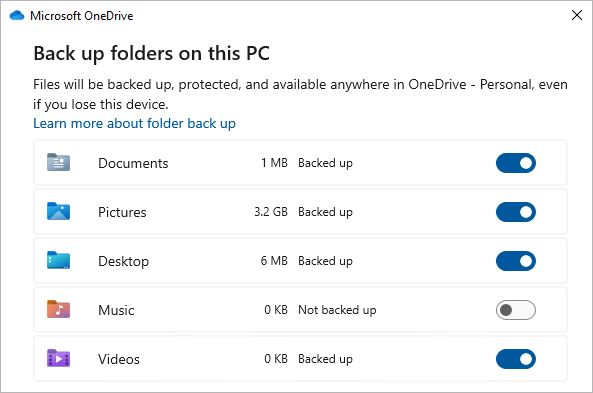
- Step 4: You will see toggles for Desktop, Documents, and Pictures. If these are turned “On,” OneDrive is currently redirecting these libraries to the cloud.
- Step 5: Toggle them Off. A prompt will appear asking you to confirm. Once disabled, Windows will restore the original local paths for these folders.
Note: When you do this, your files stay in the OneDrive folder. You will need to manually move them back to the local C:\Users\YourName\Documents folder if you want them stored locally again.
Data Loss Risk: What Happens During the Move?
A common issue occurs when users try to manually move their library folders while OneDrive is still trying to sync them. This can lead to “missing” files or “permission denied” errors. If you find that your files disappeared after you tried to disable OneDrive or move your folders, don’t panic. This is a frequent side effect of the path-changing process.
recover files deleted during onedrive folder move
If you experience data loss during this transition, you need a reliable way to recover files deleted during onedrive folder move. When paths are redirected, Windows sometimes creates a new, empty folder and hides the old one, or files get stuck in a “temp” state. Before you try any complex registry hacks, the best approach is to use a professional data recovery tool.
PandaOffice Drecov data recovery software
To safely retrieve lost or misplaced data during a folder migration, we recommend using PandaOffice Drecov data recovery software. This tool is specifically designed to handle file system errors, accidental deletions, and path redirection issues that often plague Windows users.
⚠ Warning: Do not install the software on the same drive partition where the files were lost (e.g., if you lost files from C:, try to install the software on D: or an external drive) to avoid overwriting data.
Steps to Recover Data Using PandaOffice Drecov:
- Step 1: Select the Scan Location. Launch the application. You will see a list of drives and specific locations. Since library issues usually affect the user profile, select the C: Drive or use the “Select Folder” option to target the specific
Usersdirectory.

- Step 2: Run the Quick/Deep Scan. Start the scan. The software will first perform a Quick Scan to find recently deleted items. If your files don’t appear, allow it to proceed to a Deep Scan, which looks at the raw data structure of the disk to find files lost during folder moves.

- Step 3: Preview and Filter. Once the scan is complete, use the search bar or file type filters (e.g., .docx, .jpg) to find your missing library files.
- Key Point: PandaOffice Drecov allows you to preview files before recovery to ensure they aren’t corrupted.

- Step 4: Recover to a Safe Location. Select the files you need and click Recover. Always save the recovered files to an external USB drive or a different partition to ensure a 100% success rate.
After you have successfully restored your files, you might want to learn more about managing these folders properly. Check out this guide on how to disable a folder from OneDrive and recover lost files for more detailed technical tips.
Advanced Fixes for Persistent Issues
If the standard settings menus aren’t working and your libraries keep defaulting back to the cloud, you may need to go under the hood.
Registry and Group Policy Tweaks
For those comfortable with technical configurations, the Windows Registry holds the final word on folder paths.
- The relevant key is found at:
HKEY_CURRENT_USER\Software\Microsoft\Windows\CurrentVersion\Explorer\User Shell Folders. - Inside this key, you will see entries like “Personal” (for Documents) and “My Pictures.”
- If the data value starts with
%USERPROFILE%\OneDrive\, it is being forced to the cloud. You can manually change these back to%USERPROFILE%\Documentsor%USERPROFILE%\Pictures. - Warning: Always back up your registry before making changes. A single typo can cause system instability.
Unlinking OneDrive
If you want to stop the behavior entirely and have no intention of using cloud sync, unlinking is the cleanest solution.
- Right-click the OneDrive icon > Settings > Account.
- Click Unlink this PC.
- This stops the sync engine completely. Your files remain on the disk, but the “Why does changing libraries default go to onedrive” problem will vanish because the service is no longer active to override your choices.
For a permanent solution, you can follow this step-by-step guide to removing OneDrive from File Explorer or learn how to completely remove OneDrive Personal from your computer.
Common Mistakes Users Make
Misunderstanding Sync vs Storage
One of the biggest errors is the belief that files in OneDrive are just “backups” and that deleting them from the cloud won’t affect the local PC. Because these folders are mirrored, deleting a file in the OneDrive folder on your PC or online will delete it everywhere. This is often how users lose data—they think they are “cleaning up the cloud” but they are actually wiping their local library.
Partial Configuration Changes
Many users change the “Library” path but forget to change the “Storage” settings in the Windows menu, or they forget to turn off “Manage Backup” in OneDrive. Because Windows has multiple layers of redirection, you must ensure all three areas (Library Properties, Windows Storage Settings, and OneDrive Backup) are aligned. If even one points to the cloud, the system may eventually pull the others back into that configuration.
When You Should Keep OneDrive Enabled
While this guide focuses on how to stop the default behavior, it’s worth noting that OneDrive isn’t the enemy. It is a tool. You should keep it enabled if:
- You frequently work from different locations (Home and Office).
- You don’t have a physical external hard drive for backups.
- You want to share large files via links rather than email attachments.
- You use Microsoft 365 and want the “AutoSave” feature in Word and Excel to work.
The goal isn’t necessarily to “kill” OneDrive, but to ensure it works for you, rather than you working around it.
Why Does Changing Libraries Default Go To Onedrive FAQs
1. Why does my Documents folder keep moving back to OneDrive after I move it?
This usually happens because the “Manage Backup” setting in OneDrive is still active. You must turn off folder protection in OneDrive settings before the folder will stay in its local position.
2. Is it safe to disable OneDrive entirely?
Yes, it is perfectly safe. However, ensure you have an alternative backup solution (like an external drive or another cloud service) so you don’t lose your data if your hard drive fails.
3. Will I lose my files if I stop syncing?
No. Stopping the sync just means changes won’t be uploaded to the cloud. Your files remain on your hard drive in the OneDrive folder. You can then move them back to your local User folders.
4. Why do some of my folders have a blue cloud icon?
That icon indicates “Files On-Demand.” It means the file is stored in the cloud and only takes up a tiny amount of space on your PC until you double-click to open/download it.
5. How do I make my local “Documents” the default again?
Right-click the Documents library > Properties > Include a folder (select your local folder) > Set as default save location. Then, remove the OneDrive path from the list.
Conclusion
The reason why does changing libraries default go to onedrive isn’t a mystery once you pull back the curtain on Windows 11’s architecture. It is a deliberate combination of Microsoft’s cloud-first strategy and the Known Folder Move feature working in tandem to ensure your data is synchronized. While this design offers a high level of data redundancy, it can feel like a loss of agency for those who prefer traditional local storage.
By taking the time to adjust your Windows 11 default save location and properly configuring the OneDrive backup settings, you can successfully override these automated behaviors. You aren’t losing control of your PC; you are simply recalibrating it to fit your specific workflow. Whether you choose to embrace the cloud or stick to a strictly local setup, the key is understanding the “why” behind the settings.






