







If your browser has been acting slow, loading outdated pages, or behaving strangely, there’s a good chance the problem lies in your cache. Learning how to flush cache in Firefox is one of the simplest yet most effective ways to fix these issues instantly. In the modern web environment of 2026, where websites are heavier and scripts are more complex, maintaining a clean browser environment is no longer optional—it is a necessity for data integrity and speed.
Think of your browser cache like a storage closet. Over time, it fills up with temporary files—images, scripts, and website data—meant to speed up your browsing. But when that closet gets cluttered or outdated, instead of helping, it starts slowing everything down. Even worse, sometimes these files can become corrupted, leading to significant data access issues that might make you think your files are lost forever.
The good news? Clearing it takes just a few clicks. Furthermore, if you accidentally delete something more important than a few temporary images, modern data recovery solutions have evolved to help you retrieve what was lost. Let’s walk through everything you need to know, from basic steps to advanced recovery tips.
What Is Cache in Firefox and Why Does It Matter?
Before diving into the steps, it’s important to understand what cache actually does. Cache is a collection of temporary files stored by your browser to help websites load faster. For example, when you visit a website for the first time, Firefox downloads images and scripts. The next time you visit, it loads them from cache instead of downloading them again.
Sounds efficient, right? It is—until things go wrong. Over time, cached files can become outdated, conflict with new website updates, take up unnecessary space, or cause loading errors. That’s why knowing how to flush cache in Firefox is essential for maintaining smooth performance. When the browser tries to load a new version of a site using an old cached script, the result is often a “broken” page.
Firefox sites not loading correctly clear cache to Fix the Issue
When you notice Firefox sites not loading correctly clear cache as your first line of defense. This specific problem usually manifests as “CSS” failures where the website looks like a plain text document from the 1990s, or buttons that simply refuse to respond to clicks. These are classic symptoms of a “stale” cache where the browser is trying to use an old map for a new territory.
To resolve this manually and ensure a deep clean, follow these steps:
- Step 1: Launch your Mozilla Firefox browser and ensure you have saved any active work in other tabs.
- Step 2: Click the Menu button (represented by three horizontal lines) in the upper-right corner of the window.
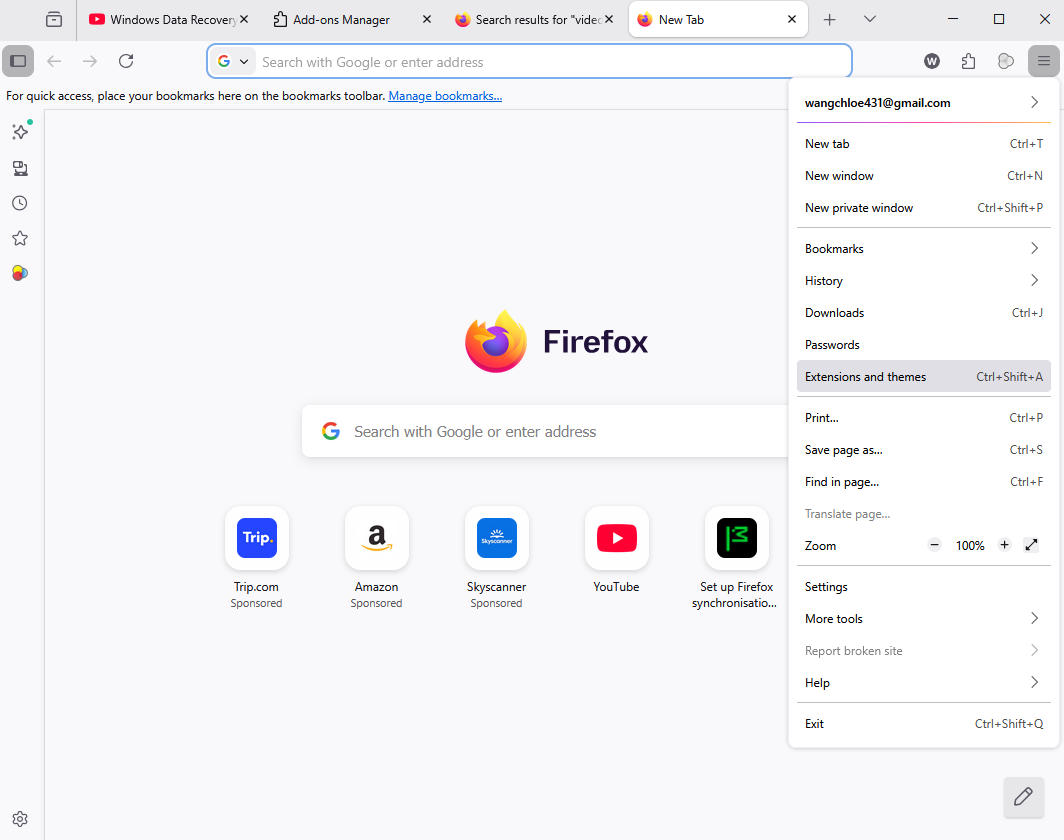
- Step 3: From the drop-down menu, select Settings.
- Step 4: On the left-hand sidebar, click on Privacy & Security.
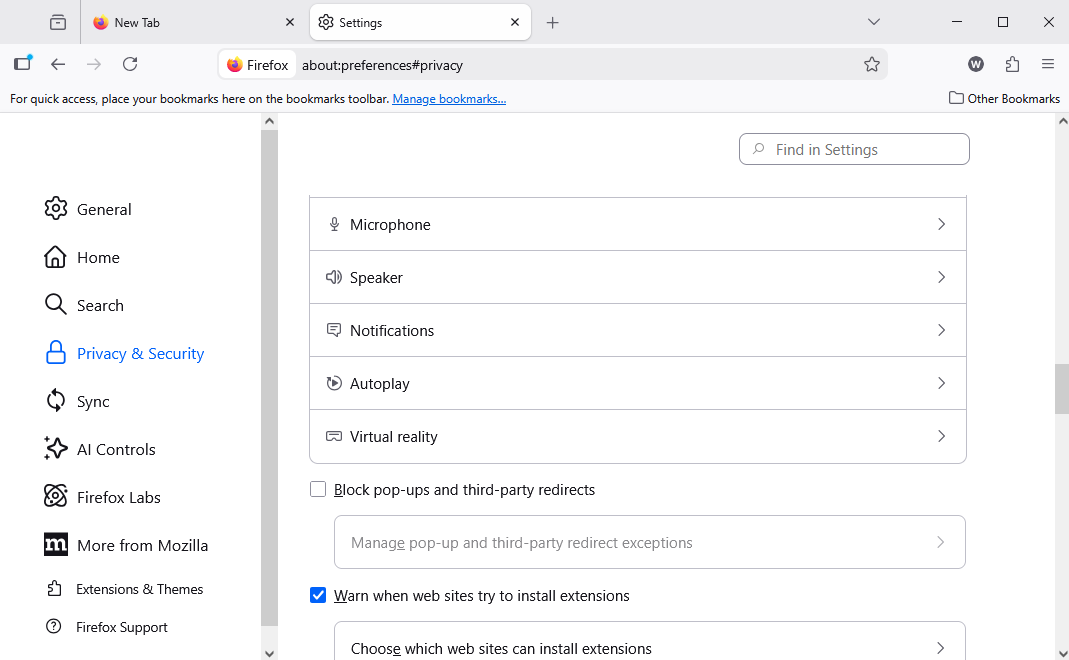
- Step 5: Navigate to the Cookies and Site Data section.
- Step 6: Click the Clear Data… button.
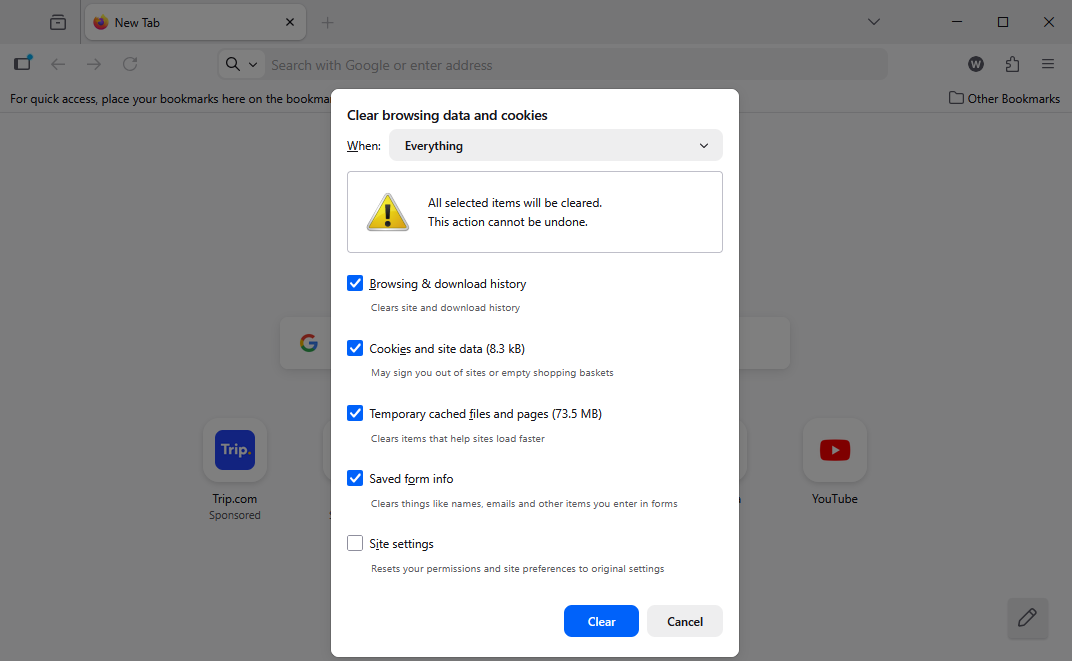
- Step 7: Uncheck “Cookies and Site Data” if you only wish to perform a cache flush, and ensure “Cached Web Content” is checked.
- Step 8: Hit the Clear button to finalize the process.
By following this sequence, you force the browser to reach out to the web server and download the most recent version of the site’s assets. This is the most reliable way to handle the Firefox sites not loading correctly clear cache dilemma.
How to clear firefox cache shortcut for Power Users
Efficiency is king in 2026. If you find yourself frequently troubleshooting web development projects or simply want to save time, you should memorize the how to clear firefox cache shortcut. This keyboard combination bypasses the need to navigate through the Settings menu entirely.
- Step 1: While Firefox is the active window, press the following keys simultaneously:
- Windows/Linux:
Ctrl + Shift + Delete - macOS:
Command + Shift + Delete
- Windows/Linux:
- Step 2: A dialog box titled “Clear Recent History” will appear immediately.
- Step 3: In the “Time range to clear” drop-down menu, select Everything to ensure a total flush, or choose a specific window like “Last Hour.”
- Step 4: Under the “History” list, ensure only Cache is selected if you want to keep your browsing history and active logins (cookies) intact.
- Step 5: Click OK.
Using the how to clear firefox cache shortcut is significantly faster than manual navigation. Many users find that incorporating this into their weekly digital maintenance routine keeps the browser snappy and prevents the accumulation of “ghost” files that can bloat the Firefox profile folder.
Can i undo clearing firefox cache if I lose important data?
A common question that arises among panicked users is, “can i undo clearing firefox cache?” Perhaps you cleared your cache and realized that an unsaved form, a specific session state, or a temporary download that was stored in the cache is now gone.
Standard browser settings do not provide an “Undo” button for clearing cache. Once the browser deletes those files, it marks that sector of your hard drive as “available” for new data. However, from a data recovery perspective, those files aren’t physically wiped instantly. They are simply hidden from the operating system’s file index.
Is Recovery Possible?
Technically, yes. If you act quickly, you can use professional-grade recovery tools to scan your drive for the deleted cache files. The success rate depends heavily on whether the browser or system has overwritten those specific disk sectors with new information. So, while the answer to “can i undo clearing firefox cache” is “not through Firefox settings,” the answer is “yes, through data recovery software.”
PandaOffice Drecov data recovery software
When standard browser functions fail or you’ve accidentally wiped crucial browsing data, PandaOffice Drecov data recovery software is the professional choice for retrieving lost information. Whether it’s corrupted Firefox profile folders, accidentally deleted bookmarks, or the remnants of a cleared cache you desperately need back, this tool is designed to handle deep-sector scanning.
⚠ Warning: Never install the recovery software on the same drive partition where the lost data was located (usually the C: drive), as this can overwrite the very files you are trying to save.
Unlike basic utilities, PandaOffice Drecov data recovery software utilizes advanced algorithms to reconstruct file fragments. Here is how you can use it to recover lost Firefox data:
Step 1: Select the Location
Launch the program. On the main interface, select the local disk where Firefox is installed (typically your primary SSD or HDD). If you are looking for specific browser data, you can often target the “Users” folder.

Step 2: Deep Scan Execution
Click on the Scan button. The software will begin a “Quick Scan” followed by a “Deep Scan.” The Deep Scan is essential for finding files that were deleted when you decided to how to flush cache in firefox but now need to recover.

Step 3: Filter and Search
Once the scan is complete, use the search bar to look for “Mozilla” or “Firefox” folders. Look for files with extensions like .sqlite, .json, or specific cache file headers.

Step 4: Preview and Recover
PandaOffice Drecov data recovery software allows you to preview certain file types before committing to the recovery. Select the files you need and click the Recover button. Always save the recovered files to an external drive or a different partition.
Key Operation Point: If you are trying to recover a lost session or specific cached data, stop using the computer immediately until the scan is finished. Every minute of active web browsing creates new temporary files that could overwrite your lost data.
Advanced Troubleshooting: When Flushing Cache Isn’t Enough
Sometimes, you learn how to flush cache in firefox, you execute the steps perfectly, but the “Firefox sites not loading correctly” issue persists. In these rare cases, the problem might be deeper within the Firefox profile or the Windows Registry.
Refreshing Firefox
If a simple cache flush doesn’t work, Mozilla offers a “Refresh” feature. This basically gives the browser a “factory reset” while keeping your essential information like bookmarks and passwords.
- Go to
about:supportin your address bar. - Click Refresh Firefox in the top-right box.
- Confirm the action.
Checking for Data Corruption
Data corruption can happen during sudden power outages or system crashes. If your Firefox profile becomes unreadable, you might lose your bookmarks. If this happens, don’t forget that you can check the Firefox Bookmarks Location to see if the physical files still exist on your drive before resorting to a full recovery scan.
Summary of Technical Steps for Data Maintenance
To keep your digital life organized and your browser running at peak performance, refer to this comparison table of actions:
| Goal | Action | Complexity |
| Quick Fix for Sluggishness | How to flush cache in firefox via Settings | Low |
| Daily Maintenance | How to clear firefox cache shortcut (Ctrl+Shift+Del) | Low |
| Fix Broken Site Layouts | Firefox sites not loading correctly clear cache | Medium |
| Recover Deleted History/Cache | Use PandaOffice Drecov data recovery software | High |
| Restore Lost Bookmarks | Locate where Firefox bookmarks are stored | Medium |
Why Cache Management is Essential in 2026
As we move further into 2026, web technologies like WebAssembly and complex client-side rendering mean that Firefox caches more data than ever before. A single afternoon of heavy browsing can result in hundreds of megabytes of cached data. If this data is not managed, it leads to “Bit Rot”—a phenomenon where old data fragments interfere with new processes.
Furthermore, privacy regulations have become stricter. Flushing your cache is not just a performance move; it is a privacy move. It ensures that tracking tokens and “zombie cookies” that hide in the cache are regularly purged from your system.
Helpful Resources for Firefox Users
For more specific guides on managing your browser data, you might find these articles helpful:
- How to Download Video from Firefox (2026 Guide)
- Finding Your Firefox Bookmarks Instantly
- Understanding Where Firefox Stores Bookmarks on Your PC
Conclusion
Mastering how to flush cache in firefox is a foundational skill for any internet user. It is the digital equivalent of clearing the cobwebs out of your home. By using the how to clear firefox cache shortcut, you save time. By understanding why Firefox sites not loading correctly clear cache is the solution, you save yourself frustration. And by having PandaOffice Drecov data recovery software in your toolkit, you ensure that even if you ask yourself “can i undo clearing firefox cache” in a moment of regret, you have a professional-grade answer ready to go.
Keep your browser clean, your software updated, and always maintain a backup of your most important data. Happy browsing!






