Home » How Do I Disable OneDrive? [2026 Step-by-Step Guide]
How Do I Disable OneDrive? [2026 Step-by-Step Guide]
Tired of slow performance or privacy prompts? This comprehensive 2026 guide explains exactly how do I disable OneDrive using five different methods. From pausing sync to permanent registry edits, we cover it all. Plus, learn how to use PandaOffice Drecov to protect your data and recover any files accidentally lost during the onedrive disable process.…
In the modern era of cloud computing, Microsoft has integrated its storage solution deeply into the Windows ecosystem. While having a seamless backup is convenient, many users find themselves asking, “how do I disable OneDrive?” whether it’s to save system resources, protect privacy, or simply manage files locally. This comprehensive guide will walk you through every method to disable OneDrive effectively, from temporary pauses to permanent removal, while ensuring your data remains safe.
What Is OneDrive and Why Is It Running on Your PC?
If you use a modern version of Windows, you have likely noticed a small cloud icon sitting in your system tray near the clock. That is Microsoft OneDrive, the built-in cloud storage service designed to keep your files synchronized across multiple devices.
Overview of Microsoft OneDrive
OneDrive functions as a virtual bridge between your local hard drive and Microsoft’s servers. By default, it targets high-traffic folders like your Desktop, Documents, and Pictures. While this provides an automated safety net, many users prefer to disable OneDrive to maintain manual control over their file structures or to prevent their personal data from being uploaded to the cloud automatically.
How OneDrive Sync Works in Windows 10 and Windows 11
In both Windows 10 and Windows 11, the synchronization engine operates in the background. When you add, modify, or delete a file in a protected folder, the engine immediately reflects those changes in the cloud. This bidirectional sync ensures that if you delete a file on your laptop, it also disappears from the OneDrive web portal. Understanding this mechanism is vital before you decide to onedrive disable functionality, as abrupt changes can sometimes lead to confusion regarding file locations.
Default Startup Behavior
Microsoft configures OneDrive to launch automatically the moment you log into your Windows account. It signs you in using your Microsoft credentials and begins indexing changes immediately. Because it is a core component of the “out-of-the-box” experience, it can feel quite intrusive if you never intended to use cloud storage in the first place.
Why You Might Want to Disable OneDrive
While cloud integration has its perks, several valid reasons exist for wanting to disable OneDrive on your primary workstation or gaming rig.
High CPU or Disk Usage
One of the most common complaints involves system performance. During large sync operations—such as after a major Windows update or when moving thousands of small files—OneDrive can consume significant CPU cycles and disk I/O. If your computer starts stuttering or the fan ramps up for no apparent reason, the sync engine is often the culprit.
Privacy Concerns
In an age of increasing data awareness, many individuals are uncomfortable with their private documents being stored on external servers. To mitigate this, users often choose to disable OneDrive entirely to ensure their data stays strictly on their local hardware.
Sync Errors and Annoying Notifications
“Your OneDrive is full” or “Action Required: Sync Paused” are notifications that can interrupt your workflow. These persistent pop-ups are a primary reason people search for how to onedrive disable the service to regain a distraction-free environment.
Limited Bandwidth or Storage
If you are working on a metered connection or a slow Wi-Fi network, background uploading can saturate your upload bandwidth, making web browsing or video calls laggy. Furthermore, the free 5GB tier fills up quickly, leading to constant prompts to purchase more storage.
Disable OneDrive vs Uninstall OneDrive
Before we dive into the “how-to,” it is important to distinguish between the different levels of removal.
Temporary Disable
This involves pausing the sync engine or preventing it from starting with Windows. The app remains on your computer, allowing you to turn it back on whenever you need to upload a specific batch of files.
Permanent Removal
This involves unlinking your account and uninstalling the application. This is the preferred route for users who have committed to alternative services like Dropbox, Google Drive, or local NAS solutions.
What Happens to Your Files?
A common fear is data loss. However, choosing to disable OneDrive does not delete your files. The files already synced to the cloud will remain at OneDrive.live.com, and the files on your hard drive will stay in their local folders. The only thing that stops is the communication between the two.
How to Disable OneDrive Temporarily (Pause Sync)
If you only need to stop the sync activity for a few hours—perhaps to save bandwidth during an important meeting—you don’t need a permanent fix.
Step-by-Step Instructions
Locate the OneDrive cloud icon in the taskbar notification area (bottom right).
Right-click the icon to open the menu.
Click on the Gear icon (Help & Settings).
Select Pause syncing from the dropdown menu.
Pause for 2, 8, or 24 Hours
You will be presented with a choice of duration. Once the timer expires, OneDrive will automatically resume its activity. This is the “lightest” way to disable OneDrive without changing system settings.
How to Stop OneDrive from Starting with Windows
If you want the app to stay on your PC but don’t want it running unless you manually open it, follow these steps.
Method 1: Disable via OneDrive Settings
Click the OneDrive icon and select Settings.
Go to the Sync and backup tab (or the “Settings” tab in older versions).
Under the Preferences section, find the toggle for Start OneDrive when I sign in to Windows.
Flip the switch to Off.
Method 2: Disable via Task Manager Startup Tab
Sometimes the internal settings don’t stick. Using the Task Manager is a more forceful way to disable OneDrive at boot.
Press Ctrl + Shift + Esc to open the Task Manager.
Click on the Startup apps tab (the speedometer icon).
Find Microsoft OneDrive in the list.
Right-click it and select Disable.
How to Disable OneDrive Using Group Policy (Windows Pro & Enterprise)
For users running professional versions of Windows, the Local Group Policy Editor provides a “set it and forget it” solution that works at the system level.
Open Local Group Policy Editor
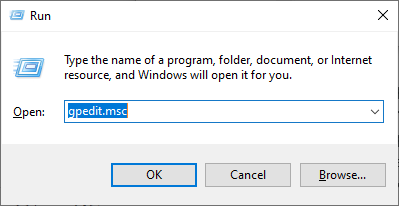
Press Win + R on your keyboard.
Type gpedit.msc and hit Enter.
Enable Policy to Disable OneDrive
This method ensures that the sync engine cannot run even if a user tries to open the app manually.
Navigate to: Computer Configuration > Administrative Templates > Windows Components > OneDrive.
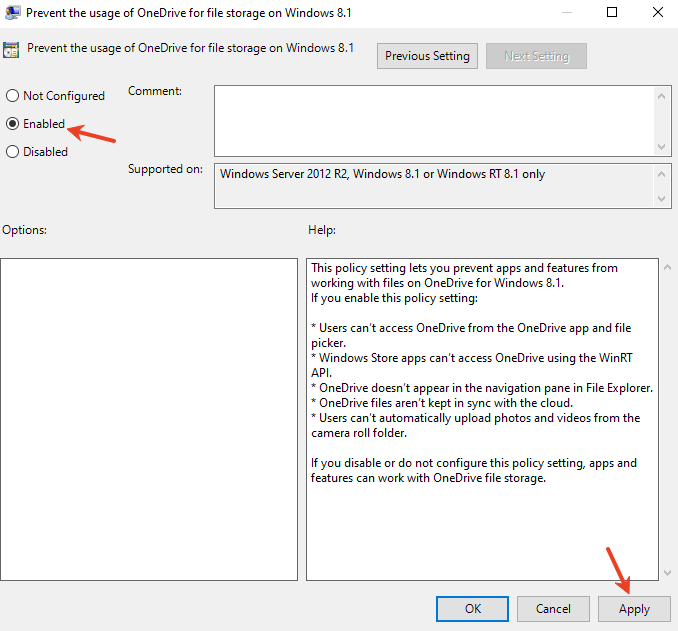
On the right pane, look for the policy named Prevent the usage of OneDrive for file storage.
Double-click it and select the Enabled radio button.
Click Apply and OK.
Exact Path and Policy Name
The specific policy is Prevent the usage of OneDrive for file storage. By “Enabling” this restriction, you effectively onedrive disable all cloud integration, including the integration with the File Explorer side panel.
How to Disable OneDrive via Registry Editor (All Windows Editions)
If you are on Windows Home Edition, you won’t have access to Group Policy. Instead, you can use the Registry Editor to achieve the same result.
Safety Warning Before Editing Registry: Incorrectly editing the registry can cause system instability. Always export a backup of your registry keys before making changes.
Registry Path and DWORD Value
Press Win + R, type regedit, and press Enter.
Navigate to the following path:HKEY_LOCAL_MACHINE\SOFTWARE\Policies\Microsoft\Windows\OneDrive(If the OneDrive folder doesn’t exist under Windows, right-click the Windows folder and create a new Key named “OneDrive”)
Creating DisableFileSyncNGSC
Right-click in the right-hand pane and select New > DWORD (32-bit) Value.
Name the new value DisableFileSyncNGSC.
Double-click it and change the Value data to 1.
Restart your computer to fully disable OneDrive.
How to Unlink Your PC from OneDrive Account
Unlinking is the best “clean break” without deleting the software itself. It signs you out and stops all file tracking.
Unlink This PC Option
Open OneDrive Settings.
Navigate to the Account tab.
Click the blue link that says Unlink this PC.
Confirm by clicking Unlink account in the pop-up window.
What Happens After Unlinking
Your files will remain in the C:\Users\[Username]\OneDrive folder, but they will no longer have the green checkmark icons. They are now standard local files. This is a crucial step if you are wondering “how do I disable OneDrive” before giving your computer to someone else.
How to Completely Uninstall OneDrive
If you are certain you never want to see that cloud icon again, you can remove the application entirely.
Uninstall via Settings
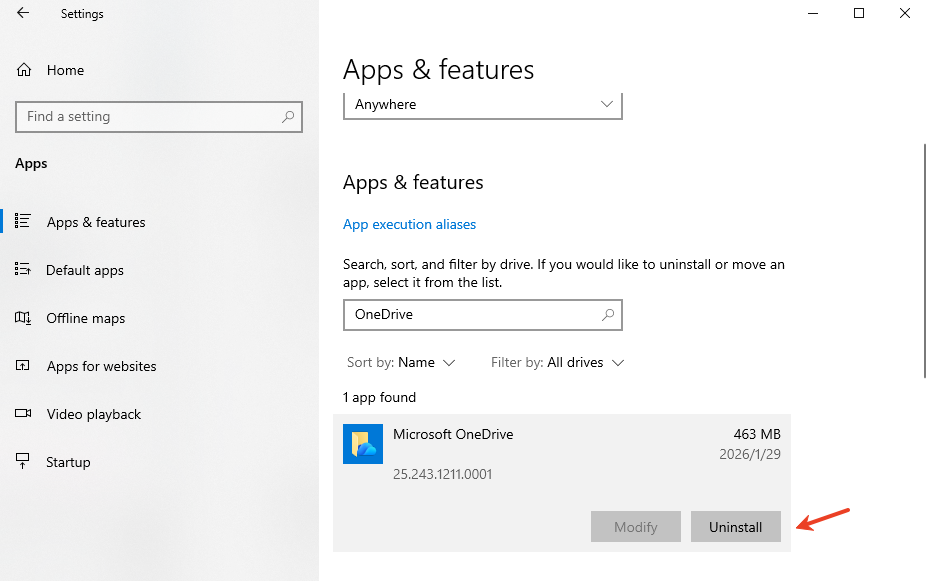
Open the Windows Settings app (Win + I).
Go to Apps > Installed apps.
Search for Microsoft OneDrive.
Click the three dots and select Uninstall.
Command Prompt Method
For a deeper clean, especially if the Settings menu fails, you can use the Command Prompt (Admin).
Type cmd in the Windows search bar and Run as Administrator.
To terminate the process, type: taskkill /f /im OneDrive.exe
To uninstall on 64-bit Windows, type:%SystemRoot%\SysWOW64\OneDriveSetup.exe /uninstall
To uninstall on 32-bit Windows, type:%SystemRoot%\System32\OneDriveSetup.exe /uninstall
How to Remove OneDrive Folder from File Explorer
Even after you disable OneDrive, the folder icon might persist in the File Explorer sidebar like a ghost. To remove it:
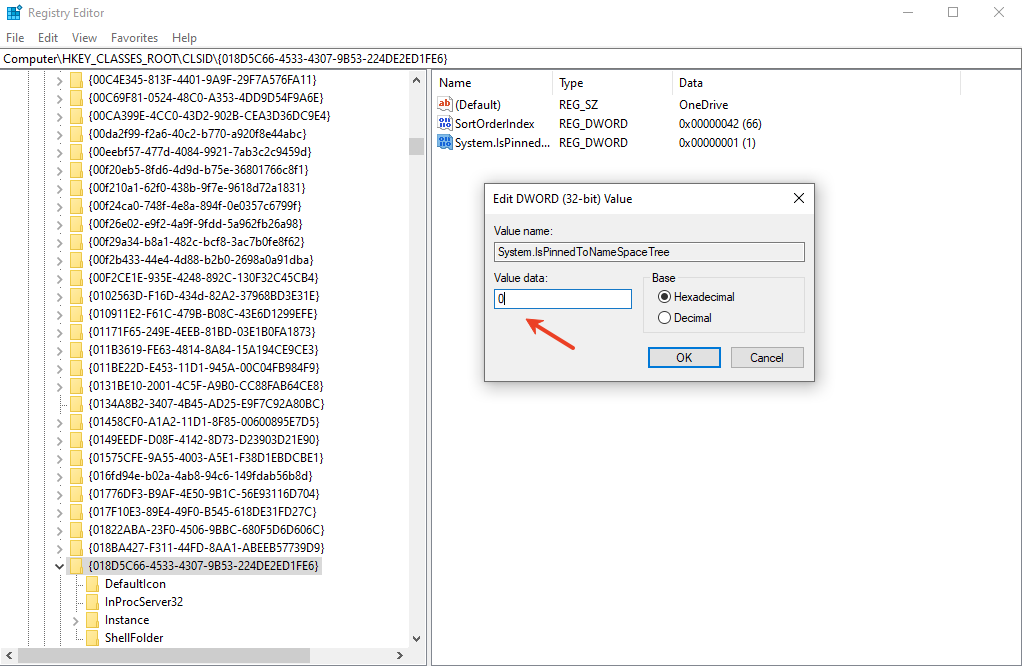
Open Registry Editor.
Navigate to: HKEY_CLASSES_ROOT\CLSID\{018D5C66-4533-4307-9B53-224DE2ED1FE6}
Find the value System.IsPinnedToNameSpaceTree.
Change its value from 1 to 0.
Restart Windows Explorer through the Task Manager to see the change.
How to Disable OneDrive Sync for Specific Folders
You don’t always have to go “all or nothing.” You can choose to sync only what is necessary.
Choose Folders Option
In OneDrive Settings, go to Account.
Click Choose folders.
Uncheck the boxes for folders you don’t want taking up space on your PC.
Freeing Up Space
If you want to keep the file in the cloud but remove the local copy to save disk space, right-click any file or folder and select Free up space. The file will stay online but will be deleted from your hard drive.
Data Recovery: What If You Lose Files While Disabling?
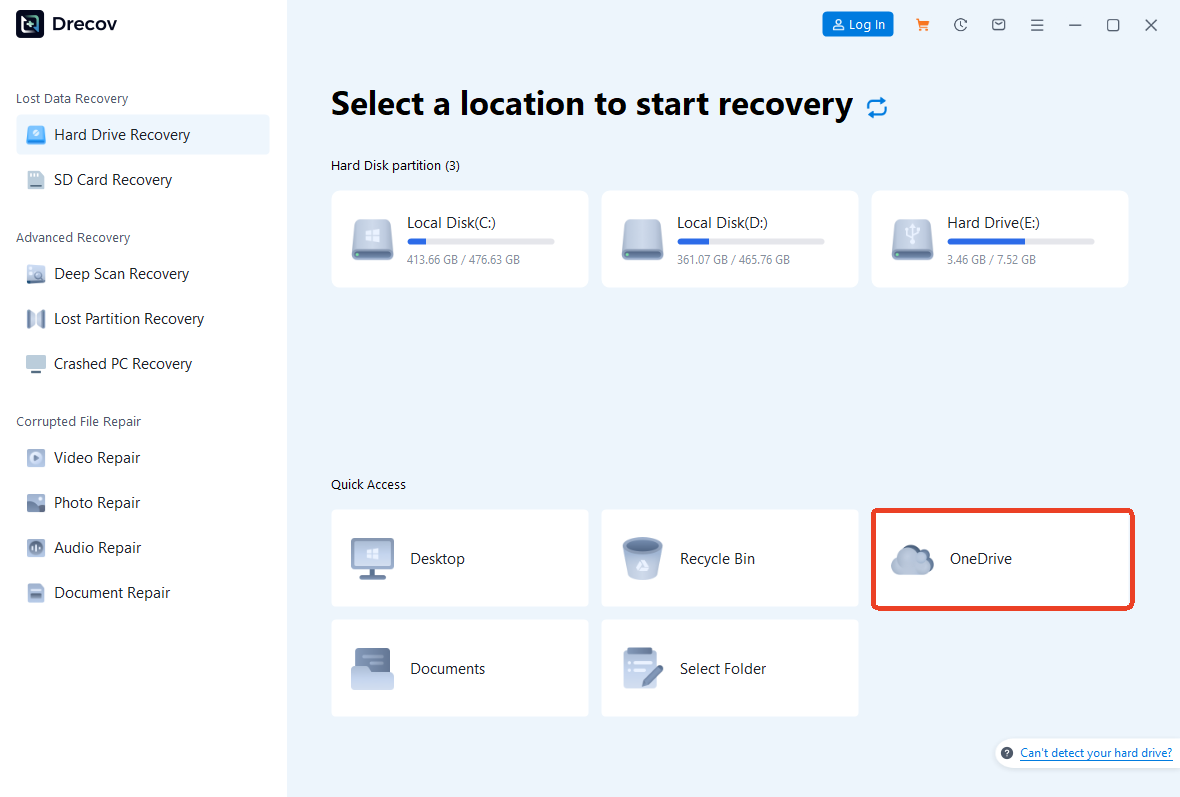
Sometimes, while moving files out of the OneDrive folder or unlinking accounts, users accidentally delete important documents. If you find that your files have vanished during the process to disable OneDrive, don’t panic. This is where professional tools like PandaOffice Drecov come into play.
PandaOffice Drecov is a robust data recovery solution designed to handle scenarios where files are lost during sync interruptions, accidental deletions, or drive formatting. It can scan your local sectors to find remnants of files that Windows thinks are gone.
⚠ Warning: Install it on a drive different from the one where your data was lost to prevent overwriting.
Step-by-Step Data Recovery with PandaOffice Drecov
Step 1: Select the Location
Launch the software. You will see a list of drives and specific folders. Since OneDrive usually lives on your C: drive, select the C: Drive or navigate specifically to your User folder.
Step 2: Scan for Deleted Files
Click the Scan button. The tool will perform a Quick Scan followed by a Deep Scan.
Key Point: Deep scanning looks for file signatures across the entire disk, which is highly effective if the file was deleted weeks ago.
Step 3: Preview and Filter
Once the scan completes, use the filter sidebar to look for specific file types (e.g., .docx, .jpg). You can double-click files to preview them before recovery to ensure they aren’t corrupted.
Step 4: Recover to a Safe Zone
Select the files you want back and click Recover.
Warning Prompt: Always save your recovered files to an external USB drive or a different partition. Saving them back to the original location significantly increases the risk of permanent data loss.
Advanced Data Recovery Tips
Managing your digital life often involves more than just OneDrive. Here are some additional resources to help you master data recovery across different platforms:
While the core functionality is the same, the visual steps differ slightly between the two operating systems.
Windows 11 Differences
In Windows 11, Microsoft has moved many settings into the “modern” UI. The onedrive disable process is more integrated into the “Sync and Backup” menu within the Windows Settings app.+1
Windows 10 Walkthrough
Windows 10 users still rely heavily on the system tray icon for configuration. The menus are slightly more text-heavy and less reliant on icons compared to the Windows 11 interface.
Common Issues After Disabling OneDrive
Missing Desktop or Documents Folder
Because OneDrive “redirects” your folders, disabling it might leave your Desktop empty. To fix this:
Go to C:\Users\[Username]\OneDrive.
Copy the folders (Desktop, Documents, Pictures).
Paste them back into C:\Users\[Username]\.
Files Still Syncing
If files continue to upload, it means the background process is still active. Ensure you have unlinked the account before trying to disable OneDrive via the Registry or Group Policy.
Should You Disable OneDrive? Pros and Cons
When It Makes Sense
You use specialized software that conflicts with cloud syncing (e.g., large database files).
You have a dedicated local backup routine.
You want to squeeze every bit of performance out of an older PC.
When You Should Keep It Enabled
You frequently switch between a desktop and a laptop.
You want an easy way to share large files via links.
You want protection against ransomware (OneDrive has a “File Restore” feature for attacks).
How disable OneDrive FAQs
Will disabling OneDrive delete my files?No. It only stops the synchronization. Your local files stay on your disk, and your cloud files stay on Microsoft’s servers.
Can I reinstall OneDrive later?Absolutely. You can download the latest installer from the Official Microsoft Website.
Does disabling OneDrive improve performance?Yes, particularly on systems with slower mechanical hard drives or limited RAM, as it stops background indexing and uploading.
Is it safe to edit the Windows Registry?It is safe as long as you follow the exact paths and create a backup. Avoid changing values you aren’t familiar with.
What’s the easiest way to disable OneDrive?The easiest way is unchecking the “Start OneDrive automatically” option in the application settings.
Conclusion
Learning how to disable OneDrive is about taking back ownership of your computing experience. Whether you choose to simply pause it for a few hours or excise it from the registry entirely, you now have the tools to do so safely. Remember, the goal of technology is to serve you—not the other way around. If you ever find yourself missing a file during these transitions, tools like PandaOffice Drecov are always there to bridge the gap.