







Microsoft OneDrive is arguably one of the most reliable cloud storage solutions available today, yet even the most robust systems encounter hiccups. Whether your files aren’t syncing, the app keeps crashing, or you’re seeing mysterious “Processing changes” messages for hours, knowing how to reset OneDrive is a critical skill for any Windows or Mac user.
In this comprehensive guide, we will walk through the technical nuances of refreshing your cloud connection. More importantly, we will dive deep into the world of data recovery, ensuring that if a sync error leads to data loss, you have the tools—specifically PandaOffice Drecov—to get your life back on track.
Why You Might Need to Reset OneDrive
Before we jump into the “how,” we must understand the “why.” Syncing is a delicate dance between your local hard drive, the OneDrive application, and Microsoft’s remote servers. When this dance falls out of step, a simple restart of your computer often isn’t enough.
Common triggers for a reset include:
- Sync Stalls: Your status icon shows “Syncing” but the progress bar hasn’t moved in a day.
- Missing Icons: The blue or white cloud icon has vanished from your system tray.
- Authentication Loops: OneDrive repeatedly asks you to sign in, even after entering the correct password.
- Folder Conflicts: You see duplicate files with your computer’s name appended to the end.
If you are experiencing these issues, a reset acts as a “factory refresh” for the app without deleting your actual cloud data.
Level 1: The Basic Approach – How to Reset OneDrive via Settings
For most users, the easiest way to resolve minor glitches is through the built-in interface. This method is the least invasive and should always be your first port of call.
How to Reset OneDrive Using the Application Menu
- Step 1: Locate the OneDrive icon (the little cloud) in your taskbar notification area (bottom right).
- Step 2: Click the icon and select the Gear icon (Settings).
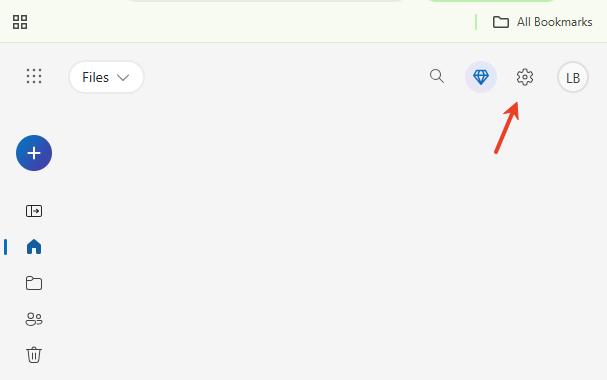
- Step 3: Navigate to the About tab.
- Step 4: Look for the version number; in some updated versions of Windows 11, you may see a “Reset” option directly in the Advanced settings.
However, if the app is frozen and won’t open the settings menu, you’ll need to move to the command-line method.
Level 2: The Power User Method – OneDrive Reset Command
When the graphical interface fails, we turn to the Windows Run dialog. This is the most effective way to force the application to re-index your files and clear its cache. This method is highly recommended by Microsoft Support for persistent errors.
Using the OneDrive Reset Command Path
To execute this, follow these precise steps:
- Press the Windows Key + R on your keyboard to open the Run dialog box.
- Copy and paste the following command exactly:
%localappdata%\Microsoft\OneDrive\onedrive.exe /reset - Press Enter or click OK.
Pro Tip: You might notice that nothing happens immediately after you click OK. This is normal. The command runs in the background to shut down all OneDrive processes and clear the local configuration.
- Wait about 2–3 minutes. If the OneDrive icon doesn’t reappear in the taskbar, go back to the Run box and type:
%localappdata%\Microsoft\OneDrive\onedrive.exe - This manually restarts the service.
Level 3: Handling Deep Errors – Reinstalling and Registry Checks
Sometimes, a simple reset OneDrive command isn’t enough because the underlying installation files are corrupted. In this scenario, we must look deeper into the system.
Verifying Registry Keys
If OneDrive refuses to start even after a reset, a registry key might be blocking it.
- Path:
HKEY_LOCAL_MACHINE\Software\Policies\Microsoft\Windows\OneDrive
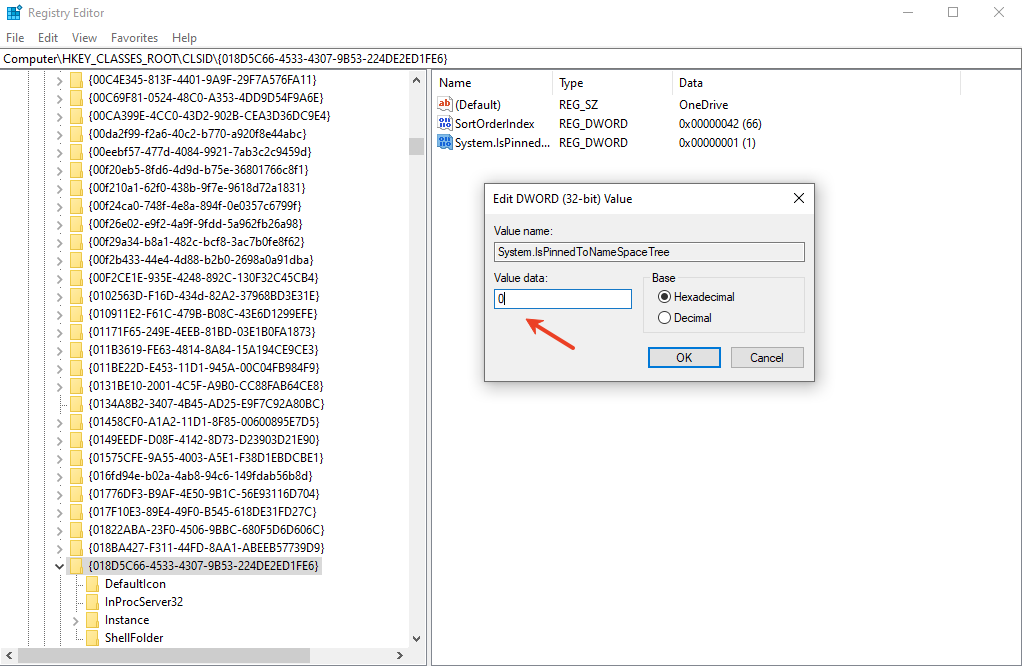
- Check: Ensure the “DisableFileSyncNGSC” value is set to 0. If it is set to 1, OneDrive is disabled at the system level.
The Clean Reinstall
If you’ve tried the OneDrive reset command and the registry looks fine, but errors persist, uninstalling the app via Settings > Apps > Installed Apps and downloading the latest version from the official OneDrive download page is the final nuclear option for the software itself.
Critical Phase: Data Recovery with PandaOffice Drecov
One of the biggest fears during a sync reset is data loss. While a reset shouldn’t delete files, sync conflicts can sometimes lead to “ghosting,” where files appear to exist but are actually 0 KB in size, or they disappear entirely during the re-indexing process.
If you realize that files are missing after you reset OneDrive, do not panic. This is where PandaOffice Drecov becomes your best friend. This tool is designed to scan your local drive for fragments of files that were deleted or “lost” during a failed sync operation.
Why Choose PandaOffice Drecov?
Unlike standard undelete tools, PandaOffice Drecov features an advanced deep-scan algorithm that can reconstruct file headers even if the file system table was damaged during a OneDrive crash.
⚠ Warning: Install it on a drive different from the one where your data was lost to prevent overwriting.
Step-by-Step Guide to Recovering OneDrive Files
Follow these steps carefully to ensure maximum recovery success:
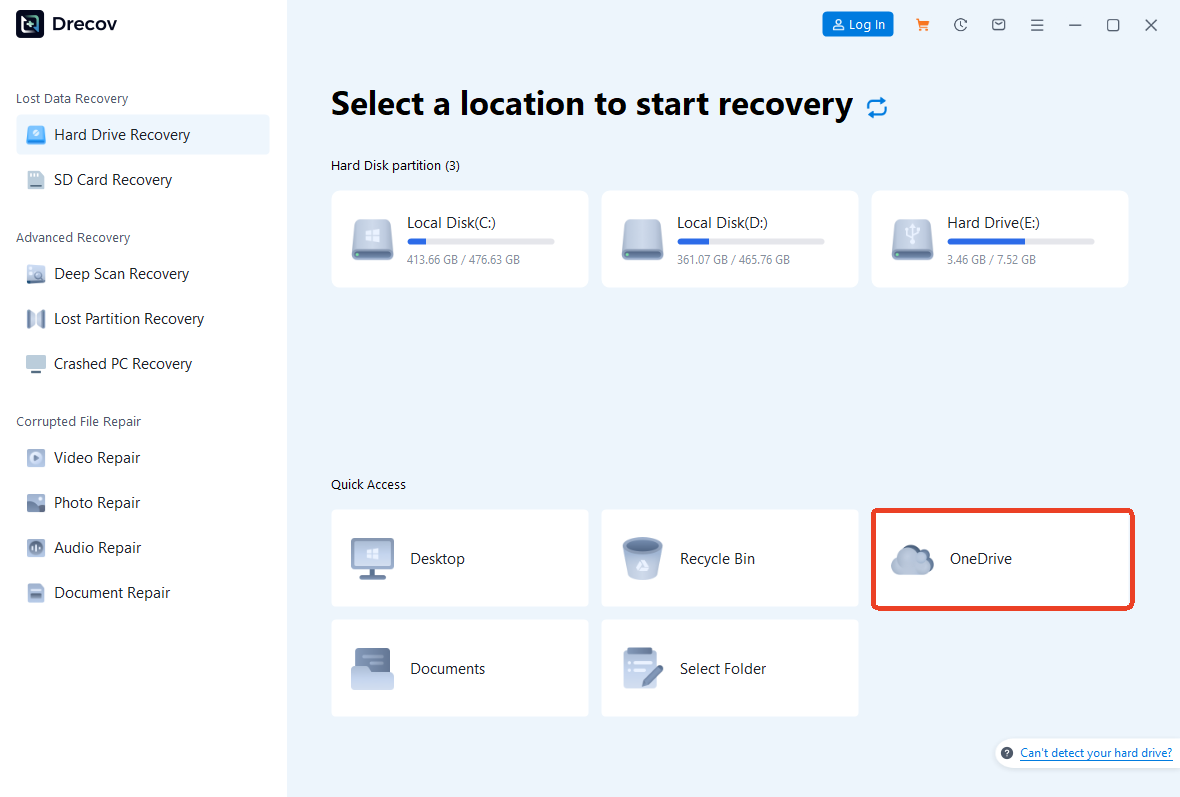
Step 1: Select the Scan Location
Launch the program. You will see a list of drives and specific locations. Since OneDrive usually lives in C:\Users\[YourName]\OneDrive, you can select the C: Drive or specifically choose the OneDrive folder to speed up the scan.
Step 2: Initiate the Deep Scan
Click on the Scan button. PandaOffice Drecov will first perform a “Quick Scan” to find recently deleted files. If your files don’t show up, allow the Deep Scan to complete.

Warning: Do not interrupt the Deep Scan. It may take anywhere from 10 minutes to an hour depending on your disk size, but it is necessary for finding fragmented data.
Step 4: Preview and Filter
One of the best features of Drecov is the preview window. You can filter results by file type (e.g., .docx, .jpg, .pdf). Click on a file to see a preview; if you can see the content, the file is 100% recoverable.
Step 5: Recover and Save
Select the checkboxes for the files you need. Click the Recover button. Always save the recovered files to an external USB drive or a different partition. Once the recovery is confirmed, you can move them back into your newly reset OneDrive folder.
Advanced Data Recovery Tips and Maintenance
Data integrity is about more than just knowing how to reset OneDrive. It’s about creating a resilient digital ecosystem.
The 3-2-1 Backup Rule
Even with cloud storage, you should follow the 3-2-1 rule:
- 3 copies of your data (Live, Cloud, Local Backup).
- 2 different media types (SSD and Cloud).
- 1 copy off-site (which OneDrive handles).
Maintaining a Healthy OneDrive
To avoid needing to use the OneDrive reset command in the future, follow these maintenance tips:
- Avoid Special Characters: Files named with characters like
* : < > ? / \ |often trigger sync errors. - Keep File Paths Short: Windows has a 260-character limit for file paths. Deeply nested folders in OneDrive can easily break this.
- Monitor Disk Space: If your local C: drive is full, OneDrive cannot create the temporary cache files needed for syncing.
How to Reset OneDrive FAQs
Q: Will resetting OneDrive delete my files?
A: No. A reset only disconnects and reconnects the app. It clears the cache and settings, but your files stay on your hard drive and in the cloud. However, it is always wise to have PandaOffice Drecov ready just in case of a power failure during the reset process.
Q: How long does the reset take?
A: The command execution takes seconds, but the “re-syncing” process can take hours if you have hundreds of gigabytes of data.
Q: What if the command path isn’t found?
A: Some users might have OneDrive installed in the “Program Files” directory instead of “LocalAppData.” Try this command instead:
C:\Program Files\Microsoft OneDrive\onedrive.exe /reset
Q: OneDrive is stuck on “Searching for changes” indefinitely after a reset
The reset was supposed to fix the hang, but now the app is stuck in a new loop of “Searching for changes.”
The Solution: This is often caused by a hidden “cached” file that is corrupted.
- Step 1: Unlink your PC first (Settings > Account > Unlink this PC).
- Step 2: Run the OneDrive reset command.
- Step 3: Before signing back in, clear the temporary Office cache by deleting the contents of
%LocalAppData%\Microsoft\Office\16.0\OfficeFileCache. - Step 4: Sign back in; this usually forces a clean metadata handshake.
Exploring Further Data Recovery Solutions
The digital world is full of small technical hurdles. Now that you’ve mastered how to reset OneDrive and recover its data, you might encounter other common issues. Check out these expert guides to keep your system running smoothly:
- Having trouble with browser clutter? Learn how to delete Firefox browser plug when Firefox is deleted to keep your system registry clean.
- Accidentally closed your research? Here are 5 ways on how to restore Google Chrome tabs after restart.
- Decided cloud storage isn’t for you? See the how to remove OneDrive from Windows 11 2026 updated guide for a clean removal.
- Need to move large files to an older device? Discover 4 fast ways to format USB to FAT32 even on 128GB sticks.
Conclusion
Mastering the reset OneDrive process is an essential part of modern computing. Whether you are using the how to reset OneDrive settings menu or the more advanced OneDrive reset command, the goal is always the same: a seamless, sync-error-free experience. And on the rare occasion that technology fails and data disappears, tools like PandaOffice Drecov ensure that your hard work is never truly lost.
Keep your software updated, your registry clean, and always keep a data recovery tool in your digital utility belt.






