







Imagine this: a student brings home a school-issued Chromebook after months of online classes. One evening, it refuses to sign in, freezes during updates, and displays error messages that look like a foreign language. Panic sets in. The first Google search leads straight to one question: how to factory reset a school Chromebook.
This guide is written for exactly that moment. If you are confused, frustrated, or simply want a safe, clear roadmap, you’re in the right place. We will explore the mechanics of Chrome OS, the limitations of school management, and the specific steps required to perform a “Powerwash” while maintaining the integrity of the device.
Why You Might Need to Reset a Chromebook
Performance and System Errors
Over time, Chrome OS updates, extensions, and cached data can slow things down. Glitches in the “Android Subsystem” (which allows Chromebooks to run Play Store apps) can also cause system-wide lag. A reset often restores smooth performance by purging the cluttered cache and temporary files that accumulate over a semester of heavy use.
Forgotten Passwords and Login Issues
Students frequently forget credentials, especially after long breaks like summer or winter vacation. When recovery fails or the “forgot password” link is disabled by the school, a factory reset becomes the fastest fix. It allows the student to start fresh and re-add their profile, provided they have their current school-issued email and password ready.
Preparing a Chromebook for Reuse or Return
Before returning a device to school or passing it to another student, resetting ensures privacy and compliance. It wipes all personal browsing history, saved passwords, and local downloads. This is a critical step in maintaining digital hygiene within a shared school ecosystem.
How to Factory Reset a School Chromebook Safely
Before jumping in, remember this: how to factory reset a school Chromebook depends heavily on whether the device is still managed. If the school has locked down the hardware, a standard reset might simply return you to the login screen with the same old problems.
Important Warnings Before You Start
- Local files will be erased: Anything in the “Downloads” folder is gone forever.
- School enrollment may remain: This process does not “un-manage” the device.
- Data recovery becomes harder after reset: Once the encryption keys are wiped, local data is virtually unrecoverable.
Method 1: Reset from Chromebook Settings
If you can still log in to the guest account or your student account, this is the most user-friendly path.
- 1. Click the system clock (bottom-right corner).
- 2. Select the Settings gear icon.
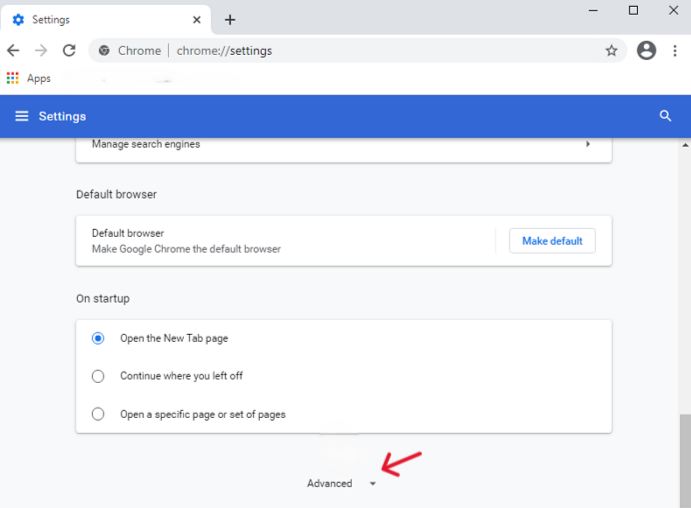
- 3. Navigate to Advanced > Reset settings in the left-hand sidebar.
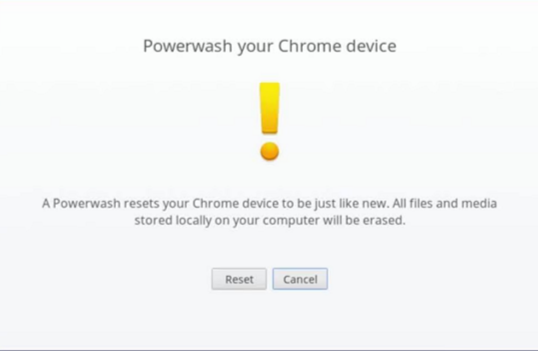
- 4. Choose Powerwash.
- 5. Click Restart.
- 6. A final confirmation box will appear; click Powerwash again to begin the wipe.
Method 2: Powerwash Using Keyboard Shortcuts
This shortcut method is widely used when settings cannot be accessed or when the user is stuck at the login screen.
- 1. Sign out of the Chromebook.
- 2. Press and hold Ctrl + Alt + Shift + R.
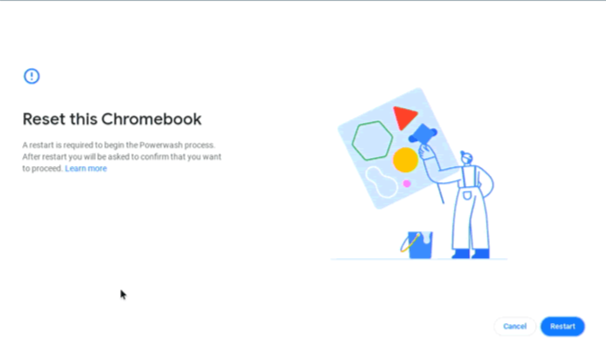
- 3. A window will appear titled “Reset this Chromebook.”
- 4. Select Powerwash (or Reset).
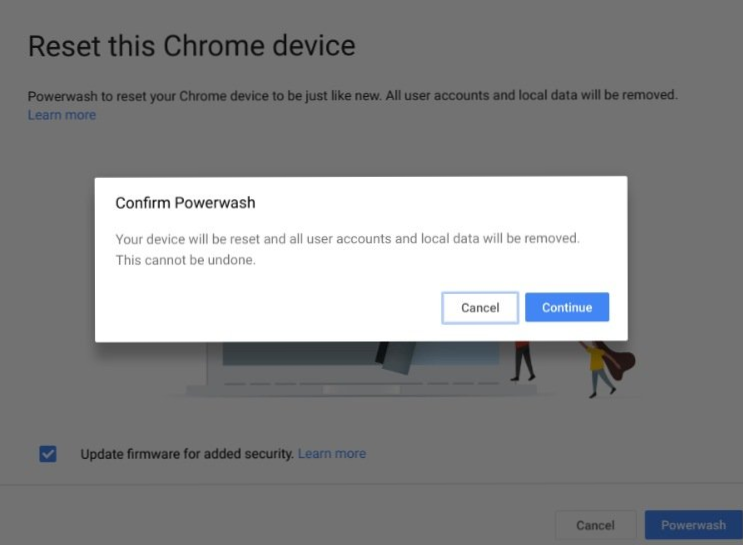
- 5. Confirm the reset.The device will reboot and begin the “clearing data” process.
Method 3: Recovery Mode Factory Reset
This method is often used when Chrome OS fails to boot or the “OS is missing or damaged” screen appears.
- 1. Power off the device completely.
- 2. Press and hold Esc + Refresh (the circular arrow key, usually above the 3 or 4 key), then tap the Power button.
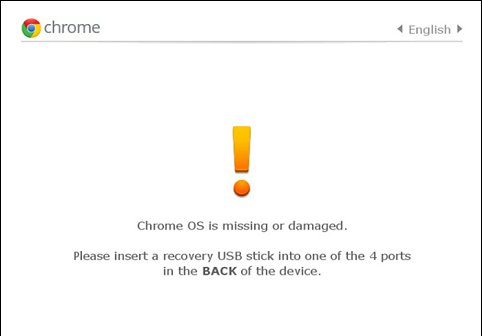
- 3. Release the keys when the recovery screen appears (usually shows a yellow exclamation point).
- 4. Press Ctrl + D to enter Developer Mode (Note: Many school Chromebooks block this step).
- 5. If blocked, follow the on-screen instructions to “re-install” Chrome OS using a recovery USB stick.
What Happens If the Device Is Still School-Managed?
Even after completing how to factory reset a school Chromebook, admin enrollment usually reactivates during setup. As soon as the device connects to Wi-Fi, it contacts Google’s servers. If the serial number is still in the school’s database, the “Enterprise Enrollment” screen will automatically trigger. This is expected behavior, not an error. It prevents stolen devices from being repurposed for personal use.
Common Problems During Factory Reset
Chromebook Stuck on Verification Screen
Typically, this situation indicates that the device still maintains a link to the school domain while it awaits a “handshake” from the school’s server. To resolve this, first ensure you have a stable Wi-Fi connection. However, if the verification fails, the school’s IT department might have disabled re-enrollment, or the school may have placed the device on a “blacklist.”
Admin Account Still Required After Reset
A factory reset does not remove enterprise enrollment. Only the school IT department can do that. If you are prompted for an admin login during setup, it means the “Forced Re-enrollment” policy is active. You must log in with a valid school account to continue.
What Data Is Lost After Resetting a Chromebook
Local Files vs Cloud Data
The distinction between local and cloud storage is the most important concept in how to factory reset a school Chromebook.
- Safe: Everything in Google Drive, Google Docs, and synchronized Chrome bookmarks.
- Lost: The “Downloads” folder, Linux files (if enabled), Android app data, and offline save files for games.
Why Data Loss Happens After Powerwash
Powerwash clears local user profiles completely. Chrome OS uses a specific type of encryption for each user profile. When you perform a factory reset, the system destroys the encryption keys. Even if the data physically remains on the flash chip for a short time, it is unreadable without those keys. That’s why understanding how to factory reset a school Chromebook includes understanding data risks.
How to Recover Data After Reset Chromebook
Realistic Data Recovery Scenarios
If files were stored on external media, SD cards, or USB drives connected before the reset, recovery is highly possible. However, recovering data from the internal eMMC drive of a Chromebook after a Powerwash is notoriously difficult. Success depends on whether the data was truly “wiped” or just “unlinked.”
Introducing PandaOffice Drecov
PandaOffice Drecov is a professional-grade data recovery tool designed for accidental deletion and formatted storage recovery. While it cannot bypass Google’s internal hardware encryption, it is the premier choice for recovering files from external SD cards or USB drives that were accidentally formatted or corrupted during the reset process.
Step-by-Step Guide to Recover Reset Chromebook Data
- Step 1: Stop Using the Chromebook Immediately
If you realize you left a file on a USB drive or SD card that was plugged in during a “clean” installation or reset, stop immediately. Continued use can overwrite recoverable data. Every second of “write” activity on the drive reduces the chances of a successful recovery.
- Step 2: Remove Storage Media Correctly
Safely eject SD cards or USB drives before connecting them to another computer. Do not attempt to run recovery software on the Chromebook itself, as Chrome OS does not support the installation of native recovery .exe or .dmg files.

- Step 3: Scan and Preview Recoverable Files
- Launch PandaOffice Drecov.
- Select the external storage (USB or SD card) from the list of drives.
- Choose Quick Scan for recently deleted files or Deep Scan for formatted media.
- Preview files before recovery. This ensures you aren’t wasting time on corrupted fragments.

- Step 4: Restore Data Securely
Save recovered files to a different drive (like your computer’s desktop) to avoid overwriting. Once you verify the files are intact, you can move them back to your Google Drive for safe keeping.
How to Avoid Frequent Factory Resets
Smart Chromebook Maintenance Tips
- Keep Chrome OS updated: Go to Settings > About ChromeOS > Check for updates.
- Limit unnecessary extensions: Each extension consumes RAM. A “heavy” browser is the #1 reason for crashes.
- Regularly back up local files: Make it a habit to move items from “Downloads” to “Google Drive” every Friday.
Managing Storage and Accounts Properly
Encourage cloud storage usage to minimize reset impact. If the internal storage is more than 80% full, the OS will struggle to perform background tasks. By keeping local storage clear, the need to learn how to factory reset a school Chromebook becomes a rare necessity rather than a weekly chore.
Reset Chromebook to Factory Settings FAQ
1.Can You Factory Reset a School Chromebook Without Admin?
Yes, the physical hardware allows for a reset via the keyboard shortcut. However, once the reset is finished, the device will immediately ask to be re-enrolled in the school’s domain.
2.Will Reset Remove School Restrictions?
No. Restrictions are tied to the school’s management license. As long as the device is owned by the school, those policies will download automatically during the initial setup.
3.Is Data Recovery Always Possible?
No. Only for external or previously backed-up data. Once the internal drive of a Chromebook is Powerwashed, the encryption keys are gone, making internal data recovery almost impossible for standard users.
4.How Long Does a Factory Reset Take?
Usually 5–10 minutes. The speed depends on the processor and the amount of data being cleared.
5.Is Powerwash the Same as Factory Reset?
Yes, Powerwash is the specific term Google uses for its factory reset feature within Chrome OS.
Conclusion
Ultimately, mastering how to factory reset a school Chromebook involves understanding the consequences just as much as the steps. While a reset solves system issues, restores speed, and fixes login bugs, it also wipes local data and leaves school restrictions in place. Therefore, by preparing properly—specifically by backing up files to the cloud and keeping recovery tools like PandaOffice Drecov ready for external media—users can manage resets confidently and prevent unnecessary data loss.
Furthermore, you should always check with your school’s IT department if you feel unsure about policy violations. Nevertheless, for most technical glitches, a clean Powerwash remains the most effective medicine for a struggling Chromebook.






