







In the digital age, our browser bookmarks are more than just a list of links; they are a curated map of our professional resources, personal interests, and essential tools. Whether you are upgrading to a high-performance workstation or simply ensuring your data is safe against system failures, knowing how to export import firefox bookmarks is a fundamental skill. This guide provides a comprehensive walkthrough of Firefox bookmark management, from standard transfers to advanced data recovery using PandaOffice Drecov data recovery software.
The Essentials of Firefox Bookmark Management
Before diving into the technical steps, it is important to understand why we prioritize these backups. Data loss can occur due to accidental deletion, browser corruption, or hardware failure. By mastering the ability to how to export import firefox bookmarks, you create a fail-safe for your digital life.
Mozilla Firefox offers two primary ways to handle your bookmarks: HTML Exports (for moving between different browsers) and JSON Backups (for restoring within Firefox). Each has its specific use case, and understanding the difference is the first step toward becoming a data management expert.
How to Export Firefox Bookmarks: Step-by-Step Guide
Exporting your bookmarks to an HTML file is the most universal method. This file format is highly compatible, allowing you to move your data to Chrome, Edge, or Safari with ease.
- Step 1: Launch your Firefox browser. Click the Library icon (or the hamburger menu) in the top-right corner and select Bookmarks.
- Step 2: At the bottom of the menu, click on Manage Bookmarks. Alternatively, you can use the hotkey Ctrl + Shift + O (Windows) or Cmd + Shift + O (Mac).
- Step 3: In the Library window that appears, locate the top toolbar and click on Import and Backup.
- Step 4: From the dropdown menu, choose Export Bookmarks to HTML….
- Step 5: Select a secure destination on your local drive or an external USB. Name the file (e.g.,
bookmarks_2026.html) and click Save.
Pro Tip: Always keep a copy of this HTML file in a cloud storage service like Google Drive or OneDrive for extra redundancy.
How to Import Firefox Bookmarks to Your Browser
If you have already created a backup or are moving from another browser, the import process is equally straightforward.
- Step 1: Open Firefox and navigate to the Library window using Ctrl + Shift + O.
- Step 2: Click the Import and Backup button at the top.
- Step 3: Select Import Bookmarks from HTML….
- Step 4: Browse your computer for the
.htmlfile you previously saved. - Step 5: Click Open. Firefox will instantly merge these bookmarks into your current library.
How to Move Firefox Bookmarks to New Computer
When you purchase a new PC, transferring your personal environment is a top priority. Learning how to move firefox bookmarks to new computer ensures a seamless transition without losing years of saved research.
- Step 1: Export on the Old PC: Follow the export steps mentioned above to create a
bookmarks.htmlfile. - Step 2: Transfer the File: Use a USB flash drive, external hard drive, or a secure cloud link to move the file to your new machine.
- Step 3: Install Firefox on the New PC: Ensure you have the latest version of Firefox installed. You can download it from the official Mozilla website.
- Step 4: Import on the New PC: Open the Library window on the new computer, select Import and Backup, and choose Import Bookmarks from HTML….
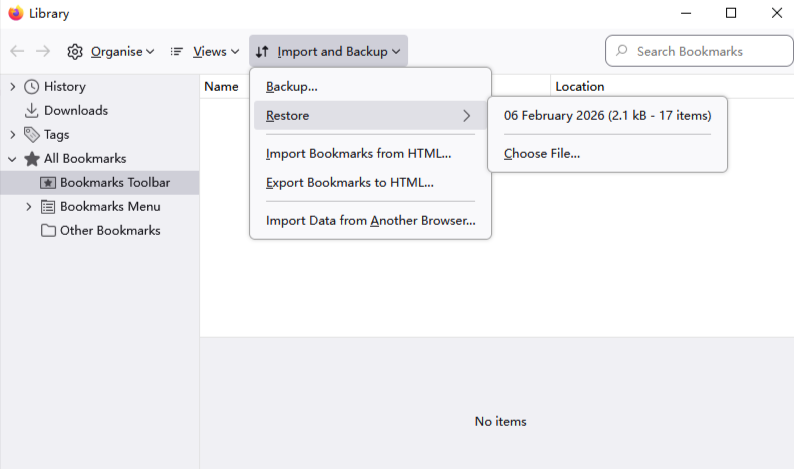
- Step 5: Verify the Data: Check your “Bookmarks Menu” and “Bookmarks Toolbar” to ensure all folders and subfolders have transferred correctly.
Find Firefox Bookmark Backup Folder Location
Sometimes, the browser might crash before you can manually export your data. In such cases, you need to know how to find firefox bookmark backup folder location to retrieve the automatic backups Firefox creates daily.
Firefox stores “profiles” which contain all your settings. These are hidden deep within the system folders.
For Windows Users:
The path is generally:
C:\Users\[YourUsername]\AppData\Roaming\Mozilla\Firefox\Profiles\[random-string].default-release\bookmarkbackups
- Step 1: Press Windows + R to open the Run dialog.
- Step 2: Type
%APPDATA%\Mozilla\Firefox\Profiles\and press Enter. - Step 3: Open your active profile folder (usually ends in
.default-release). - Step 4: Locate the folder named
bookmarkbackups. Here you will find files with the.jsonlz4extension. These are your timestamped automatic backups.
For Mac Users:
Navigate to:
~/Library/Application Support/Firefox/Profiles/[random-string].default/bookmarkbackups
Advanced Recovery with PandaOffice Drecov Data Recovery Software
What happens if your hard drive fails, or you accidentally deleted your entire Firefox profile? Manual methods won’t work if the files are gone from the file system. This is where PandaOffice Drecov data recovery software becomes indispensable.
PandaOffice Drecov is a professional-grade tool designed to scan storage sectors and reconstruct lost files, including the elusive places.sqlite and .jsonlz4 files used by Firefox.
⚠ Warning: Install it on a drive different from the one where your data was lost to prevent overwriting.
Using PandaOffice Drecov to Recover Bookmarks
- Step 1: Select Location: Launch the program and select the drive where your Firefox profile was stored (usually the C: drive).

- Step 2: Deep Scan: Click the “Scan” button. PandaOffice Drecov will perform a high-speed scan followed by a deep sector-by-sector analysis to find deleted browser data.

- Step 3: Filter and Preview: Use the search bar to look for “.jsonlz4” or “places.sqlite”. The software allows you to preview files to ensure they are intact.

- Step 4: Recover: Select the relevant files and click Recover. Save them to an external drive.
Warning: If you suspect data loss, stop using your computer immediately. Writing new data to the disk can overwrite your deleted bookmarks, making them unrecoverable even for advanced software.
For more specialized guides on managing your Firefox data, check out our related resources:
Restoration After Recovery
Once you have recovered your .jsonlz4 files using PandaOffice Drecov data recovery software, you can restore them into Firefox:
- Open the Firefox Library (Ctrl+Shift+O).
- Click Import and Backup > Restore > Choose File….
- Select the recovered
.jsonlz4file.
Export Import Firefox Bookmarks FAQs
1. Can I import bookmarks from a mobile version of Firefox to my desktop?
While you cannot directly how to export import firefox bookmarks via an HTML file on mobile, the most effective method is using Firefox Sync. By signing into your Firefox Account on both your Android/iOS device and your PC, your bookmarks will synchronize automatically. If you need a physical backup, sync the mobile data to a desktop first, then use the Export Bookmarks to HTML feature to create a hard copy.
2. Why are my imported bookmarks not showing up in the toolbar?
After you perform the steps to how to move firefox bookmarks to new computer, Firefox often places imported data into a folder named “Imported” or “Bookmarks Menu” by default. To see them on your main bar, you must open the Library (Ctrl + Shift + B), select the imported links, and manually drag them into the Bookmarks Toolbar folder. Ensure the toolbar is set to “Always Show” by right-clicking the top navigation bar.
3. What is the difference between the .html and .jsonlz4 files?
When you find firefox bookmark backup folder location, you will notice .jsonlz4 files. These are compressed backups intended only for Firefox. They include additional metadata like keyword tags and descriptions. The HTML format, created when you how to export import firefox bookmarks, is a universal format. It is less detailed but can be read by any web browser, making it the better choice for cross-platform migration.
4. Can PandaOffice Drecov recover bookmarks from a formatted hard drive?
Yes. PandaOffice Drecov data recovery software is specifically engineered to handle “RAW” recovery. When a drive is formatted, the file directory is cleared, but the actual data sectors containing your Firefox profile often remain intact until overwritten. By running a Deep Scan, the software can identify the unique file headers of the places.sqlite database and restore your browsing history and bookmarks even without a functioning operating system.
5. How often does Firefox automatically back up my data?
Firefox typically creates an automatic backup in the bookmarkbackups folder every day the browser is opened, keeping a rolling history of the last 15 days. However, these are stored on your primary system drive. If your drive suffers a mechanical failure, these local backups will be lost. This highlights the importance of using the how to export import firefox bookmarks method to save a manual copy to an external device or cloud drive at least once a month.
Conclusion
Mastering how to export import firefox bookmarks is a vital part of digital hygiene. While Firefox provides excellent built-in tools for standard operations, having a robust solution like PandaOffice Drecov ensures that even in the worst-case scenarios—like a formatted drive or a system crash—your valuable links are never truly lost.
By combining regular manual backups with professional recovery tools, you can browse with the confidence that your data is protected.






