







In the digital age, our photos are more than just files; they are captured milestones, family memories, and essential records. However, the transient nature of digital storage means a single accidental tap can send a cherished memory into the void. While most users are familiar with the basic “trash” concept, the panic truly sets in when that safety net is emptied. Learning how to recover photos deleted from recently deleted folders is a critical skill that bridges the gap between total data loss and successful restoration.
This comprehensive guide explores the technical architecture of mobile storage, the nuances of cloud synchronization, and the professional methods used by data recovery experts to retrieve “permanently” erased media.
Understanding Recently Deleted Photos
What Happens When You Delete Photos
When you tap the delete icon in your gallery, the operating system executes a logical command rather than a physical one. Initially, the file is moved to a hidden partition known as the “Recently Deleted” folder. From a technical perspective, the file’s metadata remains intact, but its directory path changes. Think of this like moving a book from your display shelf to a box in the attic; the book still exists, but you can no longer see it in your main living space.
This multi-stage deletion process is a deliberate design choice by Apple and Google to mitigate human error. During this phase, the storage occupied by the photo is not yet marked as “available” for new data. Consequently, your device’s total storage capacity does not increase until the second stage of deletion occurs.
The 30-Day Recovery Window Explained
The industry standard for temporary data retention is 30 days. During this period, the OS maintains the file in a state of “soft deletion.” If you need to know how to go to recently deleted photos during this window, the process is usually as simple as opening your Photos app, navigating to the “Albums” or “Library” tab, and selecting the “Recently Deleted” utility.
However, once this timer hits zero, or if a user manually selects “Delete All” within that folder, the system triggers a “hard deletion.” At this point, the file system marks the clusters on the flash memory as “Empty,” allowing the processor to overwrite that space with new photos, apps, or system cache. This is the exact moment when standard recovery methods fail and advanced technical intervention becomes necessary.
Can You Recover Photos After Deleting from Recently Deleted?
Is It Permanently Gone?
The short answer is: not necessarily. In the world of data forensics, “deleted” rarely means “destroyed.” Even after you clear the Recently Deleted folder, the binary code that constitutes your photo often lingers on the storage chip. As long as the specific “blocks” of memory where that photo lived haven’t been claimed by a new 4K video or a large app update, the data is technically recoverable.
However, modern smartphones use a technology called TRIM and encryption standards that make recovery more difficult than it was on old spinning hard drives. This is why the success of learning how to recover photos deleted from recently deleted storage depends heavily on how much you have used the device since the deletion occurred.
Factors That Affect Recovery Success
Several variables dictate whether your photo is a “ghost” that can be revived or a lost cause:
- Data Overwriting: This is the most critical factor. If you continue taking high-resolution photos or downloading large files, the OS will likely write that new data over the deleted photo’s location.
- File Fragmentation: Larger video files are often split across different parts of the storage chip, making them harder to reconstruct than small JPEG images.
- Encryption Keys: iOS and modern Android versions encrypt data at rest. If the file system’s “header” is destroyed, the encrypted data becomes unreadable gibberish.
- Cloud Sync Status: If your device synced the “Empty Trash” command to iCloud or Google Photos, the cloud version might also be gone, requiring a different recovery strategy.
How to Recover Photos Before They Are Permanently Deleted
iPhone Step-by-Step Recovery
If you realize your mistake within the 30-day window, you are in luck. Apple provides a very straightforward path for restoration.
- Step 1: Launch the native Photos app on your iPhone.
- Step 2: Select the Albums tab at the bottom of the screen.
- Step 3: Scroll to the bottom to find the Utilities section and tap Recently Deleted.
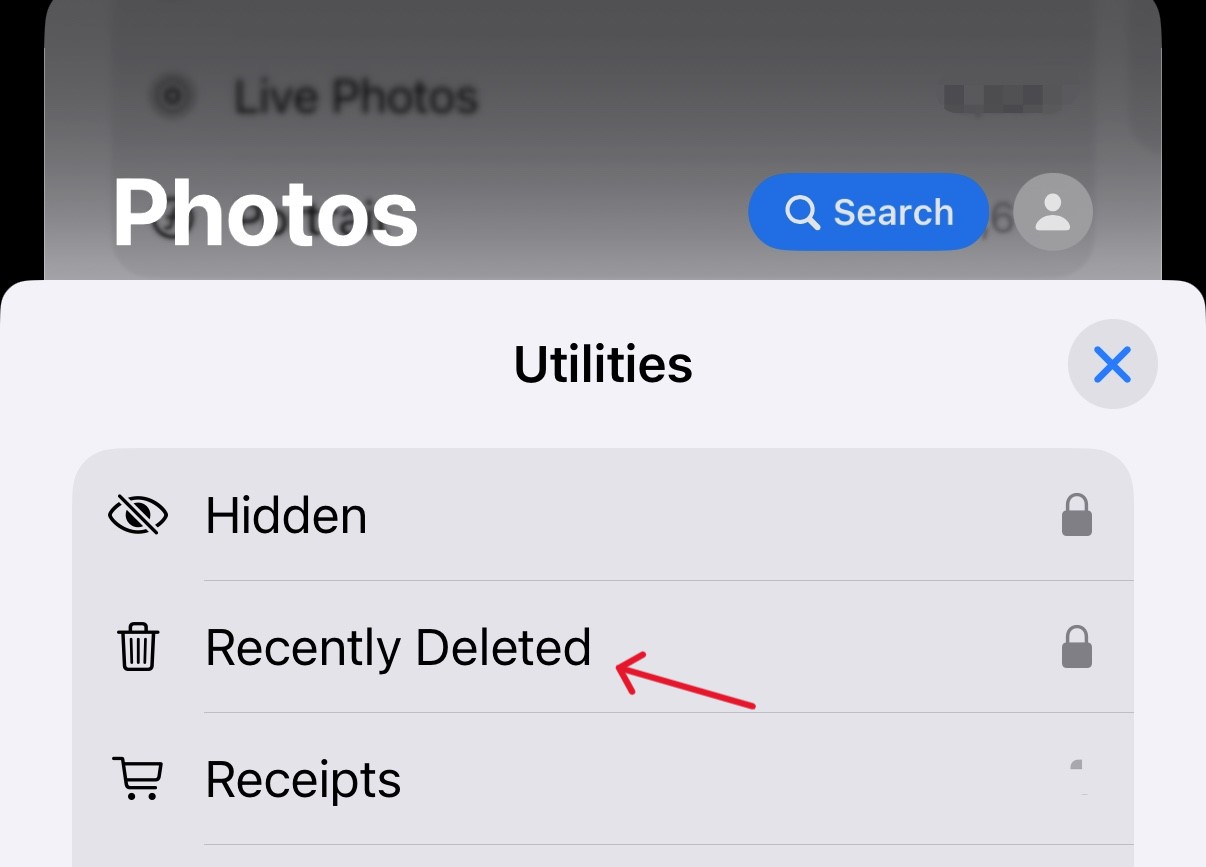
- Step 4: Authenticate using Face ID or Touch ID to view the contents.
- Step 5: Tap Select in the top right corner, choose the photos you need, and hit Recover.
Android Step-by-Step Recovery
Android recovery varies by manufacturer, but for users of the standard Google Photos app (which is the default on most devices), the process is highly reliable.
- Step 1: Open the Google Photos app.
- Step 2: Tap the Library icon at the bottom right.
- Step 3: Select the Bin or Trash icon at the top.
- Step 4: Long-press the photos you want to restore.
- Step 5: Tap the Restore button at the bottom. The photos will return to their original albums and your main timeline.
Recover Photos After Deleting from Recently Deleted (iPhone)
If the photos are gone from the “Recently Deleted” folder, we must move to technical level 2: Backups.
Restore from iCloud Backup
Apple’s iCloud service is a powerful tool, but many users don’t realize that a “Sync” is different from a “Backup.” If you only use iCloud Photos, deleting a photo from the “Recently Deleted” folder on your phone deletes it from iCloud too. However, if you have a full iCloud Device Backup, you can roll back time.
- Step 1: Check your backup status by going to Settings > [Your Name] > iCloud > iCloud Backup. Verify if a backup exists from a date before the photos were deleted.
- Step 2: You must erase your current iPhone to restore an old backup. Go to Settings > General > Transfer or Reset iPhone > Erase All Content and Settings.
- Step 3: Follow the on-screen setup prompts until you reach the “Apps & Data” screen.
- Step 4: Choose Restore from iCloud Backup and sign in.
- Step 5: Select the relevant backup date and wait for the restoration to complete.
Warning: This method will overwrite all data currently on your phone with the data from the backup date. Ensure you have saved any new important files elsewhere before proceeding.
Restore from iTunes/Finder Backup
For those who prefer physical security, a local backup on a PC or Mac is the gold standard for data recovery.
- Step 1: Connect your iPhone to your computer using a certified Lightning or USB-C cable.
- Step 2: Open iTunes (Windows) or Finder (macOS).
- Step 3: Click on the device icon and navigate to the General or Summary tab.
- Step 4: Click Restore Backup… and choose the backup file that predates the deletion.
- Step 5: Wait for the process to finish and check your Photos app.
Recover Photos After Deleting from Recently Deleted (Android)
Restore from Google Photos Backup
Google Photos is exceptionally resilient. Even if you “permanently” delete a photo on your phone, it might still reside in the Google cloud if you haven’t emptied the cloud trash.
- Step 1: Using a desktop browser, log in to photos.google.com.
- Step 2: Check the Trash section on the left sidebar.
- Step 3: If the photos are there, select them and click Restore.
- Step 4: If they are not in the trash, check the Archive folder, as sometimes photos are moved there instead of being deleted.
Use Local Backup Options
Many Android manufacturers like Samsung and Xiaomi offer their own cloud services (Samsung Cloud, Mi Cloud).
- Step 1: Go to Settings > Accounts and backup.
- Step 2: Look for Restore data under the manufacturer’s cloud heading.
- Step 3: Select “Photos” or “Gallery” and see if a version is available for restoration.
Using Data Recovery Software: The Professional Approach
When there are no backups and the folders are empty, you have reached the final frontier of data recovery. This requires software that can talk directly to the hardware.
How Recovery Tools Work
Professional software works by scanning the file system’s “unallocated space.” When you delete a photo from the “Recently Deleted” folder, the OS labels the space as unallocated. Recovery software ignores the OS instructions and reads every single bit of data on the disk to find patterns that look like image headers (e.g., JPEG or HEIC signatures).
⚠ Warning: Install it on a drive different from the one where your data was lost to prevent overwriting.
Advanced Solution: PandaOffice Drecov Data Recovery Software
If you have reached the point where standard restores are impossible, PandaOffice Drecov data recovery software is the most effective tool for deep-level reconstruction. It is designed to handle complex scenarios where files have been bypassed by the system’s trash protocols.
Step-by-Step Guide to Using PandaOffice Drecov:
- Step 1: Connect the Device. Connect your smartphone or SD card to the computer. For mobile phones, you may need to enable “USB Debugging” in the developer settings to allow the software deep access.

- Step 2: Select Scan Mode. Choose the specific drive or folder where the photos were originally stored. Select the “Deep Scan” option for the best results when photos have been deleted from the “Recently Deleted” folder.

- Step 3: Preview Files. As the software scans, it will populate a list of found images. PandaOffice Drecov data recovery software allows you to preview these thumbnails. This is vital because it tells you if the file is intact or partially overwritten.

- Step 4: Recovery. Once you find your missing photos, click Recover. Always save the recovered files to a different drive (like a USB stick or cloud drive) to prevent any further data corruption on the original device.
For more specific recovery scenarios, check out these related guides:
- How to delete recently closed tabs in seconds – Manage your browser data privacy.
- How to recover deleted photos after deleting from recently deleted – Additional advanced techniques for media recovery.
- How to find recently deleted apps on iPhone & Android – A guide to restoring application data and history.
For official support, you can also visit Apple Support’s Photo Guide or the Google Photos Help Center.
Comparison of Recovery Methods
| Method | Technical Level | Success Rate | Best For |
| Recently Deleted Folder | Low | 100% | Accidental deletes within 30 days |
| Cloud Backup (iCloud/Google) | Medium | High | Lost/Broken devices or cleared trash |
| Local PC Backup | Medium | Very High | Complete system restoration |
| PandaOffice Drecov Software | High | High | No backups; permanent deletion |
Why Recovery Sometimes Fails
Overwritten Data Explained
The primary reason people fail to learn how to recover photos deleted from recently deleted albums is “The Overwrite.” Think of your phone’s storage like a chalkboard. When you delete a photo, you are just erasing the chalk. But if you start writing a new “message” (taking a video, downloading an app), the new chalk physically replaces the old. Once this happens, no software in the world—not even professional forensics—can bring the original data back. This is why you must act immediately.
Tips to Improve Recovery Chances
Immediate Actions to Take
- Enter Airplane Mode: This stops the device from downloading background updates, emails, or cache files that might overwrite your photos.
- Stop Using the Camera: Every new photo you take is a potential “killer” for the one you just deleted.
- Power Down if Unsure: If you cannot start recovery immediately, turn the device off. This prevents system processes from performing “garbage collection” on the storage chip.
- Avoid “Cleaner” Apps: Some apps claim to speed up your phone by “cleaning up junk.” These often wipe the unallocated space, making recovery impossible.
Best Practices to Prevent Photo Loss
Backup Strategies That Actually Work
Learning how to recover photos deleted from recently deleted folders is a reactive measure. Proactive protection is always better.
- The Double-Cloud Approach: Use both iCloud and Google Photos. It is rare for both services to fail or experience the same user-error at the same time.
- Physical Redundancy: Once a month, plug your phone into a computer and manually copy your “DCIM” folder to an external hard drive.
- Social Media Vaults: For truly irreplaceable photos, consider uploading them to a private album on a platform like Flickr or a dedicated storage service like Dropbox.
Recover Photos Deleted from Recently Deleted FAQs
1. Can I recover photos deleted from Recently Deleted without a backup?
Yes, but you will need to use professional software like PandaOffice Drecov data recovery software. This software scans the storage hardware for data that hasn’t been overwritten yet.
2. How long before deleted photos are permanently erased?
Typically, the system clears the folder after 30 days. However, if your storage is full, the OS might delete them sooner to make room for system operations.
3. Are permanently deleted photos gone forever?
They are only gone forever once they have been overwritten by new data or if the storage chip is physically destroyed.
4. Does airplane mode help recovery?
Absolutely. It prevents the device from downloading data that could overwrite the deleted files you are trying to save.
5. What is the best recovery method?
The most reliable method is restoring from a local iTunes or Finder backup. If no backup exists, professional recovery software is the next best option.
Conclusion
Mastering how to recover photos deleted from recently deleted folders is a race against time. Whether you are navigating the simple settings of an iPhone or utilizing advanced tools like PandaOffice Drecov data recovery software, the key is to stop data creation immediately.
Modern technology provides us with incredible safety nets, but those nets have limits. By combining a solid understanding of how storage works with a disciplined backup routine, you can ensure that your digital legacy remains intact. Don’t wait for a crisis to happen—check your backup settings today and familiarize yourself with your device’s “Recently Deleted” protocols. Your future self will thank you for the foresight.






