







In the fast-paced digital landscape of 2026, browser speed and data integrity are more critical than ever. Whether you are a casual surfer or a professional handling sensitive information, knowing how to delete browser cache Firefox is a foundational skill. Browser caching is a brilliant double-edged sword: it accelerates your daily web navigation but can also lead to fragmented data, privacy leaks, and frustrating website errors.
In this comprehensive guide, we will explore the mechanics of web storage, provide technical walkthroughs for every device, and introduce advanced data recovery solutions like PandaOffice Drecov to ensure your digital life remains both fast and secure.
Understanding Browser Cache in Firefox
If you have ever noticed that some websites load almost instantly the second time you visit them, you can thank something called browser cache. In the Firefox browser, the cache is essentially a temporary storage area where files from websites—like images, scripts, and layout data—are saved on your computer. The next time you visit the same site, Firefox simply loads those files locally instead of downloading them again. This speeds up browsing dramatically and reduces the amount of data your computer has to download. According to official support documentation, Firefox stores temporary cached files and web content specifically to make web pages load faster and reduce bandwidth usage.
What Is Browser Cache and How It Works
When you browse the internet, every webpage contains dozens or even hundreds of files. These include images, fonts, JavaScript code, and style sheets that define how the page looks and behaves. Firefox temporarily downloads and stores many of these files locally in your device’s cache folder. The next time you visit that same website, Firefox doesn’t have to download all those resources again. Instead, it simply loads them from your local storage.
This process dramatically reduces loading time and data usage. Imagine visiting a news website daily. Without caching, Firefox would download the entire page—including logos, navigation menus, and scripts—every single time. With caching enabled, only the new content (like fresh articles) needs to be downloaded. Everything else loads instantly from the stored files.
Why Firefox Stores Cached Files
Firefox doesn’t store cache randomly—it does so for performance optimization. Modern websites are complex, often containing heavy graphics, animations, and scripts. Without caching, every visit would require downloading all these files again, slowing down your browsing experience significantly. By saving commonly used elements locally, Firefox reduces loading time and improves efficiency.
Another reason Firefox uses caching is to reduce internet bandwidth usage. If you visit the same website multiple times, downloading the same images repeatedly would consume unnecessary data. Cached files prevent this redundancy. This feature becomes especially helpful for users on limited data connections or slower networks.
Why You Should Clear Firefox Cache Regularly
Many people rarely think about clearing their browser cache, but doing so periodically can significantly improve your browsing experience. Cached files accumulate over time, and while they are helpful, they can also become problematic if left unchecked. Knowing how to delete browser cache in firefox essentially resets stored web data, allowing the browser to load fresh content directly from websites.
Fixing Website Loading Issues
One of the most practical benefits of how to delete browser cache in firefox is fixing common website errors. Many users encounter situations where a website suddenly stops working even though it previously functioned perfectly. Pages might refuse to load, display missing images, or show outdated information. In many cases, the root cause is cached data that no longer matches the website’s latest version.
Web developers constantly update websites. They modify scripts, redesign layouts, and update styles. If your browser still relies on older cached files, conflicts can occur. For example, an updated website might expect a new script version, but your browser still loads the old one from cache. This mismatch can break page functionality.
Improving Browser Performance and Speed
While caching is designed to improve speed, an overloaded cache can actually have the opposite effect. Over time, thousands of cached files accumulate in your browser’s storage. This can slow down Firefox’s ability to retrieve the correct data quickly. Instead of boosting performance, an oversized cache may make your browser feel sluggish.
Clearing the cache removes unnecessary files and allows Firefox to rebuild a cleaner storage system. This can lead to noticeable improvements in browser responsiveness. Websites may load more reliably, and overall browsing may feel smoother.
How to Delete Browser Cache in Firefox (Desktop)
Deleting browser cache in Firefox is surprisingly simple. The browser includes built-in tools that allow you to clear cached files in just a few clicks. Most users perform this process through the settings menu, where Firefox groups cache with other website data like cookies and stored content.
Method 1 – Clear Cache Using Firefox Settings
The standard method involves navigating to Firefox’s Privacy & Security settings and using the “Clear Data” option. This allows you to remove cached web content without deleting other data such as saved passwords.
Step-by-Step Instructions
Follow these steps to how to flush cache in firefox using the settings menu:
- Step 1: Open the Firefox browser on your desktop.
- Step 2: Click the three-line menu icon (hamburger menu) in the top-right corner of the window.
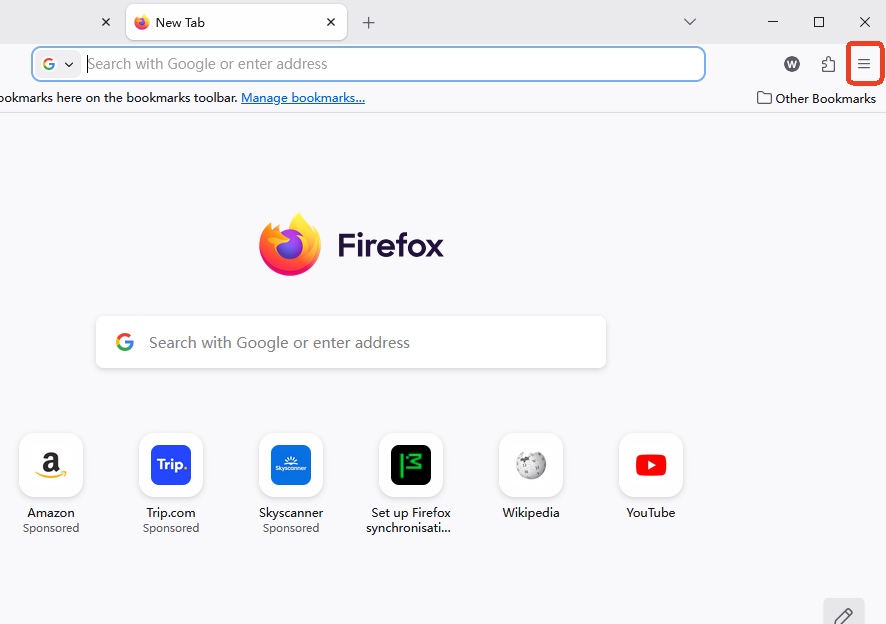
- Step 3: Select Settings from the dropdown menu.
- Step 4: On the left-hand sidebar, click on Privacy & Security.
- Step 5: Scroll down until you find the Cookies and Site Data section.
- Step 6: Click the Clear Data… button.
- Step 7: In the pop-up window, ensure the box labeled Cached Web Content is checked.
- Step 8: Click the Clear button to confirm.
Method 2 – Clear Cache Using Clear Recent History
Another way to how to clear cache in firefox is through the Clear Recent History feature. This method is often used when users want to remove multiple types of browsing data at once.
- Step 1: Click the menu button and select History.
- Step 2: Click on Clear Recent History…
- Step 3: Set the “Time range to clear” to Everything for a complete flush.
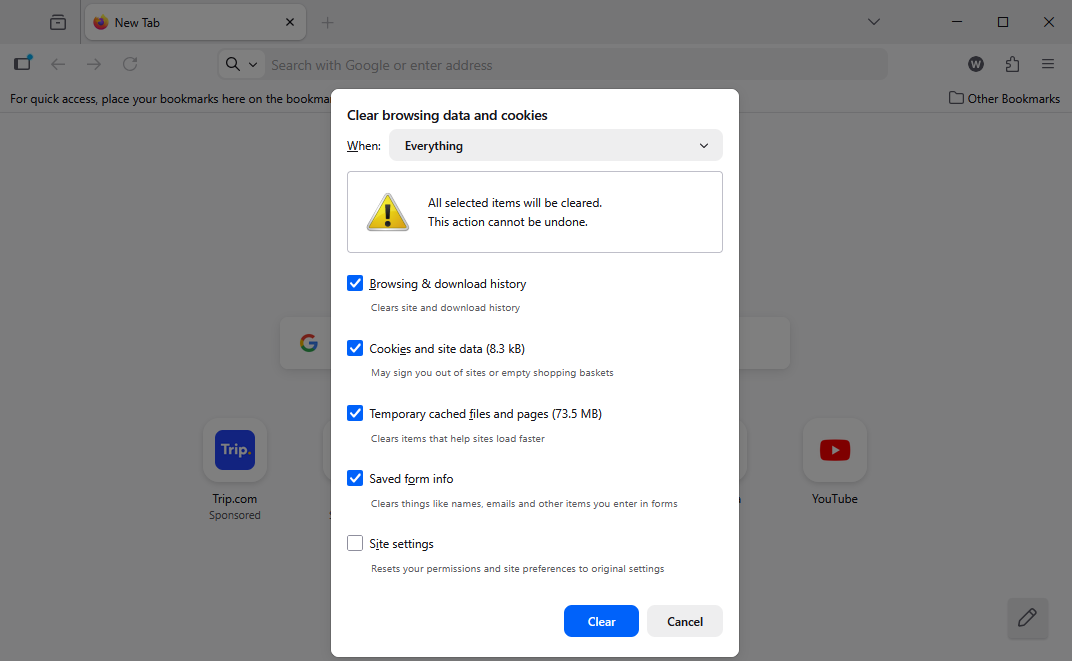
- Step 4: Under the “History” list, check the box for Cache.
- Step 5: Click Clear Now.
Keyboard Shortcut to Delete Firefox Cache Quickly
If you enjoy quick productivity tricks, Firefox offers a keyboard shortcut that opens the cache-clearing menu instantly. Instead of navigating through settings, you can simply use the following combinations:
- Windows/Linux: Press
Ctrl + Shift + Delete - macOS: Press
Command + Shift + Delete
This shortcut opens the Clear Recent History window immediately. From there, you can choose the time range and select Cache before confirming the deletion. This is the fastest way to how to flush cache in firefox when a page is acting up during an active browsing session.
How to Clear Cache in Firefox on Mobile Devices
Firefox is also widely used on smartphones and tablets. Mobile versions of the browser store cached files just like the desktop version. If your phone browser becomes slow, clearing cache can often fix the problem.
Clearing Cache on Firefox for Android
- Step 1: Open the Firefox app and tap the three dots in the bottom-right or top-right corner.
- Step 2: Tap on Settings.
- Step 3: Scroll down to the “Privacy and Security” section and tap Delete browsing data.
- Step 4: Ensure Cached images and files is selected.
- Step 5: Tap Delete browsing data at the bottom.
Clearing Cache on Firefox for iPhone
- Step 1: Open the Firefox app and tap the menu icon (three lines) at the bottom right.
- Step 2: Select Settings.
- Step 3: Scroll to the “Privacy” section and tap Data Management.
- Step 4: Toggle the switch for Cache to the “On” position.
- Step 5: Tap Clear Private Data and confirm.
Automatically Clear Cache in Firefox
If you prefer not to clear cache manually, Firefox offers an automatic option. This feature allows the browser to delete cached files every time you close it.
Enable Automatic Cache Deletion on Exit
- Step 1: Go to Settings > Privacy & Security.
- Step 2: Find the History section.
- Step 3: In the dropdown next to “Firefox will,” select Use custom settings for history.
- Step 4: Check the box for Clear history when Firefox closes.

- Step 5: Click the Settings… button next to it.
- Step 6: Check Cache and click OK.
Advanced Data Recovery: Using PandaOffice Drecov
Sometimes, in the process of learning how to delete browser cache firefox, users accidentally delete more than they intended—such as important download history or local files associated with their browser profile. When standard “Undo” actions fail, professional tools like PandaOffice Drecov are required.
PandaOffice Drecov is a premier data recovery product designed to retrieve lost, deleted, or corrupted files from your hard drive, including deep-seated browser profile data.
⚠ Warning: Install it on a drive different from the one where your data was lost to prevent overwriting.
How to Recover Lost Firefox Data with PandaOffice Drecov
- Step 1: Select Location. Launch the software and select the drive where your Firefox profile is stored (usually the
C:drive on Windows).

- Step 2: Scan. Click the Scan button. The software will perform a “Quick Scan” followed by a “Deep Scan” to find fragmented browser files.

- Step 3: Filter & Preview. Use the search bar to look for “Firefox” or specific file extensions like
.sqlite(used for bookmarks and history). PandaOffice Drecov allows you to preview files before recovery.

- Step 4: Recover. Select the files you need and click Recover. Save them to an external drive or a different partition.
Warning Prompt: Always stop using your computer immediately if you realize you have lost important data. Writing new files to the disk significantly reduces the chances of a successful recovery.
Cache vs Cookies vs Browsing History
Many people confuse cache with cookies and browsing history, but these are three completely different types of data.
| Data Type | What It Stores | Purpose |
| Cache | Images, scripts, and website files | Speeds up page loading |
| Cookies | Login sessions and user preferences | Keeps you signed into websites |
| Browsing History | List of visited pages | Helps you revisit websites |
Deleting cache does not log you out of websites. However, deleting cookies usually does. That’s why many users choose to clear only cached web content instead of removing all browsing data when they perform the steps for how to clear cache in firefox.
Common Problems Solved by Clearing Firefox Cache
Beyond just speed, knowing how to delete browser cache in firefox solves several modern web dilemmas:
- Old Content: You’ve updated your website, but the browser still shows the 2024 version instead of the 2026 update.
- Stuck Scripts: A “Loading…” spinner that never disappears often indicates a corrupted JavaScript file in the cache.
- Formatting Issues: CSS files (which control colors and fonts) can get “stuck,” leading to websites looking like plain text from the 1990s.
- Security: Clearing cache removes temporary copies of sensitive pages you might have viewed on a public computer.
Best Practices for Managing Firefox Cache
To keep Firefox running at peak performance without constant manual intervention, consider these expert tips:
- Use Private Browsing: If you are visiting a site you don’t plan to return to, use a Private Window (
Ctrl + Shift + P). Firefox won’t save cache for that session. - Limit Cache Size: For advanced users, typing
about:configin the address bar allows you to modifybrowser.cache.disk.capacity, though this is generally handled well by Firefox automatically. - Periodic Maintenance: Set a calendar reminder to clear your cache once a month to prevent “digital rot.”
More Data Recovery and Firefox Guides
If you found this guide on how to delete browser cache firefox helpful, you may also be interested in these deep-dives into Firefox data management:
- How to Download Video from Browser Firefox: 2026 Guide
- Where is the Firefox Bookmarks Location? Find Your Data Instantly
- Where are Firefox Bookmarks Stored on Your PC?
For official technical support regarding Firefox’s storage policies, you can visit the Mozilla Firefox Support Page.
How to clear cache on Firefox FAQs
1. Does clearing Firefox cache delete passwords?
No. Clearing only the cache removes temporary website files such as images and scripts. Saved passwords, bookmarks, and login data remain unaffected unless you specifically choose to delete “Cookies” or “Logins and Passwords.”
2. How often should I clear my Firefox cache?
Most users benefit from clearing cache every few weeks or whenever a website behaves incorrectly. If you are a developer, you might do this multiple times a day.
3. Will clearing cache speed up Firefox?
Yes, in many cases. Removing outdated or corrupted cached files can improve browser responsiveness and fix slow website loading issues that stem from the browser trying to read “bad” data.
4. Is clearing cache safe?
Absolutely. Clearing cache only removes temporary files that websites automatically recreate the next time you visit them. It is a non-destructive maintenance task.
5. What happens after I delete Firefox cache?
When you revisit websites, Firefox downloads fresh versions of their files. Pages may load slightly slower the first time (since it’s a “cold” load), but performance typically improves and stabilizes afterward.
Conclusion
Mastering how to delete browser cache firefox is a simple yet powerful way to take control of your internet experience. By understanding that the cache is a “digital warehouse,” you can better manage when to keep files for speed and when to clear them for accuracy. Whether you use manual settings, keyboard shortcuts, or automatic deletion, keeping a “clean” browser ensures that you see the web exactly as it was intended to be seen in 2026. And remember, if you ever go too far and lose vital data, tools like PandaOffice Drecov are there to bridge the gap between a clean cache and a complete recovery.






