







Losing an important spreadsheet is a nightmare scenario for any professional. Whether it’s a complex financial model, a client database, or a project tracker, the sudden disappearance of data can cause significant stress. You likely checked the “trash can” icon on your desktop, only to find it empty. If you are wondering how to retrieve deleted excel file not in recycle bin, you are in the right place.
The reality of data storage is that “deleted” rarely means “gone forever”—at least not immediately. Windows and macOS handle file deletion by simply removing the pointer to the data and marking the space as available. Until that specific sector of your hard drive is overwritten by a new cat video or a software update, your Excel file is still there, lurking in the digital shadows.
This comprehensive guide will walk you through every possible recovery vector, from built-in Microsoft features to professional-grade recovery software like PandaOffice Drecov.
Understanding Why Excel Files Disappear
Common Reasons Excel Files Are Permanently Deleted
Before we dive into the “how-to,” we must understand the “why.” Files often bypass the Recycle Bin due to specific user actions or system settings. The most common culprit is the Shift + Delete shortcut, which tells Windows to skip the safety net entirely.
Additionally, files stored on external devices like USB flash drives or SD cards do not go to the Recycle Bin; they are deleted instantly. Other times, files are lost because they were too large for the bin’s allocated capacity, or perhaps an automated system cleanup tool (like Storage Sense) decided your old spreadsheets were “clutter.” In more technical cases, file system corruption or malware can cause files to vanish without a trace.
What Happens When a File Bypasses the Recycle Bin
When an Excel file—usually an .xlsx or .xls format—bypasses the bin, the operating system deletes its entry in the Master File Table (MFT). Think of the MFT as a book’s index. If you rip out the index page, the chapters are still in the book, but you don’t know where they start.
This is a critical concept for how to retrieve deleted excel file not in recycle bin. As long as you don’t write new data to the drive, the “chapters” (your data clusters) remain intact. However, if you keep downloading files or installing apps, the system will eventually “write over” your lost spreadsheet, making it unrecoverable.
Immediate Steps to Take After Deleting an Excel File
Stop Using the Drive Immediately
This is the golden rule of data recovery. If you realize a file is missing, cease all activity on that specific drive. If the file was on your C: drive, stop browsing the web, as your browser constantly writes temporary cache files to the disk. Every kilobyte of new data is a potential “overwrite” that could destroy your Excel file’s remnants.
Check System Search Before Attempting Recovery
Sometimes, a file isn’t deleted; it’s just misplaced. Before moving to technical recovery, use the Windows Search bar (Win + S).
- Type
*.xlsxto see all Excel files on the system. - Sort by “Date Modified” to see if your file was moved to a different folder.
- Check the Recent folder in Quick Access.
If these steps yield nothing, it is time to look into the “invisible” backups created by Excel itself.
Recover Deleted Excel File Using Excel AutoRecover
How Excel AutoRecover Works
Microsoft Excel has a built-in heartbeat. Every few minutes (default is 10), it saves a copy of your work to a specific “AutoRecover” directory. This is primarily for crash protection, but it serves as a brilliant secondary backup when you’ve accidentally closed a file without saving or deleted a version you needed.
Steps to Restore Unsaved Workbooks
If you are looking for how to get files back when deleted from recycle bin and the file was an unsaved draft, follow these steps:
- Step 1: Open a blank Excel workbook.
- Step 2: Click on the File tab in the top left corner.
- Step 3: Select Info, then click the Manage Workbook button.
- Step 4: From the dropdown, select Recover Unsaved Workbooks.
- Step 5: A file explorer window will open showing
.asbfiles. Select your file and click Open, then immediately Save As to a secure location.
Manual AutoRecover Folder Method
Sometimes the “Recover Unsaved” button doesn’t show everything. You can hunt for these files manually.
- Step 1: Press Win + R, type
%appdata%, and hit Enter. - Step 2: Navigate to
Microsoft\Excel\. - Step 3: Look for folders named after your spreadsheet. Inside, you may find a version of your file with a
.tmpor.xlsbextension.
Retrieve Excel Files from Temporary Files
Using the Temp Folder to Locate Excel Files
Windows creates temporary versions of files while you are working on them. These are often stored in a general system “Temp” directory. This is a “hail mary” pass, but it frequently works for those wondering how can you retrieve deleted files from the recycle bin when the system has hidden the evidence.
- Step 1: Navigate to
C:\Users\[YourUsername]\AppData\Local\Temp. - Step 2: Use the search bar in the top right and type
Excel. - Step 3: Look for files that start with a tilde and a dollar sign (e.g.,
~$Book1.xlsx).
Identifying Temporary Excel File Names
Temporary files often have cryptic names like 842F.tmp. To see if one of these is your Excel file, right-click the file, select Open With, and choose Excel. If the data appears, save it immediately with a proper name.
Recover Excel Files Using File History Backup
How Windows File History Works
If you have a backup drive connected, Windows File History is your best friend. It takes snapshots of your folders at regular intervals. This is the most reliable way to solve how to retrieve deleted excel file not in recycle bin without using third-party software.
Step-by-Step Recovery Process
- Step 1: Open the folder where the Excel file used to be.
- Step 2: In the top ribbon (Windows 10) or via the three-dot menu (Windows 11), select History.
- Step 3: Use the arrows at the bottom to scroll back in time until you see your file.

- Step 4: Select the file and click the green Restore icon.
Warning: This method only works if File History was turned ON before the deletion occurred. If you haven’t set this up yet, visit the official Microsoft support page to learn how to enable it for future protection.
Restore Excel Files from OneDrive or Cloud Storage
Using Version History to Recover Deleted Files
If your file was stored in a folder synced with OneDrive, Google Drive, or Dropbox, you have an extra layer of protection. Cloud services keep a “Version History” for 30 days or more.
- Step 1: Log in to OneDrive.com.
- Step 2: Locate the file (or the folder it was in).
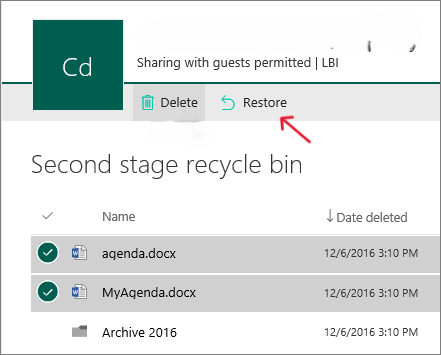
- Step 3: Right-click and select Version History.
- Step 4: Choose an older version and click Restore.
Restoring Excel Files from Cloud Recycle Bins
Don’t forget that OneDrive has its own Recycle Bin online, which is separate from your computer’s local bin. Check the “Recycle Bin” tab on the left-hand sidebar of the OneDrive web interface.
Use Data Recovery Software to Retrieve Permanently Deleted Excel Files
When manual methods fail, you need a professional tool that can talk directly to the hardware. PandaOffice Drecov is a premier choice for this situation, specifically engineered to reconstruct fragmented Excel files that other tools might miss.
⚠ Warning: Install it on a drive different from the one where your data was lost to prevent overwriting.
How to Use PandaOffice Drecov for Excel Recovery
PandaOffice Drecov utilizes deep-sector scanning technology to find files even after a disk has been formatted or the Recycle Bin has been emptied. Here is the step-by-step breakdown:
- Step 1: Select Location. Launch the software. You will see a list of drives. Select the partition (e.g., C: or D:) where your Excel file was originally stored.

- Step 2: Scan. Click the Scan button. The software will perform a Quick Scan followed by a Deep Scan. The Deep Scan is essential for finding files that are not in the recycle bin.

- Step 3: Filter Results. Use the sidebar to filter by “File Type.” Navigate to Document -> XLSX or XLS.
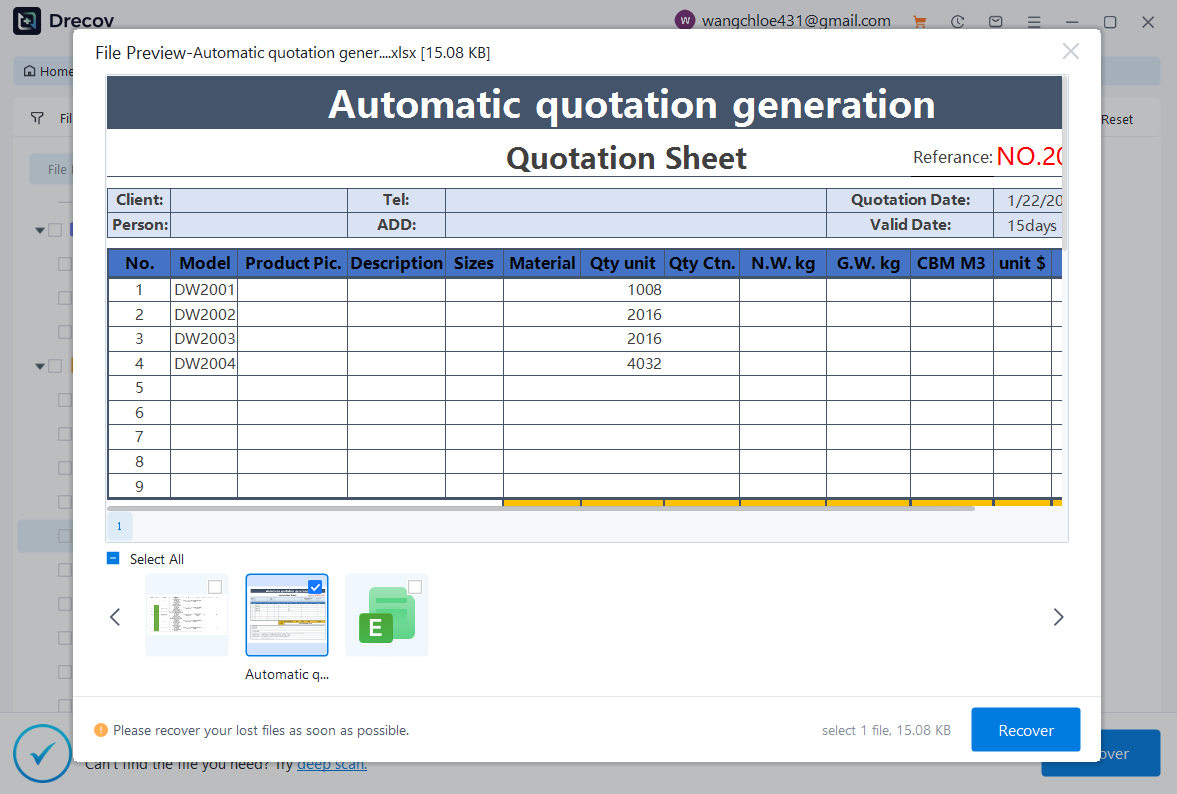
- Step 4: Preview and Recover. Double-click the found Excel files to preview their contents. Once you find the right one, select it and click Recover.
- Step 5: Choose Destination. Always save the recovered file to an external drive or a different partition to ensure data integrity.
Pro Tip: PandaOffice Drecov allows you to pause the scan if you see your file appearing early in the process. This saves time if you are dealing with a multi-terabyte drive.
Tips to Prevent Losing Excel Files in the Future
Now that you know how to retrieve deleted excel file not in recycle bin, let’s ensure it never happens again.
- Enable AutoSave: If you have Microsoft 365, toggle the “AutoSave” switch in the top left corner. This saves your file to the cloud in real-time.
- Adjust AutoRecover Frequency: Go to File > Options > Save and change “Save AutoRecover information every” from 10 minutes to 1 minute.
- Use the 3-2-1 Backup Rule: Keep 3 copies of your data, on 2 different media types, with 1 copy stored offsite (Cloud).
- Avoid Shift + Delete: Train yourself to use the standard “Delete” key. It’s better to have a full Recycle Bin than a lost project.
- Regular Maintenance: Use tools like PandaOffice Drecov periodically to check the health of your drive.
More Data Recovery Resources
To further master your computer’s file management system and ensure you never lose track of your data again, check out these helpful guides:
- Where is the Recycle Bin in Windows 10? 3 Quick Ways to Find It
- Windows 10 & 11: How to Remove the Recycle Bin from Desktop
- Where Do I Find the Recycle Bin in Windows 10?
Recover Excel Files FAQs
1. Can I recover an Excel file that was permanently deleted?
Yes. While “permanent” sounds final, it only refers to the file’s status in the Windows interface. Using deep-scan software like PandaOffice Drecov can often retrieve these files from the physical disk sectors.
2. Where are Excel AutoRecover files stored?
The standard path is C:\Users\[Username]\AppData\Roaming\Microsoft\Excel\. You must have “Show Hidden Files” enabled in File Explorer to see this folder.
3. Can OneDrive help recover deleted Excel files?
Absolutely. OneDrive keeps its own Recycle Bin online for 30 days and maintains a robust Version History that allows you to roll back changes.
4. Are temporary files useful for Excel recovery?
Yes, they are essentially the “DNA” of your file. While they might not be pretty, a .tmp file can often be renamed to .xlsx and opened to reveal your lost data.
5. What should I do immediately after deleting an Excel file?
Stop writing data to that drive. Close unnecessary programs, avoid downloading new files, and initiate a recovery process using the methods listed in this guide.
Conclusion
Finding that an Excel file is not in the Recycle Bin is a heart-stopping moment, but it is rarely the end of the road. By leveraging AutoRecover, Temporary Files, File History, and professional software like PandaOffice Drecov, you have a high statistical probability of getting your data back.
Remember, the clock is ticking. The more you use your computer, the higher the risk of overwriting that “deleted” space. Act fast, use the tools described above, and soon your lost spreadsheet will be back where it belongs.






