







Hear me out first before hating on me for a dumb question. An employee who works with massive 3D models and CAD software needed more storage. They went from a 1TB M.2 to a 4TB M.2 drive (thanks to lower prices recently in storage devices). The first issue we had was, their workstation was using MBR instead of GPT. They also were using legacy BIOS. Anyway, we fixed all of those issues easily by doing the following: cloning the old drive to the new drive, converted the new drive from MBR to GPT, then when we restarted the PC, we changed BIOS to UEFI. All of this is fine and dandy, except when we try to extend the main partition. Windows Recovery partition is in the way. And we aren’t really in a position to be downloading random software off the internet to fix the issue. Most of the ‘free’ versions are BS or are less functional than ‘Create and Format Partitions’. Anyway, is it okay to delete the recovery partiton? or is it possible to add it back later using a DVD / USB media?—from Reddit
Introduction
Recovery partitions are commonly created by Windows or computer manufacturers to store tools that help restore the system in case of serious problems. While these partitions can be helpful during system failure, many users eventually want to delete recovery partition sections to reclaim disk space or reorganize storage.
If you are running out of storage or planning to reorganize partitions, learning how to delete a recovery partition safely becomes important. However, removing the wrong partition can affect your system recovery options, so the process must be done carefully.
This guide explains how to delete recovery partition Windows systems create, why these partitions exist, and several safe methods to remove them. You will also learn how to delete a healthy recovery partition, including cases where Windows prevents deletion using standard tools.
⚠️Warning: Deleting a recovery partition permanently removes built-in recovery tools. Create a system backup before proceeding.
Understanding the Windows Recovery Partition
What Is a Recovery Partition and Why Does Windows Create It
A recovery partition is a dedicated section of a storage drive that contains files required for repairing or reinstalling the operating system. Windows automatically creates one during installation, and many computer manufacturers include an additional partition with factory restore tools.
These partitions typically store:
- Windows Recovery Environment (WinRE)
- System repair utilities
- Startup troubleshooting tools
- Factory reset files
Depending on the system configuration, a recovery partition may range from 500MB to several gigabytes. While relatively small, it occupies space that could otherwise be used for regular files or applications.
In many modern computers, multiple recovery partitions can exist due to system upgrades or reinstallations. When this happens, users often search for ways to delete windows recovery partition entries that are no longer required.
For example, after upgrading from Windows 10 to Windows 11, the system may create a new recovery partition while leaving the old one unused. This situation leads many users to ask how do I delete recovery partition safely without affecting system stability.
Understanding the purpose and structure of these partitions helps ensure that removing them will not interfere with system recovery functionality.
Why Users Choose to Delete Recovery Partition Windows Creates
Common Reasons to Remove a Recovery Partition
There are several reasons why users decide to delete recovery partition windows installations generate. Although the partition is useful for troubleshooting, it is not always necessary for every user.
One of the most common reasons is limited disk space. On smaller SSD drives, even a 1GB partition can make a difference when trying to install applications or store files. Users therefore look for ways to delete recovery partition windows systems create to free up additional space.
Another reason is disk restructuring. When users want to merge partitions or expand an existing volume, the recovery partition may block the process. In such cases, removing it becomes necessary before resizing other partitions.
Users who rely on external backup solutions or system images may also prefer to remove recovery partitions entirely. Since they already have alternative recovery methods, the built-in partition becomes redundant.
Additionally, some systems contain multiple recovery partitions, especially after major updates. These extra partitions often remain unused but still occupy disk space.
⚠️Warning: Removing the wrong partition could disable built-in Windows recovery features. Always verify the partition type before deletion.
Before learning how to delete healthy recovery partition, it is important to confirm that the partition is not currently used by the Windows Recovery Environment.
Preparations Before Deleting a Recovery Partition
Important Checks and Backup Steps
Before performing any action to delete recovery partition, preparing the system is essential. Skipping preparation steps can lead to data loss or system recovery issues.
First, confirm that your system has an alternative recovery option available. This could be a system image, installation media, or a backup stored on an external drive. Without these, removing the partition could make troubleshooting future problems more difficult.
Second, identify the correct partition. You can use Windows Disk Management or the Command Prompt to locate the recovery partition. Typically, it will be labeled as Recovery Partition and may not have a drive letter assigned.
Next, create a full backup of important files. Even though the recovery partition itself does not contain personal data, mistakes during disk operations can affect other partitions.
A recommended preparation checklist includes:
- Back up important data
- Confirm partition type
- Ensure administrator permissions
- Prepare Windows installation media
⚠️Warning: Disk partition changes can affect boot configuration. Interrupting the process may cause system startup issues.
After completing these steps, you can proceed with methods that explain how to delete a recovery partition safely using built-in tools or specialized software.
How to Delete Recovery Partition in Windows
Below are several reliable methods that explain how to delete healthy recovery partition safely. Each method uses different tools and works in slightly different environments.
Method 1: Delete Recovery Partition Using DiskPart
Test environment:
Windows 11 Pro (23H2), 512GB NVMe SSD, administrator privileges enabled.
DiskPart is a built-in Windows command-line utility that allows advanced disk management operations. It can forcefully remove partitions that cannot be deleted through standard graphical tools.
Follow these steps if you want to learn how to delete a healthy recovery partition using DiskPart.
- Press Win + X and choose Windows Terminal (Admin) or Command Prompt (Admin).
- Type the following command and press Enter:
diskpart
- Display available disks:
list disk
- Select the disk that contains the recovery partition:
select disk 0
- List partitions on the disk:
list partition
- Locate the recovery partition and select it:
select partition X
- Remove the partition:
delete partition override
The override parameter forces the system to delete partitions that are normally protected.
Once completed, the space will become unallocated and can be merged with another partition.
⚠️Warning: Using DiskPart incorrectly can delete the wrong partition. Always verify the partition number before running the delete command.
This approach is commonly used when users ask how do I delete recovery partition that Windows refuses to remove.
Method 2: Delete Recovery Partition Using Disk Management
Test environment:
Windows 10 Home, SATA SSD 256GB, standard desktop configuration.
Disk Management is the graphical tool built into Windows for managing partitions. While it is easier to use than DiskPart, it does not always allow deletion of protected partitions.
To attempt delete recovery partition windows through Disk Management, follow these steps:
- Right-click the Start menu and select Disk Management.
- Locate the partition labeled Recovery Partition.
- Right-click the partition.
- If the option appears, select Delete Volume.
- Confirm the operation.
After deletion, the partition will appear as Unallocated Space. You can then extend an adjacent partition to use this space.
However, in many systems the Delete Volume option is greyed out, which means Windows is preventing the deletion. This is common when the recovery partition contains active WinRE files.
In such cases, users often move to command-line tools or third-party software to complete the process.
This method is the simplest answer for users searching how to delete recovery partition Windows interface method, although it may not work in all situations.
Method 3: Delete Recovery Partition Using Pandaoffice Drecov
Download DrecovTest environment:
Windows 11 Home (23H2), 1TB SSD, GPT partition table, administrator account enabled.
Sometimes the recovery partition cannot be removed because Windows protects it. In such cases, specialized software can help manage the partition while ensuring that data remains safe.
One option is Pandaoffice Drecov, which is primarily known as a data recovery solution but also provides disk scanning features that help identify system partitions before performing disk operations. This can be useful if you accidentally delete the wrong partition or need to recover files after disk restructuring.
Steps to follow when learning how to delete healthy recovery partition using this approach:
- Download and install Pandaoffice Drecov on your Windows computer.
- Launch the software and scan the target drive to identify all partitions.
- Verify which partition is labeled as Recovery.
- Use Windows disk management tools to remove the identified partition.
- If important files were lost during the process, run a recovery scan with the software.

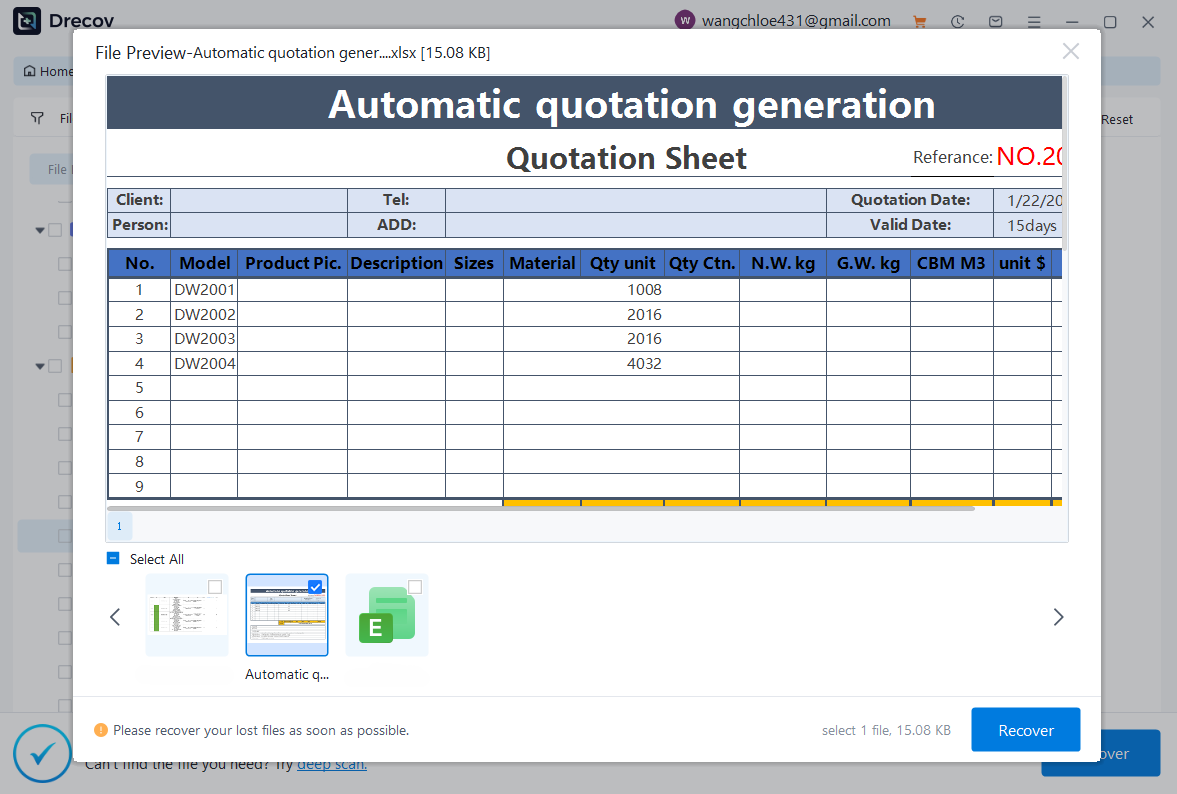

Why Choose Pandaoffice Drecov?
Data loss can occur unexpectedly due to accidental deletion, system crashes, formatting errors, or software failures. Whether you need to restore Windows previous date, perform recover Excel files,or handle deleted PowerPoint recovery, Pandaoffice Drecov provides a reliable and efficient solution designed to restore important documents quickly and safely.
Pandaoffice Drecov is a professional PowerPoint Recovery Software that supports recovery for multiple document types, including Excel spreadsheets, Word documents, and PowerPoint presentations. With advanced scanning technology, the software can detect and recover files even after deletion, formatting, or unexpected system shutdowns. This makes it an ideal tool for users who urgently need Document Recovery from hard drives, SSDs, USB drives, memory cards, and other storage devices.
One of the key advantages of Pandaoffice Drecov is its intelligent deep-scan engine. It carefully analyzes storage sectors to locate lost or hidden files that standard recovery tools often miss. Whether you accidentally deleted a presentation and require deleted PowerPoint recovery, or you lost critical spreadsheets and need to recover Excel files, the software provides fast scanning and high recovery success rates.
The software also features a user-friendly interface that allows beginners and professionals alike to complete recovery tasks in just a few steps. Users can preview recoverable files before restoring them, ensuring that only the needed data is recovered. In situations where files were lost due to system errors, the software can also help recover documents after attempts to restore Windows previous date.
The main advantage of using this workflow is that the scanning process allows you to confirm which partitions exist before modifying them. If mistakes occur, the software can attempt to recover deleted files.
⚠️Warning: Partition deletion is permanent. Always verify that the recovery partition you plan to remove is not required for system repair.
This method is particularly helpful for users who are unsure how do I delete a recovery partition safely while protecting important data.
Method 4: Delete Recovery Partition Using Windows PowerShell
Test environment:
Windows 11 Pro, 512GB NVMe SSD, UEFI system, administrator PowerShell access.
PowerShell offers another command-line method to delete recovery partition windows systems create. It provides similar functionality to DiskPart but uses different command syntax.
Follow these steps to learn how to delete recovery partition using PowerShell:
- Right-click the Start menu and select Windows Terminal (Admin).
- Switch to PowerShell mode if necessary.
- Run the following command to view all disks:
Get-Disk
- Identify the disk containing the recovery partition and run:
Get-Partition -DiskNumber 0
- Locate the partition labeled as Recovery.
- Remove it using:
Remove-Partition -DiskNumber 0 -PartitionNumber X
- Confirm the action when prompted.
After the process completes, the partition space will become unallocated and can be merged with another partition using Disk Management.
PowerShell is useful for advanced users who prefer script-based administration or remote system management. It also helps automate tasks across multiple systems.
Many administrators use this technique when managing several computers and needing a quick way to delete windows recovery partition structures created during system upgrades.
⚠️Warning: PowerShell commands execute immediately and may not provide extensive confirmation prompts. Always double-check the disk number before running removal commands.
Method 5: Delete Recovery Partition After Disabling Windows Recovery Environment
Test environment:
Windows 10 Pro (22H2), 500GB SATA SSD, standard laptop configuration.
Sometimes Windows refuses to remove the recovery partition because it is actively used by the Windows Recovery Environment (WinRE). In this case, you must disable WinRE before attempting to delete the partition.
Follow these steps if you want to learn how to delete a healthy recovery partition protected by WinRE.
- Open Command Prompt as Administrator.
- Check whether WinRE is enabled:
reagentc /info
- Disable the recovery environment:
reagentc /disable
- Open DiskPart by typing:
diskpart
- Display the disks:
list disk
- Select the correct disk:
select disk 0
- View partitions:
list partition
- Select the recovery partition:
select partition X
- Remove it:
delete partition override
- Exit DiskPart.
After deletion, you can re-enable WinRE if desired using:
reagentc /enable
This approach is effective when Windows blocks the partition removal process.
⚠️Warning: Disabling WinRE removes the built-in recovery environment temporarily. Make sure you have installation media or a system backup before proceeding.
Users searching how do I delete recovery partition when Windows blocks it often find this method the most reliable.
Frequently Asked Questions About Deleting Recovery Partitions
Can I safely delete a recovery partition in Windows
Yes, it is technically possible to delete recovery partition windows creates, but doing so removes the built-in recovery tools that help repair the system.
If you rely on external backups, system images, or installation media, removing the partition may not cause problems. However, beginners are usually advised to keep the recovery partition unless disk space is urgently needed.
Before deciding how to delete a recovery partition, verify whether your system has multiple recovery partitions. If there are duplicates, removing the unused one is generally safe.
Why can’t I delete a healthy recovery partition
Many users encounter situations where Windows refuses to remove the partition. This usually happens because:
- The partition contains active WinRE files
- Windows protects the partition type
- Disk Management does not allow deletion of system partitions
In these situations, you may need to use command-line tools such as DiskPart or PowerShell to delete windows recovery partition entries.
Another option is temporarily disabling WinRE before attempting deletion.
What happens after deleting a recovery partition
Once you delete recovery partition Windows, the space becomes unallocated on the disk.
You can then:
- Extend another partition
- Create a new partition
- Merge the space with existing storage
However, the system will no longer have built-in recovery tools stored locally.
Is it possible to restore a deleted recovery partition
Restoring a deleted recovery partition is sometimes possible using data recovery software or by reinstalling Windows.
However, success depends on whether the disk sectors have been overwritten. If the space has already been reused, the partition may not be recoverable.
For this reason, it is recommended to create a backup before attempting to delete recovery partition structures.
How much space does a recovery partition usually take
The size of a Windows recovery partition typically ranges from 500MB to 1GB, though manufacturer recovery partitions may be larger.
Some systems contain multiple partitions after upgrades, which is why users often search how to delete healthy recovery partition duplicates that are no longer needed.
Conclusion
Understanding how to delete a recovery partition can help users reclaim disk space and reorganize storage more efficiently. Although recovery partitions serve an important purpose in system repair, they are not always necessary—especially when reliable backups or installation media are available.
In this guide, we explored several approaches to delete recovery partition Windows systems create, including:
- Command-line removal using DiskPart
- Deletion through Disk Management
- Using PowerShell commands
- Disabling WinRE before removing the partition
- Verifying partitions with Pandaoffice Drecov to prevent accidental data loss
Each method works in different scenarios, depending on whether the partition is protected by Windows or actively used by recovery tools.
⚠️Warning: Always confirm the partition type and create a backup before performing disk modifications.
By following the procedures described above, users can safely manage disk partitions and understand how do I delete recovery partition without risking system stability.






