







When navigating the vast landscape of the internet, the software you choose acts as your primary gateway. Many users often ask, what is firefox browser, and why does it remain a top contender in an industry dominated by tech giants? Firefox is a free and open-source web browser developed by the Mozilla Foundation. Unlike many of its competitors, it is built on its own independent engine, prioritizing user privacy, speed, and deep customization.
In this comprehensive guide, we will explore everything from its core architecture to advanced data recovery techniques, ensuring you can navigate the web safely and recover from any digital mishaps.
Introduction to Firefox Browser
Brief History of Firefox
If you’ve been using the internet for a while, chances are you’ve heard of Firefox—or maybe you even used it back in the early days of modern browsing. The Firefox browser first launched in 2004, at a time when internet users were desperate for something faster, safer, and more flexible than existing options. It quickly gained popularity because it challenged the status quo and introduced features that felt revolutionary at the time, like tabbed browsing and customizable extensions.
Over the years, Firefox has evolved dramatically. It’s no longer just an alternative browser—it’s a powerful, privacy-focused tool that competes with giants in the industry. Despite fierce competition, Firefox has maintained a loyal user base thanks to its commitment to transparency and user control. Unlike many browsers that prioritize ecosystem lock-in, Firefox has always positioned itself as user-first.
Who Develops Firefox
Firefox is developed by the Mozilla Foundation and its subsidiary, Mozilla Corporation. This is where things get interesting. Unlike many tech companies, Mozilla is a non-profit organization, which means its primary goal isn’t to maximize profits—it’s to promote an open and accessible internet.
This mission influences everything Firefox does. From blocking trackers by default to advocating for digital rights, Mozilla takes a different approach compared to commercial browser developers. This structure also builds trust; users know that Firefox isn’t designed to collect excessive data or push ads aggressively. Instead, it focuses on giving users control over their online experience.
How Firefox Browser Works
Rendering Engine Explained
At the heart of any browser is its rendering engine—the component responsible for displaying web pages. Firefox uses an engine called Gecko, along with a modern CSS engine known as Quantum CSS. These technologies work together to interpret HTML, CSS, and JavaScript, turning raw code into the websites you see.
Think of the rendering engine as a translator. Websites speak in code, and the browser translates that into visuals and interactions. Firefox’s engine is known for being standards-compliant, meaning it closely follows web guidelines to ensure websites appear as intended by developers.
Open-Source Technology
A defining characteristic of what is firefox browser is its open-source nature. This means its code is publicly available for anyone to inspect, modify, or contribute to. This transparency is a big deal in today’s digital landscape because it allows security experts to audit the code and identify vulnerabilities quickly.
Open-source software also fosters innovation. Developers worldwide contribute improvements, making Firefox more robust over time. You’re not relying on a “black-box” system; you can see exactly how Firefox operates, which is a major win for privacy enthusiasts.
Key Features of Firefox Browser
Firefox comes packed with features designed to enhance both usability and security. One of its most notable features is Enhanced Tracking Protection, which blocks third-party trackers by default. This means websites can’t easily follow your activity across the web to build a profile of your habits.
Another standout feature is its customization. Firefox allows you to modify themes, toolbars, and settings extensively. It’s like designing your own workspace—everything can be tailored to your preferences. Furthermore, Firefox supports a wide range of extensions, enabling you to add functionality like ad blockers, password managers, and productivity tools.
Firefox vs Other Browsers
Firefox vs Chrome
Comparing Firefox to Google Chrome is like comparing two different philosophies. Chrome prioritizes speed and integration with Google services, while Firefox emphasizes privacy and independence. Firefox typically uses less memory than Chrome when multiple tabs are open. It also blocks trackers by default, whereas Chrome often requires third-party extensions for similar levels of privacy.
Firefox vs Edge
Microsoft Edge, built on Chromium, offers strong performance and integration with Windows. Firefox, on the other hand, stands out for its independence. Edge may feel more polished for Windows users, but Firefox provides a more privacy-focused experience without being tied to a specific OS ecosystem.
Privacy and Security in Firefox
Is Firefox Browser Safe to Use 2026?
As we look at the digital landscape, many users wonder, is firefox browser safe to use 2026? The answer is a resounding yes. In 2026, Firefox continues to lead the pack by implementing advanced anti-fingerprinting technology and “Total Cookie Protection.” This feature creates a separate “cookie jar” for every website you visit, preventing them from tracking you across the web.
Furthermore, because Mozilla is a non-profit, they do not have the same financial incentive to sell user data that other browser developers might. Frequent security patches and a transparent bug-bounty program ensure that vulnerabilities are addressed long before they can be exploited by malicious actors.
Data Recovery in Firefox: Handling Common Issues
Despite its security, users occasionally face data loss. Whether it’s a browser crash or accidental deletion, knowing how to get your data back is essential.
Why Did My Firefox Tabs Disappear?
One of the most frustrating experiences is opening your browser only to find your session gone. So, why did my firefox tabs disappear? This usually happens due to an unexpected shutdown, a corrupted session file, or a browser update that cleared the temporary cache.
How to Recover Disappeared Tabs:
- Step 1: Click the Application Menu (three horizontal lines) in the top-right corner.
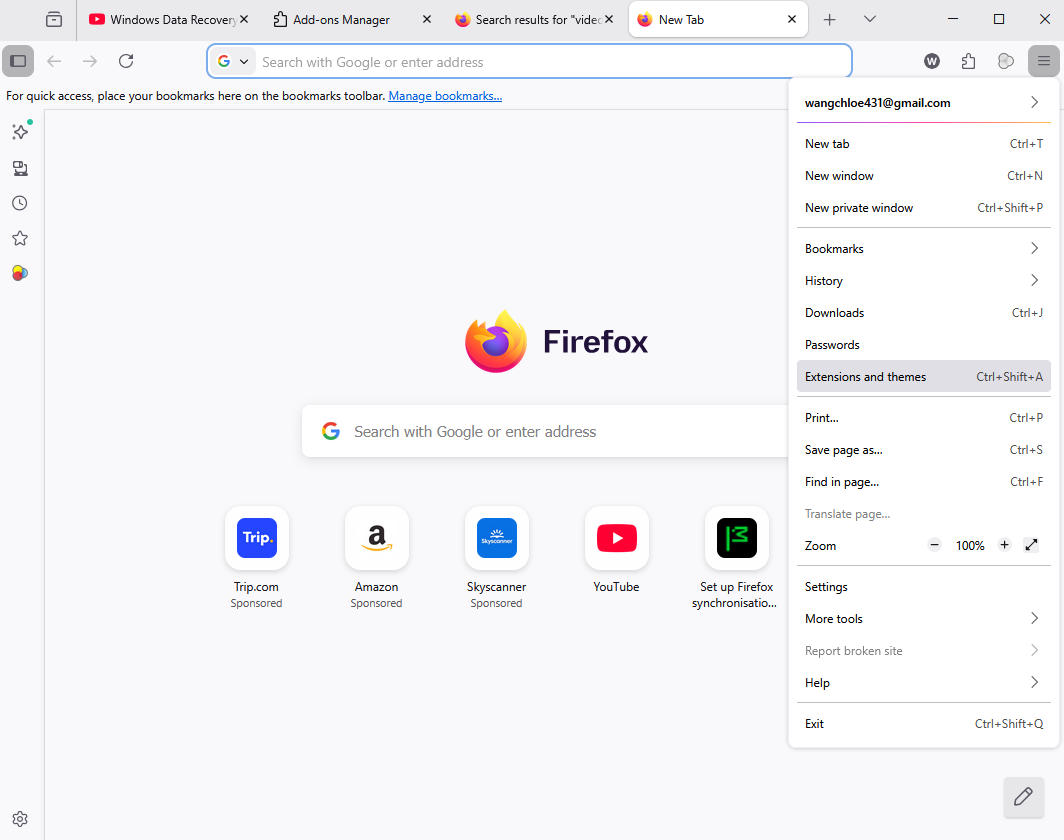
- Step 2: Select History.
- Step 3: Click on Restore Previous Session. If the option is greyed out, check Recently Closed Tabs or Recently Closed Windows.
- Step 4: To prevent this in the future, go to Settings > General and ensure “Open previous windows and tabs” is checked under the “Startup” section.
How to Recover Deleted Firefox History
If you’ve accidentally cleared your browsing history or a system error wiped it, you might feel panicked. If you’re wondering how to recover deleted firefox history, there are several methods ranging from built-in backups to deep system recovery.
Method 1: Using DNS Cache (View Only)
This won’t restore the history to the browser, but it lets you see which sites were recently accessed.
- Step 1: Press
Windows + R, typecmd, and hit Enter. - Step 2: Type
ipconfig /displaydnsand press Enter. This displays the domains your computer recently resolved.
Method 2: Using the “Previous Versions” Feature (Shadow Copies)
- Step 1: Navigate to the Firefox profile path:
%AppData%\Mozilla\Firefox\Profiles\. - Step 2: Right-click your profile folder (usually ends in
.default-release). - Step 3: Select Properties and then the Previous Versions tab.
- Step 4: If a backup exists, select a date before the deletion and click Restore.
Advanced Data Recovery with Professional Tools
When manual methods fail—perhaps due to a disk format or severe file corruption—you need a more powerful solution. This is where specialized software becomes invaluable.
PandaOffice Drecov Data Recovery Software
PandaOffice Drecov data recovery software is a professional-grade utility designed to retrieve lost files, including browser databases, bookmarks, and history files that have been deleted from your hard drive. It utilizes advanced deep-scanning algorithms to locate fragments of data that the operating system no longer sees.
⚠ Warning: Install it on a drive different from the one where your data was lost to prevent overwriting.
How to Use PandaOffice Drecov to Recover Firefox Data:
- Step 1: Select Location. Open the software and select the drive where your Windows user profile resides (usually the
C:drive).

- Step 2: Scan for Files. Click Scan. The software will perform a Quick Scan followed by a Deep Scan. You can use the search bar to look for specific Firefox file extensions like
.sqlite(which stores history and bookmarks) or.jsonlz4.

- Step 3: Preview and Recover. Once the scan is complete, browse the results. Locate files like
places.sqlite.- Warning: Always recover files to an external drive or a different partition to ensure the integrity of the recovered data.

- Step 4: Replace Files. Copy the recovered
places.sqliteback into your active Firefox profile folder while the browser is closed.
Internal Resources for Firefox Management
To further master your data management, consider these specific guides:
- Where are Firefox bookmarks stored on your PC? — Learn the exact directory paths for manual backups.
- Where is the Firefox bookmarks location? Find your data instantly. — A quick guide to locating your profile data across different operating systems.
- 5 minutes to delete bookmarks from Firefox recovery. — Detailed steps on restoring accidentally deleted bookmarks.
Performance and Speed Analysis
Firefox has made significant improvements in speed over recent years. Its Quantum engine enhances performance by using multiple CPU cores efficiently. This results in faster page loading and smoother browsing, especially on modern hardware with high thread counts.
In real-world use, Firefox performs well across most tasks, from streaming 4K videos to handling complex web applications. While it may not always top synthetic benchmark charts by a wide margin, its balance of speed and efficiency makes it a reliable choice for those who want a responsive experience without the “RAM hogging” often associated with other engines.
Firefox Extensions and Add-ons
Extensions are one of Firefox’s biggest strengths. The browser supports thousands of add-ons that can transform your browsing experience. Whether you need ad blocking via uBlock Origin, note-taking, or advanced developer tools, there’s likely an extension for it.
The Firefox Add-ons Store is strictly curated to ensure that the extensions you download are safe and performant. Installing them is as simple as clicking “Add to Firefox,” and they can be managed easily through the about:addons page.
Customization Options
Firefox offers extensive customization options that go far beyond simple themes. You can:
- Rearrange the Toolbar: Right-click the toolbar and select “Customize Toolbar” to drag and drop buttons.
- Modify UI via CSS: Advanced users can create a
userChrome.cssfile to change the actual interface of the browser. - About:Config: By typing
about:configin the address bar, you can access hundreds of hidden settings to tweak performance and privacy to an expert degree.
Cross-Platform Compatibility
Firefox works seamlessly across multiple platforms, including Windows, macOS, Linux, Android, and iOS. This ensures a consistent experience regardless of the device you’re using.
Using a Firefox Account, you can sync your bookmarks, passwords, open tabs, and history across all your devices. This synchronization uses end-to-end encryption, meaning even Mozilla cannot see your data.
How to Download and Install Firefox
Downloading Firefox is straightforward.
- Step 1: Visit the official Mozilla website.
- Step 2: Click the “Download Firefox” button. The site will automatically detect your operating system.
- Step 3: Run the installer and follow the on-screen prompts.
- Step 4: During setup, you can choose to import your data from Chrome or Edge to make the transition easier.
How to Use Firefox Efficiently
To get the most out of your experience, you should master a few key shortcuts:
- Ctrl + T: Open a new tab.
- Ctrl + Shift + P: Open a new Private Window.
- Ctrl + L: Jump to the address bar.
- Ctrl + Shift + Delete: Quickly access the “Clear Recent History” menu.
Using these shortcuts can significantly speed up your workflow and make your daily browsing more fluid.
Advantages of Using Firefox
- Privacy-First: Blocks trackers and cookies that other browsers allow.
- Resource Efficiency: Uses less RAM than Chromium-based browsers in many scenarios.
- Independence: Not owned by a data-advertising company.
- Customization: Highly flexible UI and deep configuration options.
Disadvantages of Firefox
- Market Share: Some niche websites are optimized specifically for Chrome/Chromium and may occasionally glitch in Firefox.
- Update Frequency: While usually a pro, frequent updates can occasionally require a browser restart at inconvenient times.
What is Firefox Browser FAQs
1. Is Firefox better than Chrome?
It depends on your priorities. Firefox excels in privacy and memory management, while Chrome offers a slightly larger extension library and tighter integration with the Google ecosystem.
2. Is Firefox safe for online banking?
Yes. Due to its strict tracking protection and sandboxing of websites, it is one of the safest environments for financial transactions.
3. Why is Firefox slower than usual?
This is often caused by too many active extensions or a bloated cache. Try starting Firefox in “Troubleshoot Mode” to see if an extension is the culprit.
4. Can I recover history after using Private Browsing?
No. Private Browsing is designed specifically not to write history to the disk. Even professional recovery software generally cannot recover data that was never saved.
5. Is Firefox owned by Google?
No. Firefox is owned by the Mozilla Foundation, a non-profit organization. While Google pays Mozilla to be the default search engine, they have no control over the browser’s development.
Conclusion
So, what is firefox browser? It is a beacon of privacy in an era of digital surveillance, a fast and efficient tool for the modern worker, and a highly recoverable platform for those who value their data. By understanding how to use its built-in features and how to leverage tools like PandaOffice Drecov when things go wrong, you can browse with confidence. Whether you are looking for a more secure way to shop online or a professional environment for web development, Firefox remains one of the best choices available today.






