







Managing your digital footprint is more critical today than ever before. If you have been wondering how to delete internet cookies in Firefox, you are taking a vital step toward protecting your privacy and optimizing your browser’s performance. Cookies serve as small data packets that websites use to remember your identity and preferences. While they often make browsing more convenient by keeping you logged in, they can also become a tool for invasive tracking.
In this comprehensive guide, we will explore the nuances of cookie management and delve into the world of data recovery. Whether you are clearing clutter or trying to recover a lost file, understanding these processes ensures you remain the master of your digital environment.
What Are Internet Cookies?
Before we dive into the technical steps, let’s simplify the concept. Imagine every website you visit leaves behind a tiny digital footprint—a memory of your preferences, login sessions, and browsing habits. These little data files are called cookies, and they live quietly inside your browser, including Firefox. They are not inherently bad; in fact, they help websites remember who you are, saving you from logging in repeatedly or resetting preferences every time you visit.
In Firefox, cookies function as storage tools that enhance your browsing experience. They store things like your username, language settings, and even items in your shopping cart. According to recent browser documentation from Mozilla Support, cookies are essential for keeping sessions active and improving usability across websites.
How Cookies Work in Firefox
Every time you visit a website, Firefox allows that site to store a small text file on your device. The next time you return, the site reads that file to “remember” you. It’s like walking into your favorite café and the barista already knowing your order—it’s incredibly convenient. However, this convenience comes with a trade-off. Since these files are stored locally, they can accumulate over time, leading to “browser bloat” or even data corruption.
Types of Cookies You Should Know
To manage your data effectively, you must understand what you are deleting. There are mainly three types of cookies that Firefox handles:
- Session cookies: These are temporary and deleted automatically after you close Firefox.
- Persistent cookies: These stay stored on your hard drive until you manually delete them or they reach their expiration date.
- Third-party cookies: These are often used by advertisers to track your behavior across different websites to serve targeted ads.
Understanding these types helps you decide which data you want to wipe and which you might want to preserve for the sake of convenience.
Why You Should Delete Cookies Regularly
You might be wondering—if cookies are so helpful, why bother learning how to delete internet cookies in Firefox? The reasons generally fall into two categories: privacy and performance.
Privacy Concerns
Cookies can track your browsing behavior across multiple sites. This means advertisers and third parties can build a detailed profile of your interests. Many users today are becoming more privacy-conscious and choosing to delete cookies regularly to prevent “ad-retargeting.” Experts suggest clearing cookies periodically to reduce tracking risks and improve control over your personal data. Modern privacy guidelines emphasize minimizing stored browsing data whenever possible to mitigate the risk of data leaks.
Performance Benefits
Over time, accumulated cookies and site data can slow down your browser. Think of it like clutter in your room—the more stuff you have, the harder it is to move around efficiently. Deleting cookies can fix website loading issues, resolve login loops (where a site keeps asking you to log in), and improve overall browser responsiveness. It’s a quick cleanup that often makes a noticeable difference in speed.
How to Clear Cookies in Firefox: The Standard Approach
If you want to know how to clear cookies in Firefox for all sites at once, this is the most efficient method. This process is a “nuclear option” that wipes the slate clean, ensuring that no tracking data remains from your previous sessions.
Step-by-Step Instructions for a Full Clear
- Step 1: Open your Firefox browser and click the Application Menu (the three horizontal lines) in the top-right corner.
- Step 2: Select Settings from the dropdown menu.
- Step 3: On the left-hand sidebar, click on Privacy & Security.
- Step 4: Scroll down to the section labeled Cookies and Site Data.
- Step 5: Click the Clear Data… button.
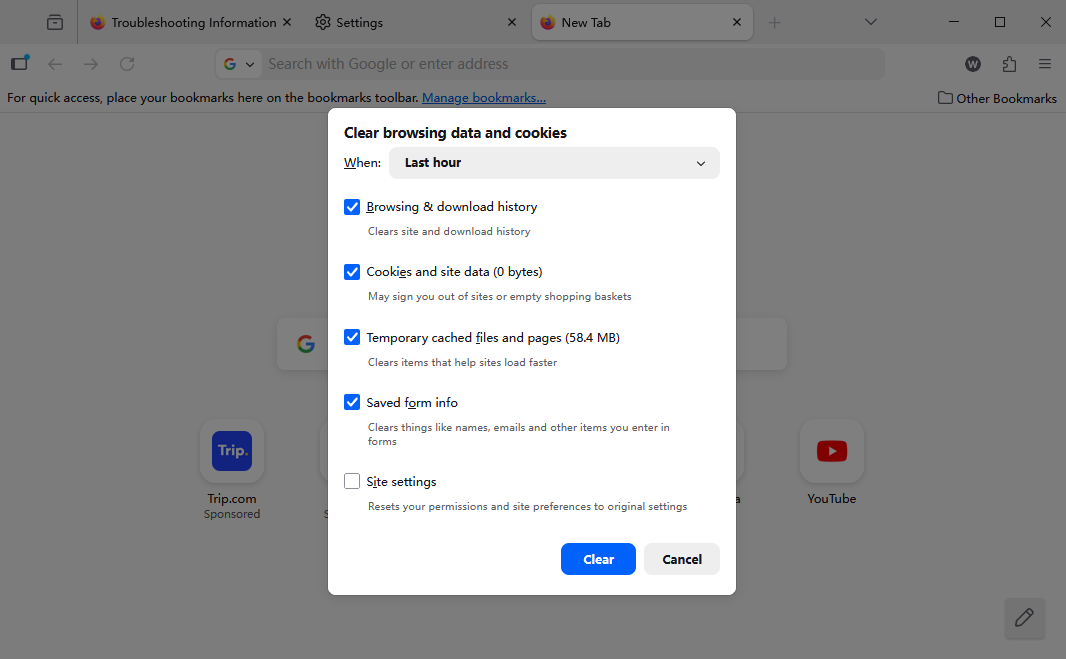
- Step 6: A dialog box will appear. Ensure that the box for Cookies and Site Data is checked.
- Step 7: Hit the Clear button. A warning might appear asking if you want to clear now; confirm your choice.
By following these steps, you effectively reset your browser’s memory. This is particularly useful if you are using a shared computer or if you’ve noticed that Firefox is sluggish.
How Do I Delete My Cookies in Firefox for Specific Sites?
Sometimes, you don’t want to lose all your logins. You might only want to fix a specific website that isn’t loading correctly. In this case, you might ask, “how do I delete my cookies in Firefox without affecting my other open sessions?”
Targeted Cookie Removal
- Step 1: Navigate to the Privacy & Security panel within Firefox Settings.
- Step 2: Under the Cookies and Site Data section, click on Manage Data….
- Step 3: A list of all websites that have stored cookies will appear. Use the Search websites bar to find the specific site you want to clean.
- Step 4: Select the site from the list and click Remove Selected.
- Step 5: Click Save Changes to finalize the removal.
This targeted approach is the “surgical” way to manage your data. It allows you to keep your session active on your favorite streaming site while deleting the cookies from a site you only visited once.
Advanced Management: Quick and Automatic Methods
For power users, navigating through menus every time can be tedious. Firefox offers several shortcuts and automated features to make the process of how to delete internet cookies in Firefox much faster.
The Quick Access Padlock Method
If you are currently on a website and it’s acting up, you can delete its specific cookies instantly:
- Click the Padlock icon located to the left of the URL in the address bar.
- Select Clear cookies and site data….
- Confirm the deletion in the pop-up window.
The Keyboard Shortcut (Fastest Method)
For those who love efficiency, the keyboard is your best tool. Simply press Ctrl + Shift + Delete (Windows/Linux) or Command + Shift + Delete (Mac). This immediately opens the “Clear Recent History” menu, where you can select “Cookies” and “Everything” from the time range to wipe your data in seconds.
Automating the Cleanup
If you never want to worry about manual deletion again, you can set Firefox to do the work for you. In the Privacy & Security settings, look for the checkbox that says Delete cookies and site data when Firefox is closed. Enabling this ensures that your digital trail is erased every time you end your browsing session.
The Risk of Data Loss: When Deletion Goes Too Far
While learning how to delete internet cookies in Firefox is essential for privacy, accidents happen. Sometimes, while clearing your browser history or managing your PC’s storage, you might accidentally delete important files, downloaded documents, or even local database files associated with your browser.
When you delete cookies, you are typically safe, as they are just text files. However, if you perform a “Deep Clean” using third-party system optimizers, you might lose vital information. This is where the world of data recovery becomes crucial.
PandaOffice Drecov Data Recovery Software: Your Safety Net
If you have accidentally deleted important browser-related files or lost data during a system crash while managing Firefox, you need a professional solution. PandaOffice Drecov data recovery software is a high-performance tool designed to retrieve lost, formatted, or deleted data from various storage devices.
Whether the data was lost due to an accidental “Shift + Delete” operation or a partition error, this software uses advanced scanning algorithms to reconstruct file structures.
⚠ Warning: Never install the recovery software on the same drive/partition where the lost data was located. This prevents “overwriting,” which can make data recovery impossible.
How to Use PandaOffice Drecov to Recover Lost Data
Data recovery might sound complex, but with the right tools, it is a straightforward process. Follow these steps to recover your files:
- Step 1: Select the Location. On the main interface, you will see a list of available drives. Select the drive where your Firefox data or lost files were stored (usually the C: drive for system data).

- Step 2: Scan for Deleted Files. Click the Scan button. PandaOffice Drecov data recovery software will perform a Quick Scan followed by a Deep Scan to locate every recoverable fragment.

- Step 3: Preview and Filter. Once the scan is complete, you can browse the files by type or path. The software allows you to preview images or documents to ensure they are intact before recovery.

- Step 4: Execute Recovery. Select the files you wish to restore and click Recover. Choose a destination folder on an external drive or a different partition to save the recovered data safely.
By using PandaOffice Drecov data recovery software, you add a layer of security to your digital life. While clearing cookies is about removing data, Drecov is about ensuring that the data you want to keep is never truly gone.
After you have successfully managed your data recovery, you might want to explore more about Firefox data management. Check out these helpful guides:
- How to download video from browser Firefox 2026 guide
- Where is the Firefox bookmarks location: Find your data instantly
- Where are Firefox bookmarks stored on your PC
What Happens After You Delete Cookies?
It is important to manage expectations. When you successfully execute the steps for how to delete internet cookies in Firefox, several things will change immediately:
Data That Gets Removed
- Active Sessions: You will be logged out of almost every website (Facebook, Gmail, etc.).
- Site Preferences: If you set a website to “Dark Mode” or chose a specific language, those settings might reset.
- Shopping Carts: On many e-commerce sites, items in your cart may disappear if you aren’t logged in.
What Stays Safe
Don’t worry—deleting cookies is a focused action. The following remain untouched:
- Bookmarks: Your saved favorite pages are stored in a separate database.
- Saved Passwords: Unless you specifically check the “Logins and Passwords” box, your saved credentials remain in Firefox’s password manager.
- Browsing History: Deleting cookies does not necessarily delete the list of websites you’ve visited unless you select that option as well.
Common Issues and Troubleshooting
Sometimes, the process isn’t as smooth as expected. Here are a few hurdles you might encounter when trying to clear cookies in Firefox.
Cookies Not Deleting Properly
If you clear your cookies but find that you are still logged into sites, a few things could be happening. First, check if you have multiple Firefox profiles. You might be clearing data for one profile while the other remains active. Secondly, some browser extensions (like session managers) might be restoring cookie data automatically. Try disabling extensions and clearing the data again.
Websites Not Loading After Clearing
Occasionally, a website might show an error after you clear cookies. This is usually due to a “mismatch” between the new empty cookie state and the old cached images. To fix this, always clear your Cache at the same time you clear your cookies. This forces Firefox to download the latest version of the website’s assets.
Best Practices for Cookie Management in 2026
As we move further into a data-centric era, “digital hygiene” is no longer optional. To keep your Firefox browser running at peak performance, consider these best practices:
- The Weekly Wipe: Set a reminder to manually clear your cookies once a week. This prevents the buildup of tracking data.
- Use Enhanced Tracking Protection: Firefox has a built-in feature called “Enhanced Tracking Protection.” Set this to Strict in your Privacy settings to block most third-party tracking cookies by default.
- Whitelist Important Sites: If you use the “Delete cookies when Firefox is closed” feature, use the Manage Exceptions button to add sites like your bank or primary email. This way, you stay logged into what matters while the rest is wiped.
- Pair with Recovery Tools: Always keep a tool like PandaOffice Drecov data recovery software handy. Data management often involves deleting things, and having a “safety net” allows you to be more aggressive with your privacy settings without fear of permanent loss.
Delete Internet Cookies in firefox FAQs
1. Will deleting cookies delete my bookmarks?
No. Bookmarks are stored in a different part of the Firefox profile system. Deleting cookies only affects site preferences and login sessions.
2. Why do I have to log in again after clearing cookies?
Cookies store “session IDs.” When you delete them, the website no longer recognizes your browser as the one that previously logged in, so it asks for your credentials again for security.
3. Is it possible to recover cookies after I delete them?
Generally, no. Cookies are small text files that are often overwritten immediately. However, if the entire profile folder was deleted, PandaOffice Drecov data recovery software might be able to recover the database files.
4. Does “Incognito” or “Private Browsing” store cookies?
Firefox Private Browsing does use cookies, but it deletes them the moment you close the private window. It is essentially an “auto-delete” mode.
5. How often should I clear my Firefox cookies?
For most users, once a month is sufficient. However, if you visit many unfamiliar websites or use public Wi-Fi, doing it daily or using the “Clear on Close” feature is recommended.
Conclusion
Learning how to delete internet cookies in Firefox is a fundamental skill for any modern internet user. It balances the scales between convenience and privacy, ensuring that your browser remains fast and your personal habits stay private. By mastering the various methods—from the all-encompassing “Clear Data” to the surgical “Manage Data” approach—you gain full control over your digital footprint.
Furthermore, understanding the relationship between data deletion and data recovery provides a holistic view of digital maintenance. Tools like PandaOffice Drecov data recovery software ensure that even when things go wrong, your important files are within reach. Stay proactive, keep your browser clean, and enjoy a faster, safer internet experience in 2026.






