







In the fast-paced digital landscape of 2026, our web browsers act as the central hubs of our professional and personal lives. Whether you are a researcher collecting academic papers, a developer saving API documentation, or a casual user keeping track of favorite recipes, your bookmarks are a digital goldmine. However, data is fragile. Hardware failures, software corruption, or accidental deletions can wipe out years of curated links in seconds. Learning how to export firefox bookmarks is not just a technical skill; it is a vital component of a robust data disaster recovery strategy. By mastering this process, you ensure that your “digital memory” remains portable, secure, and recoverable across any platform or device.
Understanding Firefox Bookmarks
Before we dive into the technical “how-to,” we must understand what we are protecting. Bookmarks are more than just links; they are structured metadata that represent your productivity patterns and interests.
What Firefox Bookmarks Are
Firefox bookmarks are saved shortcuts to web addresses ($URLs$) that allow for instant navigation. Unlike your browser history, which is a chronological log of every site visited, bookmarks are intentional. They are the “best of the web” that you have chosen to keep. Firefox stores these in a complex database file named places.sqlite within your user profile folder. While the browser manages this database automatically, users need a way to extract this data into a readable format for backups or migration.
Why Exporting Bookmarks Is Important
As a data recovery expert, I often see users devastated by the loss of their browser data after a hard drive failure. Exporting is your first line of defense. Here is why it matters:
- System Migration: When you buy a new PC, you shouldn’t have to start from scratch.
- Browser Interoperability: If you decide to switch to Chrome or Edge, an exported file is your “passport.”
- Data Redundancy: Having a standalone HTML file ensures that even if Firefox fails to launch, your links are safe.
What Happens When You Export Firefox Bookmarks
When you initiate the export process, Firefox translates its internal database into a universal language. This section clarifies the technical nuances of the files created during this procedure.
HTML Export vs Backup File
Firefox provides two distinct ways to save your data, and choosing the right one is critical for recovery success:
- HTML Export (
bookmarks.html): This is a universal format. It is designed so that other browsers (like Chrome or Safari) can read your links. It follows a standard coding structure that has remained consistent for decades. - JSON Backup (
bookmarks-date.json): This is a proprietary Firefox format. It contains more detailed metadata (like tags and descriptions) but is generally only readable by Firefox.
Expert Tip: If you want to move to a different browser, you must know how to export import firefox bookmarks using the HTML method. If you are just backing up your current Firefox setup, the JSON method is slightly more comprehensive.
Where Exported Bookmarks Are Stored
By default, Firefox does not force a specific save location. When you click “Save,” the browser typically opens your system’s “Documents” or “Downloads” folder. However, for true data safety, we recommend saving these files to an external drive or a verified cloud service like Google Drive or Proton Drive.
How to Export Firefox Bookmarks on Desktop
For desktop users (Windows, macOS, and Linux), Firefox provides a robust “Library” interface. This is the most reliable way to handle your data.
Method 1 – Export Bookmarks Using the Library Window
This is the standard manual method recommended for all users. It ensures you have a physical file that can be moved via USB or email.
Step-by-Step Instructions
- Step 1: Open your Firefox browser and look at the top right corner. Click on the Application Menu (the three horizontal lines, often called the “hamburger” menu).
- Step 2: From the dropdown menu, click on Bookmarks, then scroll to the bottom and select Manage Bookmarks. Alternatively, you can use the shortcut provided in Method 2.
- Step 3: A new window titled Library will appear. On the top toolbar of this window, click the button labeled Import and Backup (it usually looks like two arrows or a star).
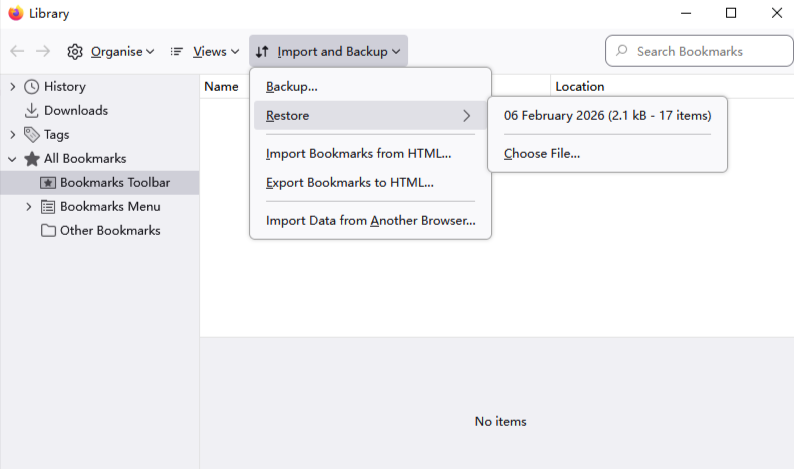
- Step 4: From the list, select Export Bookmarks to HTML….
- Step 5: A file explorer window will open. Name your file (e.g.,
Firefox_Backup_March_2026.html) and choose a secure destination. Click Save.
Method 2 – Export Using Keyboard Shortcut
If you are a power user looking for efficiency, you can skip the menu diving entirely.
- Step 1: Press Ctrl + Shift + O (on Windows/Linux) or Cmd + Shift + O (on Mac). This instantly triggers the Library window.
- Step 2: Follow the same “Import and Backup” steps mentioned above. This is the fastest way to learn how to export favorites from firefox without clicking through multiple menus.
Advanced Data Recovery: Using PandaOffice Drecov
Sometimes, the standard “Export” button isn’t enough. What if your computer won’t boot, or you accidentally deleted your Firefox profile folder before you could export? This is where professional-grade tools like PandaOffice Drecov become essential.
PandaOffice Drecov is a specialized data recovery suite designed to scan deep into your storage sectors to retrieve lost browser databases and HTML files.
⚠ Warning: Install it on a drive different from the one where your data was lost to prevent overwriting.
How to Recover Lost Bookmarks with PandaOffice Drecov
- Step 1: Select the Drive. Choose the drive where Firefox was installed (usually the
C:drive). If you are recovering from an external crashed drive, plug it in and select it from the list.

- Step 2: Deep Scan for Firefox Data. Click on Deep Scan. In the file type filter, search for
.sqliteor.html. This allows the tool to find theplaces.sqlitefile which contains your actual bookmark data, even if the file system is corrupted.

- Step 3: Preview and Recover. Once the scan is complete, PandaOffice Drecov will display a list of recoverable files. Look for files in the path:
Users\[YourName]\AppData\Roaming\Mozilla\Firefox\Profiles\.

- Step 4: Export to Safety. Select the relevant files and click Recover. Save them to a different drive (never save recovered data to the same disk you are scanning to avoid overwriting).
Warning: If you realize your bookmarks are missing, stop using the computer immediately. Every new file created or webpage visited could overwrite the space where your deleted bookmarks are sitting, making recovery impossible even for PandaOffice Drecov.
How to Export Firefox Bookmarks for Backup
If your goal is strictly internal redundancy, you should use the JSON backup method. This is perfect for restoring your exact setup after a clean Windows installation.
Using JSON Bookmark Backup
- Step 1: Open the Library window (Ctrl + Shift + O).
- Step 2: Click Import and Backup.
- Step 3: Select Backup….
- Step 4: Firefox will generate a file with a
.jsonextension. Save this file. - Step 5: To restore this later, you would select Restore from the same menu and pick the file you saved.
Exporting Bookmarks to Another Browser
Many users want to know how to export import firefox bookmarks specifically to move to Google Chrome or Microsoft Edge.
Importing Firefox Bookmarks into Chrome or Edge
- Step 1: Perform the HTML export from Firefox as described in the desktop section.
- Step 2: Open Chrome and go to
chrome://settings/importData. - Step 3: In the “Import bookmarks and settings” dropdown, select Bookmarks HTML File.
- Step 4: Choose the file you exported from Firefox. Your folders and links will now appear in the Chrome “Imported” folder.
How to Export Firefox Bookmarks on Mobile
Mobile operating systems (iOS and Android) are “sandboxed,” meaning they don’t allow you to easily save an HTML file to your phone’s storage.
Using Firefox Sync
The most effective way to “export” from mobile is to sync your data to a desktop.
- Step 1: Tap the menu button in the Firefox mobile app and sign in to your Firefox Account.
- Step 2: Ensure “Bookmarks” is checked in the Sync settings.
- Step 3: Open Firefox on your PC, sign in to the same account, and wait for the bookmarks to appear.
- Step 4: Use the desktop “Export to HTML” method to create your backup.
Common Problems When Exporting Firefox Bookmarks
Even with a clear guide, technical hiccups occur. Here are the most frequent issues:
- Greyed Out Export Option: This usually happens if your Firefox profile is locked by another process or if you are in “Private Browsing” mode. Close all Firefox windows and restart the browser.
- Corrupt
places.sqlite: If Firefox crashes every time you try to manage bookmarks, your database might be corrupted. In this case, use PandaOffice Drecov to find older versions of the file or use a tool like the “Verify Integrity” button inabout:support. - Missing Folders: Sometimes, after importing, it looks like links are missing. Check the “Other Bookmarks” folder or the “Bookmarks Menu” sub-folders; browsers often nest imported data deep within the existing structure.
Best Practices for Bookmark Backup
To avoid ever needing emergency data recovery, follow these professional standards:
- The 3-2-1 Rule: Keep 3 copies of your bookmarks (the browser, an export file, and a cloud backup), on 2 different media types, with 1 copy off-site.
- Monthly Maintenance: Set a calendar reminder to export your bookmarks on the first of every month.
- Clean Before Export: Delete old, broken links before exporting to keep your file size small and organized.
More on Data Recovery
If you found this guide helpful, you might also need assistance with other browser-related data tasks. Check out these expert resources:
- How to download video from browser Firefox 2026 guide
- Where is the Firefox bookmarks location – Find your data instantly
- Where are Firefox bookmarks stored on your PC?
For official technical support regarding Firefox’s storage policies, you can visit the Mozilla Firefox Support Page.
Firefox Bookmark Migration FAQs
1. Can I export bookmarks if Firefox won’t open?
Yes, but you cannot use the browser’s menu. You must manually navigate to your Profile Folder (usually in %APPDATA%\Mozilla\Firefox\Profiles\) and copy the places.sqlite file, or use a tool like PandaOffice Drecov to extract it.
2. Does exporting include my passwords?
No. Bookmarks and passwords are stored in different files. To save passwords, you need to use the “Export Logins” feature in the Firefox “Logins and Passwords” settings.
3. Why is my exported HTML file empty?
This typically happens if you are using a different Firefox profile than the one that contains your bookmarks. Check about:profiles in the URL bar to see which profile is currently in use.
4. How do I export favorites from Firefox to a USB drive?
Simply follow the standard export steps, and when the “Save” window appears, select your USB drive as the destination.
5. Is there a limit to how many bookmarks I can export?
There is no hard limit, but extremely large bookmark files (tens of thousands of links) may take a few seconds longer to process during the export/import phase.
Conclusion
Mastering how to export firefox bookmarks is a fundamental step in digital literacy. Whether you use the built-in Library tools for a quick transition or rely on PandaOffice Drecov for advanced data recovery after a system failure, having a plan is what separates a prepared user from a frustrated one. By following the steps outlined in this guide, you can ensure that your years of digital discovery are never more than a few clicks away from safety.






