







The internet can be an incredibly productive place—but it can also be filled with distractions, harmful content, or websites that simply waste time. This is why many people look for ways to how to block sites on firefox. Whether you’re trying to stay focused on work, protect children from inappropriate content, or reduce social media distractions, website blocking can make a big difference. In this guide, we will explore every technical layer of site restriction, from simple add-ons to advanced system-level configurations.
Furthermore, because managing browser data often leads to accidental deletions, we will also cover essential data recovery techniques. If you’ve ever cleared your history or removed an extension only to realize you lost vital information, staying informed about recovery tools like PandaOffice Drecov is just as important as knowing how to manage your block list.
Understanding Website Blocking in Firefox
Website blocking essentially prevents your browser from loading specific web pages. If someone tries to access a blocked site, the browser either stops the page from loading or redirects the user somewhere else. Think of it like installing a digital “do not enter” sign on certain websites. Once the rule is active, the browser refuses to open those pages.
What Website Blocking Means
Website blocking means preventing access to certain domains or URLs within a browser. When a site is blocked, the browser stops loading its content entirely or redirects the user to a different page. This technique is widely used for productivity, parental control, and cybersecurity.
Imagine trying to open a blocked website. Instead of seeing the page you requested, the browser might display a message stating that the site is restricted. Some blocking tools even redirect users to a motivational page reminding them to stay focused. This feature is popular among people trying to avoid distractions during work or study sessions.
Why People Block Websites in Browsers
There are many reasons people decide to block websites in their browsers. One of the most common reasons is productivity. Social media platforms, video streaming services, and entertainment websites can easily consume hours of time. Additionally, from a data recovery perspective, blocking malicious sites prevents ransomware from encrypting your files, saving you from a catastrophic data loss scenario.
Does Firefox Have Built-in Website Blocking?
One question many users ask is whether Firefox includes a built-in feature for blocking specific websites. The answer is somewhat surprising: Firefox does not provide a direct native tool for blocking individual sites. Instead, the browser relies on extensions and system-level parental controls to manage restrictions.
Firefox Default Capabilities
Firefox includes many privacy and security features, such as Enhanced Tracking Protection. While it blocks trackers, it doesn’t allow users to manually block specific websites from loading via a simple “Block” button in the settings menu. You can learn more about Firefox’s security architecture on the official Mozilla Support site.
Role of Extensions and External Controls
Because Firefox is highly customizable, it encourages the use of “Add-ons.” These are the primary vehicles for how to block a website on firefox. By utilizing the Firefox API, developers have created robust tools that can intercept traffic and enforce “Blacklists.”
Method 1 – Block Sites Using Firefox Extensions
One of the easiest and most popular ways to block websites in Firefox is by installing a website blocker extension. These add-ons are small programs that extend the functionality of the browser.
Installing a Website Blocking Extension
To get started, you need to visit the Firefox Add-ons Store. Extensions like “BlockSite” or “LeechBlock NG” are top-rated choices for 2026.
Step-by-Step Setup Guide
- Step 1: Open Firefox on your desktop.
- Step 2: Click the Menu icon (three horizontal lines) in the top-right corner.
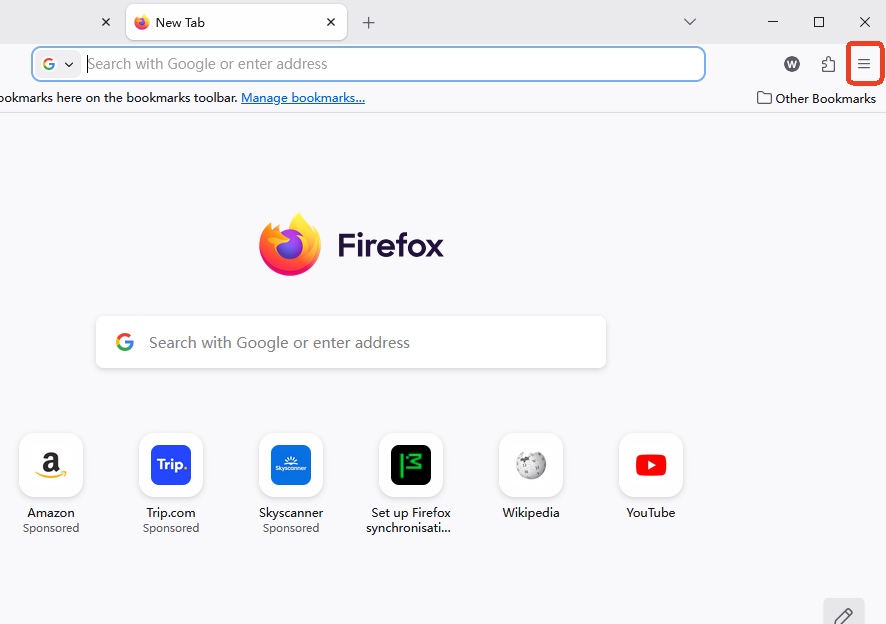
- Step 3: Select Add-ons and Themes (or press
Ctrl+Shift+A). - Step 4: In the search bar, type “block site” and press Enter.
- Step 5: Choose a highly-rated extension and click Add to Firefox.
- Step 6: A pop-up will appear; click Add to confirm permissions.
- Step 7: Once installed, click the extension icon in your toolbar to open the Options or Settings panel.
Configuring the Block List
After installing, you must tell the extension which URLs to target. Most extensions allow you to simply paste a link (e.g., facebook.com) into a text field. You can also set “Active Times” so that the block only applies during your 9-to-5 workday.
Method 2 – Block Sites Using Parental Controls
If you want a more “permanent” solution that is harder to bypass, using Operating System (OS) level controls is the way to go. Firefox is designed to respect the family safety settings of Windows and macOS.
Using Operating System Parental Controls
On Windows 10 or 11, you can use Microsoft Family Safety.
- Step 1: Go to your Windows Settings and navigate to Accounts > Family & other users.
- Step 2: Manage family settings online and add the websites you wish to restrict.
- Step 3: Firefox will automatically detect these “Content Filters” and block access to those domains.
Using Third-Party Web Filtering Tools
For advanced users, changing your DNS settings (to a service like OpenDNS or Cloudflare for Families) can block categories of sites (like gambling or adult content) across your entire network, including Firefox.
Method 3 – Blocking Sites with Firefox Add-ons
Beyond simple “BlockLists,” some Firefox add-ons offer “Focus Modes.” These are designed to help with data management and mental clarity. For example, “LeechBlock” allows you to set a “delay” on sites, forcing you to wait 30 seconds before a site loads—often enough time to change your mind about wasting time.
How to Block Sites on Firefox Mobile
Blocking websites on mobile versions of Firefox can be slightly different from desktop browsers.
Blocking Websites on Android
On Android, you can still use some extensions.
- Step 1: Open Firefox on Android.
- Step 2: Tap the three dots and select Add-ons.
- Step 3: Install a supported blocker like “uBlock Origin” and use custom filters to block specific URLs.
Blocking Websites on iPhone
iOS is more restrictive. To block sites in Firefox on an iPhone, you must use the system Screen Time settings:
- Step 1: Go to Settings > Screen Time > Content & Privacy Restrictions.
- Step 2: Tap Content Restrictions > Web Content.
- Step 3: Select Limit Adult Websites or Allowed Websites Only to add specific URLs.
The Vital Role of Data Recovery in Browser Management
When users experiment with how to block sites on firefox, they often clear their cache, cookies, or accidentally delete their browser profile folders. This can result in the loss of years of bookmarks, saved passwords, and history. If this happens, you need a professional data recovery solution.
Introducing PandaOffice Drecov
PandaOffice Drecov is a state-of-the-art data recovery product designed to retrieve lost files from SSDs, HDDs, and external drives. Whether your Firefox data was lost due to a software crash or an accidental format, Drecov can find the “lost fragments” of your digital life.
⚠ Warning: Install it on a drive different from the one where your data was lost to prevent overwriting.
Step-by-Step Data Recovery with PandaOffice Drecov
- Step 1: Select the Location: Launch the software and select the drive or partition where your Firefox profile was stored (usually the
C:drive).Warning: Do not perform any new write operations on the drive once you realize data is missing.

- Step 2: Deep Scan: Click Scan. PandaOffice Drecov will perform a deep sector-by-sector analysis to locate deleted SQLite databases (which Firefox uses for bookmarks and history).

- Step 3: Filter and Preview: Use the search bar to look for files ending in
.sqliteor folders namedMozilla. You can preview the files to ensure they are intact.

- Step 4: Recover: Select the files and click Recover. Choose a secure location (like a USB drive) to save the restored data.
More Data Recovery and Useful Resources
Managing your browser is about more than just blocking sites; it’s about maintaining your digital assets. If you’ve successfully learned how to block sites on firefox, you might also need help with other Firefox-related data tasks. Check out these essential guides:
- How to Download Video from Browser Firefox 2026 Guide
- Where is the Firefox Bookmarks Location? Find Your Data Instantly
- Where are Firefox Bookmarks Stored on Your PC?
Advantages of Blocking Websites
The primary benefit is Productivity. By removing the temptation of “infinite scroll” platforms, you reclaim hours of your day. Additionally, it serves as a frontline defense for Cybersecurity. Many malicious sites are blocked automatically by security extensions, preventing phishing attacks before they reach your screen.
Common Problems When Blocking Sites
- Over-blocking: Sometimes you might block a site that a secondary service needs to function (like a login redirect). Always check your “Whitelist” if a site stops working.
- Extension Conflicts: Running two different blockers can slow down Firefox. Stick to one reliable add-on.
- Sync Issues: If you block a site on your PC, it may still be accessible on your phone unless you use a cross-platform account.
Best Practices for Managing Website Restrictions
- Use Strong Passwords: If you are blocking sites for self-discipline, have a friend set the password for the extension.
- Scheduled Blocking: Don’t block everything forever. Use “Focus Hours” to maintain a balance.
- Backup Your Settings: Before making major changes to your browser or registry, ensure you have a backup of your Firefox profile.
Block Sites On Firefox FAQs
1. Can I block a website in Firefox without extensions?
Not directly within the browser settings. You must use system-level tools like the Windows “Hosts” file or Parental Controls.
2. Is website blocking reversible?
Yes. You can simply remove the URL from your block list or uninstall the extension to restore access.
3. Does blocking a site delete my data?
No, blocking only prevents the site from loading. However, if you use a recovery tool like PandaOffice Drecov, you can recover history that was deleted before the block was put in place.
4. Can I block sites on Firefox using the Windows Hosts file?
Yes. By navigating to C:\Windows\System32\drivers\etc\hosts, you can map a domain like www.distractionsite.com to 127.0.0.1, effectively blocking it for all browsers.
5. Will blocking sites make Firefox faster?
In some cases, yes. By preventing heavy, ad-laden sites from loading in the background, you save CPU and RAM resources.
Conclusion
Mastering how to block sites on firefox is a vital skill in the modern digital age. Whether you choose the simplicity of a Firefox extension or the robustness of system-level parental controls, the goal remains the same: a safer, more focused browsing experience.
Remember that digital management goes hand-in-hand with data recovery. Always keep a tool like PandaOffice Drecov ready in case your attempts to clean up your browser lead to accidental file loss. By balancing strict website restrictions with smart data backup habits, you can enjoy the best that the internet has to offer without falling victim to its many distractions.






