







Mozilla Firefox is one of the most popular web browsers in the world, known for its privacy features, speed, and customization options. However, there are times when users may want to block specific websites on Firefox. Whether you want to improve productivity, protect children from inappropriate content, avoid distractions, or increase online security, learning how to block a website on Firefox can be extremely useful.
In this complete guide, you will learn how to block a website on Firefox using multiple techniques. We will also discuss the advantages and disadvantages of each method, troubleshooting tips, and best practices for keeping your browsing environment safe and distraction-free. Furthermore, because modern productivity and security management often involve data integrity, we will explore advanced data recovery scenarios so that you can safeguard your critical system settings, custom profiles, and browser data.
Why Block Websites on Firefox?
Blocking websites on Firefox is easier than many people think. There are several methods available, including browser extensions, parental control tools, modifying system files, router settings, and built-in browser features. Each method offers different levels of control and flexibility depending on your needs. Before diving into the methods, it is important to understand why website blocking can be beneficial.
Improve Productivity
Social media websites, streaming services, and gaming platforms can become major distractions during work or study hours. Consequently, knowing how to block a website on Firefox helps users stay focused and manage their time more efficiently.
Protect Children Online
Parents often use website blocking to prevent children from accessing harmful or inappropriate content. While Firefox supports several tools that make parental controls easier to implement, configuring these filters correctly ensures a secure family environment.
Enhance Security
Certain websites may contain malware, phishing attempts, or harmful scripts. Therefore, blocking suspicious domains can drastically reduce the risk of cyberattacks, identity theft, and data loss.
Reduce Digital Distractions
Many people block news sites, shopping websites, or entertainment platforms to create a healthier digital routine and improve mental focus. Taking control of your digital space directly correlates with better emotional well-being.
Method 1: Block a Website on Firefox Using an Extension
One of the easiest ways to execute how to block a website on Firefox is by using browser extensions. These add-ons are easy to install and offer customizable blocking options.
Best Firefox Extensions for Website Blocking
Some popular Firefox extensions include:
- BlockSite: An intuitive extension featuring password protection and custom redirection.
- LeechBlock NG: A lightweight productivity tool that lets you specify periods for blocklists.
- StayFocusd: Highly customizable extension that restricts time spent on time-wasting sites.
- uBlacklist: Prevents specific sites from appearing in your search engine results.
How to Install BlockSite on Firefox
- Step 1: Open Firefox and navigate directly to the official Mozilla Add-ons Store.
- Step 2: Type “BlockSite” into the top-right search bar and select the verified extension from the results list.
- Step 3: Click the prominent “Add to Firefox” button and grant the necessary permissions when prompted by the browser dialogue box.
- Step 4: Open the extension settings menu from your toolbar, type the target URL you intend to restrict (e.g.,
facebook.com,youtube.com, ortwitter.com), and click “Save Changes.”
Advantages of Using Extensions
- Extremely straightforward setup that requires zero advanced technical knowledge.
- Highly flexible, allowing you to establish custom scheduling rules and automated timers.
- Includes built-in password protection options to prevent unapproved removal.
Disadvantages
- Extensions can be disabled or uninstalled easily by tech-savvy users or children.
- Running too many background add-ons may marginally affect browser performance.
Method 2: Block Websites Using Firefox Parental Controls
Firefox itself does not feature native, built-in parental control tools. Nevertheless, you can comfortably implement system-level parental controls that seamlessly govern Firefox’s behavior.
Setting Up Windows Family Safety
If you run a Windows ecosystem, Microsoft’s integrated control features will apply strict network filters globally across Firefox and all alternative web applications.
- Step 1: Click your Windows Start menu, open the Settings application by pressing
Win + I, and choose Accounts. - Step 2: Navigate to the Family & other users tab located on the left-hand sidebar menu.
- Step 3: Select Add a family member, then input your child’s email account or create a brand-new restricted local user account.
- Step 4: Log into the official Microsoft Family Safety online dashboard using an administrator account. Go to Content filters, toggle on the web protection rules, and input any websites you wish to restrict.
Setting Up macOS Screen Time
Apple users can enforce content boundaries across their entire desktop ecosystem, which prevents Firefox from establishing outbound connections to banned domains.
- Step 1: Click the Apple logo in the top-left corner of your desktop interface and launch System Settings.
- Step 2: Scroll down the primary system panel and select the Screen Time option.
- Step 3: Navigate down into the Content & Privacy section and turn the toggle switches to the On position.
- Step 4: Choose the Content Restrictions submenu, modify your web access profiles to “Limit Adult Websites,” and manually paste additional explicit domain strings into the restricted list.
Method 3: Block Websites Through the Hosts File
Advanced users can master how to block a website on Firefox by directly altering the operating system’s internal configuration files. Because this strategy intercepts requests before they leave your network interface card, it bypasses browser settings entirely.
What Is the Hosts File?
The hosts file is a local plain-text file that maps human-readable website names directly to numerical IP addresses. When a computer tries to access a website, it inspects this file first. By associating a domain name with your local machine’s loopback address (127.0.0.1), you can render that domain completely inaccessible.
How to Block Websites on Windows
- Step 1: Press your Windows key, type “Notepad” into the search query bar, right-click the Notepad icon, and choose Run as administrator. This step is absolutely mandatory because modifying core network assets requires elevated root access privileges.
- Step 2: Inside Notepad, click File > Open, then paste the following path into your file browser explorer line:
C:\Windows\System32\drivers\etc\
    Switch your file type filtering options dropdown menu from "Text Documents (*.txt)" to "**All Files (*.*)**," and double-click the file explicitly named **hosts**.
*   **Step 3:** Scroll to the absolute bottom margin of the file configuration structure. Create a new line and enter the loopback direction followed by a single space and the domain name you wish to target. For instance:
    ```text
127.0.0.1 facebook.com
127.0.0.1 www.facebook.com
- Step 4: Press the shortcut combination
Ctrl + Sto save the hosts file, close your document editor, and fully restart Firefox for the changes to take effect across your desktop ecosystem.
How to Block Websites on macOS
- Step 1: Open the macOS Finder application, navigate into your Applications folder, access the Utilities subdirectory, and double-click to launch the Terminal window.
- Step 2: Input the following command script to launch the command-line text editor with root administration permissions:
sudo nano /etc/hosts
    Type your account login password when prompted and press the Enter key.
*   **Step 3:** Use your keyboard's arrow keys to move down to the bottom boundary of the text document. Type your restriction parameters exactly as shown here:
    ```text
127.0.0.1 youtube.com
127.0.0.1 www.youtube.com
- Step 4: Press the hotkey combination
Ctrl + Oto save your modifications, press Enter to validate the file destination path, and then hitCtrl + Xto exit the nano workspace editor cleanly. Finally, clear your system’s temporary lookup tables by typing:
sudo dscacheutil -flushcache
Advanced Management: Recovering Critical Browser & Profile Data
When users experiment with advanced ways to block websites—such as modifying system registry paths, editing deep browser components, or using command line utilities—system issues can occasionally happen. A wrong entry in a terminal window, accidental profile deletions, or a system crash caused by conflicting proxy configurations can lead to unexpected data loss. Suddenly, important files like local browser bookmarks, saved passwords, custom extension profiles, and vital system documents can completely vanish.
When faced with unexpected system data loss, relying on a professional, field-tested tool becomes absolutely necessary. This is where PandaOffice Drecov data recovery software provides an efficient solution for recovering lost configuration assets.
⚠ Warning: Install it on a drive different from the one where your data was lost to prevent overwriting.
Troubleshooting System Profile Disasters with PandaOffice Drecov Data Recovery Software
If a misconfigured blocking command or system file modification goes wrong and deletes your entire browser profile folder or local storage partition, it is critical to act immediately. Avoid writing any new information to your storage drive to prevent overwriting the hidden, deleted data assets.
How to Use PandaOffice Drecov for Data Recovery
- Step 1: Choose Target Partition Storage Locations. Launch the tool and look at the storage selection interface. Select the specific drive path where your lost browser profile or system configuration files were stored—this is typically your local primary system drive (usually labeled
C:).

- Step 2: Run the Thorough Scan Engine Routine. Click the “Scan” button to begin searching the storage drive. The software will run a fast initial scan followed by a deeper, sector-by-sector scan to uncover deeply buried file structures.

- Step 3: Filter, Validate, and Preview Your Discoveries. Browse through the scan results using the built-in search tool. You can filter results by file extension types or search for specific keywords like
Mozilla/Firefox/Profiles. Use the file preview panel to check if the files are intact before recovering them.
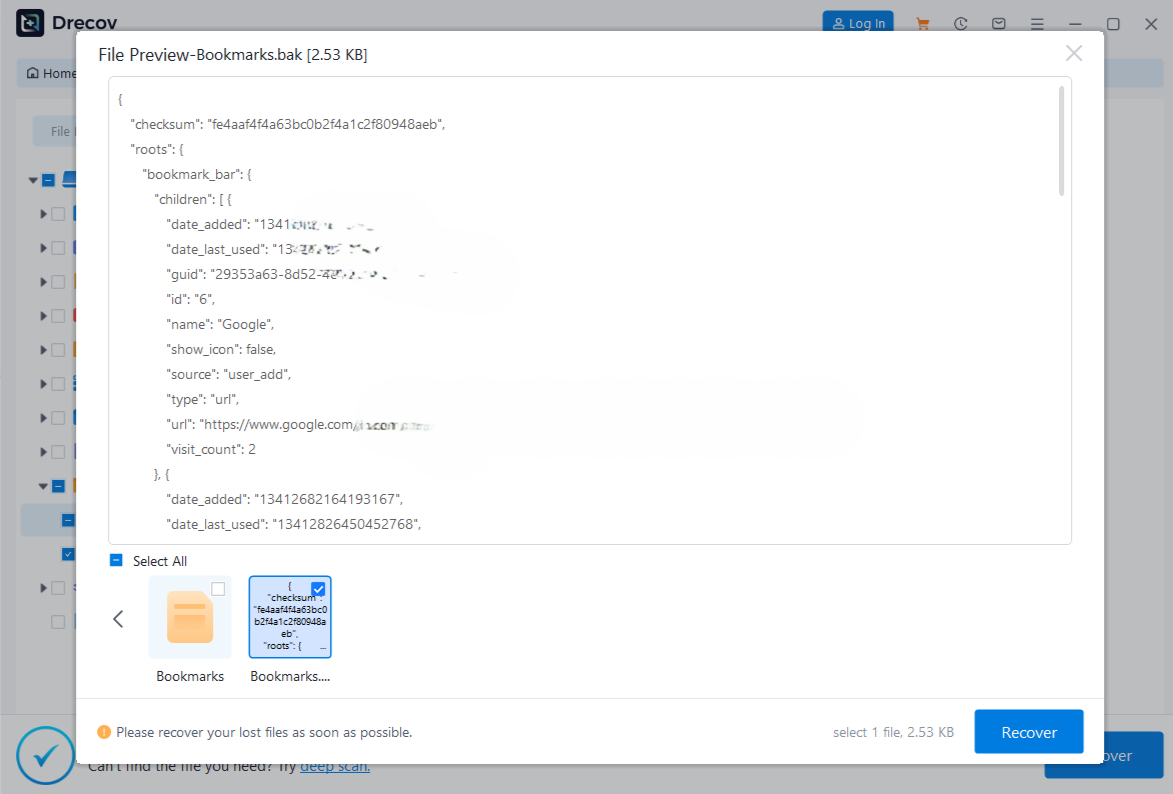
- Step 4: Recover and Relocate Your Discovered Information. Select the checkboxes next to your lost files and click the “Recover” button. Choose a safe recovery destination on an external hard drive or a secondary storage device to complete the process securely.
Warning Prompt: Never recover lost files back onto the exact same drive partition where the data loss originally occurred. Doing so will overwrite your data, leading to permanent data loss that even professional recovery suites cannot repair.
Once you have successfully restored your vital browser configuration files using PandaOffice Drecov data recovery software, you can easily copy your saved bookmarks, preferences, and extensions back into your active Firefox application folder.
For more step-by-step guidance on recovering data across different platforms and devices, check out these helpful resources:
- If you also use Google Chrome and accidentally lost your carefully organized web links while adjusting security settings, follow this Complete Guide to Recovering Deleted Chrome Bookmarks.
- If a major system freeze or malware infection corrupts your external storage devices during configuration modifications, learn How to Repair a Corrupted USB Flash Drive Without Losing Data.
- For a quick alternative method focused on web address management, see this guide on How to Recover Deleted Bookmarks in Chrome.
Troubleshooting Website Blocking on Firefox
If you have already followed the guides on how to block a website on Firefox but notice that restricted pages are still loading, a few minor issues might be causing the problem. Try these quick fixes to get your blocklists working correctly.
Clear Browser Cache
Firefox often caches parts of web pages locally to speed up browsing. Because of this, a site might still load from your cache even after you have blocked it.
- Step 1: Open Firefox and click the three horizontal lines in the top-right corner to open the menu panel. Select Settings.
- Step 2: Choose the Privacy & Security option on the left-hand sidebar menu.
- Step 3: Scroll down to the Cookies and Site Data section and click the Clear Data… button.
- Step 4: Check the box next to Cached Web Content and click Clear. Finally, restart your browser.
Flush the System DNS Cache
Operating systems store website name lookups in a local temporary index. Flushing this cache forces your computer to check your updated hosts file or DNS settings right away.
On Windows platforms, open your Command Prompt window and execute:
DOS
ipconfig /flushdns
For macOS computers, launch your system Terminal utility and run:
Bash
sudo dscacheutil -flushcache
Disable VPN Services
Virtual Private Networks (VPNs) and proxy extensions create encrypted data tunnels that bypass your local DNS rules and system hosts files. If you need to enforce website blocking on Firefox, ensure that background VPN clients are turned off or password-restricted to prevent users from bypassing your filters.
Best Practices for Website Blocking
- Use Multiple Layers: Combining browser extensions with router-level filtering or secure DNS settings creates a more robust defense against bypass attempts.
- Keep Firefox Updated: Keeping your browser updated ensures it stays compatible with the latest security extensions and blocking tools.
- Use Strong Passwords: Protect your router settings and parental control options with complex passwords to prevent unauthorized changes.
- Monitor Browser Extensions: Regularly audit your active add-ons list to ensure no unauthorized content-altering tools have been installed without your permission.
Frequently Asked Questions
Can I Block Websites on Firefox Without Extensions?
Yes, absolutely. You can block websites without using any extensions by editing your operating system’s local hosts file, setting up secure DNS filtering services like OpenDNS, or configuring URL restrictions directly on your network router.
Is Website Blocking Permanent?
No, website blocking is completely reversible. You can remove restrictions at any time by deleting the blocked URLs from your extension lists, cleaning up your system hosts file entries, or restoring your default network router settings.
Does Firefox Have Built-In Website Blocking?
Firefox does not currently include a native, built-in feature specifically for blocking custom website URLs. However, it offers excellent compatibility with many top-tier content-blocking and parental control extensions.
Can I Block Websites on Mobile Firefox?
Yes. Firefox for Android supports content-blocking extensions like BlockSite, which you can install directly from the mobile add-ons store. For iOS devices, you can enforce web restrictions across all browsers using the built-in Screen Time settings in iOS.
Advantages of Blocking Websites on Firefox
- Better Concentration: Eliminates distracting digital alerts and pop-ups, helping you stay focused on your work or study goals.
- Increased Productivity: Helps you manage your time better by cutting down on mindless scrolling through social media platforms.
- Improved Online Safety: Shields your local network from phishing domains, scams, and malicious websites.
- Reduced Exposure to Harmful Content: Protects children from accessing age-inappropriate or explicit web content.
- Better Parental Control Management: Gives parents peace of mind by establishing a safer online environment across all family devices.
Conclusion
Learning how to block a website on Firefox is an incredibly valuable skill for anyone looking to boost productivity, protect family members, or improve network security. Firefox users have a wide range of reliable methods at their disposal, from quick and easy browser extensions to advanced network-wide filtering tools.
The best method simply depends on your technical comfort level and specific blocking needs. By combining these techniques, you can easily build a safer, cleaner, and more focused browsing experience on Firefox.






