







A slow browser can feel like trying to run through mud—everything drags, pages lag, and frustration builds quickly. If you’ve been using Firefox for a while and noticed websites loading incorrectly or performance dipping, there’s a strong chance your browser cache is the hidden culprit. Knowing how to delete browser cache in firefox is one of the fastest ways to fix these issues, taking less than a minute of your time.
When you delete browser cache, you are essentially refreshing the digital memory of your software, allowing it to function as if it were a fresh installation. Let’s walk through everything step by step, from understanding what cache is to mastering every method of clearing it across devices, including what to do if you accidentally delete more than just your cache.
What Is Browser Cache and Why It Exists
Before you start deleting browser cache, it helps to understand what you’re actually clearing. The term “cache” might sound technical, but it’s really just your browser trying to help you. It serves as a local storage bridge between your computer and the remote servers of the internet.
How Cache Speeds Up Browsing
Whenever you visit a website, Firefox saves pieces of that site—like images, scripts, and layout files—on your device. This stored data is called browser cache. The next time you visit the same site, Firefox loads these files locally instead of downloading them again.
It’s like having shortcuts. Instead of rebuilding a house from scratch every time you visit, your browser keeps some of the materials ready. This reduces loading time and makes your browsing feel smooth and fast. According to the official Mozilla Firefox Support documentation, this mechanism is vital for data conservation and speed.
When Cache Becomes a Problem
But here’s the catch—cache isn’t always helpful. Over time, it can become outdated or corrupted. Websites update frequently, and if your browser relies on old cached files, you might see broken layouts, missing images, or glitches. Moreover, an excessively large cache can consume significant disk space, leading to system-wide sluggishness. This is why learning how to delete browser cache in firefox is a vital skill for maintaining a healthy digital environment.
Think of it like using an old map in a constantly changing city. At some point, the shortcuts stop working—and that’s when the decision to delete browser cache becomes essential to restoring your browsing speed.
Signs You Should Delete Cache Immediately
You don’t need to clear your cache every day, but certain signs scream for it. If you ignore these red flags, you might find yourself dealing with more than just a slow browser; you might face actual data errors.
Slow Loading Websites
If pages take forever to load—even on a fast internet connection—your cache might be overloaded. Instead of speeding things up, it’s now slowing everything down because the browser is struggling to sort through thousands of tiny, outdated files.
Broken Layouts and Errors
Ever opened a website and seen weird formatting, missing buttons, or images that won’t load? That’s often a cache issue. The browser is trying to load outdated elements that no longer match the current version of the site. Clearing browser cache in these situations is like rebooting your browser’s memory—it wipes the slate clean.
Method 1: Delete Cache in Firefox Desktop
This is the standard approach for most users. Whether you are on a PC or a laptop, this method provides the most control over what data stays and what goes.
Step-by-Step for Windows
- Step 1: Open Firefox and click the menu icon (three horizontal lines in the top-right corner).
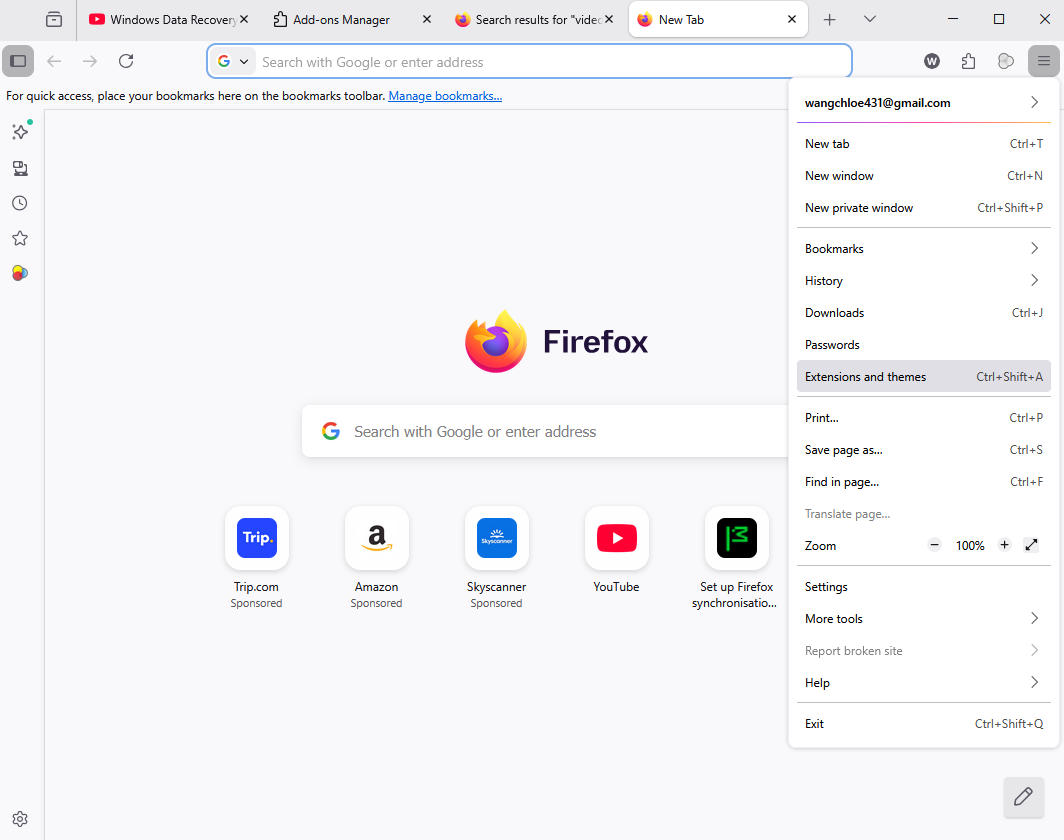
- Step 2: Select Settings from the dropdown menu.
- Step 3: Navigate to the Privacy & Security panel on the left sidebar.
- Step 4: Scroll down until you find the Cookies and Site Data section.
- Step 5: Click the Clear Data… button.
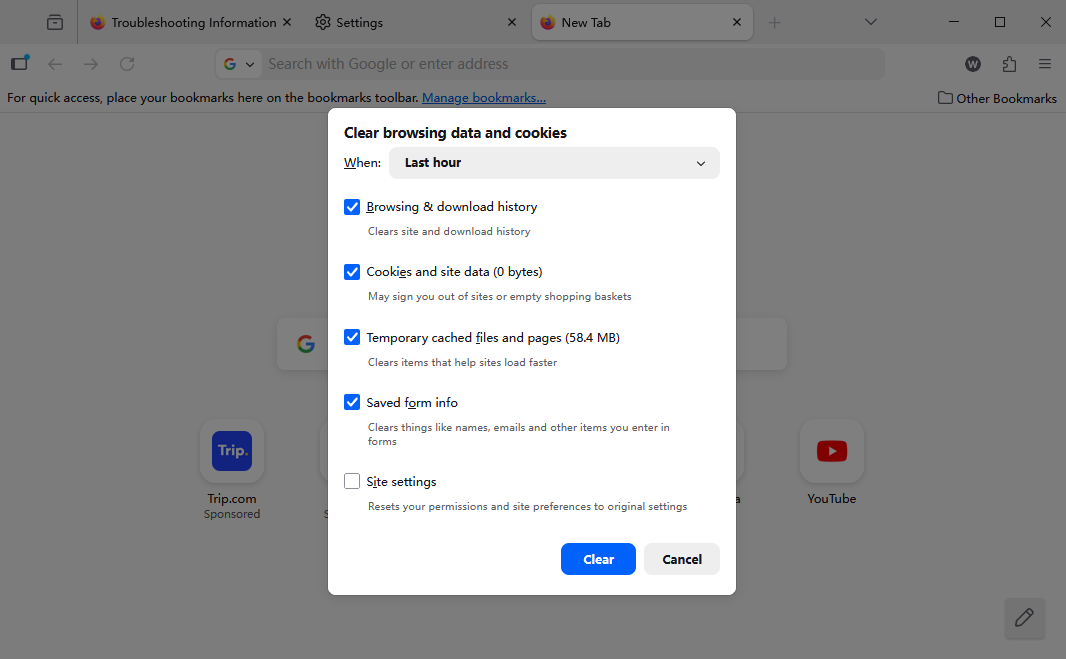
- Step 6: A pop-up window will appear. Ensure that Cached Web Content is checked. If you do not wish to be logged out of websites, make sure Cookies and Site Data is unchecked.
- Step 7: Click Clear.
Step-by-Step for Mac
The process on Mac is nearly identical because Firefox maintains a unified interface across operating systems.
- Step 1: Click on Firefox in the macOS menu bar at the top of the screen.
- Step 2: Select Settings (or use the shortcut
Command + ,). - Step 3: Choose Privacy & Security.
- Step 4: Locate Cookies and Site Data and click Clear Data.
- Step 5: Select Cached Web Content and hit Clear.
This consistency is one of the reasons Firefox remains popular—it keeps things simple for users moving between different hardware environments.
Method 2: Delete Cache Using Keyboard Shortcut
If you love shortcuts, this method will save you time. It bypasses the menu navigation and takes you straight to the “action” window.
Quick Access Method
To delete browser cache instantly, use the following key combinations:
- Windows/Linux: Press
Ctrl + Shift + Delete. - Mac: Press
Command + Shift + Delete.
Once the “Clear Recent History” window opens:
- Step 1: Set the Time range to clear (e.g., “Last Hour”, “Today”, or “Everything”).
- Step 2: In the History list, ensure Cache is checked.
- Step 3: Click Clear Now.
It’s like having a fast-forward button to browser cleanup—perfect when you’re in a hurry or testing a website you’re developing.
Method 3: Delete Cache in Firefox Mobile
Mobile browsing builds cache just as quickly as desktop—sometimes even faster because of the media-heavy nature of modern mobile web apps.
Android Steps
- Step 1: Open the Firefox app and tap the three dots (menu) in the corner.
- Step 2: Tap Settings.
- Step 3: Scroll to the Privacy and Security section and tap Delete browsing data.
- Step 4: Ensure Cached images and files is selected.
- Step 5: Tap Delete browsing data at the bottom to confirm.
iPhone Steps
- Step 1: Tap the menu button (three lines) at the bottom right of the screen.
- Step 2: Select Settings.
- Step 3: Tap on Data Management.
- Step 4: Toggle the switch for Cache so it is enabled (turned on).
- Step 5: Tap Clear Private Data and confirm.
Mobile cache can pile up quickly, and on devices with limited storage, this simple act can free up hundreds of megabytes of space.
Method 4: Clear Cache for a Single Website
Sometimes, only one site is causing trouble, and you don’t want to delete browser cache for your entire history. This is often called a “Hard Refresh.”
Hard Refresh Technique
- Windows/Linux: Hold
Ctrland pressF5, or holdCtrland click the Reload button. - Mac: Hold
Shiftand click the Reload button, or pressCommand + Shift + R.
This command tells Firefox to ignore its local cache specifically for that tab and download every single element from the server again. It’s like telling your browser, “Ignore your memory—load this page fresh.”
Method 5: Automatically Delete Cache
If you prefer a hands-off approach, Firefox can handle cache cleanup for you every time you finish a session.
Enable Auto-Clear Feature
- Step 1: Go to Settings > Privacy & Security.
- Step 2: Locate the History section.
- Step 3: In the dropdown menu next to “Firefox will”, select Use custom settings for history.
- Step 4: Check the box that says Clear history when Firefox closes.
- Step 5: Click the Settings… button next to it and ensure Cache is checked.
- Step 6: Click OK.
This keeps your system clean without requiring manual effort—perfect for users who value convenience and privacy.
Accidental Deletion? Recovering Critical Data with PandaOffice Drecov
While we often want to delete browser cache, sometimes we accidentally delete things we didn’t mean to—like the entire “History” folder, “Cookies” containing important sessions, or even downloaded files. Because browser data is stored as physical files on your hard drive (often in the AppData or Library folders), they can be recovered if you act quickly.
This is where PandaOffice Drecov comes into play. It is a professional-grade data recovery tool designed to retrieve lost or deleted files from your SSD or HDD.
⚠ Warning: Do not install the software on the same drive where the data was lost (usually the C: drive), as this could overwrite the deleted data you are trying to save!
How to Recover Firefox Data Using PandaOffice Drecov
- Step 1: Select the Location. Launch the program and select the drive where Firefox was installed. For most users, this is the Local Disk (C:).

- Step 2: Scan for Deleted Files. Click the Scan button. PandaOffice Drecov will perform a deep scan of your file system to find fragments of deleted database files (
.sqlite) and cached files.

- Step 3: Filter and Preview. Once the scan is complete, use the search bar to look for “Firefox” or “Mozilla.” You can preview files to ensure they are the ones you need.

- Step 4: Recover. Select the files you want to get back and click Recover. Save them to an external drive or a different partition to ensure data integrity.
By using PandaOffice Drecov, you have a safety net for those moments when a simple cleanup turns into an accidental data loss event.
If you found this guide helpful, you might also be interested in these deep dives into Firefox management:
- How to download video from browser Firefox 2026 guide
- Where is the Firefox bookmarks location: Find your data instantly
- Where are Firefox bookmarks stored on your PC?
Cache vs Cookies vs Browsing Data
It’s easy to confuse these terms, but they serve different purposes. When you decide to delete browser cache, you should know exactly what is being removed compared to other data types.
| Data Type | What it stores | Why delete it? |
| Cache | Images, CSS, Scripts | To fix display issues and speed up the browser. |
| Cookies | Login sessions, site preferences | To protect privacy or fix login loops. |
| History | List of visited URLs | To hide your browsing trail from other users. |
Understanding this helps you avoid accidentally deleting something important, like your saved login for a bank or an important work portal.
Does Clearing Cache Affect Passwords?
No—clearing browser cache alone does not remove saved passwords. Passwords are stored in a separate encrypted database within your Firefox profile.
However, if you select Cookies or Active Logins in the cleanup menu, you might get logged out of websites. Always double-check what boxes are checked before you click “Clear.” If you are worried about security, you can learn more about how Firefox handles credentials at the Mozilla Security Blog.
How Often Should You Delete Cache?
There’s no strict rule, but a good guideline for optimal performance in 2026 is:
- Every 2–4 weeks for regular users to prevent file fragmentation.
- Immediately when you notice a website looking “broken” or elements not responding.
- After a major browser update to ensure the new version isn’t conflicting with old stored files.
Think of it like cleaning your workspace—regular maintenance keeps everything running smoothly and prevents a massive buildup that becomes difficult to manage later.
Common Mistakes to Avoid
One common mistake is clearing everything unnecessarily. While it might seem like a good idea to wipe the slate clean every hour, this actually forces your computer to work harder. Your CPU and network will have to download every image again, which can increase data usage if you are on a metered connection. If you are constantly searching for how to delete browser cache in firefox and performing it too frequently, you lose the speed benefits that caching provides.
Another mistake? Ignoring cache issues entirely and blaming your internet connection instead. Many users upgrade their internet plans or buy new routers when all they really needed to do was delete browser cache in their favorite browser. Finding the right balance is key; learning exactly how to delete browser cache in firefox ensures that you only perform this maintenance when your browser performance truly begins to dip.
Advanced Tips to Optimize Firefox Performance
Want to go beyond just clearing cache? To truly master Firefox in 2026, try these expert-level tweaks:
- Limit Cache Size: You can go into
about:configand search forbrowser.cache.disk.capacityto manually set how much space Firefox is allowed to use. - Disable Unnecessary Extensions: Some add-ons create their own cache files, which can bloat the browser profile.
- Keep Firefox Updated: Mozilla frequently releases patches that optimize how the browser handles storage.
- Use Private Browsing: If you are visiting a site you don’t plan to return to, use a Private Window (
Ctrl + Shift + P). It won’t save any cache files to your disk in the first place.
Comparison Table of Cache Clearing Methods
| Method | Speed | Difficulty | Best For |
| Settings Menu | Fast | Easy | Everyday users who want control. |
| Keyboard Shortcut | Instant | Easy | Power users and quick cleanups. |
| Mobile Settings | Fast | Easy | Freeing up space on smartphones. |
| Hard Refresh | Instant | Medium | Fixing a specific broken webpage. |
| Auto-Clear | Ongoing | Easy | Privacy-focused users who want a clean exit. |
How to Delete Browser Cache in firefox FAQs
1. Will clearing cache speed up Firefox?
Yes, absolutely. Especially if your cache has grown to several gigabytes, removing it can reduce the overhead Firefox needs to manage those files.
2. Does clearing cache log me out of websites?
No. Logging out is caused by deleting Cookies. As long as you only select “Cache” or “Cached Web Content,” your sessions will remain active.
3. Is it safe to delete browser cache?
Yes, it is one of the safest maintenance tasks you can perform on a computer. The browser will simply recreate the files it needs the next time you visit a site.
4. Why do websites look different after clearing cache?
This happens because Firefox is forced to download the most recent version of the site’s design. If the site was updated recently, you were likely looking at an old, cached version before the cleanup.
5. Can I automate cache clearing in Firefox?
Yes, you can enable auto-clear settings in the Privacy & Security section of the settings menu, allowing Firefox to wipe the cache every time the application is closed.
Conclusion
Deleting browser cache in Firefox isn’t just a technical task—it’s essential maintenance. Understanding how to delete browser cache in Firefox effectively keeps your browser fast, fixes glitches, and ensures you’re always seeing the latest version of websites. Whether you use the manual settings menu, the lightning-fast keyboard shortcuts, or the automated features, keeping your cache lean is the best way to ensure a premium browsing experience.
And remember, if you ever go too far and lose vital data during a cleanup, tools like PandaOffice Drecov are available to help you recover what was lost. Once you get into the habit of regular maintenance, it becomes second nature—quick, simple, and incredibly effective.






