







If you can’t find Recycle Bin in Windows 11, first check whether the icon is simply hidden. Right-click an empty area of the desktop, select View, and make sure Show desktop icons is checked. If your other desktop icons are visible but Recycle Bin is missing, go to Settings → Personalization → Themes → Desktop icon settings, check Recycle Bin, and select OK.
Need to open it right now? Press Windows + R, enter shell:RecycleBinFolder, and press Enter. This opens Recycle Bin even when its desktop icon is missing. A missing icon and missing deleted files are different problems. The steps below help you locate the bin, restore its icon, and decide what to do if the file you need is not inside.
Understanding the Role of the Recycle Bin in Windows 11
Recycle Bin temporarily holds many files deleted from local Windows drives. When the file is still there, you can open Recycle Bin, right-click the item, and select Restore to return it to its original location.
Not every deleted file appears there. A file may have been permanently deleted, the bin may have been emptied, or the file may belong to a cloud service with its own recycle bin. Hiding the desktop icon does not empty Recycle Bin or delete the files inside it.
This distinction matters when you cannot find Recycle Bin in Windows 11: restore access to the bin first, then investigate the missing file only if it is not there.
Why You Might Be Unable to Find Recycle Bin
The usual explanation is a desktop display setting:
- All desktop icons are hidden. The Show desktop icons option has been turned off.
- Only the Recycle Bin icon is hidden. Its checkbox in Desktop icon settings is clear.
- You are looking in File Explorer rather than on the desktop. Recycle Bin is normally shown as a desktop system icon, though you can open it in other ways.
- The bin opens but the file is absent. The issue is now locating or recovering the file, rather than restoring the icon.
Start with the first two settings. They take less time and are more relevant than changing the registry.
Where Is Recycle Bin in Windows 11? Basic Methods
Let’s start with the simplest ways to locate the windows 11 recycle bin before moving into more advanced fixes.
Method 1: Check the Desktop
- Step 1: Go to your desktop screen
- Step 2: Look for the Recycle Bin icon (usually top-left by default)

- Step 3: Double-click it to open
⚠️ Tip: If your desktop is cluttered, use the search function instead of scanning manually.
Method 2: Use Windows Search
- Step 1: Press Windows + S
- Step 2: Type Recycle Bin
- Step 3: Click the result to open
This is one of the fastest ways to locate it if the icon is hidden.
Method 3: Access via File Explorer
- Step 1: Press Windows + E to open File Explorer
- Step 2: Type Recycle Bin in the address bar
- Step 3: Press Enter
How to Restore Missing Recycle Bin Icon
If you can’t find recycle bin windows 11, restoring the icon is usually straightforward.
Method 4: Enable Desktop Icon Settings
- Step 1: Right-click on the desktop
- Step 2: Select Personalize
- Step 3: Click Themes
- Step 4: Select Desktop icon settings
- Step 5: Check the box for Recycle Bin
- Step 6: Click Apply → OK
⚠️ Warning: Make sure you don’t accidentally uncheck other system icons like “This PC.”
Return to the desktop and look for the icon. These are the steps in Microsoft’s desktop icon guidance.
If the checkbox was already selected, check View → Show desktop icons as well. The two settings control different things: one enables the Recycle Bin icon, while the other can hide all desktop icons.
Advanced Fixes When Recycle Bin Is Missing
If you can open Recycle Bin with shell:RecycleBinFolder but cannot see its icon, the bin itself is accessible. Recheck both desktop settings above before changing anything else.
You can then restart Windows Explorer:
- Press Ctrl + Shift + Esc to open Task Manager.
- Find Windows Explorer in the process list.
- Right-click it and select Restart.
- Check the desktop again.
The original article also suggested editing the Windows registry. That is unnecessary for the usual hidden-icon problem and introduces more risk than the settings above. If this is a work or school PC and the icon repeatedly disappears, contact your administrator before changing system policies or registry entries.
How to Recover Deleted Files from Recycle Bin
Once you have opened Recycle Bin, find the item you need. You can sort by Date Deleted or search within the window if there are many entries. Right-click the file or folder and select Restore. Windows returns it to its original folder.
If you do not remember that folder, note the Original Location shown in Recycle Bin before restoring. If the item is not listed, check that you are looking for a local file. A cloud-only OneDrive file may be in the OneDrive website’s recycle bin instead of the Windows Recycle Bin.
How to Recover Deleted Files from Recycle Bin
Once you’ve located the Recycle Bin, recovering files is simple.
Method 8: Restore Files from Recycle Bin
- Step 1: Open Recycle Bin
- Step 2: Locate the deleted file
- Step 3: Right-click the file
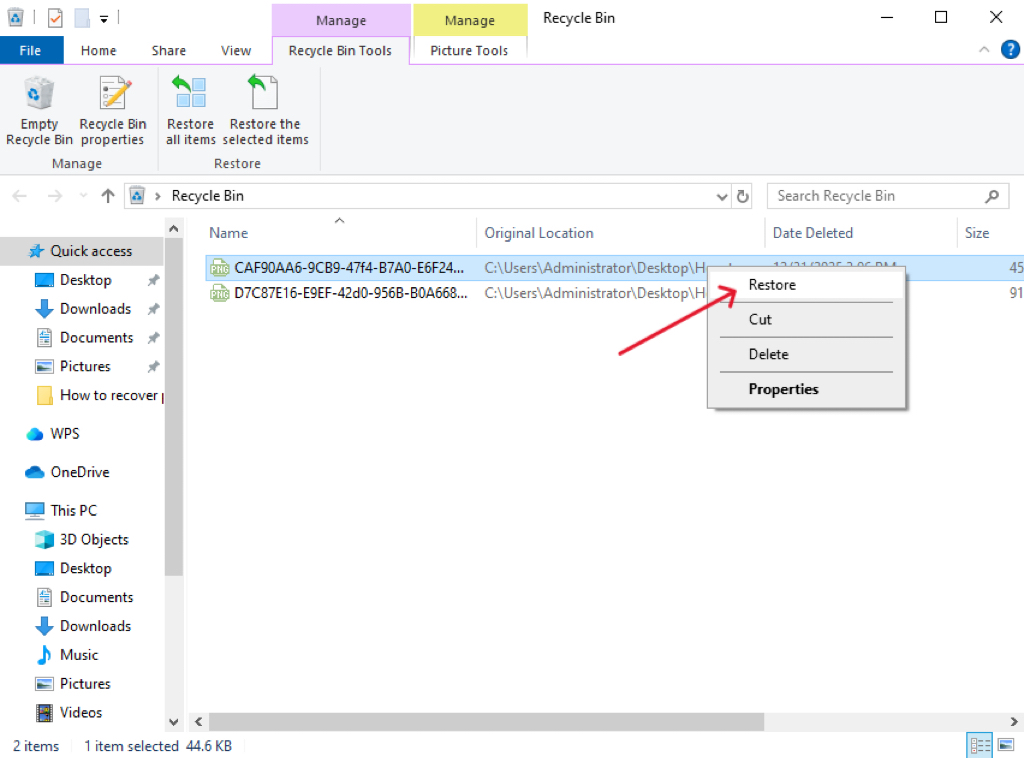
- Step 4: Select Restore
What If Recycle Bin Is Empty or the File Is Missing?
First, check a current backup, File History, and the relevant cloud service’s recycle bin. If you are trying to recover a locally deleted file and have no usable copy, minimize use of the affected drive. New data can overwrite space that may still contain the deleted file; Microsoft gives the same advice in its Windows File Recovery guidance.
Check local files with Drecov
The original article introduced PandaOffice Drecov for files that are no longer in Recycle Bin. It remains an option when the affected storage device is readable and you need to look for recoverable local files.
⚠ Warning: Install it on a drive different from the one where your data was lost to prevent overwriting.
Step-by-Step Guide
- Step 1: Launch the software, select the drive where files were deleted and click Scan.

- Step 2: Preview the files where available and select those you need.

- Step 3: Select the files you want and click Recover and save to a different location
After mastering recovery steps, explore these helpful guides:
- Learn more about recovering deleted files
- Find Recycle Bin in older systems
- Restore after emptying Recycle Bin
Drecov searches for recoverable files; it does not restore a missing desktop icon. Results depend on the drive and whether the data has been overwritten. If the storage device is physically unstable or repeatedly disconnects, stop using it and seek appropriate hardware help.
You can also consider Microsoft’s command-line Windows File Recovery for local storage. It likewise requires the source and destination drives to be different. Choose the approach you can follow confidently, and avoid writing recovered files back to the source drive.
Which Method Fits Your Situation?
| What you see | Start here |
|---|---|
| All desktop icons are missing | Right-click desktop → View → Show desktop icons |
| Only Recycle Bin is missing | Settings → Personalization → Themes → Desktop icon settings |
| You need to open the bin immediately | Windows + R → shell:RecycleBinFolder |
| A deleted file is visible in Recycle Bin | Right-click the item → Restore |
| A OneDrive file is missing | Check both the Windows bin and OneDrive’s web recycle bin |
| The local file is no longer in the bin | Check backups first; then consider file recovery while minimizing drive use |
The order matters: finding a hidden icon requires a display-setting fix, while recovering a deleted file requires checking where that file was stored.
Best Practices to Avoid Data Loss
Keep a separate backup of important files so Recycle Bin is not your only way back from accidental deletion. Before permanently deleting an item or emptying the bin, check that you have selected the intended files.
If a file goes missing, identify its original location first. A local file, a OneDrive cloud-only file, and a file on removable storage can have different recovery paths. That quick check prevents unnecessary scans and helps you avoid saving new data onto a drive from which you may need to recover a file.
Where is recycle bin in windows 11 FAQs
Why can’t I find Recycle Bin on my Windows 11 desktop?
If every icon is missing, enable Show desktop icons from the desktop’s View menu. If only Recycle Bin is missing, enable it in Settings → Personalization → Themes → Desktop icon settings.
What is the fastest way to open Recycle Bin without the icon?
Press Windows + R, enter shell:RecycleBinFolder, and press Enter. This opens the bin without requiring its desktop icon.
Does a missing Recycle Bin icon mean my deleted files are gone?
No. The icon may simply be hidden. Open Recycle Bin using the Run command and check its contents before starting file recovery.
Why is a deleted OneDrive file not in the Windows Recycle Bin?
Some cloud-only files deleted from OneDrive do not appear in the computer’s Recycle Bin. Check the recycle bin on the OneDrive website using the account that held the file.
Can I recover a file after Recycle Bin was emptied?
It may be possible, but recovery is not guaranteed. Check backups first and avoid further use of the affected local drive. Microsoft’s Windows File Recovery and tools such as PandaOffice Drecov can search a readable drive for recoverable files; save any results to another drive.
Conclusion
If you can’t find Recycle Bin in Windows 11, check Show desktop icons, then the Recycle Bin checkbox in Desktop icon settings. Use shell:RecycleBinFolder when you need immediate access. Once the bin is open, you can restore any file still listed there.
If the bin is empty, move from locating the icon to locating the file: check backups and the appropriate cloud recycle bin, then consider local file recovery where applicable. PandaOffice Drecov remains part of that recovery path, with the affected drive protected from unnecessary writes.
⚠ Warning: Install it on a drive different from the one where your data was lost to prevent overwriting.
Open Recycle Bin directly inside File Explorer
Press Windows+E, then Ctrl+L to focus the address bar. Enter shell:RecycleBinFolder and press Enter. Use the address bar at the top, not the search box on the right: searching for the words “Recycle Bin” may only search the current folder.
If you want a visible navigation entry, right-click a blank area of File Explorer’s left navigation pane and check Show all folders where available. The exact layout varies with the Windows build and organization policy. You do not need to reveal protected system files or manually open $Recycle.Bin to restore an ordinary deleted file.
Once inside, use Original Location and Date Deleted to identify the right item before choosing Restore. If the bin opens successfully but the file is absent, repeating icon or navigation settings will not recover it; move to backups or the relevant cloud service’s own recycle bin.
Further guidance: Microsoft find Recycle Bin






