







It is a scenario that haunts many students and professionals alike: you plug your USB drive into your computer, open the folder, and find it completely empty. However, when you right-click the drive to check its properties, the blue pie chart confirms that several gigabytes are still occupied. This frustrating phenomenon, where files disappeared from usb but space used, has led to thousands of desperate pleas for help on forums like Reddit and Quora. Users often report, “I can see my storage is full, but the folder says ‘This folder is empty.’ Where did my presentation go?”
If you are currently staring at an invisible library of data, don’t panic. Your files are likely still physically present on the drive; your operating system just isn’t showing them to you. In this guide, we will explore why this happens and provide a comprehensive roadmap to reclaiming your digital life.
Why Do Files Disappear When Space Is Still Occupied?
Before we jump into the “how-to,” we must understand the “why.” When files disappeared from usb but space used, it is rarely a case of the data being permanently erased. Instead, one of the following underlying issues is usually the culprit:
- Attribute Manipulation (Hidden Files): The most common reason. Viruses or accidental settings can trigger the “Hidden” attribute, making files invisible to File Explorer.
- File System Errors: Sudden removal of the USB (without “Safely Remove Hardware”) can corrupt the File Allocation Table (FAT) or Master File Table (NTFS). The system knows space is taken but can’t find the entry point to display the files.
- Malware and Viruses: Specific “shortcut viruses” hide your original folders and replace them with malicious shortcuts, or simply mask the directory structure entirely.
- Directory Corruption: The index that tells the computer where each file starts and ends has become scrambled.
Proven Solutions to Recover Your Invisible USB Files
We have organized these methods from the simplest built-in Windows fixes to professional-grade recovery software. Follow these steps carefully to resolve the files disappeared from usb but space used issue.
Method 1: Using Windows File Explorer Settings
Sometimes the solution is as simple as flipping a digital switch. If your files were merely marked as hidden, Windows can reveal them with two clicks.
- Step 1: Plug your USB drive into your PC. Open File Explorer (Windows Key + E).
- Step 2: Navigate to your USB drive. In the top menu bar, click on the View tab.
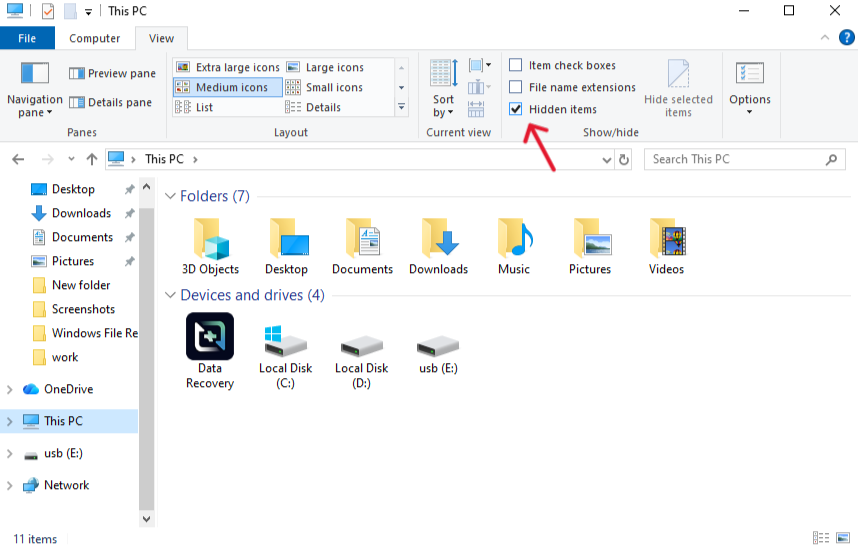
- Step 3: Look for the Show/hide section and check the box labeled Hidden items.
- Step 4: If the files still don’t appear, click Options on the far right of the View ribbon, then click Change folder and search options.
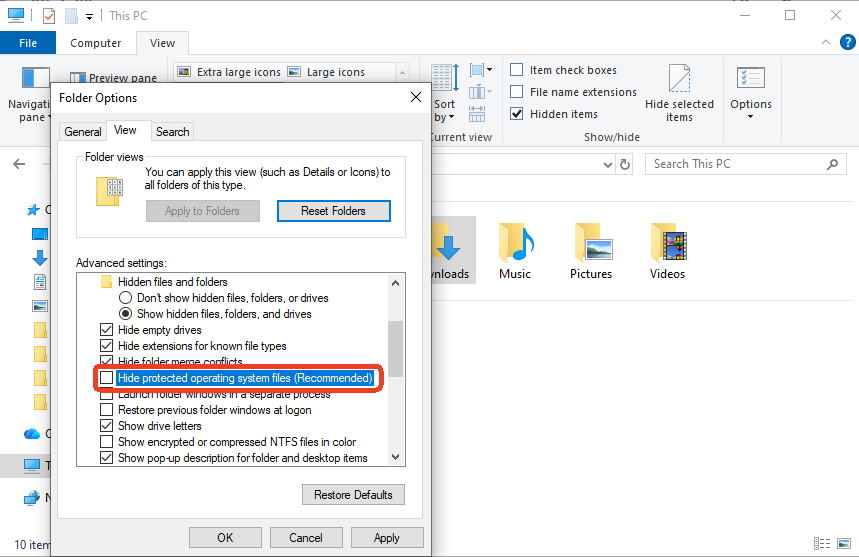
- Step 5: In the “View” tab of the new window, find Hide protected operating system files (Recommended) and uncheck it. Click Apply.
Method 2: Professional Recovery with PandaOffice Drecov
When manual settings fail, it often means the file directory structure is damaged. This is where a dedicated tool like PandaOffice Drecov becomes essential. Unlike basic command-line fixes, Drecov performs a deep sector scan to find data fragments that the operating system no longer recognizes.
PandaOffice Drecov is specifically designed for scenarios where files disappeared from usb but space used due to corruption or virus interference. It bypasses the corrupted logical layer of the USB and reads the raw data directly.
Ensure you install it on your local hard drive (C: or D:), never on the USB drive you are trying to recover.
- Step 1: Launch the application. On the main interface, you will see a list of connected drives. Select your USB Flash Drive under the “External Devices” section.

- Step 2: Click the Scan button. The software will first run a “Quick Scan” to find deleted items, followed immediately by a “Deep Scan” to locate files that have disappeared but are still occupying space.

- Step 3: Use the filter sidebar to sort by file type (e.g., .docx, .jpg, .pdf). You can double-click files to Preview them before recovery.

- Step 4: Select the checkboxes for the files you need and click Recover. Choose a destination folder on your computer’s desktop to save the recovered data.
Why choose PandaOffice Drecov?
It handles complex scenarios where the USB file system shows as “RAW” or when a “shortcut virus” has encrypted the file pathing, making it significantly more powerful than the standard “Attrib” command.
Method 3: The “Attrib” Command (The CMD Power Move)
If you are comfortable using the Command Prompt, the attrib command is a classic way to fix a situation where files disappeared from usb but space used. This forces the system to clear the hidden, system, and read-only attributes from all files.
- Step 1: Press Windows Key + S and type
cmd. Right-click the result and select Run as Administrator.

- Step 2: Identify your USB drive letter (e.g.,
G:). - Step 3: In the command prompt, type your drive letter followed by a colon and press Enter. (Example:
G:)
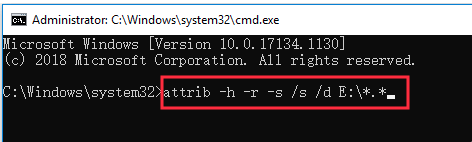
- Step 4: Type the following command exactly:
attrib -h -r -s /s /d *.*-h: Clears the Hidden attribute.-r: Clears the Read-only attribute.-s: Clears the System attribute./s: Processes files in the current folder and all subfolders./d: Processes folders as well.
- Step 5: Wait for the process to finish. Check your USB drive; a new, unnamed folder containing your data may have appeared.
Method 4: Checking for File System Errors (CHKDSK)
If the space is occupied but the index is broken, Windows has a built-in “doctor” called CHKDSK that can repair the logical integrity of the drive.
- Step 1: Open the Command Prompt as an administrator again.
- Step 2: Type
chkdsk D: /f(replaceDwith your specific USB drive letter).
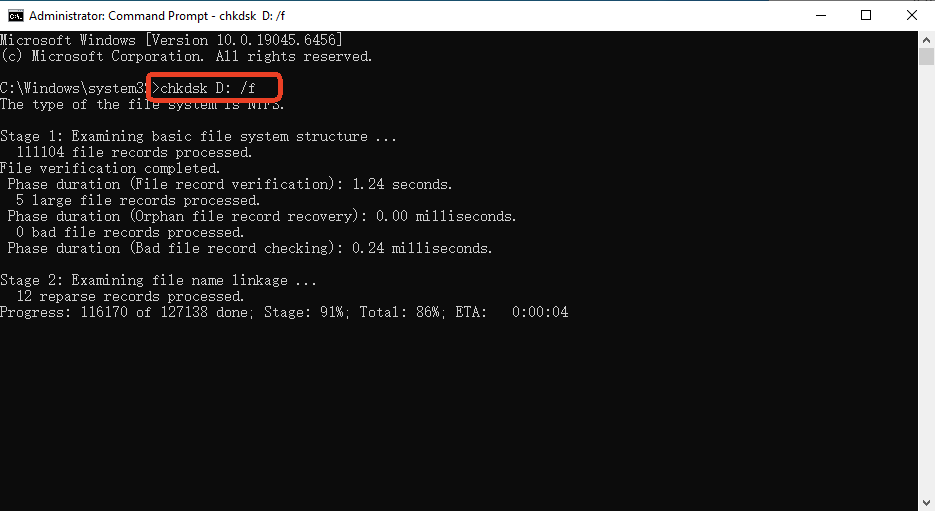
- Step 3: Press Enter. Windows will scan the drive for errors. If it asks to “convert lost chains to files,” type Y for Yes.
- Step 4: These “lost chains” will often be saved as
.chkfiles in a folder namedFOUND.000. You can use PandaOffice Drecov to convert these back into their original formats if they appear as gibberish.
Beyond Invisible Files: Common USB Issues
While files disappeared from usb but space used is a major headache, it isn’t the only way a USB drive can fail. Awareness of these issues can help you protect your data:
- USB Device Not Recognized: This usually stems from a driver conflict or a physical port failure. Try updating your drivers via
devmgmt.msc. - The Disk is Write Protected: This prevents you from adding or deleting files. This can often be fixed via the Registry Editor at
HKEY_LOCAL_MACHINE\SYSTEM\CurrentControlSet\Control\StorageDevicePolicies. - Please Insert Disk into Removable Disk: This indicates a serious hardware failure where the controller can no longer communicate with the NAND flash memory.
- Formatting Errors: If Windows asks you to format the drive every time you plug it in, do NOT click yes until you have used PandaOffice Drecov to extract your data first.
Core Strategies to Prevent ‘Files Disappearing from USB’
Preventing the situation where files disappeared from usb but space used is significantly more efficient than trying to recover data after a crisis. Most of these “disappearing acts” are caused by improper removal, file system fragility, or malware.
Here are the most effective preventative measures and the exact steps to implement them.
1. Disable Write Caching (The “Quick Removal” Safety Net)
By default, Windows uses “Write Caching” to improve performance, but this keeps data in the RAM before actually committing it to the USB. If you unplug the drive too early, the file entry is never written, leading to the files disappeared from usb but space used error.
- Step 1: Plug in your USB drive.
- Step 2: Right-click the Start button and select Device Manager.
- Step 3: Expand Disk drives, right-click your USB drive, and select Properties.
- Step 4: Go to the Policies tab.
- Step 5: Select Quick removal (default). This disables write caching so you can disconnect the drive without using the “Safely Remove Hardware” icon (though doing so is still a good habit).
2. Convert USB File System to NTFS
Many USB drives come formatted as FAT32, which is highly prone to file system corruption and does not support modern file security permissions. NTFS is more “journaled,” meaning it keeps a log of changes and is much less likely to experience the files disappeared from usb but space used phenomenon.
- Step 1: Back up any existing data on the USB.
- Step 2: Open This PC, right-click your USB drive, and choose Format.
- Step 3: Under File system, change it from FAT32 to NTFS.
- Step 4: Set the Allocation unit size to “Default” and click Start.Note: NTFS is more resilient against the directory errors that cause files to become “invisible.”
3. Immunize Your USB Against “Shortcut Viruses”
Malware is a leading cause of files being hidden while space remains occupied. You can create a “read-only” dummy file that prevents many basic viruses from writing their own configuration files to your drive.
- Step 1: Open your USB drive and create a new folder named
autorun.inf. - Step 2: Right-click this new folder and select Properties.
- Step 3: Check the Read-only and Hidden boxes, then click OK.
- Step 4: This prevents many older types of malware from creating a real
autorun.inffile to execute malicious scripts when you plug the drive into a new computer.
4. Regular Use of the “SFC” and “DISM” Tools
Sometimes the issue isn’t the USB, but the way your Windows OS communicates with USB drivers. Keeping your system files healthy ensures that file attributes are read correctly.
- Step 1: Open Command Prompt as Administrator.
- Step 2: Type
sfc /scannowand press Enter. This repairs corrupted system files that might be misreading USB headers. - Step 3: Periodically run
chkdsk [Drive Letter]: /rto scan for physical bad sectors before they lead to data loss.
USB flash drive data recovery FAQs
Q1: Why does my USB say it’s full but it’s empty?
This usually occurs because the files are marked with “Hidden” or “System” attributes, or the file system index is corrupted. The physical data blocks are still occupied, which is why the storage meter shows as full.
Q2: Will using the “Attrib” command delete my data?
No, the attrib command only changes the “tags” on your files. It does not delete or modify the content of the files. It is a safe first step to take.
Q3: Can I recover files if the USB shows as 0 bytes?
If the drive shows 0 bytes of total capacity, it often indicates a hardware failure. However, if the drive shows capacity but 0 bytes used (and you know you had files), PandaOffice Drecov can often perform a deep scan to find remnants of the deleted partition.
Conclusion
Finding that your files disappeared from usb but space used is a stressful experience, but it is rarely a death sentence for your data. By adjusting your folder view settings, utilizing the power of the attrib command, or employing professional tools like PandaOffice Drecov, you can bridge the gap between “invisible” and “accessible.”
The most important rule in data recovery is to stop writing new data to the drive the moment you notice a problem. Each new file you save could overwrite the “invisible” space where your old files still reside. Start with the simplest software fixes, and if the data is vital, trust a dedicated recovery tool to do the heavy lifting.





