







Every time I shutdown my PC and then turn it back on again it gives me a blue text box, with the option “Yes, or No”. If I hit Yes, it does nothing and prompts back to the same blue text box, but If I hit “No” I have to enter a bit locker recovery key every single time I open my laptop. Does anyone know how to fix this? I’ve also tried disabling the bitlocker in the control panel, but for some reason, there is no option for that.—from Microsoft Store
Understanding BitLocker Recovery Prompts
Why Your Computer Says BitLocker Recovery
BitLocker is a Windows feature designed to encrypt your drive and protect data. When the system detects changes in hardware, boot configuration, or potential security threats, the computer is asking for BitLocker recovery key to ensure only authorized users can access the drive.
Common triggers include BIOS/UEFI updates, operating system changes, or issues with the TPM (Trusted Platform Module). In some cases, security policies or incorrect startup files can cause your computer to keep going into BitLocker recovery.
Understanding why your computer says BitLocker recovery is critical before attempting any fixes. It ensures that you follow appropriate steps without risking data loss.
⚠️Warning: Entering incorrect keys multiple times can lock your drive or complicate recovery. Always retrieve the correct BitLocker key.
Signs Your Computer Is Stuck in BitLocker Recovery
When a system is repeatedly prompting for the recovery key, you may notice these behaviors:
- On startup, the computer keeps asking for BitLocker recovery key every boot.
- You are unable to access Windows and the system is stuck on BitLocker recovery.
- The system cycles through BitLocker prompts after restarts or hardware changes.
Recognizing these signs helps in diagnosing whether the problem is hardware-related, OS-related, or due to corrupted encryption metadata.
Common Causes for BitLocker Recovery Prompts
Hardware Changes Triggering Recovery
Updating firmware, changing hard drives, or modifying boot configurations can prompt your computer keeps going into BitLocker recovery. These actions signal the encryption system that the drive might have been tampered with.
Test Environment:
- Windows 10 Pro with TPM enabled
- SSD drive
- BIOS update applied
In this environment, after a BIOS update, the system immediately requested the BitLocker recovery key, demonstrating a common hardware-triggered scenario.
Operating System or Boot Configuration Changes
Altering Windows system files, performing an update, or reinstalling components can cause the computer keeps asking for BitLocker recovery key. Boot file corruption or OS upgrade inconsistencies trigger BitLocker to verify user authorization before granting access.
TPM or Security Policy Issues
If TPM is cleared, malfunctioning, or misconfigured, the system may interpret this as unauthorized access, causing the computer stuck in BitLocker recovery. Security policies in enterprise environments can also enforce repeated recovery prompts when detected anomalies occur.
⚠️Warning: Improperly tampering with TPM can prevent recovery. Only adjust TPM settings if you fully understand the system implications.
Solutions to Fix a Computer Stuck on BitLocker Recovery
Method 1: Using Your BitLocker Recovery Key
Test Environment:
- Windows 10 PC
- BitLocker key retrieved from Microsoft account
- USB or printed copy of recovery key
If your computer is asking for BitLocker recovery key, the first step is to locate the key. It can be found:
- In your Microsoft account under Devices → Find my device
- On a printed document or USB drive you saved when enabling BitLocker
- From your organization’s IT department if it is a managed device
Once retrieved, enter the key when prompted. This immediately unlocks your drive, resolving most temporary recovery prompts.
Method 2: Check for Hardware or BIOS Changes
Test Environment:
- PC recently updated firmware or hardware
- BIOS/UEFI access enabled
- SSD drive
If your computer keeps going into BitLocker recovery after a hardware change:
- Revert recent BIOS updates or changes.
- Ensure boot order and TPM configuration are correct.
- Restart the PC and verify if the BitLocker prompt persists.
Correcting hardware triggers often stops the repeated recovery prompts.
Method 3: Use Command Prompt to Resume Protection
Test Environment:
- Bootable Windows installation or recovery environment
- Admin access via Command Prompt
For cases where computer keeps asking for BitLocker recovery key due to temporary inconsistencies, you can resume BitLocker protection using:
manage-bde -protectors -enable C:
This command reactivates the protector on the drive, allowing normal boot without recovery prompts. Always verify the drive letter corresponds to the encrypted volume.
Method 4: Recover Data Using Pandaoffice Drecov Before Reset
Test Environment:
- Drive accessible via recovery environment
- Secondary working PC
- External storage for recovered files
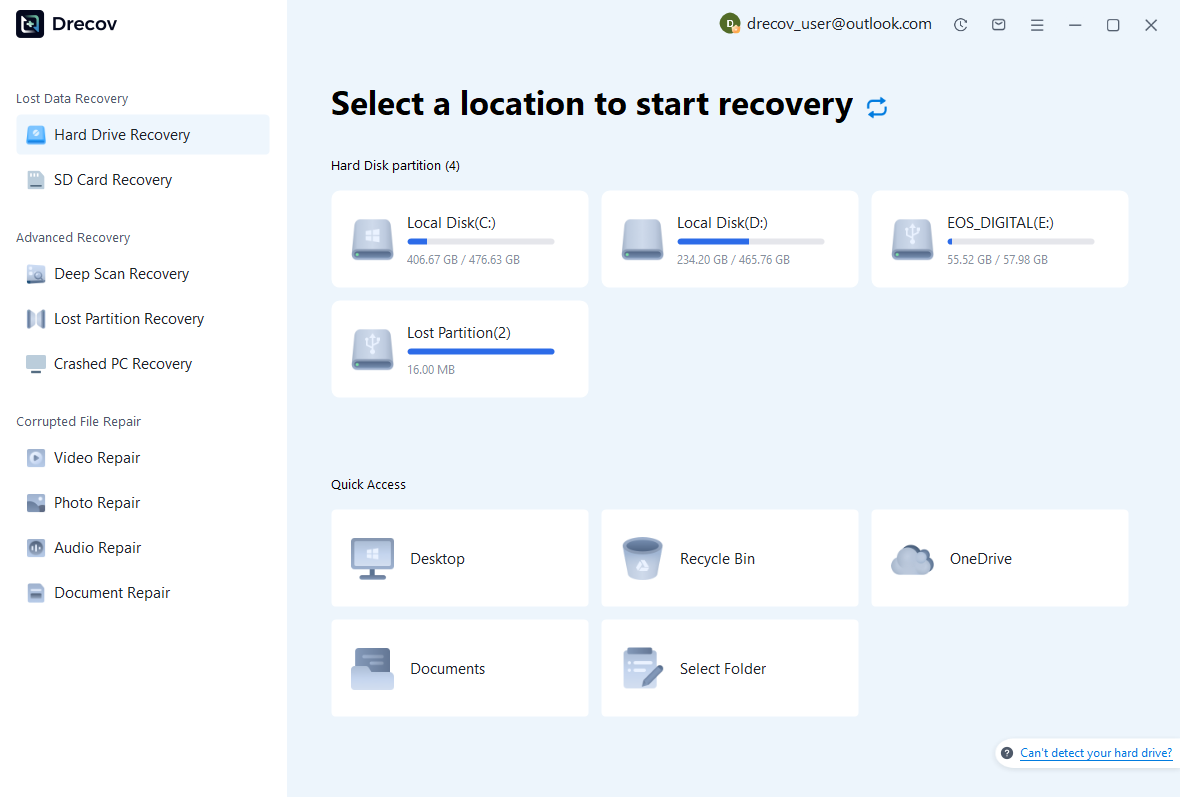
If your computer is stuck on BitLocker recovery and you fear data loss, using Pandaoffice Drecov ensures safe recovery of files before attempting fixes.
- Connect the locked drive to a working PC.
- Launch Pandaoffice Drecov and perform a deep scan.
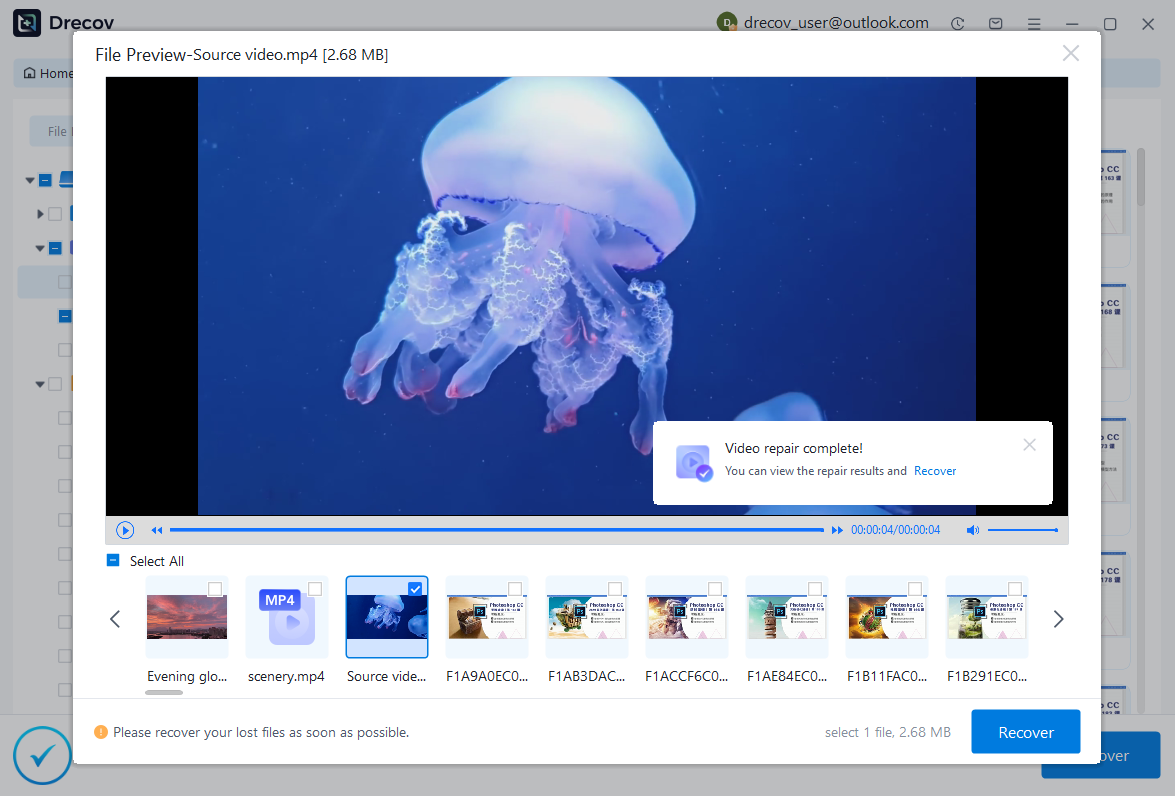
- Recover important documents, images, or system files to a separate drive.
This method protects critical data while you proceed with BitLocker troubleshooting.
⚠️Warning: Always recover files to a separate location to prevent overwriting existing data.
Method 5: Using Recovery Options from Another Computer
Test Environment:
- Secondary working Windows PC
- USB drive prepared with recovery tools
- Original BitLocker-encrypted drive
If your computer keeps going into BitLocker recovery due to inaccessible OS or repeated prompts, you can connect the drive to another computer. Using Windows recovery tools, check and repair system files. This method is effective for corrupted boot files or OS inconsistencies.
- Connect the locked drive via USB or SATA.
- Access recovery tools on the working computer.
- Scan and repair the drive while maintaining encryption integrity.
This approach can prevent unnecessary repeated prompts and safely unlock the drive without data loss.
Method 6: Resetting TPM and Re-Syncing with BitLocker
Test Environment:
- PC with TPM-enabled motherboard
- Admin access to BIOS/UEFI
If the computer is asking for BitLocker recovery key after TPM changes, resetting TPM and resynchronizing it with BitLocker may resolve the issue.
Steps:
- Enter BIOS/UEFI and reset TPM to factory defaults.
- Boot into Windows recovery environment.
- Use
manage-bdecommands to re-enable BitLocker protection.
This ensures the encryption system correctly identifies the device and stops repeated recovery prompts.
⚠️Warning: Resetting TPM incorrectly may result in permanent loss of BitLocker keys. Always backup recovery keys before attempting this.
Method 7: Repairing Corrupted Boot Configuration
Test Environment:
- Windows recovery environment
- Admin Command Prompt access
If your computer says BitLocker recovery due to boot file corruption, repairing the Boot Configuration Data (BCD) can resolve the issue:
bootrec /fixmbr
bootrec /fixboot
bootrec /rebuildbcd
After repairing the BCD, restart your PC. This often fixes repeated BitLocker prompts caused by missing or corrupt boot files.
Method 8: Reinstalling Windows Without Data Loss
Test Environment:
- Recovery drive or installation media
- External storage for backup
If all else fails and the computer is stuck on BitLocker recovery, reinstalling Windows may be necessary. Before doing this, recover all important files using Pandaoffice Drecov to prevent permanent data loss.
- Boot from installation media.
- Choose “Repair your computer” to preserve files.
- Reinstall Windows or reset system while keeping recovered data safe.
This method ensures you regain system access while protecting your files.

Why Choose Pandaoffice Drecov?
Pandaoffice Drecov stands out as a powerful and user-friendly solution for handling various data loss scenarios. Whether you need to reset PC to earlier date, perform a recover deleted Blink video, or figure out how do I recover an overwritten Excel file, Drecov provides reliable and efficient recovery tools in one place. It also excels at recovering photos from SD cards, making it ideal for photographers and everyday users alike. Even complex situations like Illustrator unsaved file recovery are handled with advanced scanning algorithms that maximize file retrieval success. With its intuitive interface, deep scan technology, and high recovery rate, Pandaoffice Drecov ensures your lost data can be restored quickly and safely without requiring technical expertise.
⚠️Warning: Always backup critical data before attempting OS reinstall.
Frequently Asked Questions About BitLocker Recovery
Why does my computer keep asking for BitLocker recovery key?
Repeated prompts occur due to hardware changes, TPM issues, corrupted boot files, or security policy enforcement. Verifying the recovery key and system settings usually resolves the issue.
Can I use BitLocker recovery key from another PC?
Yes, if the recovery key corresponds to the encrypted drive. However, using a key from a different device is not valid and will not unlock the drive.
What should I do if my computer is stuck in BitLocker recovery?
Recover data first using Pandaoffice Drecov if needed. Then check hardware changes, repair boot files, and ensure TPM configuration matches BitLocker settings.
Is it safe to reset TPM to fix BitLocker prompts?
Yes, but only with the correct recovery key and understanding that TPM reset may prevent access without it. Always backup keys before proceeding.
Best Practices to Avoid BitLocker Recovery Issues
Key Takeaways
- Always store BitLocker recovery keys safely in Microsoft account, USB, or printed form.
- Document any hardware or BIOS changes to avoid repeated recovery prompts.
- Use command-line tools and recovery drives cautiously to repair corrupted files.
- Recover critical data with Pandaoffice Drecov before attempting advanced fixes.
- Ensure TPM and boot configurations are properly synchronized to prevent the computer stuck on BitLocker recovery.
By following these steps, you can restore access to your encrypted drives safely and prevent unnecessary BitLocker recovery interruptions.
⚠️Warning: Mishandling recovery steps or TPM resets may lead to permanent drive lock. Always verify your recovery keys.






