







Ever deleted a photo and instantly regretted it? You’re not alone. In fact, studies suggest that more than 70% of users have experienced data loss at least once, with accidental deletion being one of the top causes. That stat alone tells a story: losing files isn’t rare—it’s practically part of the digital experience in 2026.
The good news is that learning how to find recently deleted photos is simpler than most people think. Whether you are using a high-end smartphone or a desktop computer, modern operating systems are designed with “safety nets” to prevent permanent loss from a single accidental click.
Why Deleted Photos Aren’t Always Gone
What Happens When You Delete a Photo
When you tap that trash icon, the image doesn’t immediately vanish into a digital void. Instead, your device simply marks the storage space that the photo occupied as “available” for new data. Think of it like removing a book from a library’s digital catalog while leaving the physical book sitting on the shelf. It is still there; the system just doesn’t point to it anymore.
Until new data—like a new video or a fresh app download—actually overwrites that specific sector of your drive, that photo is often fully recoverable. This is why “stop what you are doing” is the first rule of data recovery. The less you use the device after a deletion, the higher the chance of a successful recovery.
The Role of Temporary Storage and Trash Folders
Most devices now include a “Recently Deleted” or “Trash” folder, acting like a buffer for your photos. When you delete an image, it’s moved here instead of being permanently erased. This gives you a second chance—kind of like an “undo” button for your mistakes.
Typically, these folders keep your deleted photos for 30 days. During this window, how do you recover photos from recently deleted? It is as simple as a single tap. After that window closes, however, the system automatically clears the folder to save space, which is when you might need more advanced methods.
Where Recently Deleted Photos Are Stored
Recently Deleted Folder Explained
If you’re wondering where your deleted photos actually go, the answer is usually hiding in plain sight. Almost every modern smartphone and computer OS has a dedicated folder for recently discarded items. On iPhones and Macs, it’s called “Recently Deleted.” On Android and Windows, it might be labeled “Trash,” “Bin,” or “Recycle Bin.”
This folder stores the deleted photos along with their original metadata, such as the date they were taken and where they were originally stored. This structure allows the system to put them back exactly where they came from if you choose to restore them.
Time Limits Before Permanent Deletion
The clock is your biggest enemy here. Most systems follow a 30-day rule. For instance:
- iOS/macOS: 30 days.
- Google Photos: 60 days (if backed up) or 30 days (if not).
- Windows Recycle Bin: Indefinite, unless the bin reaches a certain size or is manually emptied.
Once these deadlines pass, the photos are removed from the accessible interface. At this stage, recovery becomes significantly more complicated and may require specialized software.
How to Find Recently Deleted Photos on iPhone
Step-by-Step Guide Using Photos App
Apple has made the process of how to recover recently deleted photos on an iPhone very secure and straightforward.
- Step 1: Open the Photos app on your iPhone.
- Step 2: Tap the Albums tab at the bottom.
- Step 3: Scroll all the way down to the “Utilities” section and select Recently Deleted.
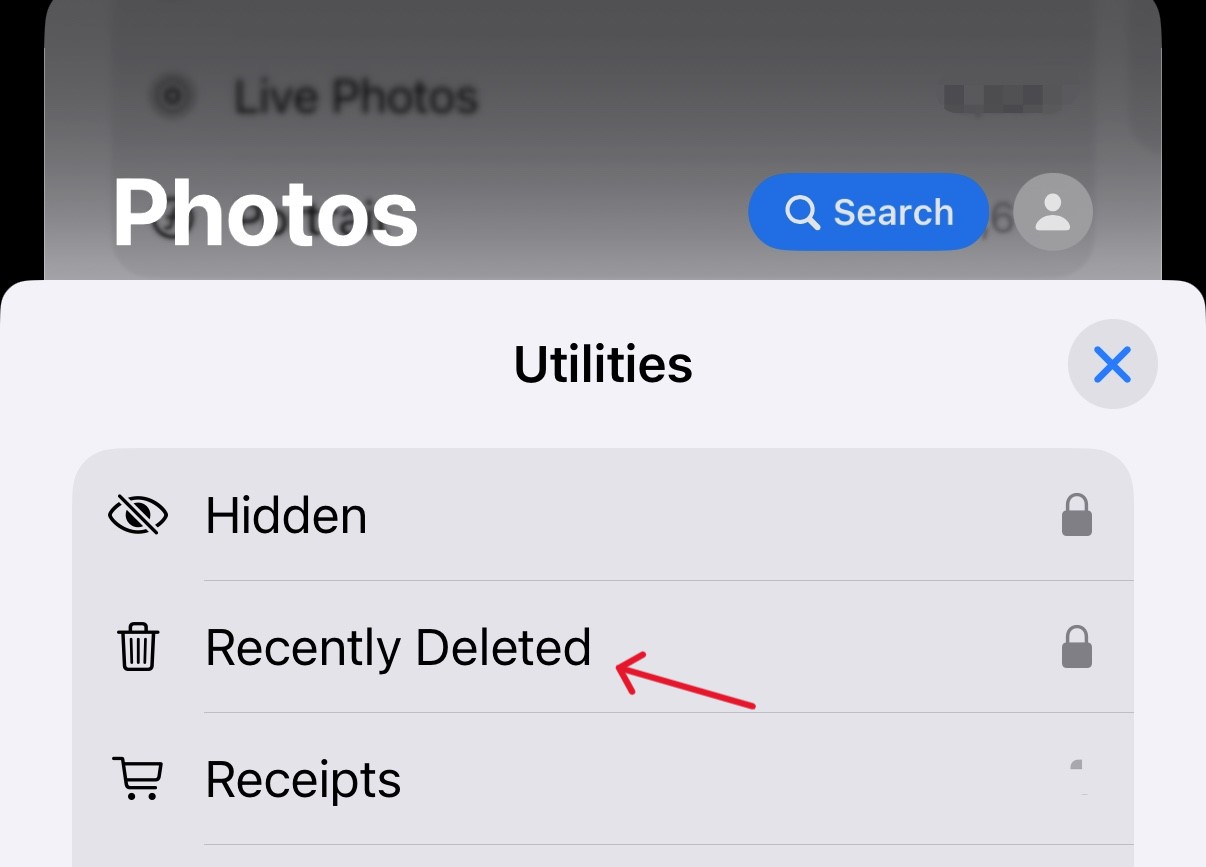
- Step 4: In iOS 16 and later, you will need to unlock this album using Face ID, Touch ID, or your passcode.
- Step 5: Tap Select, choose the images you want back, and then tap Recover in the bottom right corner.
Recovering Photos from iCloud
If you have iCloud Photos enabled, your deletions sync across all devices. However, you can also access these files via a web browser:
- Go to iCloud.com and sign in.
- Click on the Photos icon.
- On the sidebar, click the Recently Deleted album.
- Select your photos and click Recover.
How to Find Recently Deleted Photos on Android
Using Google Photos Trash
Most Android users rely on Google Photos as their primary gallery. If you’ve accidentally deleted a gem, follow these steps:
- Step 1: Launch the Google Photos app.
- Step 2: Tap the Library tab (or Collections in newer versions) at the bottom right.
- Step 3: Tap the Trash (or Bin) icon at the top.
- Step 4: Long-press the photos you want to restore and tap Restore.
Using Built-in Gallery Apps
Manufacturers like Samsung and Xiaomi have their own gallery apps. For example, on a Samsung Galaxy:
- Step 1: Open the Gallery app.
- Step 2: Tap the Menu (three horizontal lines) in the bottom right.
- Step 3: Select Trash.
- Step 4: Choose your photos and tap Restore.
How to Recover Deleted Photos from Cloud Backups
Google Photos Backup Recovery
If your photos were backed up to the cloud before deletion, they may still reside in your Google account even if you’ve wiped your phone. You can check this by logging into Google Photos on a computer. Sometimes, a sync error prevents the phone from showing images that are safely stored on Google’s servers.
iCloud Backup Recovery
For iPhone users, if a photo is gone from the “Recently Deleted” folder, it might still exist in a full device backup.
Warning: Restoring from an iCloud Backup will revert your phone to the state it was in at the time of the backup. This means you might lose newer messages or data created after that backup date.
Can You Recover Photos After Deleting from Trash?
Factors That Affect Recovery Success
Once the “Recently Deleted” folder is emptied, you are entering the world of “Deep Recovery.” Success here depends on:
- Storage Type: It is generally easier to recover from an SD card or a mechanical Hard Drive than from an encrypted SSD or internal phone storage.
- Overwrite Status: If you have used the device extensively since the deletion, the bits of your photo may have been replaced by new data.
- TRIM Command: On modern SSDs, the TRIM command often wipes deleted data immediately to keep the drive fast, which makes recovery very difficult.
When Recovery Becomes Impossible
If the data has been physically overwritten by new files, no software in the world can bring it back. This is why you should immediately enable Airplane Mode or turn off your device if you realize you’ve lost something precious and it’s not in the trash.
Best Methods to Recover Recently Deleted Photos
Using Data Recovery Software
When the built-in folders fail, professional-grade software is your best bet. One of the most effective tools in 2026 is PandaOffice Drecov data recovery software. It is designed to scan the “raw” sectors of your drive to find files that the operating system no longer sees.
⚠ Warning: Never install the recovery software on the same drive you are trying to recover from, as the installation itself could overwrite your lost photos!
Step-by-Step Guide: How to use PandaOffice Drecov data recovery software
- Step 1: Select the Location. Launch the program. You will see a list of available drives. Select the partition or external device where your photos were originally stored (e.g., “Drive C:” or “SD Card”).

- Step 2: Start the Scan. Click the Scan button. PandaOffice Drecov data recovery software will perform a Quick Scan followed by a Deep Scan to locate every fragment of data. You can filter the results by “Images” or file types like “.jpg” and “.png” to save time.

- Step 3: Preview and Recover. Once the scan is complete, browse the found files. The software allows you to preview the images before committing to a recovery. This ensures you aren’t wasting time on corrupted files. Select your photos and click Recover.
Warning: Always save the recovered photos to a different drive than the one they were lost from.
Professional Recovery Services
If your hardware is physically broken (e.g., a snapped SD card or a submerged phone), software won’t help. In these cases, you must send your device to a cleanroom laboratory. This is expensive but often the only way to recover data from dead hardware.
Common Mistakes That Reduce Recovery Chances
Overwriting Storage
As mentioned, the “empty” space isn’t empty. If you continue taking 4K videos or downloading large apps, the system will use those sectors first. Stop using the device immediately.
Waiting Too Long
Background system processes and automatic updates are constantly writing small amounts of data. The longer a photo sits in an “unallocated” state, the higher the risk of a random system file landing on top of it.
Tips to Prevent Losing Photos Again
Enable Automatic Backups
Don’t rely on manual uploads. Ensure that Google Photos, iCloud, or OneDrive is set to “Auto-Sync” over Wi-Fi. This creates an instant duplicate of every photo you take.
Use Multiple Storage Options
The “3-2-1 Rule” is the gold standard for photographers:
- 3 copies of your data.
- 2 different media types (e.g., cloud and external hard drive).
- 1 copy off-site (cloud storage).
For more advanced technical guides on specific platforms, you might find these resources helpful:
- How to recover deleted OneDrive files: A technical guide
- Step-by-step: How to recover deleted photos from an SD card
- Comparison of the best photo data recovery software
How to Find Recently Deleted Photos FAQs
1. How long do recently deleted photos stay on a phone?
Most smartphones keep them in a “Trash” or “Recently Deleted” folder for 30 days.
2. Can I recover photos after emptying the Trash?
Yes, but you will need professional software like PandaOffice Drecov to scan the drive’s file system for unallocated data.
3. Does factory resetting a phone delete photos forever?
Usually, yes. Modern phones use file-based encryption, and a factory reset deletes the encryption keys, making the data unreadable.
4. Are free recovery apps safe?
Be careful. Some “free” mobile apps are just ad-ware. It is safer to use a desktop-based recovery tool that treats your phone or SD card as an external drive.
5.How to find recently deleted photos on an SD card used in a camera?
Cameras typically do not have a “Recycle Bin.” When you delete a photo on a camera, it is usually marked as deleted immediately. To recover these, connect the SD card to a computer and use a specialized recovery utility. Since SD cards are prone to data fragmentation, acting quickly is vital to prevent the camera from writing new file headers over your old photos.
Conclusion
Losing a lifetime of memories can be heart-wrenching, but knowing how to find recently deleted photos provides the peace of mind you need. Your first line of defense should always be the “Recently Deleted” folder and cloud backups. If those fail, don’t despair—tools like PandaOffice Drecov data recovery software are built for exactly these high-pressure moments. By acting quickly and avoiding common mistakes like overwriting your storage, you stand an excellent chance of getting your photos back.
Remember, the best recovery strategy is a proactive one: turn on your backups today so you never have to worry about a “delete” button again.






