







Why Outlook Attachments Won’t Open
What happens when attachments fail to open
Many users encounter situations where outlook not opening attachments becomes a recurring issue. You click an attachment, but nothing happens, or an error message appears. This can affect various file types, including PDFs, Word documents, images, and ZIP files.
Sometimes, the problem appears as outlook attachment not opening, where the file seems accessible but fails to launch. In other cases, users report attachments in outlook not opening at all, especially after updates or configuration changes.
This issue can significantly disrupt productivity, particularly when dealing with business emails that rely on shared documents. Whether you’re using Outlook 365, 2019, or earlier versions, attachment problems can occur across all platforms.
Common symptoms users experience
When attachments are not opening in outlook, users often notice patterns that help identify the issue:
- Clicking attachments does nothing
- Error messages like “Cannot open file”
- Files open as blank or corrupted
- Attachments download but won’t launch
Another frequent complaint is outlook email attachments not opening only for certain file types, while others work normally. This usually points to system-level issues rather than Outlook itself.
Main Reasons Attachments Are Not Opening in Outlook
Security restrictions blocking attachments
Outlook includes built-in security features to protect users from potentially harmful files. These restrictions can block certain attachment types, especially executable files or unknown formats.
If outlook not opening attachments, it may be because the file is considered unsafe. Even legitimate files can sometimes be flagged incorrectly, preventing access.
Corrupted temporary files or cache issues
Outlook stores attachments in a temporary folder before opening them. Over time, this folder can become cluttered or corrupted, leading to issues like attachments in outlook not opening.
When the temporary storage reaches its limit or contains damaged files, Outlook may fail to open new attachments properly.
Incorrect file associations in Windows
If your system doesn’t know which program to use for a specific file type, you may encounter outlook attachment not opening errors.
For example, if PDF files are not associated with a PDF reader, Outlook cannot open them—even though the attachment itself is fine.
Outlook add-ins and software conflicts
Add-ins enhance Outlook functionality, but they can also interfere with normal operations. Faulty or outdated add-ins may cause outlook email attachments not opening, especially after system updates.
Conflicts with antivirus software can also block attachments from opening.
⚠️ Warning: Disabling security software entirely is not recommended—adjust settings carefully instead.
Effective Methods to Fix Outlook Attachment Not Opening
Method 1 – Save Attachments to Local Drive First
Sometimes, Outlook fails to open attachments directly but works fine when files are saved locally.
Steps:
- Right-click the attachment in Outlook
- Select Save As
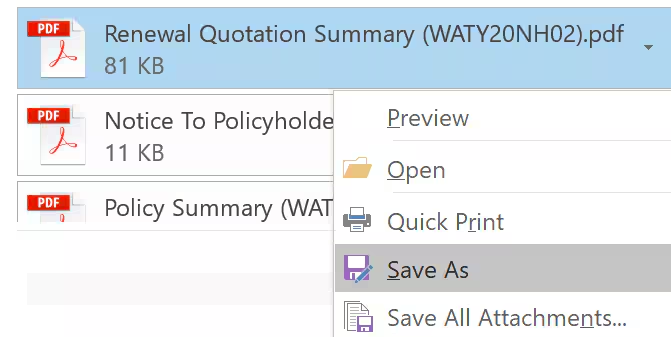
- Choose a location on your computer
- Open the file manually
This method bypasses Outlook’s internal handling process and often resolves attachments are not opening in outlook issues.
Test Environment:
- Windows 11
- Outlook 365
- PDF and DOCX files
This approach is simple but effective, especially when dealing with minor glitches.
Method 2 – Clear Outlook Temporary Files Folder
Temporary files can accumulate and cause attachments in outlook not opening problems.
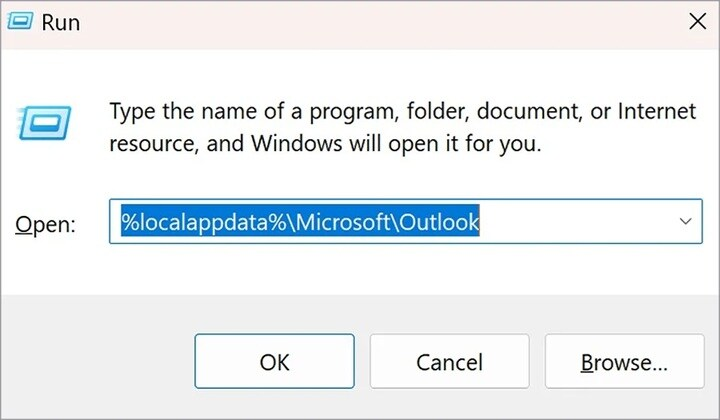
Steps:
- Press Win + R and type
%localappdata%\Microsoft\Outlook - Navigate to Outlook SecureTempFolder path
- Copy the folder location
- Open it in File Explorer
- Delete all files inside
Clearing this folder resets Outlook’s temporary storage and allows attachments to open normally again.
Test Environment:
- Windows 10
- Outlook 2019
- Heavy email usage scenario
⚠️ Warning: Do not delete system files outside the specified temp folder.
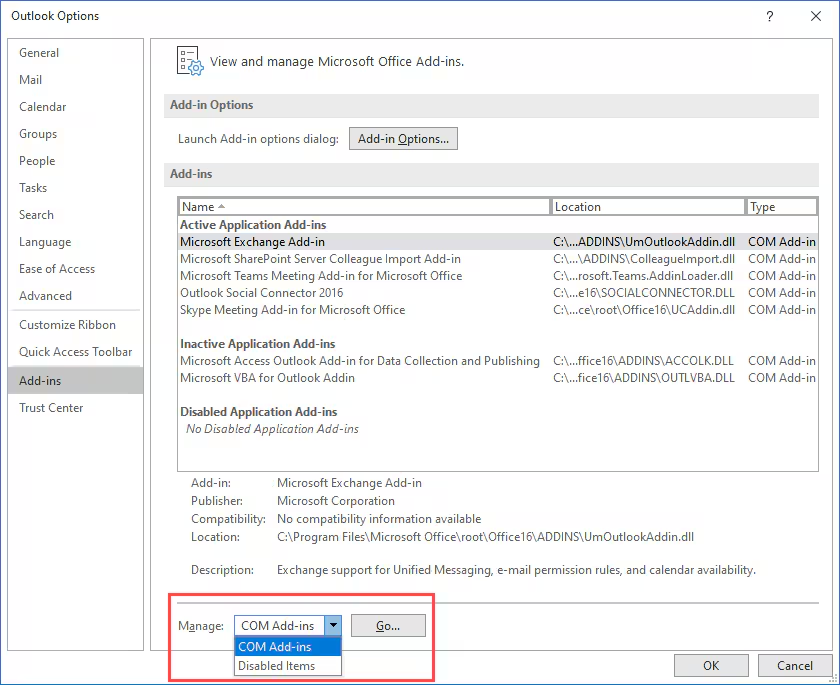
Method 3 – Disable Problematic Outlook Add-ins
Add-ins can interfere with Outlook’s ability to open attachments.
Steps:
- Open Outlook
- Go to File > Options > Add-ins
- Click Manage COM Add-ins
- Disable all add-ins
- Restart Outlook and test
If attachments work after disabling add-ins, re-enable them one by one to identify the issue.
Test Environment:
- Windows 11
- Outlook 365
- Multiple third-party add-ins installed
Method 4 – Fix File Association Settings
Incorrect file associations often cause outlook attachment not opening errors.
Steps:
- Right-click the file type (e.g., PDF)
- Select Open with > Choose another app
- Set the correct default program
- Check “Always use this app”
This ensures Outlook can properly launch attachments.
Test Environment:
- Windows 10
- Outlook 2019
- PDF and image files
Method 5 – Use PandaOffice Drecov to Recover Corrupted Attachments
If attachments are damaged or inaccessible, recovery software can help.
PandaOffice Drecov is designed to recover corrupted or lost email attachments from Outlook data files.
Steps:
- Install and launch PandaOffice Drecov
- Select the drive containing Outlook data
- Run a deep scan
- Preview recoverable attachments
- Restore files safely
This method is especially useful when outlook email attachments not opening due to file corruption.
Test Environment:
- Windows 11
- Outlook 2021
- Corrupted PST file scenario



Why Choose PandaOffice Drecov Data Recovery Software?
When it comes to reliable data recovery, PandaOffice Drecov stands out as a powerful, all-in-one solution designed to handle a wide range of data loss scenarios. Whether you’re trying to perform TikTok deleted video recovery, restore files after formatting, or recover important documents, Drecov delivers fast and dependable results.
One of its biggest advantages is versatility. From format data recovery to lost partition recovery, the software can scan deeply and accurately locate files that other tools often miss. Even if your drive has been accidentally formatted or a partition has disappeared, Drecov uses advanced algorithms to reconstruct and retrieve your data with high success rates.
Drecov also supports specialized recovery needs. If you’ve lost important documents, its PDF recovery tool ensures that files retain their original structure and quality. For media users, the audio recovery feature helps restore music, recordings, and other sound files without corruption, making it ideal for both personal and professional use.
Ease of use is another key benefit. The intuitive interface allows beginners to recover files in just a few clicks, while still offering advanced options for more experienced users. Plus, it supports a wide range of storage devices, including HDDs, SSDs, USB drives, and memory cards.
In short, PandaOffice Drecov combines powerful recovery capabilities with user-friendly design, making it a trusted choice for anyone facing data loss.
Method 6 – Repair Outlook Data Files (PST/OST) to Fix Attachment Issues
If you’re still facing outlook not opening attachments, the problem may be related to corrupted Outlook data files. Since Outlook stores emails and attachments in PST or OST files, any corruption can prevent attachments from opening properly.
Steps:
- Close Outlook completely
- Locate the Inbox Repair Tool (SCANPST.exe)
- Select your PST/OST file
- Click Start to scan for errors
- Choose Repair when prompted
- Restart Outlook and try opening attachments
Repairing these files can resolve deeper issues behind attachments are not opening in outlook, especially when the problem persists across multiple emails.
Test Environment:
- Windows 11
- Outlook 2021
- PST file with large mailbox data
⚠️ Warning: Always create a backup before repairing PST/OST files to avoid accidental data loss.
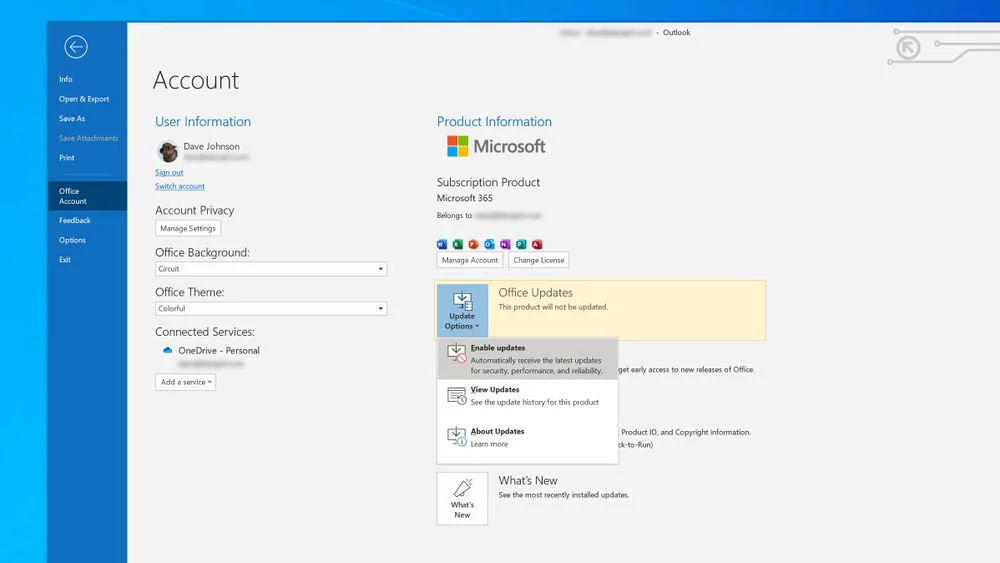
Method 7 – Update Outlook and Windows System
Outdated software can lead to compatibility issues, causing attachments in outlook not opening. Keeping both Outlook and Windows updated ensures bugs and known issues are fixed.
Steps:
- Open Outlook and go to File > Office Account
- Click Update Options > Update Now
- Open Windows Settings
- Go to Update & Security > Windows Update
- Install all available updates
- Restart your computer
Updates often resolve hidden issues behind outlook attachment not opening, especially after major system changes.
Test Environment:
- Windows 10
- Outlook 365
- Pending system updates
Method 8 – Disable Protected View Settings
Outlook’s Protected View is designed for security but can sometimes block attachments from opening.
Steps:
- Open Outlook
- Go to File > Options > Trust Center
- Click Trust Center Settings
- Select Protected View
- Uncheck relevant options temporarily
- Restart Outlook and test attachments
This method can fix cases where outlook email attachments not opening due to overly strict security settings.
Test Environment:
- Windows 11
- Outlook 365
- Attachments from external sources
⚠️ Warning: Disabling Protected View may expose your system to unsafe files. Re-enable it after testing.
Method 9 – Check Antivirus or Firewall Interference
Security software can sometimes block attachments, leading to attachments are not opening in outlook.
Steps:
- Open your antivirus software
- Check email protection or attachment scanning settings
- Temporarily disable scanning features
- Test opening attachments in Outlook
- Re-enable protection after testing
If attachments open normally after disabling scanning, adjust the antivirus settings instead of leaving it off.
Test Environment:
- Windows 10
- Outlook 2019
- Third-party antivirus installed
Method 10 – Restart Outlook in Safe Mode
Running Outlook in Safe Mode helps identify whether the issue is caused by internal conflicts.
Steps:
- Press Win + R
- Type
outlook.exe /safe - Press Enter
- Open an email and test attachments
If attachments open successfully in Safe Mode, the issue is likely due to add-ins or configuration problems.
Test Environment:
- Windows 11
- Outlook 365
- Multiple add-ins environment
Frequently Asked Questions About Outlook Attachments
Why is Outlook not opening attachments suddenly?
If you suddenly experience outlook not opening attachments, the issue is often caused by recent updates, corrupted cache files, or changes in system settings. Outlook relies on multiple components—such as file associations, temporary storage, and security configurations—so even a small change can disrupt attachment access.
In many cases, users reporting attachments in outlook not opening recently had system updates or installed new software. These changes may interfere with how Outlook processes attachments.
Test Environment:
- Windows 11
- Outlook 365
- Recent system update scenario
How do I fix attachments that won’t open in Outlook?
To fix attachments are not opening in outlook, start with simple methods like saving files locally or clearing the temporary folder. If the issue persists, move on to advanced solutions such as repairing PST files or adjusting security settings.
For cases where outlook email attachments not opening due to corruption, using a recovery tool can help restore damaged files.
Why do some attachments open while others don’t?
If only certain files fail, it’s likely due to file type issues or missing applications. For example, PDFs require a PDF reader, and image files need compatible software.
This is a common reason behind outlook attachment not opening, where the file exists but cannot be launched due to system limitations.
Key Takeaways for Fixing Outlook Attachment Issues
Dealing with outlook not opening attachments can be frustrating, especially when important files are inaccessible. Whether you’re facing issues like attachments in outlook not opening, outlook attachment not opening, or outlook email attachments not opening, the key is identifying the root cause.
Start with basic troubleshooting steps such as saving attachments locally and clearing temporary files. If the issue continues, advanced solutions like repairing data files, updating Outlook, or adjusting security settings can provide a more permanent fix.
In more serious cases, where attachments are corrupted or missing, recovery tools can help restore access. At the same time, maintaining your system—keeping software updated, reviewing add-ins, and managing security settings—can prevent future issues where attachments are not opening in outlook.
⚠️ Warning: Ignoring repeated attachment errors may lead to long-term data accessibility problems.
By following the methods outlined in this guide, you can effectively resolve attachment issues and ensure Outlook runs smoothly in the future.





