







Imagine the frustration: you plug your flash drive into your PC, ready to access your vital photos or documents, but instead of your files, Windows greets you with a cryptic pop-up: “Please insert a disk into USB drive.” This error is a common headache for users, often signaling that the computer recognizes a drive letter but cannot communicate with the storage memory inside.
As an SEO expert and data recovery specialist, I have seen this issue disrupt workflows and cause unnecessary panic. However, this error does not always mean your data is gone forever. In this extensive guide, we will explore the root causes of this glitch and provide a structured, step-by-step roadmap to fixing it, ranging from simple hardware checks to advanced recovery using PandaOffice Drecov.
Why Does My Computer Say “Please Insert a Disk”?
Before we dive into the solutions, it is helpful to understand the “why” behind the “what.” When Windows displays the message “please insert a disk into usb drive,” it essentially means the USB controller is active, but the NAND flash memory chip—where your data actually lives—is unreachable.
Common culprits include:
- Poor Physical Connection: Dust or debris in the port.
- Drive Letter Conflicts: Windows assigning a letter that is already in use.
- Driver Corruption: Outdated or damaged USB mass storage drivers.
- File System Corruption: The “map” of your data has been scrambled.
- Hardware Failure: The physical controller on the USB stick has disconnected from the memory chip.
Level 1: Basic Hardware and Port Troubleshooting
We always begin with the easiest steps. Frequently, the “please insert a disk into usb drive” error is simply a result of a loose connection or a static electricity glitch.
Step 1: Try a Different USB Port
Computers often have multiple USB controllers. If a port on the front of your PC case is failing, the rear ports (which are soldered directly to the motherboard) might still work perfectly.
- Unplug the USB drive safely.
- Plug it into a different port, preferably a USB 3.0 or 3.2 port (usually colored blue or red).
- Wait 10 seconds to see if File Explorer recognizes the contents.
Step 2: Test on Another Device
To rule out a software issue on your specific PC, plug the drive into a laptop or a different workstation. If the drive works elsewhere, the problem lies within your computer’s Windows configuration. If it shows the same “please insert a disk into usb drive” error on every device, the drive itself requires repair.
Level 2: Reassigning the Drive Letter
Sometimes Windows gets confused when assigning drive letters (like D:, E:, or F:). If your USB drive is trying to use a letter already reserved by a network drive or a hidden partition, you will see the “please insert a disk into usb drive” prompt.
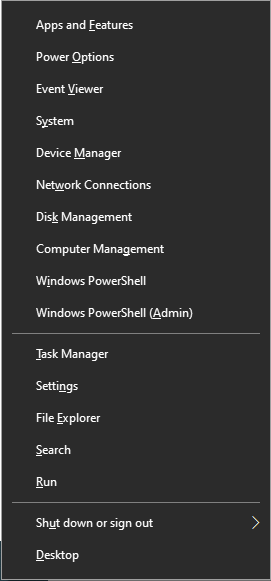
Step 1: Open Disk Management
Press the hotkey Windows Key + X and select Disk Management from the list.
Step 2: Locate Your USB Drive
Look for a disk labeled “Removable” that shows “No Media” or has a bar with no drive letter.
Step 3: Change Drive Letter
- 1. Right-click the box representing your USB drive.
- 2. Select Change Drive Letter and Paths…
- 3. Click Change.
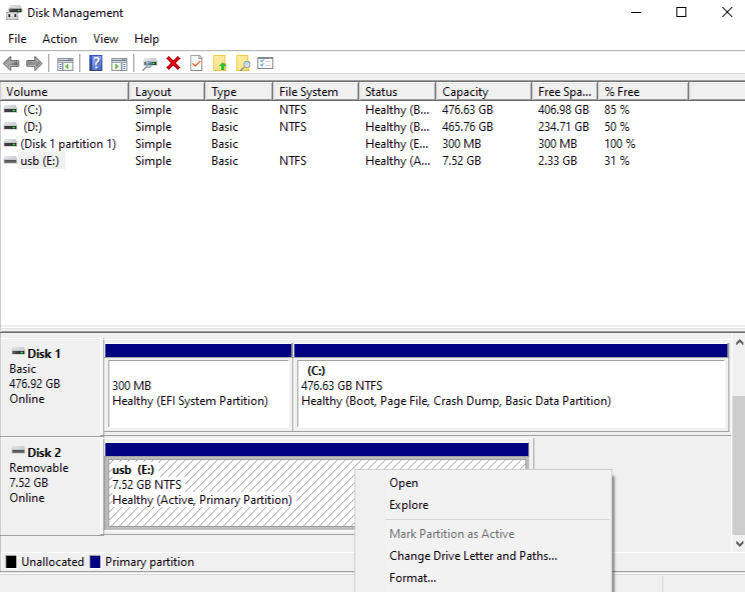
- 4. Pick a letter from the end of the alphabet (like Z: or X:) to avoid conflicts.
- 5. Click OK and confirm the change.
Level 3: Updating or Reinstalling USB Drivers
Software drivers act as the bridge between your hardware and your operating system. If these drivers are outdated, they can trigger the “please insert a disk into usb drive” error.
Step 1: Access Device Manager
Right-click the Start button and choose Device Manager.
Step 2: Uninstall the USB Mass Storage Device
- Expand the Universal Serial Bus controllers section.
- Locate “USB Mass Storage Device.” (If you see a yellow exclamation mark, that is a clear sign of a driver issue).
- Right-click it and select Uninstall device.
Step 3: Refresh Hardware
Unplug your USB drive, restart your computer, and plug the drive back in. Windows will automatically detect the hardware and reinstall a fresh, clean version of the driver.
Level 4: Using PandaOffice Drecov for Data Recovery
When the “please insert a disk into usb drive” error persists, it often indicates that the logical structure of the drive is damaged. At this stage, Windows cannot “see” the files, but the data is likely still physically present on the chip. This is where PandaOffice Drecov becomes your most valuable tool.
PandaOffice Drecov is a professional-grade recovery utility designed to bypass standard Windows mounting errors. It communicates directly with the drive hardware to extract files even when the operating system thinks the drive is empty.
How to Recover Data Using PandaOffice Drecov:
- 1. Select the Drive: Launch the program. You will see a list of available drives. Even if your drive says “No Media” in Windows, Drecov may still list it by its hardware ID or capacity. Select the problematic USB drive.

- 2. Deep Scan: Click the Scan button. Drecov will perform a deep sector-by-sector analysis. It looks for “signatures” of common files like JPEGs, PDFs, and Word documents.

- 3. Preview Files: Once the scan is complete, browse the results. Drecov allows you to preview images and text files to ensure they are healthy.

- 4. Recover: Select the files you need and click Recover.
Warning: Never save the recovered files back onto the faulty USB drive. Always save them to your computer’s Desktop or a secondary external drive to prevent overwriting the data you are trying to save.
For more specialized recovery scenarios, visit these resources:
- Recover Deleted Files from USB Flash Drive: A Complete Guide
- How to Recover Deleted Files from USB Drive
Level 5: Advanced Command Line Repair (CHKDSK)
If the data is backed up or recovered, you can attempt to “force” Windows to fix the file system using the Command Prompt.
Step 1: Run CMD as Administrator
Type cmd in the Windows search bar, right-click the result, and select Run as Administrator.
Step 2: Execute the Command
Type the following command, replacing “G:” with your actual USB drive letter:
chkdsk G: /f /r /x
/f: Fixes errors on the disk./r: Locates bad sectors and recovers readable information./x: Forces the volume to dismount first if necessary.
Key Operation Point: If CHKDSK returns a message saying “Cannot open volume for direct access,” the drive’s file system is likely too damaged for a simple repair, and you should return to the PandaOffice Drecov method.
Level 6: Formatting as a Last Resort
If you have successfully recovered your data with PandaOffice Drecov and simply want to make the USB drive usable again, formatting is the final solution for the “please insert a disk into usb drive” error.
- Go back to Disk Management.
- Right-click the drive and select Format.
- Choose exFAT for modern compatibility or FAT32 for older devices.
- Uncheck “Quick Format” if you want a more thorough wipe to check for bad sectors.
If you encounter issues during this process, particularly with high-capacity drives, refer to this guide:
Prevention and Long-term USB Maintenance
While tools like PandaOffice Drecov are lifesavers when an error occurs, the best strategy is to never need them. High-speed flash memory in 2026 is faster than ever, but it remains susceptible to logical corruption and physical wear.
1. The Golden Rule: Always Use “Safely Remove Hardware”
The most common cause of the “please insert a disk into usb drive” error is “caching.” Windows often buffers data in the RAM before writing it to the USB. If you pull the drive out while this process is happening—even if the progress bar looks finished—the file system header can become corrupted.
- Action: Always click the “Safely Remove Hardware” icon in the System Tray (bottom right) before physically unplugging.
2. Regular File System Health Checks
Just as you would tune up a car, you should occasionally check your USB drive’s internal “map” for errors.
- Open File Explorer and right-click your USB drive.
- Select Properties > Tools.
- Under the Error checking section, click Check.
- Windows will scan the drive and fix minor file system inconsistencies before they turn into major mounting errors.
3. Avoid “Power Surge” Scenarios
USB ports on the front of a PC case are connected by thin wires that can sometimes provide unstable voltage. This instability can “confuse” the USB controller, leading to a “No Media” status.
- Pro Tip: For large data transfers or firmware updates, always use the USB ports located directly on the computer’s motherboard (the ports at the back of a desktop).
4. Implement the 3-2-1 Backup Strategy
A USB drive should never be the only place your important photos or documents exist. Follow this industry-standard protocol:
- 3 Copies of Data: The original, a backup, and a secondary backup.
- 2 Different Media: For example, one on your PC’s SSD and one on a USB drive.
- 1 Copy Off-site: Use a cloud service or keep a second USB drive at a different physical location.
5. Physical Care and Environment
Flash memory is sensitive to environmental factors. To prevent hardware-level “please insert a disk into usb drive” issues:
- Keep it cool: Overheating during long transfers can degrade the NAND flash chips.
- Stay Dry: Humidity can corrode the internal gold connectors. If your drive gets wet, do not plug it in until it has dried for at least 48 hours.
- Static Protection: In dry winters, touch a metal object to discharge static electricity before handling your USB stick to avoid “frying” the controller.
Please insert a disk into USB Drive FAQs
Can I fix the “please insert a disk into usb drive” error without losing data?
Yes. If you use methods like changing the drive letter or updating drivers, your data remains untouched. However, if those fail, you should use PandaOffice Drecov to extract your data before attempting more aggressive repairs like formatting.
Why does Disk Management show “No Media” for my USB drive?
“No Media” means the computer sees the USB adapter/controller but cannot communicate with the flash memory chip inside. This is often caused by physical damage or a severe partition table error.
Is it possible that my USB drive is physically broken?
If the drive does not show up in Disk Management at all, or if it shows “No Media” across multiple computers and different cables, there may be a hardware failure in the controller or a cracked solder joint on the USB connector.
Will formatting the drive solve the problem?
Formatting will often fix the “please insert a disk into usb drive” error if the cause is a corrupted file system. However, formatting erases all data, so it should only be done after successful data recovery.
How can I prevent this error from happening again?
The most effective prevention is to always use the “Safely Remove Hardware” option before unplugging your drive and to avoid using the drive on public computers that might have unstable power supplies or malware.
Conclusion
Solving the “please insert a disk into usb drive” error requires patience and a methodical approach. By starting with hardware checks and moving toward professional software like PandaOffice Drecov, you maximize your chances of recovering your files without further damaging the hardware.





