







In the modern digital landscape, efficiency and security go hand in hand. Whether you are trying to streamline your morning routine by learning how to set homepage in Firefox or you are facing the panic of a sudden system crash, having the right technical knowledge is essential. Many users overlook the fact that browser customization and data integrity are deeply linked; a browser that isn’t configured correctly can lead to lost sessions, while a system error can wipe out your most important documents.
his comprehensive guide serves two purposes: first, to help you master your Firefox environment across various operating systems, and second, to provide a professional-grade solution for those moments when your data seems gone for good. By the end of this article, you will not only know how to manage your Firefox home page settings but also how to utilize the PandaOffice Drecov data recovery software to safeguard your digital life.
The Fundamentals of Browser Customization
Before we dive into the technicalities of file retrieval, let’s address the basic navigation needs that brought you here. Knowing how to set homepage in Firefox allows you to start your workday with the exact tools you need, saving precious seconds that add up over time.
Why Customizing Your Homepage Matters
A homepage is the first thing you see when you launch your browser. For many, this is a search engine like Google; for others, it’s a news site or a corporate dashboard. If you don’t know how to set homepage in Firefox, you might find yourself stuck with the default “Firefox Home,” which, while useful, may not be tailored to your specific workflow.
Firefox Set Homepage on Startup
Setting your browser to open a specific set of pages the moment you launch it is the most effective way to stay productive. If you want to ensure Firefox set homepage on startup correctly, you need to navigate the Preferences menu with precision.
Steps to Configure Startup Pages
- Step 1: Open your Firefox browser and click on the Application Menu (the three horizontal lines) in the top-right corner of the window.
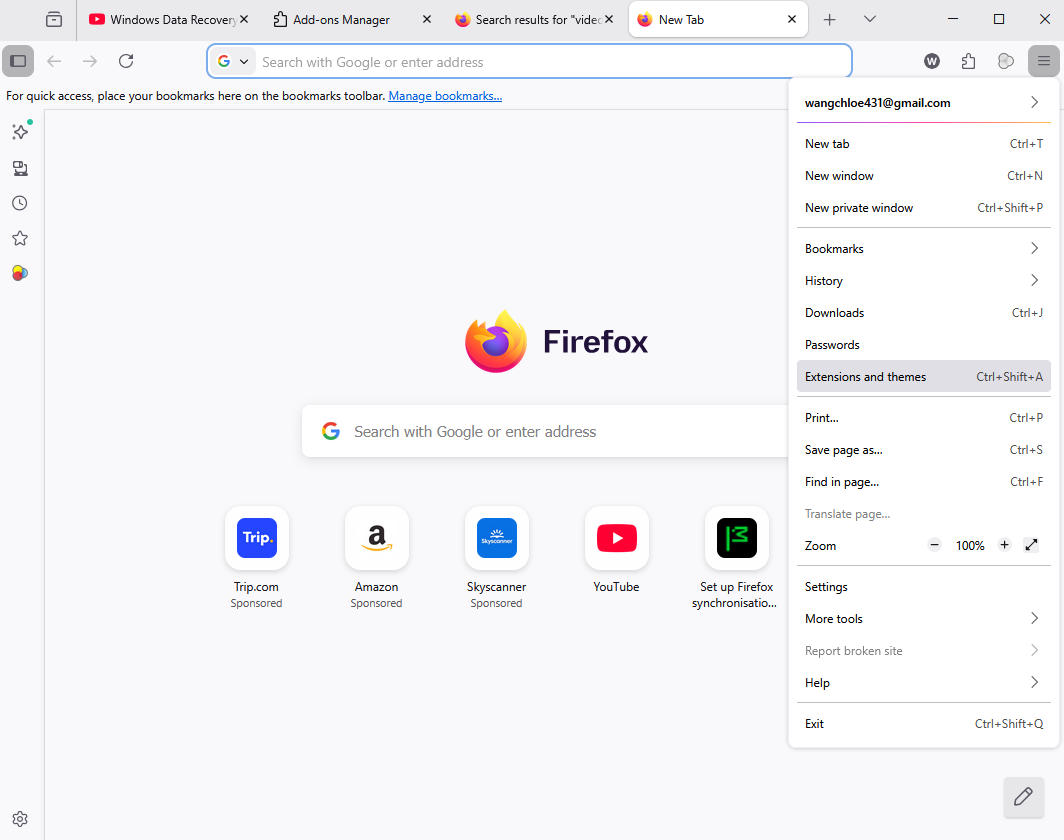
- Step 2: Select Settings from the dropdown menu. This will open a new tab dedicated to your browser configurations.
- Step 3: On the left-hand sidebar, click on Home. This is the central hub for all how to set homepage in Firefox queries.
- Step 4: Look for the New Windows and Tabs section. Next to Homepage and new windows, click the dropdown menu and select Custom URLs….
- Step 5: Type or paste the URL of the website you want to use. If you want multiple pages to open at once, separate them with a pipe symbol (
|). - Step 6: Close the Settings tab. Firefox saves your changes automatically, ensuring that the Firefox set homepage on startup process is complete.
Pro Tip: If you currently have all your favorite work tabs open, you can simply click Use Current Pages in Step 5 to set them all as your collective homepage instantly.
Firefox Change Homepage Windows 10/11
Operating systems often influence how software behaves. If you are looking to perform a Firefox change homepage Windows 10/11 operation, the process is largely the same within the browser, but you should be aware of how Windows handles default apps and shortcuts.
Optimizing Firefox for Windows 10 and 11
- Step 1: Launch Firefox. If you haven’t pinned it to your taskbar yet, right-click the icon and select Pin to taskbar for easier access.
- Step 2: Follow the standard path: Menu > Settings > Home.
- Step 3: In the Homepage and new windows section, ensure your Custom URL is correctly entered.
- Step 4: If you find that Windows 10 or 11 keeps reverting your browser to Microsoft Edge, you must go to your Windows Start Menu, type Default Apps, and ensure Firefox is selected as your primary web browser.
- Step 5: To test the Firefox change homepage Windows 10/11 settings, close all Firefox windows and relaunch the app from the taskbar.
Firefox Home Page Settings Missing
Sometimes, things go wrong. You might open your settings only to find that the Firefox home page settings missing or grayed out. This usually happens due to one of three reasons: a corrupted browser profile, an interfering extension (malware/adware), or administrative policies set by your employer.
How to Fix Missing Settings
- Step 1: Check for “Managed by your organization.” If you see this text at the top of your settings page, your computer has a policy in place that prevents you from learning how to set homepage in Firefox. You may need to contact your IT department.
- Step 2: Disable Extensions. Some “Search Protection” extensions lock your homepage to prevent hijacking. Navigate to
about:addons, disable all extensions, and check if the settings reappear. - Step 3: Refresh Firefox. If the Firefox home page settings missing issue persists, go to
about:supportand click on Refresh Firefox. This resets the browser to its default state while keeping your bookmarks and passwords safe. - Step 4: Registry Check (Advanced). On Windows, malware can sometimes alter the registry keys. You can check
HKEY_LOCAL_MACHINE\SOFTWARE\Policies\Mozilla\Firefoxto see if any homepage restrictions are forced there.
The Transition from Browser Issues to Data Recovery
While fixing a browser homepage is a simple matter of clicking through menus, losing the data within those browsers—or files on your hard drive—is a much more serious problem. Imagine you finally learned how to set homepage in Firefox, but then your hard drive fails, taking your bookmarks, saved passwords, and important work documents with it.
This is where technical expertise meets practical solutions. Data loss can happen due to accidental deletion, formatting errors, or system crashes. When this occurs, you need more than just browser settings; you need a powerful recovery tool.
PandaOffice Drecov Data Recovery Software
When standard troubleshooting fails and your files disappear, PandaOffice Drecov data recovery software stands out as the premier solution. This tool is designed to scan deep into your storage media to find fragments of files that the operating system no longer sees.
Why Choose PandaOffice Drecov?
The PandaOffice Drecov data recovery software utilizes advanced algorithms to reconstruct file headers and directory structures. Whether you lost data on an SSD, an external hard drive, or a USB flash drive, Drecov provides a streamlined, user-friendly interface that doesn’t require a degree in computer science to navigate.
⚠ Warning: Never install the recovery software on the same drive or partition where the lost data was located. Doing so may overwrite the very files you are trying to save.
Step-by-Step Guide to Data Recovery with PandaOffice Drecov
If you have lost important browser data or personal files, follow these steps to use the PandaOffice Drecov data recovery software effectively.
Step 1: Select the Location
Launch the program. On the main dashboard, you will see a list of available drives. Select the drive (usually C: for browser data) where your missing files were last seen.

Step 2: Initiate the Scan
Click the Scan button. PandaOffice Drecov data recovery software will first perform a Quick Scan to find recently deleted files, followed by a Deep Scan to look for files lost due to formatting or partition issues.

Step 3: Filter and Preview
Once the scan is complete, use the sidebar to filter files by type (e.g., .html for bookmarks, .docx for documents). Drecov allows you to preview images and text files before you commit to recovering them. This ensures you are getting the right data.

Step 4: Recover and Save
Select the files you wish to retrieve and click Recover. Choose a destination folder on a different drive to store the recovered data.
Recovering Specific Browser Data
If your goal was to find out how to set homepage in Firefox but you found that your entire profile was deleted, you can use Drecov to specifically target the Firefox profile folder located in:
C:\Users\[YourUsername]\AppData\Roaming\Mozilla\Firefox\Profiles\
By recovering the places.sqlite file from this directory, you can restore your bookmarks and history even after a total browser wipe.
After you have successfully performed the data recovery steps, you may find these resources helpful for specific browser-related data tasks:
- Find your Firefox bookmarks location
- Restore your computer to an earlier date
- Get your Google Chrome bookmarks back
For more information on browser management, you can visit the Official Mozilla Support Page.
Advanced Firefox Configuration via About:Config
For power users who find the standard menu insufficient for learning how to set homepage in Firefox, there is the “About:Config” editor. This allows you to modify the underlying preferences of the browser directly.
Accessing the Configuration Editor
- In the Firefox address bar, type
about:configand press Enter. - Click “Accept the Risk and Continue.”
- In the search box, type
browser.startup.homepage. - You can double-click the value to change your homepage URL directly from the backend.
This method is particularly useful if the Firefox home page settings missing in the standard UI, as it bypasses the visual interface entirely.
Common Questions About Firefox Homepages
Can I have multiple homepages?
Yes. When learning how to set homepage in Firefox, remember that you can input multiple URLs separated by the pipe character (|). For example: google.com|news.ycombinator.com. Each will open in its own tab when you start the browser.
How do I reset my homepage to default?
If you want to go back to the original Firefox look, go to Settings > Home and click the Restore Defaults button next to the homepage selection.
Why does my homepage keep changing?
If you perform a Firefox change homepage Windows 10/11 and it reverts the next day, you likely have a malicious browser extension or a “PUP” (Potentially Unwanted Program) on your computer. Run a full system scan with your antivirus and then use PandaOffice Drecov data recovery software if the cleanup process accidentally deletes any of your important files.
Summary of Key Actions
To ensure your browsing and data remain in top shape, follow this summary table:
| Task | Action Path |
| Set Homepage | Settings > Home > Custom URLs |
| Windows 10/11 Optimization | Set Firefox as Default App in Windows Settings |
| Fix Missing Settings | Check for managed policies or Refresh Firefox |
| Recover Lost Files | Use PandaOffice Drecov data recovery software |
Learning how to set homepage in Firefox is just the first step in digital literacy. By understanding how to customize your browser, fix internal errors, and recover lost data using professional tools like PandaOffice Drecov, you become a much more resilient and efficient user.






