







In the modern digital landscape, data is more than just bits and bytes; it represents our memories, professional achievements, and essential records. Whether you are a student or a business executive, knowing how to backup files in OneDrive is a fundamental skill for data security. This guide provides a comprehensive, expert-level deep dive into cloud synchronization, local backups, and advanced data recovery techniques.
Understanding the Importance of Cloud Redundancy
Before we dive into the technical “how-to,” we must distinguish between “synchronization” and “backup.” Most users assume that because their files are in the cloud, they are permanently safe. However, if you accidentally delete a file on your PC, OneDrive’s sync engine will immediately delete it from the cloud too. This is why mastering how to backup files in OneDrive requires a multi-layered approach.
By the end of this article, you will not only know how to move files to the cloud but also how to recover them if things go wrong, using professional tools like PandaOffice Drecov.
Getting Started: The Basics of How to Backup Files in OneDrive
For beginners, the simplest way to secure your data is by utilizing the built-in “PC Folder Backup” feature. This ensures that your most common folders—Desktop, Documents, and Pictures—are automatically uploaded to the cloud.
Step 1: Sign in to OneDrive
Ensure you are logged into your Microsoft account. You can find the OneDrive icon (a small blue or white cloud) in your Windows Taskbar tray near the clock. If it’s not there, search for “OneDrive” in your Start menu.
Step 2: Access Settings
Right-click the OneDrive icon and select the gear icon for Settings. This is the nerve center for managing your data flow.
Step 3: Manage Backup
Navigate to the Sync and backup tab and click on Manage backup. Here, you will see toggles for your main user folders.
Step 4: Start the Backup
Toggle the switches to “On” for the folders you wish to protect and click Start backup. OneDrive will now begin the process of uploading these files.
Warning: Ensure you have enough storage space. The free tier of OneDrive offers 5GB. If your “Pictures” folder is 20GB, the backup will fail until you upgrade or clear space.
Advanced Strategies to Backup OneDrive Data
For power users, a simple sync isn’t enough. You need to ensure that your data is organized and that you are utilizing the backup OneDrive data features to their full potential. This involves moving specific work directories into the OneDrive ecosystem manually.
Manual File Migration
If you have specific project folders that aren’t in the default “Documents” directory, you can move them manually:
- Step 1: Open File Explorer (Win + E).
- Step 2: Locate the folder you want to secure.
- Step 3: Drag and drop the folder into the OneDrive directory listed in the left-hand sidebar.
- Step 4: Wait for the “Status” icon to change from a blue syncing symbol to a green checkmark.
Using OneDrive “Files On-Demand”
To save local disk space while keeping your data safe, use the Files On-Demand feature.
- Right-click any file or folder in your OneDrive.
- Select “Free up space” to keep the file in the cloud only.
- Select “Always keep on this device” for files you need to access offline.
How to Backup Files in OneDrive via Mobile and Web
Data isn’t just on your PC. Your mobile photos and web-based documents are equally important.
Mobile Device Integration
- Install the OneDrive app from the Google Play Store or Apple App Store.
- Go to Settings > Camera Upload.
- Turn on the toggle. This ensures every photo you take is backed up to OneDrive automatically.
Web Interface Uploads
If you are using a public computer or a device without the app:
- Go to onedrive.live.com.
- Click Upload at the top of the screen.
- Choose Files or Folder and select the data you want to protect.
Data Recovery: What to Do When Sync Fails
Sometimes, the process of how to backup files in OneDrive goes sideways. You might accidentally delete a folder, or a sync error might overwrite a critical version of a document. Before panicking, follow these professional recovery steps.
Method 1: The OneDrive Recycle Bin
OneDrive keeps deleted files for 30 days (for personal accounts) or 93 days (for work/school accounts).
- Step 1: Log in to the OneDrive web portal.
- Step 2: Click on Recycle bin in the left navigation pane.
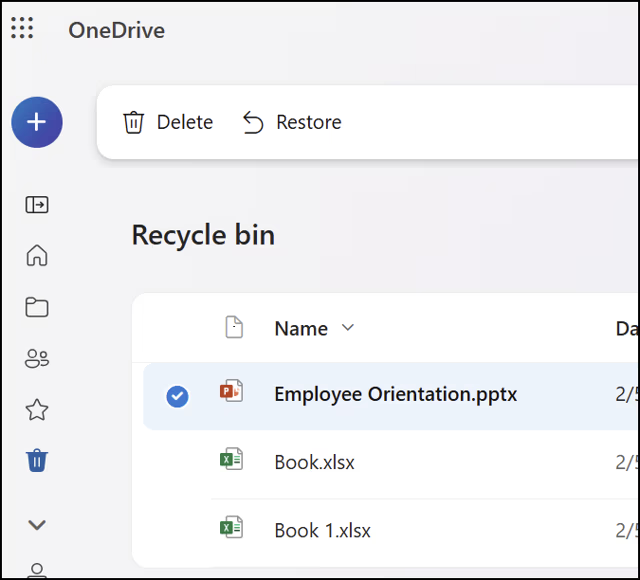
- Step 3: Select your files and click Restore.
Method 2: Version History
If you saved over a file and need an older version:
- Step 1: Right-click the file in File Explorer.
- Step 2: Select Version history.
- Step 3: Browse through the dated versions and click the three dots to Restore the one you need.
Professional Recovery with PandaOffice Drecov
When the built-in recycle bin is empty and the “Version History” shows nothing, you need a professional-grade solution. PandaOffice Drecov is designed for high-stakes data recovery where standard OS tools fail. It can scan your local drive for the “ghost” remnants of files that OneDrive might have deleted during a sync error.
⚠ Warning: Install it on a drive different from the one where your data was lost to prevent overwriting.
How to Use PandaOffice Drecov for Local Recovery
Step 1: Select the Source Drive
Launch PandaOffice Drecov. On the main dashboard, select the local drive (usually C:) where your OneDrive folder was located. Since OneDrive stores local cached copies, the data is often still physically on your disk even if it’s gone from the cloud.

Step 2: Initiate the Deep Scan
Click the “Scan” button. The tool will use advanced algorithms to bypass the file system and look for file signatures.

Key Point: Do not save any new files to your computer during this scan. Writing new data to the disk can overwrite the “deleted” files you are trying to rescue.
Step 3: Filter and Preview
Once the scan is complete, use the search bar to look for specific file extensions like .docx or .jpg. PandaOffice Drecov allows you to preview files before recovering them to ensure they aren’t corrupted.

Step 4: Execute Recovery
Select the checkboxes next to your missing files and click “Recover”.
Warning Prompt: Always save the recovered files to an external drive or a different partition (e.g., Drive D:). Never recover files back onto the same drive you are scanning, as this causes data collision.
Mastering the cloud is only half the battle. If you need to refine how you interact with the cloud to prevent clutter or accidental deletion, explore our specialized guides below:
Optimizing Your Workflow for Continuous Protection
Now that you’ve mastered how to backup files in OneDrive and how to recover them, you should optimize your system to prevent future loss.
Managing Sync Settings
If you find that OneDrive is slowing down your internet, you can adjust the upload rate:
- Go to OneDrive Settings > Network.
- Under Upload rate, select Limit to and set a comfortable speed (e.g., 500 KB/s).
Handling Sync Conflicts
Sometimes two versions of a file exist. Always choose “Keep both copies” if prompted; it is better to have a duplicate than to lose progress on a critical document.
Advanced Maintenance: Registry and Paths
For IT professionals or users dealing with system errors, the OneDrive path is crucial. By default, OneDrive is located at %UserProfile%\OneDrive.
If your backup isn’t working, you may need to check the registry (use regedit with caution):
- Path:
HKEY_CURRENT_USER\Software\Microsoft\OneDrive - Ensure the
UserFoldervalue points to your correct drive.
Backup files in Onedrive FAQs
1. Does “backing up” files in OneDrive keep a copy on my hard drive permanently?
Not necessarily. When you learn how to backup files in OneDrive, you encounter a feature called Files On-Demand. If this is enabled, OneDrive may remove the local copy to save space, leaving only a “placeholder” or “online-only” file. To ensure a physical copy stays on your disk, right-click your OneDrive folder and select “Always keep on this device.” This creates true redundancy between your local hardware and the cloud.
2. Can I backup files in OneDrive that are stored on an external hard drive?
By default, OneDrive only monitors folders on your primary system drive (usually **C:**). However, you can bypass this by using a Symbolic Link (Symlink). By using the Command Prompt (Admin) and the command mklink /d, you can trick OneDrive into thinking a folder on your external drive is actually located within your OneDrive directory. This is an advanced way to backup OneDrive data that isn’t stored locally.
3. What happens to my backups if my Microsoft 365 subscription expires?
If your subscription lapses, your storage limit will drop (usually to 5GB). Microsoft does not delete your files immediately. Typically, your account will be “frozen,” meaning you can view and download your files, but you cannot backup files in OneDrive or upload new data until you either renew or delete enough files to fall under the free limit. Most accounts stay in this state for approximately six months before data is subject to permanent deletion.
4. How can I backup specific file types only, like photos or PDFs?
OneDrive’s “Manage Backup” feature is generally “all or nothing” for the Desktop, Documents, and Pictures folders. If you only want to protect specific file types, the best method is to use the Search function in File Explorer (e.g., search type: .pdf), select all results, and manually move them into a dedicated “PDF Backup” folder within your OneDrive directory.
5. Why do some files show a “Sync Pending” error even after a backup?
This usually occurs due to invalid characters in file names (such as <, >, :, ", /, \, |, ?, *) or if a file is currently open in another program. To resolve this, ensure the file name is simple and the application using it is closed. If the error persists, you may need to reset the app by pressing Win + R, typing %localappdata%\Microsoft\OneDrive\onedrive.exe /reset, and hitting Enter.
Conclusion
Mastering how to backup files in OneDrive is the first step toward total data sovereignty. By integrating automated folder syncing with manual cloud migration, you create a robust safety net for your digital life. However, since sync errors can occasionally lead to data loss, understanding how to backup OneDrive data and recover it via professional tools like PandaOffice Drecov ensures that your files remain protected even when the cloud fails. Combining these proactive habits with a reliable recovery plan provides the ultimate defense against accidental deletion and hardware failure.






