







Managing bookmarks efficiently is essential for anyone who spends time browsing the web. If you’re using Mozilla Firefox, you might eventually need to copy your bookmarks—whether for backup, transferring to another browser, or moving to a new computer. Fortunately, Firefox provides several built-in methods to make this process simple and secure.
In this comprehensive guide, you’ll learn how to copy bookmarks from firefox, including step-by-step instructions, multiple methods, troubleshooting tips, and best practices to keep your data safe. Whether you are a casual user or a technical professional, mastering these workflows ensures your digital library remains intact regardless of hardware failure or software migrations.
Why You May Need to Copy Bookmarks from Firefox
Bookmarks often contain valuable resources such as work tools, research links, and favorite websites. Here are some common reasons to copy them:
- Switching to a new computer: Moving your digital life to a new machine requires seamless data migration.
- Migrating to another browser: If you are testing Google Chrome or Microsoft Edge, you don’t want to leave your links behind.
- Creating a backup: Reinstalling your operating system can wipe local browser data.
- Sharing bookmarks: You might need to send a curated list of research links to a colleague.
- Data Recovery: If your browser crashes, having a copy is the only way to restore your workflow.
No matter the reason, knowing how to copy bookmarks from firefox ensures you never lose important links. Let’s dive into the technical methods available to you.
Method 1: How to Export Firefox Bookmarks to HTML
The most popular and flexible method is learning how to export firefox bookmarks to html. This creates a universal file format that almost any modern web browser can read. This method is the “gold standard” for moving data between different brands of browsers.
Step-by-Step Instructions
- Step 1: Open your Mozilla Firefox browser on your desktop.
- Step 2: Click the Library button (it looks like books on a shelf) or click the Menu button (three horizontal lines) in the top-right corner and select Bookmarks -> Manage Bookmarks. Alternatively, use the hotkey Ctrl + Shift + O (Windows) or Cmd + Shift + O (Mac).
- Step 3: In the Library window that pops up, look at the top toolbar and click the Import and Backup button.
- Step 4: From the dropdown menu, select Export Bookmarks to HTML….
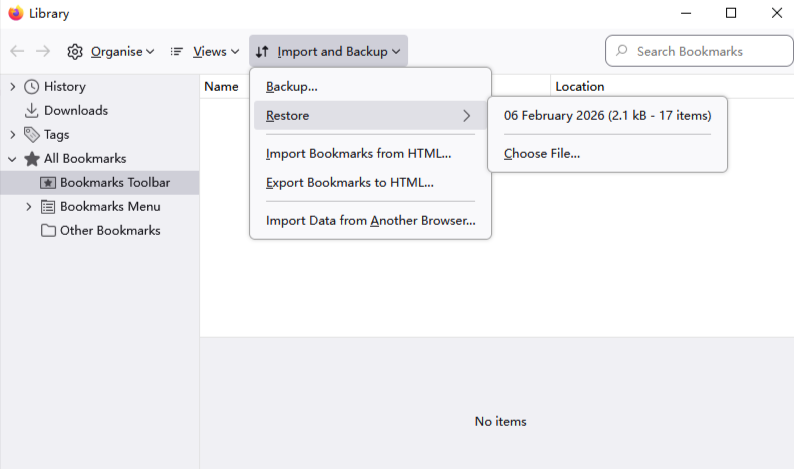
- Step 5: A file explorer window will open. Select a secure location to save the file, such as your Documents folder or an external USB drive.
- Step 6: Name the file clearly (e.g.,
Firefox_Bookmarks_2026.html) and click Save.
Why Use This Method?
- High Compatibility: The HTML format is supported by Chrome, Safari, Edge, and Opera.
- Portability: You can easily transfer this file via email, cloud storage (like Google Drive), or a physical flash drive.
- Ease of Use: This is the most straightforward way for beginners to understand how to copy bookmarks from firefox.
For more official documentation on this process, you can visit the Mozilla Support Page.
Method 2: Finding the Firefox Bookmark Backup File Location
Sometimes, you cannot open the browser to perform an export. In cases of system errors or when you are manually migrating data from a hard drive, you need to know the firefox bookmark backup file location. Firefox automatically creates “safety” backups of your bookmarks in a specific folder.
- Step 1: Press the Windows Key + R on your keyboard to open the Run dialog box.
- Step 2: Type
%APPDATA%\Mozilla\Firefox\Profiles\and press Enter. - Step 3: You will see one or more folders with names ending in
.defaultor.default-release. Double-click your active profile folder. - Step 4: Inside this folder, look for a subfolder named bookmarkbackups.
- Step 5: This is the physical firefox bookmark backup file location. You will see several files with the extension
.jsonlz4. These are compressed backups created by the browser automatically. - Step 6: Copy the most recent file (check the date in the filename) and store it in a safe place.
Warning: These
.jsonlz4files are not meant to be opened by human eyes. They are meant to be “Restored” within the Firefox Library interface. Do not attempt to rename the extension to.html, as it will corrupt the data.
Method 3: How to Copy Firefox Bookmarks to Mobile
In our multi-device world, knowing how to copy firefox bookmarks to mobile is vital for productivity on the go. You don’t need to manually type in URLs; Firefox Sync handles the heavy lifting.
The Setup Process
- Step 1: On your desktop, click the Menu button and select Sign In (or click your account avatar).
- Step 2: Create a Firefox Account or log in to an existing one.
- Step 3: Ensure that “Bookmarks” is checked in the Sync Settings.
- Step 4: Install the Firefox app on your iOS or Android device from the App Store or Google Play.
- Step 5: Open the mobile app, tap the menu, and sign in with the same account.
- Step 6: Wait a few moments for the synchronization process. To find your bookmarks, tap the Menu icon on mobile and select Bookmarks -> Desktop Bookmarks.
By using this method, you are effectively copying your bookmarks across the cloud, ensuring your desktop research is always in your pocket.
Method 4: How to Recover Deleted Bookmarks in Firefox
Accidents happen. You might delete a folder of important links and realize your mistake minutes later. Fortunately, there are two primary ways regarding how to recover deleted bookmarks in firefox: the internal “Restore” feature and external software.
Option A: Using the Internal Restore Feature
- Step 1: Open the Library window (Ctrl + Shift + O).
- Step 2: Click Import and Backup.
- Step 3: Hover your mouse over Restore.
- Step 4: You will see a list of dates. These correspond to the automatic backups Firefox makes. Select a date from before you deleted the bookmarks.
- Step 5: Confirm the prompt.
Note: This will replace your current bookmarks with the ones from that specific date.
Option B: Using PandaOffice Drecov Data Recovery Software
If your Firefox profile folder was deleted, your hard drive was formatted, or the browser’s internal backups are missing, you need a professional-grade recovery tool. This is where PandaOffice Drecov data recovery software becomes essential. It can scan your storage media for deleted .jsonlz4 or places.sqlite files (the database where Firefox stores active bookmarks).
⚠ Warning: Install it on a drive different from the one where your data was lost to prevent overwriting.
Step 1: Select the Scan Location
Launch the program. Select the drive where your Windows user profile is stored (usually the C: Drive). Click “Scan” to begin a deep search for lost browser data.

Step 2: Filter the Results
Since a full drive scan can find millions of files, use the search bar within the PandaOffice Drecov interface. Search for .jsonlz4 or places.sqlite. This will narrow down the results specifically to Firefox data files.

Step 3: Preview and Recover
Look for files located in the \AppData\Roaming\Mozilla\Firefox\Profiles\ path. Select the most relevant files and click Recover. Save them to an external drive.

Step 4: Reintegrate into Firefox
Once you have recovered the places.sqlite file, you can drop it back into your current profile folder to restore your entire history and bookmark database.
After performing these recovery steps, you might find these guides helpful for other data-related issues:
- Troubleshoot external drive visibility
- Find your Firefox data profile
- Roll back system changes on Windows
Advanced Method: Manually Copying the Entire Profile Folder
If you are moving to a brand new computer and want to know how to copy bookmarks from firefox along with your passwords, extensions, and browsing history, manual profile migration is the way to go.
- Step 1: Close Firefox completely.
- Step 2: Open the firefox bookmark backup file location directory mentioned earlier (
%APPDATA%\Mozilla\Firefox\). - Step 3: Copy the folder named
Profiles. - Step 4: Move this folder to a USB drive.
- Step 5: On the new computer, install Firefox but do not open it.
- Step 6: Navigate to the same
%APPDATA%path on the new machine and paste theProfilesfolder there, replacing the existing one.
This “brute force” method is highly effective for IT professionals who want to ensure a perfect 1:1 replica of the browser environment.
How to Import Firefox Bookmarks into Another Browser
Once you have successfully mastered how to copy bookmarks from firefox via the HTML export method, you may want to bring that data into a different ecosystem.
Importing into Google Chrome
- Step 1: Open Chrome and click the three vertical dots.
- Step 2: Navigate to Bookmarks and Lists -> Import Bookmarks and Settings.
- Step 3: Select Bookmarks HTML File from the dropdown.
- Step 4: Choose the file you exported from Firefox.
Importing into Microsoft Edge
- Step 1: Open Edge and click the three dots (
...) or press Alt + F. - Step 2: Click on Settings -> Profiles -> Import browser data.
- Step 3: Click Choose what to import and select Favorites or bookmarks HTML file.
- Step 4: Upload your Firefox file.
Troubleshooting Common Bookmark Transfer Issues
Sometimes the process of learning how to copy bookmarks from firefox hits a snag. Here are the most common solutions:
The “Library” Window Won’t Open
If Firefox is frozen, try opening it in Safe Mode by holding the Shift key while launching the application. This disables add-ons that might be interfering with the Library interface.
The HTML File is Empty
This usually happens if you haven’t selected the “Bookmarks” folder before exporting. Ensure you are in the “All Bookmarks” view in the Library window before clicking the export button.
Sync is Stuck
If you are trying to copy firefox bookmarks to mobile and they aren’t appearing, check your “Sync Settings” on both devices. Often, the “Bookmarks” checkbox is accidentally unchecked on one of the platforms.
Best Practices for Firefox Data Security
Now that you know how to copy bookmarks from firefox, you should implement a routine to ensure you never have to use recovery software like PandaOffice Drecov in an emergency.
- Monthly Exports: Set a calendar reminder to export an HTML backup to a cloud drive like OneDrive or Dropbox.
- Use a Primary Account: Always stay logged into Firefox Sync. It acts as a continuous, off-site backup of your most important links.
- Sanitize Your Links: Before copying bookmarks to a work computer, ensure you aren’t including private or sensitive personal links. You can delete individual items in the Library window before exporting.
- Verify Backup Integrity: Every few months, try importing your backup file into a “portable” version of Firefox to ensure the file isn’t corrupted.
Frequently Asked Questions
Can I copy bookmarks from Firefox to a Mac?
Absolutely. The HTML export method works identically on Windows, macOS, and Linux. Since the file format is universal, you can export on Windows and import on a Mac without any compatibility issues.
Will exporting bookmarks remove them from Firefox?
No. When you learn how to copy bookmarks from firefox, you are creating a copy. The original data remains in your browser until you manually delete it.
How many bookmarks can Firefox handle?
Firefox can technically handle hundreds of thousands of bookmarks. However, having an excessively large database can slow down the browser’s startup time. It is a good idea to prune old, dead links before you perform a backup.
What is the difference between JSON and HTML backups?
HTML files are for transferring data between different browsers. JSON files are for restoring data within Firefox specifically. If you want to move to Chrome, use HTML. If you are backing up your Firefox data to use in Firefox later, JSON is better as it preserves more metadata.
Conclusion
Knowing how to copy bookmarks from firefox is a fundamental digital literacy skill. Whether you use the simple HTML export, the automatic Firefox Sync for mobile, or the deep-dive profile folder method, you have multiple layers of protection for your data.
If you ever find yourself in a situation where your bookmarks have vanished due to a system crash or accidental deletion, remember that tools like PandaOffice Drecov data recovery software are designed to bridge the gap between data loss and total recovery. By following the steps outlined in this guide, you can navigate the web with the confidence that your carefully curated library of links is safe, portable, and always within reach.






