








An OBS recording interrupted by a crash may still contain useful video, but its recovery options depend heavily on the recording container. An unfinished MKV or resilient fragmented recording differs from a traditional MP4 that never received final indexing information. First preserve the recording and identify the format that OBS actually used. Then test a free remux or another existing recording source before assuming that a file recovery scan can repair the video.
Quick answer: identify the container before trying a repair
If the recording exists and its container remains readable, try OBS’s built-in Remux Recordings tool on a copy. A suitable free media tool can also repackage readable streams without re-encoding them. However, a traditional MP4 with missing finalization information may not support ordinary remuxing. If the recording itself is absent, deleted-file recovery becomes a separate task. None of these methods can recreate frames that the encoder never wrote.
OBS is free, and its remux feature does not require a separate repair purchase. Nevertheless, the word remux means moving existing encoded streams into another container, not reconstructing every damaged recording. Define the expected duration, video content, and audio tracks before accepting a result. A short playable opening or a successful progress bar does not prove that the full session survived the interruption.
Establish what OBS actually recorded
Find the real output path and recording session
Inspect OBS’s recording path and your existing session records. A changed output folder can make a completed recording appear missing. Compare the recording start time, filename pattern, and file size. Also check whether OBS split the session into several files. Do not assume that the largest nearby movie is the affected recording. Confirm its content and preserve every plausible session segment before testing conversions.
Keep the original file unchanged and place a working copy on healthy storage. If the recording disk is nearly full, do not create large repair outputs beside the only original. Use another disk with enough space. Also avoid starting a new long recording on the affected source while you investigate a missing file. New writes can reduce recovery options and make the session evidence harder to interpret.
Distinguish traditional, fragmented, and hybrid output
The extension alone does not always reveal the recording method. OBS supports different MP4-related modes with different resilience characteristics. Traditional MP4 normally needs finalization, while fragmented or hybrid designs preserve information differently. Check the output format configured for the affected session and, where available, inspect a copy with a media information tool. Do not rename MKV to MP4 and expect the container structure to change.
MKV often provides a useful recovery starting point after an unexpected stop, but damaged storage can still leave unreadable or incomplete data. Similarly, a resilient container does not guarantee every final frame survived. Therefore, use the format as a guide to the next test rather than as proof of success. The actual readable streams, duration, and audio content determine how much useful recording remains.
Free route 1: use OBS Remux Recordings
- Preserve the original recording and create a working copy.
- In OBS, choose File and then Remux Recordings.
- Select the readable source and a separate output location, then start remuxing.
- Play the output and compare its duration, picture, and audio tracks with the intended session.
This is a good first test when the source container remains readable but the destination editor expects another container. It can also make a recoverable interrupted recording easier to use. However, remuxing does not recreate missing encoded packets or repair every absent index. If OBS rejects the source, record the error and keep the original. Repeating the same operation under different filenames usually provides no new evidence.
Validate more than the first minute
Check playback near the start, middle, and interruption point. Seek to several later positions and listen for synchronization changes. Also inspect whether the remux preserved every required audio track. A player may select only one track by default, which can make an intact multitrack recording sound incomplete. Compare the available streams with the OBS track assignment you intended for that session.
If the result plays but ends early, document the last usable time rather than describing the whole session as recovered. A partial recording may still contain the important presentation or interview. Save that useful output separately and preserve the source for further tests. Additionally, avoid re-encoding the only candidate before you know whether an ordinary remux already preserves the best available quality.
Free route 2: test readable streams with FFmpeg
- Obtain FFmpeg from its official project resources if you do not already have it.
- Work on a copy and inspect whether FFmpeg recognizes the input streams.
- Try a stream-copy remux to a new output, preserving relevant tracks where the destination supports them.
- Review the tool’s messages and test the resulting file throughout its usable duration.
A basic example for a readable compatible source is ffmpeg -i "input.mkv" -map 0 -c copy "recovered.mkv". Adjust filenames and destination intentionally, and do not use the original path as output. This command asks FFmpeg to copy recognized streams rather than invent missing frames. It may fail when the source structure or encoded data is unreadable. Treat its messages as diagnostic evidence, not as a reason to keep adding random repair flags.
Choose the destination container deliberately
Not every container supports every video, audio, subtitle, or metadata stream. A command that fails when copying to MP4 may reflect an unsupported stream combination rather than total recording loss. Try a suitable supported container and inspect what remains. Also compare stream counts before and after the operation. An output that silently omits a required microphone track may not meet the actual recovery goal.
Do not present transcoding as the default repair. Re-encoding can help create a playable derivative from readable content, but it takes time and can change quality, timing, or metadata. Preserve the best stream-copy result first when possible. If you need a compatibility transcode, make it a separate deliverable and label it accordingly. This keeps the source available for a better method later.
Free route 3: retrieve an existing parallel recording
- Check whether the same event has a saved platform recording, authorized local recording, or independent camera capture.
- Retrieve an existing copy through the service’s normal supported interface.
- Compare its time range, layout, and audio with the missing OBS session.
- Preserve it separately and document any differences from the local recording.
A stream archive can preserve important content when the local recording is incomplete, but only if the platform actually retained one. A live broadcast does not guarantee an available archive. Also, a platform copy may use lower quality or a different audio mix. Verify that it includes the required segment and permissions for your intended use. Do not describe an online listening copy as an equivalent production master without checking it.
Compare audio coverage carefully
OBS can send one mix to a stream while recording several isolated tracks locally. A platform archive may therefore preserve the program sound but omit an isolated microphone or music-free track. Keep this distinction visible during recovery. If an independent recorder contains the missing voice track, align it against the usable video and check synchronization across the full duration. A clap or clear spoken event can provide an initial reference.
Similarly, a camera recording may preserve the speaker but omit screen content or overlays. Combine sources only through a deliberate editing workflow and document the reconstruction. The result can still meet an urgent need, but it is a rebuilt program rather than a complete repair of the original OBS file. Preserving each source independently keeps later quality improvements possible.
Understand the traditional MP4 limitation
A traditional MP4 interrupted before finalization may lack information that ordinary players and remuxers need. A large file size alone cannot prove that a general conversion command can open it. If the tool reports missing container metadata, distinguish that from an unsupported codec. Consult format-specific guidance before trying specialist repairs. Some approaches require a matching reference recording and still cannot guarantee a complete result.
Do not create a reference recording on the affected disk if the original file is missing and you still plan deleted-file recovery. That new write can work against the storage search. If a specialist method is appropriate, create any necessary test material on separate healthy storage and preserve the original. Also be cautious about promises that one small header replacement restores every interrupted recording. Encoder settings, timing, and actual media damage can differ.
Separate unsupported playback from damaged content
Try a current suitable player on a copy when the recording exists but one editor rejects it. A container or codec support difference can block import without destroying the video. Check the detected codec, resolution, and stream list. If another tool plays the entire recording correctly, a compatibility conversion may be more appropriate than file repair. Preserve the original high-quality source while creating the editor-friendly derivative.
Conversely, if several independent tools fail at the same point or report unreadable data, investigate the file and storage condition. Do not infer a hardware cause from one application error alone. Record what each controlled test shows. This reduces guesswork and prevents an unnecessary transcode from hiding the distinction between a format limitation and genuinely missing portions of the session.
Example: recover a lesson with separate microphone audio
Suppose OBS recorded a lesson to MKV with desktop sound and microphone on separate tracks. A power failure interrupts the final minute. The MKV opens in a player, but the editing application rejects it. First preserve the source and use OBS remuxing. Then inspect the resulting streams and select the microphone track explicitly. Hearing only desktop audio in the player’s default track does not prove the microphone recording is gone.
Next, seek near the interruption and identify the last complete sentence. Compare the duration with the lesson outline. If a platform archive contains the final explanation, preserve that copy and reconstruct the missing ending transparently. Save the stream-copy recording, the archive, and the rebuilt edit separately. Finally, document the quality and track differences so the next editor understands the available material.
Use recording evidence to choose the next test
Read the session context
Keep the relevant OBS session information alongside the original recording. The configured path, container, encoder, audio-track assignment, and interruption time help explain what you should expect. Do not assume that the current settings match an older recording if you changed profiles after the event. Compare the actual session and file evidence. This avoids testing a traditional MP4 with expectations that belong to a later hybrid configuration.
Also record whether OBS stopped, Windows crashed, the disk disconnected, or the computer lost power. These events can leave different boundaries in the output, although the event alone does not prove the file’s condition. A controlled media inspection should establish which streams remain readable. Keep observations separate from guesses so another investigator can understand why you selected remuxing, compatibility conversion, or a different recording source.
Distinguish an absent file from an incomplete one
If no recording appears, confirm the output folder and any automatic splitting before scanning. If a file exists, compare its readable duration and streams before assuming deletion recovery will help. A scan can retrieve another candidate only if recoverable data remains on the source. It does not automatically add finalization information to the same incomplete MP4 you already possess. Those are different technical tasks with different success criteria.
Preserve partial files even when they fail in your preferred editor. Another suitable tool may read useful content, or a specialist procedure may later salvage more. Conversely, do not treat a huge file as guaranteed recoverable. It may contain unreadable packets, incomplete metadata, or material from only part of the session. The recovery plan should follow actual playback and parsing evidence rather than file size alone.
Validate every required stream
Multiple audio tracks
Compare the recording’s stream list with the intended OBS track assignment. A player often chooses one track, while an editor may expose several. Listen to each required track and identify its purpose: program mix, microphone, desktop sound, or another source. This prevents a default playback choice from becoming a false report that audio disappeared. Also check whether the remux destination supports the combination you intend to preserve.
If one track is silent, distinguish a recording configuration issue from damaged data. Review the session setup where evidence exists, but do not invent sound that was never routed to the recording. An independent recorder or authorized event archive may provide a replacement. Keep that source separate and document synchronization work. A rebuilt soundtrack can be useful while remaining different from full recovery of the original isolated tracks.
Seeking, timestamps, and synchronization
Play from the beginning, then seek directly to later points and compare audio with visible events. Some problems appear only when seeking or near an interruption boundary. Also inspect the reported duration against the actual usable ending. A player can report a plausible length while failing to reach the final section. Record the last reliably playable moment so editors know what material they can use immediately.
If timing behaves differently across tools, preserve the source and compare a stream-copy derivative. Do not repeatedly transcode the only candidate while searching for a quick fix. A new encode can hide or introduce timing differences and make the original evidence harder to assess. Keep each test output clearly named and note its purpose. This makes it possible to select the best usable recording rather than the most recent conversion.
Video detail and missing intervals
Inspect rapid movement, text on screen, scene changes, and several points near the failure. A recording can remain broadly playable while containing a gap or frozen interval. Compare it with event notes or an existing parallel source. Also check the intended resolution and frame rate. A lower-quality archive may preserve missing content, but it should not silently replace a higher-quality local recording that remains usable elsewhere.
For an important presentation, identify the exact slides or demonstrations covered by any gap. This helps plan a focused pickup recording instead of rerecording the entire event. Preserve the original audio and timing context where useful. Label the replacement segment as reconstruction in your working notes. That keeps the final program coherent while accurately reflecting which material survived and which you created after the incident.
Create a compatibility copy without losing the source
Remux first when appropriate
If the streams are readable and the destination supports them, a stream-copy remux can preserve the existing encoded content with less processing than a full transcode. Test the resulting file in the actual editing workflow. A successful remux in one player does not prove compatibility with every editor. Keep the original and compare stream counts, duration, and representative playback before accepting the derivative.
If a transcode is necessary, choose settings for the intended delivery and retain the stream-copy source where possible. Do not claim that a larger output restores missing quality. Also inspect audio channel handling and frame timing after conversion. A compatibility derivative should solve a specific import or playback requirement, while the untouched source preserves the best opportunity for a more faithful future recovery.
Verify the next recording workflow
After recovery, test the container and editor combination you plan to use. Make a short ordinary recording with the intended audio tracks, stop it normally, and confirm import, seeking, and export. Inspect current OBS guidance for resilient formats supported by your version. Do not deliberately interrupt an important production recording as a casual test. Use expendable test material and separate healthy storage for any controlled experimentation.
Also verify available space and independent copies before the next long event. A resilient container reduces one risk, but it does not prevent accidental deletion, source-disk failure, or an incorrect audio assignment. Keep a practical checklist for path, format, track routing, and backup. These checks provide different protection layers and give a future recovery more evidence than a single large file with an unfamiliar extension.
When PandaOffice Drecov may help
A deleted-file scan becomes relevant when the recording is absent from supported storage, not merely unplayable in one editor. PandaOffice Drecov may locate a recoverable recording candidate, but it does not guarantee container finalization or reconstruction of missing video frames. Check current support and preview what the interface makes available. A recovered MP4 filename remains only a candidate until playback and stream validation succeed.
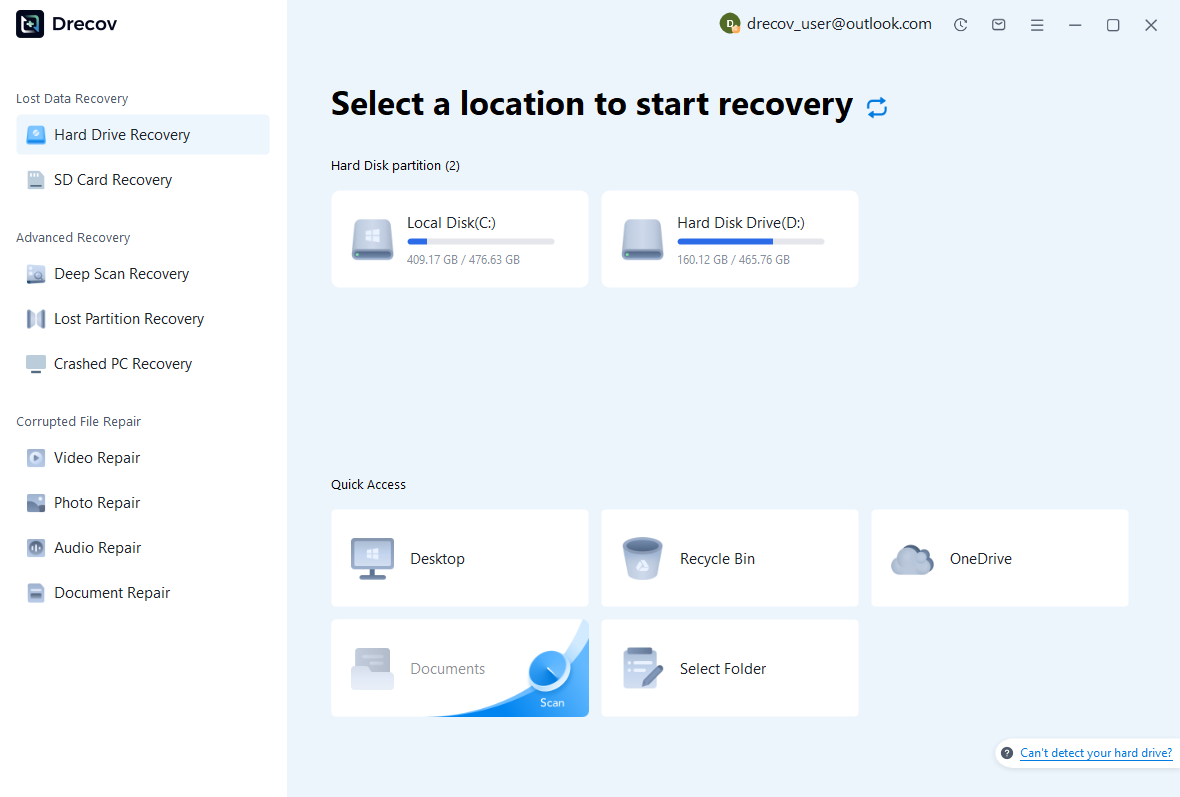
Step 1: select the original recording disk
Use the recording path and session notes to identify the correct source. The OBS installation disk may differ from the output disk. Avoid installing recovery software or recording new material on the affected source. If the disk becomes unstable or disconnects, stop repeated scans and assess the device. A reliable read path matters before a large video search can produce trustworthy results.
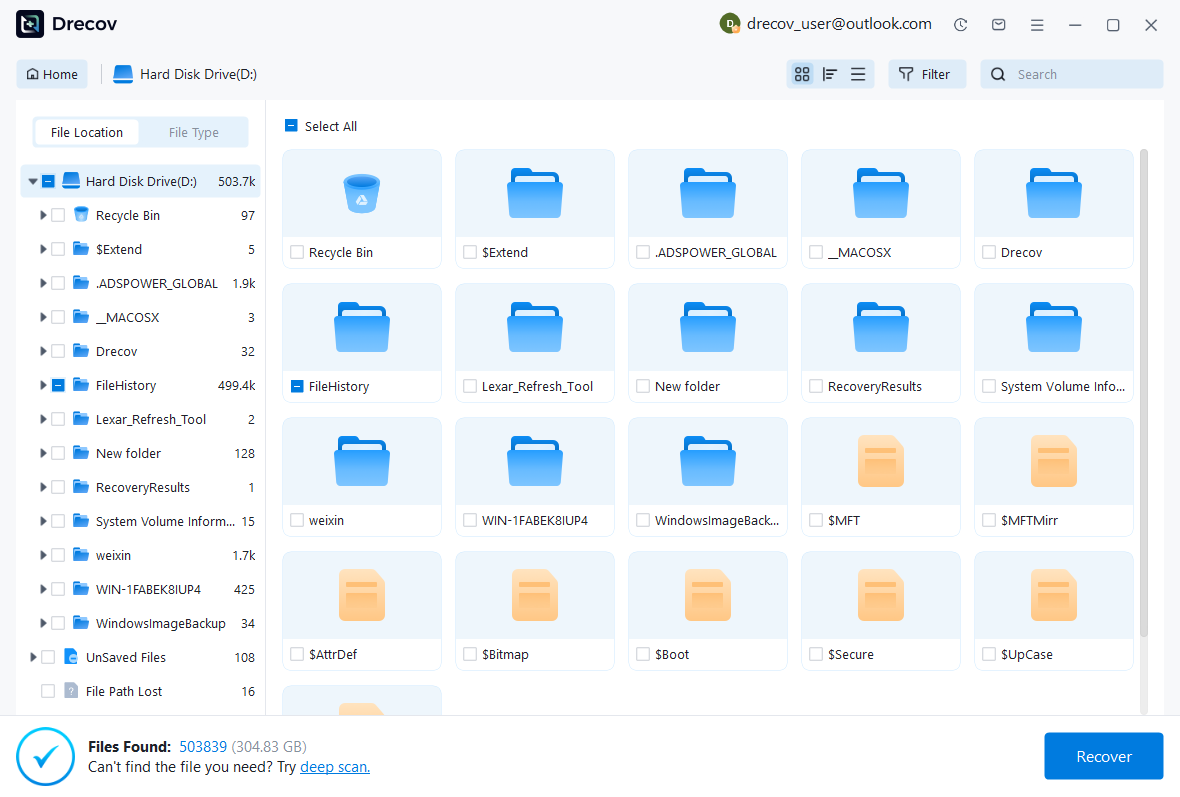
Step 2: inspect plausible recording candidates
Use available name, date, size, and format filters. Preserve split session files and multiple plausible candidates when the session boundary is uncertain. A video preview can help identify content, but it may not test the full duration or every audio track. Keep the original source details with each candidate. This helps you connect recovered pieces without confusing unrelated recordings from the same day.
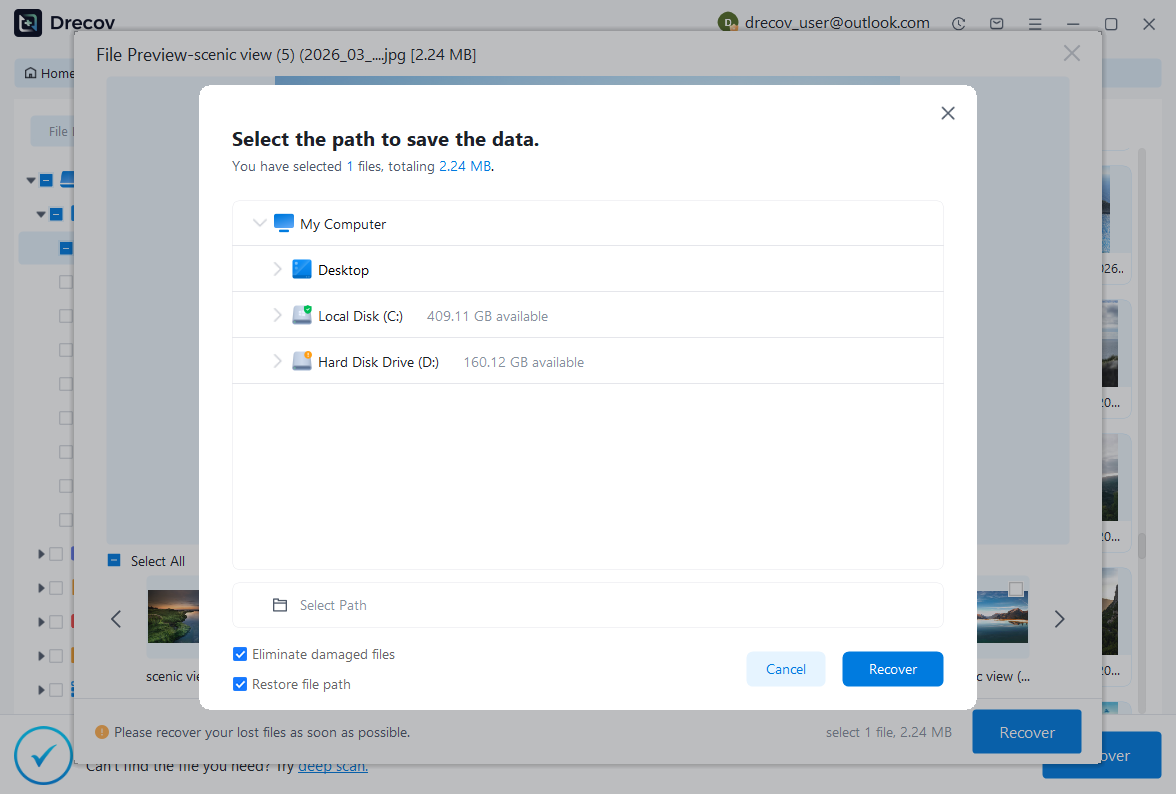
Step 3: recover elsewhere and test the full usable range
Save candidates to a different healthy physical disk with sufficient free space. Review current licensing and recovery limits before purchasing. Then test the actual recording in suitable media tools. If it requires remuxing, work on another copy and retain the recovered source. Finally, verify duration, seeking, audio tracks, and synchronization. Storage retrieval and container usability are separate checks that both matter to the result.
Validate the recovered recording
Check the beginning, several middle points, the final usable section, and any moment that matters to the event. Inspect resolution, frame rate, audio track count, and synchronization. Also seek directly to later timestamps to reveal indexing or duration problems. A file that plays only from the beginning may still need attention before editing. Save a short validation note that records the usable time range and any missing content.
Keep the original recording, stream-copy salvage, compatibility derivative, and reconstructed edit under distinct names. Afterwards, test a resilient recording format supported by your OBS version and editing workflow. Make a short controlled recording, stop it normally, and confirm the full export path. Also protect important sessions through independent copies. A safer container reduces one failure mode, while a separate copy protects against deletion and disk loss.
Questions that change the recovery decision
Does remuxing improve image quality?
Stream-copy remuxing preserves existing encoded streams rather than improving their detail. It can make a readable recording usable in another application, but it cannot restore quality that the encoder never captured. Keep the original and compare the result. If a later transcode is necessary for compatibility, treat it as a derivative and choose settings appropriate to the task rather than claiming it creates a better original.
Can I recover the final seconds after the crash?
Only content that reached recoverable storage can survive. A resilient container may preserve most of an interrupted session while losing the last unwritten portion. Compare the recovered ending with an independent source or event notes. If no source contains those seconds, state the gap honestly and plan a targeted replacement. Repeatedly converting the same readable file cannot invent the missing explanation or frame sequence.
Related recovery resources
Explore the relevant recovery options: Hard drive recovery, External hard drive recovery.
For another recovery case and its practical checks, read the related recovery guide.
Check the vendor guidance for the installed version: official recovery documentation 1, official recovery documentation 2, official recovery documentation 3, official recovery documentation 4.





