







A lost LibreOffice Writer document can leave several useful traces: an AutoRecovery candidate, a previous-save BAK, an existing ODT copy, or readable content inside a damaged document package. These are different recovery routes with different limits. Before restarting repeatedly or clearing the user profile, preserve the files you still have. Then identify whether you need unsaved edits, an overwritten version, or content from an ODT that no longer opens.
Quick answer: check AutoRecovery and the configured backup folder
After a crash, inspect LibreOffice’s recovery prompt and save any useful result under a new name. If a saved document was overwritten or damaged, inspect the configured Backups path for an existing BAK. For a damaged unencrypted ODT, a copy may still contain readable text or embedded pictures even when Writer cannot open the complete document. These free routes target specific evidence rather than promising that every temporary file contains the latest manuscript.
LibreOffice itself is free, but recovery still depends on material that existed before the loss. Enabling AutoRecovery or backup copies now cannot recreate an earlier snapshot. Also, restoring readable text does not automatically restore styles, comments, tracked changes, or page layout. Define those requirements before you accept a partial salvage. A complete manuscript and a few extracted paragraphs should never share the same success label.
Diagnose the missing document
Unsaved, overwritten, deleted, or unreadable?
Start with the actual project folder and full filename. A recent-document entry may point to a moved location, so inspect the path before concluding that Writer lost the file. If an ODT exists, record its size and exact opening error. If it opens but lacks recent text, compare its content with the expected revision. These observations determine whether AutoRecovery, a BAK, another copy, or deleted-file recovery is relevant.
Write down the last section you edited, the approximate word count, and any important tables or figures. This gives you a practical acceptance test. For example, a recovered document may contain all chapters but omit the final conclusion and review comments. Also note whether you originally saved as ODT or another format. A DOCX edited in Writer still needs format-appropriate handling rather than an assumption that every document is an ODT package.
Preserve the profile and project evidence
Do not reset the LibreOffice profile or empty temporary directories before preserving relevant recovery material. The configured paths can differ between installations and user accounts. When possible, inspect the actual settings rather than copying a generic path from another computer. Keep readable candidates in a separate recovery folder with their original names and source locations recorded. This makes later comparisons much clearer.
If the document lived on a failing disk, stop repeated opening attempts when reads become unstable. A healthy application cannot repair an unreliable storage connection merely by retrying. Conversely, if the file opens from a verified local copy, investigate its original location and access conditions. Distinguishing a storage problem from a document problem helps you choose a useful next step without altering the only remaining original.
Free route 1: recover the interrupted Writer session
- Preserve available document candidates and avoid cleanup after the crash.
- Restart LibreOffice and inspect the document recovery dialog if it appears.
- Recover the relevant document and compare the latest edited section.
- Save a new ODT in a healthy location, then reopen that saved copy.
AutoRecovery stores information intended to help after an unexpected interruption. Its usefulness depends on what the application managed to preserve. A crash between intervals can leave a gap, and a deliberate close without saving is a different situation from a crash. Therefore, inspect the actual recovered text before assuming the latest edits survived. Keep the recovery candidate separate from your last manual save until comparison finishes.
Check the ending and review information
Start with the final edited paragraph, then inspect nearby headings, tables, footnotes, and references. Also check comments and tracked changes if they matter to the project. A document can display the expected text while losing editorial context that a reviewer still needs. Record any missing review information explicitly. This prevents a technically readable document from moving into production with unresolved editorial omissions.
Next, compare the beginning and several middle sections. Look for duplicated passages, missing figures, or changes in numbering. Save the initial recovery before correcting anything. Afterwards, create a working revision and reapply only the changes you can verify. This keeps a clear boundary between material the application recovered and material you reconstructed from memory or another source.
Free route 2: open a previous-save BAK
- Inspect Tools, Options, LibreOffice, Paths to identify the configured Backups location.
- Find a matching BAK and copy it to a separate recovery folder.
- Open the duplicate through Writer, using an appropriate file filter if necessary.
- Save a new ODT and compare its revision before replacing any current document.
When the backup-copy setting was active, LibreOffice can preserve the previous saved state as a BAK in its backup directory. Further saves can replace that backup, so preserve it promptly. It is not an unlimited revision archive. A BAK may lack the latest edits while still containing a complete earlier manuscript. Compare the content against your acceptance list instead of rejecting it solely because its date is older.
Confirm the original document format
The BAK extension describes a backup role rather than one universal internal format. A backup of an ODT differs from a backup of another document type. Open a copy through the appropriate application workflow and preserve the original name. If you rename a duplicate to its known original extension, show full filename extensions first. Otherwise, you can accidentally create a misleading double extension and mistake a naming problem for unusable content.
Also check for naming collisions. Several documents with the same base name can produce confusing backup candidates across folders or accounts. Use recognizable text and document structure to identify the correct one. Furthermore, record the source backup directory and its associated user profile. That evidence helps another person compare candidates without assuming that every file named report.bak belongs to the current manuscript.
Free route 3: extract readable content from an ODT copy
- Preserve the damaged ODT and create a separate duplicate.
- Inspect the duplicate with a suitable archive tool if it is an ordinary unencrypted ODT package.
- Copy readable content.xml and available Pictures material to a separate salvage folder.
- Extract or reconstruct useful content into a new Writer document and label missing structure clearly.
ODT documents commonly use a package containing XML and supporting assets. If part of that package remains readable, you may salvage text or pictures even when Writer cannot open the whole document. However, this is a partial-content method, not a guaranteed repair. An encrypted document requires legitimate credentials and appropriate handling. A zero-byte or severely truncated file may contain nothing useful to extract.
Preserve XML before cleaning it
Keep an untouched copy of any readable XML before removing tags or copying passages. XML markup can carry paragraph boundaries, tables, references, and other structure. A crude tag removal can join words, reorder content, or discard information you later need. Instead, inspect a copy and reconstruct the important passages carefully. Compare extracted text with any available proof to catch missing sections and character problems.
Do not describe raw XML as a finished recovered manuscript. Styles, comments, tracked changes, fields, and layout can require separate work. Similarly, extracted pictures may use internal names that do not match the original filenames. Inspect them visually and associate them with the correct captions. Keep an extraction note so the editor understands which content survived and which formatting you rebuilt manually.
Free route 4: reuse existing manuscript copies and exports
- Search your own project deliveries, attachments, and approved collaboration folders.
- Copy promising ODT, DOCX, PDF, or text versions to a separate workspace.
- Compare the final edited section and any review information.
- Use the best surviving source as a recovery candidate or reconstruction reference.
An earlier editable delivery can preserve far more structure than an extracted text fragment. However, it may lack later changes. Compare versions deliberately rather than choosing the one with the most reassuring filename. A PDF can show the intended wording and page appearance while losing the original editing structure. Use it as evidence and reconstruct carefully where no editable candidate exists.
Combine complementary sources without hiding omissions
Suppose an older ODT has intact styles and comments, while a later PDF includes the final conclusion. You can preserve the older document as a base and reapply the verified conclusion from the PDF. Record that reconstruction. Also compare punctuation, special characters, and table content after copying. A visual match at page level can conceal text extraction errors that affect meaning.
If a colleague already has an authorized project copy available through your normal workflow, that existing material may provide another milestone. Do not assume it is current merely because it arrived later. Compare its content with your change notes. Furthermore, retain separate copies of every useful source until review finishes. Combining sources is a controlled editorial task, not a reason to overwrite all earlier evidence immediately.
Rule out a display or application problem
If several unrelated documents fail, test a known healthy file and investigate LibreOffice’s environment separately. A user-profile issue or unavailable font can affect behavior without corrupting every document. However, preserve recovery material before resetting settings. Use copies and change one relevant factor at a time. This keeps the test interpretable and avoids sacrificing the recovery evidence merely to restore normal application startup.
If only one ODT fails while other documents open, focus on that file and its alternatives. Copying a readable source to a healthy local folder can help isolate access or transfer issues. Obtain a fresh existing source copy when a transfer clearly failed. Do not repeatedly save an uncertain document over its original. Every candidate should retain a traceable source and a clear result note.
Example: recover a report with a missing final chapter
Imagine a report with several tables, footnotes, and a final chapter written shortly before a crash. AutoRecovery restores most of the chapter but misses its last two paragraphs. A BAK contains the earlier complete structure, while a recently exported PDF includes the final wording. First preserve all three. Compare the recovered ODT with the PDF and reconstruct only the verified missing paragraphs.
Next, inspect table numbering, footnotes, and the contents page. A restored paragraph can alter page breaks, so check the layout after updating any fields through the normal workflow. Save a new master and generate a comparison PDF. Finally, document the two reconstructed paragraphs and any review information that remains absent. This gives the editor a clear, usable result rather than an unexplained claim of complete recovery.
Compare manuscript candidates without losing revision context
Use content milestones rather than filenames
Create a short comparison record for each candidate. Include the final chapter present, latest correction, table count, comments status, and any opening warning. Use specific observations such as conclusion complete but review comments absent. This provides a better basis for choosing between AutoRecovery and BAK than names such as final or final2. Also preserve the candidate’s original path and filename in the record.
Keep the first opened state unchanged while comparing. If you need to update fields, accept changes, or repair formatting, create a working revision first. Those actions can alter the evidence you are trying to assess. Furthermore, distinguish content that Writer recovered from content you retyped or copied from another source. A clear boundary makes editorial review easier and prevents reconstructed wording from appearing to have survived automatically.
Prioritize unique text
When no candidate is complete, identify which passages have no other source. A technical conclusion, new interview quotation, or late reviewer correction may be more valuable than formatting you can recreate. Preserve those passages first in a separate document. Then compare older editable copies for structure and styles. This approach reduces the risk of losing irreplaceable words while spending time polishing an incomplete recovery candidate.
If you reconstruct text from memory, mark it for review. Memory can help draft a replacement, but it does not prove the exact original wording. Compare against notes, references, or an approved proof where available. Also keep the original damaged file and extracted material until the editor accepts the result. Another pass may recover a phrase or table value that improves the reconstruction later.
Inspect document features beyond visible paragraphs
Tables, formulas, and embedded objects
Check table row and column counts, merged cells, captions, and important numeric values. A recovered document can retain surrounding text while losing an embedded object or part of a table. Compare against a reference source rather than inferring values from a distorted layout. Also test any linked spreadsheet or embedded object through the normal application workflow if it remains essential to the manuscript.
When an object is missing, look for its independent source file before recreating it from a screenshot. A source spreadsheet may preserve formulas and precision that a PDF image does not. Keep the recovered manuscript and external source together in the accepted project. Document any manually rebuilt table or formula so a subject reviewer knows where focused checking is necessary.
Review comments and tracked changes explicitly. An apparently complete final text can still omit the editorial discussion or unresolved changes needed for approval. Do not accept all changes merely to simplify comparison. First preserve the candidate and establish which review state the project requires. If a partial extraction loses that information, state the limitation even when the visible paragraphs appear correct.
Also inspect footnotes, endnotes, bookmarks, and cross-references relevant to the document. Their absence may not be obvious in a quick read. Update fields only after preserving the recovered baseline, then compare the resulting references. This prevents a formatting cleanup from concealing a deeper content gap. A technically valid ODT needs both textual and editorial validation before it can serve as the current master.
Images and captions
Inspect every essential figure at useful size and verify its caption. An ODT package may preserve an embedded picture under an internal filename, while an external linked image can remain outside the document. Determine which source you have before replacing it. A thumbnail or low-resolution proof can support reconstruction but may not satisfy the final publication’s image requirements.
If several extracted pictures look similar, compare their content and dimensions before assigning them to captions. Do not rely on the order in which an archive tool lists them. Keep the extracted originals unchanged and use copies in the rebuilt manuscript. Also record any substitute figure. This helps prevent a polished-looking recovery from pairing the wrong diagram with an otherwise correct technical explanation.
Rebuild from ODT content carefully
Preserve structure during extraction
Readable XML can contain text split across several elements. A simple copy or tag removal can join words, omit spaces, or disturb table order. Work on a duplicate and compare the output passage by passage. Preserve the raw extracted XML so you can revisit an uncertain section. If the document uses unusual characters or mathematical notation, inspect them particularly carefully after reconstruction.
Create a clean new Writer document for the accepted text instead of repeatedly overwriting the damaged package. Reapply styles deliberately and compare chapter boundaries. Then add verified figures and tables. This is a controlled reconstruction route, not proof that the original package has been repaired. Keeping that distinction clear makes the result easier to review and reduces the chance of carrying unexplained corruption into the new master.
Establish a portable accepted manuscript
Save the accepted ODT in its intended project folder and reopen it. Confirm that external links resolve and that the document no longer depends on temporary extraction paths. Generate a comparison PDF and review the complete manuscript, including the rebuilt sections. Keep the editable master and final export clearly associated by revision so another editor can identify the current source without guessing.
Retain damaged originals, useful BAK and AutoRecovery candidates, extracted material, and reconstruction notes until approval finishes. Afterwards, protect major editorial milestones independently and test an actual restore. Also include source figures and linked objects in the backup plan. Protecting the main ODT alone can preserve prose while leaving the next production revision incomplete because its supporting material is unavailable.
When PandaOffice Drecov may help
A storage scan may be useful when the ODT, BAK, or source asset is genuinely absent from supported media. PandaOffice Drecov does not recreate unsaved text that never reached disk or guarantee repair of a damaged ODT package. Check current format support and available previews. Also distinguish the task of finding a deleted file from extracting content from one that still exists.
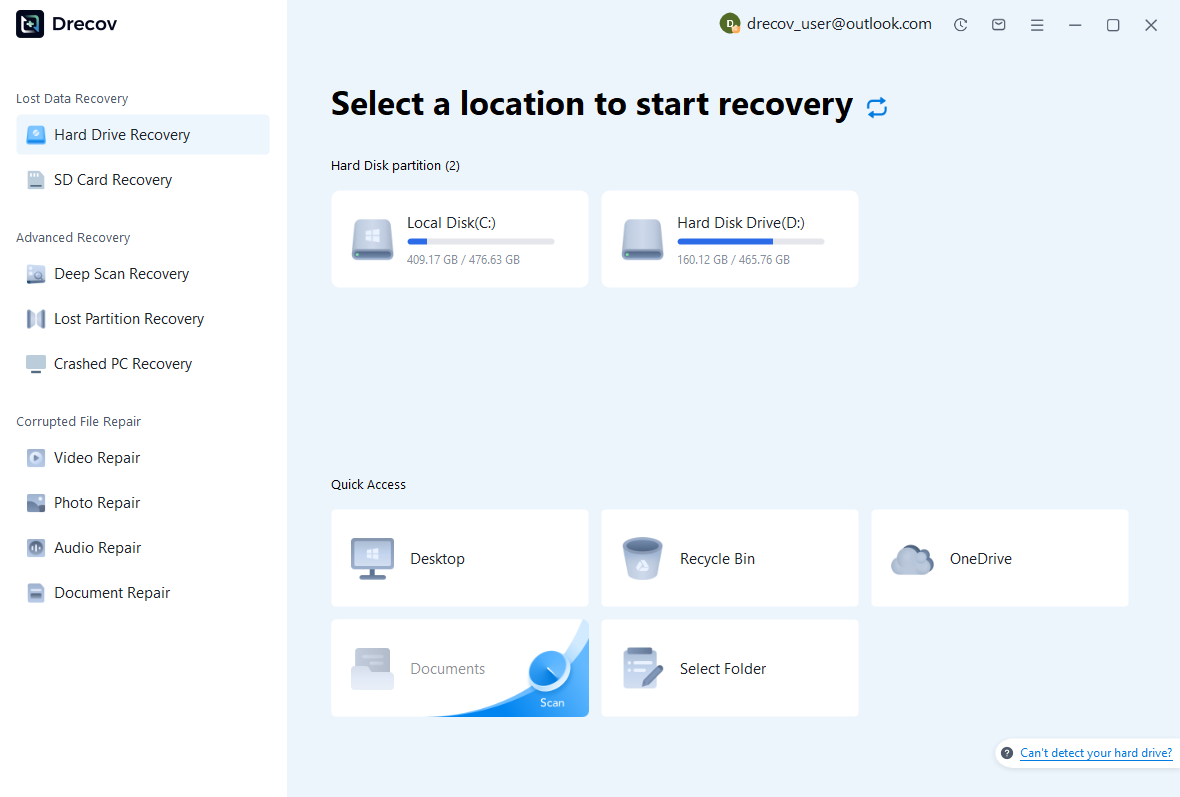
Step 1: choose the correct original source
The manuscript folder and LibreOffice backup path may live on different disks. Identify which location held the missing candidate before scanning. Avoid installing software or writing new reports onto the affected source. If the device becomes unstable, stop repeated scans and assess the hardware condition. A reliable read path matters before any file recovery utility can produce useful evidence.
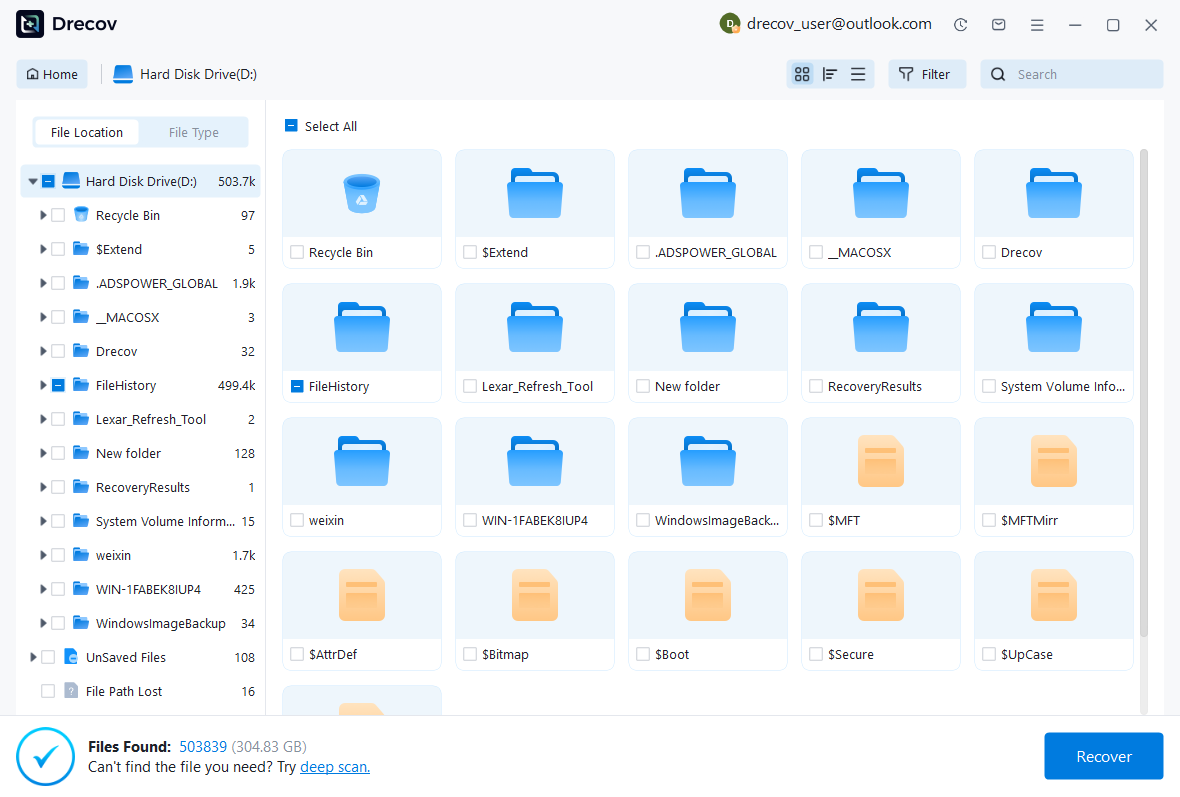
Step 2: compare document candidates
Use available name, date, folder, and file-type filters. Preserve several plausible versions if the manuscript’s revision history is unclear. A filename or size match does not prove that the document contains the final chapter. Also keep any associated images when the report depends on them. Record the source details so you can compare recovered ODT and BAK candidates without losing their context.
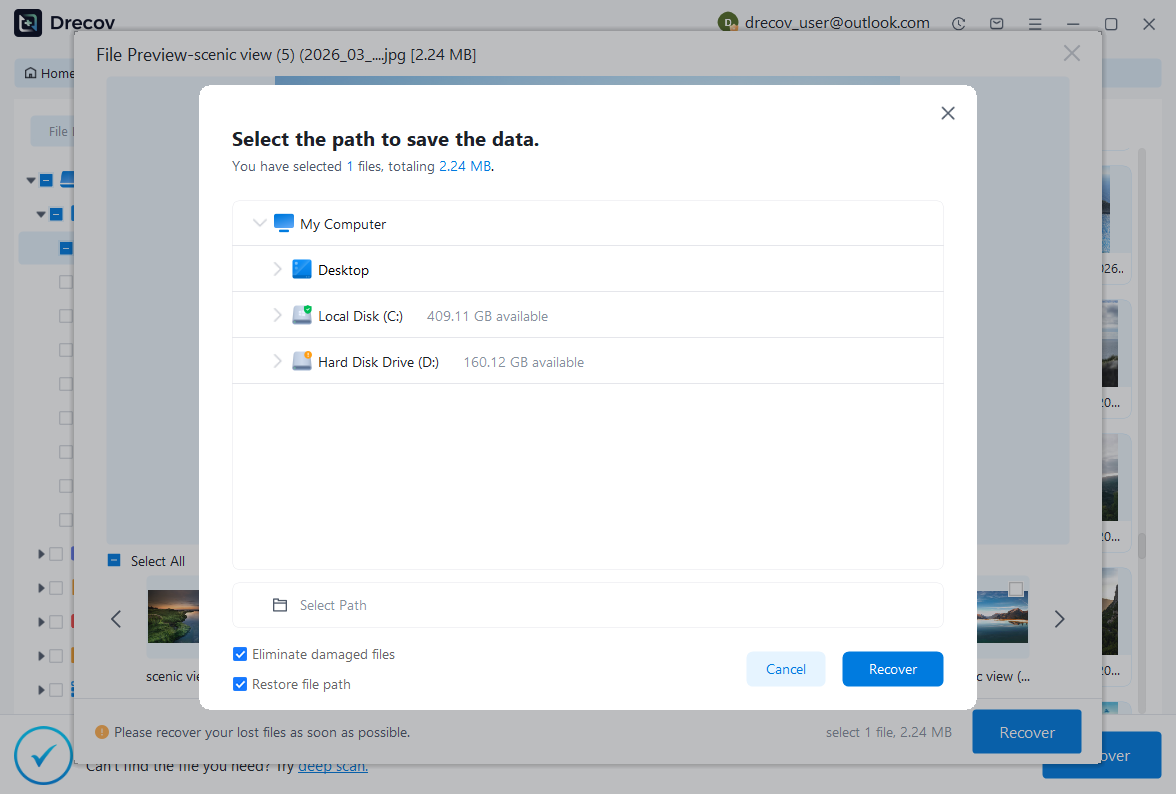
Step 3: recover elsewhere and inspect in Writer
Save useful results to a different healthy physical disk. Review current licensing and recovery limits before purchasing. Then open copies in Writer and compare their actual text, tables, and review information. If preview is unavailable for a candidate, treat that as a limitation rather than proof of success. The meaningful outcome is a verified manuscript, not merely a recovered name in a result list.
Validate the recovered manuscript
Check the first and last sections, chapter order, tables, figures, footnotes, comments, and tracked changes. Compare the exact material edited before the incident. Then save, close, and reopen the accepted ODT. Generate a PDF through the normal workflow and review it for missing content or unexpected reflow. A clean open and a correct word count do not independently prove editorial completeness.
Keep the damaged original, useful candidates, extracted content, and accepted master until review finishes. Document any reconstruction or missing review data. Afterwards, choose suitable AutoRecovery and backup-copy settings, and preserve major manuscript milestones independently. Also retain essential source figures. A recovery plan that protects only the main text may still leave a technical report incomplete when its diagrams or tables disappear.
Questions that prevent misleading results
Does AutoRecovery save every keystroke?
No. Recovery depends on information the application preserved before the interruption. A crash between intervals can leave a gap. Compare the final edited section and document any missing words. For future work, combine recovery settings with deliberate milestone saves and independent copies. If no surviving source contains the final paragraph, a storage scan cannot recreate it from a memory state that no longer exists.
Can a damaged ODT always open as an archive?
No. The package may be encrypted, truncated, or too damaged for an archive tool to read. Work on a copy and preserve the original. If extraction succeeds, review the actual content and acknowledge missing structure. If it fails, move to another candidate or existing delivery. Repeatedly renaming the same unreadable file does not repair absent XML or restore a complete document package.
Related recovery resources
Explore the relevant recovery options: Word document recovery, Hard drive recovery.
For another recovery case and its practical checks, read the related recovery guide.
Check the vendor guidance for the installed version: official recovery documentation 1, official recovery documentation 2.





