








A Blender crash can leave an autosave, a previous-save BLEND1, or a usable scene inside a file that opens badly in its original environment. These are different recovery routes. The scene may also depend on external textures, linked libraries, simulations, and other assets. Start by preserving the available files and identifying whether you lost the scene, its latest edits, or its dependencies. Then test copies using Blender’s native recovery tools.
Quick answer: compare autosaves, save versions, and scene content
After a crash, inspect File, Recover, Auto Save and compare suitable candidates. For an unwanted save, inspect existing BLEND1 or other configured save versions. After a normal accidental exit, Last Session may offer a different candidate. If a scene opens but behaves badly, appending specific intact data into a clean project can provide a partial salvage route. Each method requires validation of the actual objects and assets you need.
Blender and these native methods are free. However, they can only use material that reached a surviving file. A rendered image cannot normally restore the original scene geometry, and an autosave may lack the final changes. Define the required objects, animation range, materials, and output before accepting a candidate. A familiar viewport is useful evidence, but it does not prove a complete editable production.
Identify the missing scene component
Scene file, unsaved edit, or external dependency?
Check the actual project folder and full filename. A recent-file entry can point to a moved or unavailable location. If the BLEND exists, record its size and exact error before testing a copy. If it opens, inspect whether objects are absent, hidden, in another scene, or excluded through collection settings. A visibility issue can make intact data look lost, so compare the Outliner and scene selection before attempting structural repair.
Next, inspect external dependencies. Missing textures can change appearance while the geometry remains intact. A linked library can hold objects outside the current BLEND. Simulation caches and video sources can also live separately. Preserve the folder structure and record expected paths. This helps you choose between recovering the scene file and reconnecting assets that still exist elsewhere.
Define the recovery acceptance test
List important collections, object names, frame range, key animation moments, materials, cameras, and render settings. For example, a recovered architectural scene may contain the building but lack the final camera and lighting changes. An animation may display correctly at frame one while missing later keyframes. A short explicit checklist makes those omissions visible before you resume normal work in the candidate.
Keep reference renders or previews available. They can show the intended appearance and timing, but they do not contain every editable component. Therefore, compare structure and output separately. Also note the Blender version and essential add-ons used by the project. A version or dependency mismatch can affect behavior without proving that the BLEND’s stored data is physically damaged.
Free route 1: recover an autosave
- Preserve the project folder and avoid clearing temporary storage after the crash.
- Open Blender and choose File, Recover, Auto Save.
- Compare plausible autosave candidates using their dates and actual scene content.
- Save a useful candidate under a new BLEND name in a healthy project location.
Autosaves preserve periodic scene snapshots rather than every operation. Their names and temporary location can differ by version and configuration. Use Blender’s recovery browser and inspect the actual files instead of relying on one universal filename pattern. A recent candidate may still precede the final edit. Therefore, compare the specific object or animation change that was in progress before the interruption.
Inspect more than the active viewport
Check the Outliner, scene selection, collections, and object visibility. Then inspect the frame range and the final edited area. A candidate can open in a different view or at another frame, which may make it look incomplete. Avoid deleting apparently unused collections before you understand their role. Save the initial recovered scene first so that later troubleshooting does not alter the only useful snapshot.
Also inspect packed and external resources. An autosave may restore scene data while still depending on textures or linked libraries in their original locations. If the project opens with missing assets, preserve the scene and locate those dependencies separately. Replacing it with an older candidate solely because that candidate has simpler materials can sacrifice useful geometry or animation unnecessarily.
Free route 2: open an existing BLEND1 save version
- Show full filename extensions and inspect the original project folder.
- Copy a matching BLEND1 or other configured save-version file to the recovery workspace.
- Open the duplicate through Blender, or rename a duplicate to BLEND when appropriate.
- Compare the earlier state and save a new working project without replacing the original.
Save versions preserve earlier manual-save states according to Blender’s settings. They can help after an unwanted overwrite, but they are not an unlimited history. Additional saves can rotate available versions. Therefore, preserve them promptly. Also compare the actual scene content rather than assuming that the highest version suffix always represents the best candidate for the missing work.
Compare complementary snapshots
An older save version may contain a useful object that a newer autosave deleted. Conversely, the autosave may preserve later animation and materials. Keep both candidates until you understand the difference. If necessary, you can salvage selected intact data from one into another through a deliberate workflow. Record what you transferred so the accepted project has a clear origin rather than an unexplained mixture of versions.
Check that the candidate belongs to the intended project. Several folders can contain similarly named scenes, especially when a template produced them. Compare a distinctive object, camera angle, or project-specific collection. Furthermore, retain the original filename and path in a note. That context helps another artist identify the right recovery source without opening every version again.
Free route 3: inspect Last Session after a normal exit
- Determine whether Blender closed normally or crashed unexpectedly.
- Preserve any available project and temporary candidates before launching new work.
- Use File, Recover, Last Session when the saved last-session state is relevant.
- Inspect the result and save it as a new BLEND rather than continuing in temporary storage.
Last Session uses the session state Blender saves during normal exit. It is not identical to crash autosave recovery. If the application crashed, an autosave may be the more relevant starting point. Also, temporary cleanup or a later session can affect availability. Therefore, test the route promptly and judge the actual content. Do not promise that it always restores the last moment before a power failure.
Preserve a useful session before opening another project
If the recovered session contains the needed work, save it immediately under a clear project name. Then inspect dependencies and recent changes. Avoid treating temporary session storage as the new permanent project location. A later cleanup or application session could make the result harder to find. Establish a verified saved baseline before adding fresh modeling, animation, or simulation work.
If Last Session opens an unrelated scene, record that result and move to autosaves or save versions. Repeating the same menu operation does not create a different historical state. Also avoid closing the recovered scene with further changes before you preserve it. A short controlled test provides useful evidence; a series of new sessions can obscure which temporary state belonged to the original incident.
Free route 4: append intact data into a clean project
- Keep an unchanged copy of the affected BLEND.
- Create a new clean Blender project and use File, Append on a working copy.
- Select a small relevant collection or data group and test it before importing more.
- Save the partial salvage separately and document missing relationships or settings.
Appending can help when some scene data remains readable but the original project environment behaves badly. It is a selective salvage method rather than a guarantee that every object or relationship survives. Start with the components that matter most and add them in controlled groups. If one group reproduces the failure, preserve the useful result and isolate the problematic part instead of repeatedly importing the entire scene.
Check relationships after selective salvage
Inspect parenting, constraints, modifiers, armatures, drivers, and material assignments relevant to the imported data. Objects can appear in the viewport while missing a relationship that controls their behavior. Also compare animation timing and scene scale. A partial import may require deliberate reconstruction of settings. Label that work accurately rather than describing a visually similar scene as a complete restoration of the original project.
When a specific intact object is all you need, selective salvage may offer a practical success even if the full scene remains unusable. For example, a recovered character mesh can save substantial modeling time while the animation needs rebuilding. Keep the original BLEND for further investigation and preserve any reference renders. Those sources may support later recovery of materials, timing, or other elements you did not initially prioritize.
Free route 5: reconnect existing textures and libraries
- Inspect missing resource information and the original project folder structure.
- Locate verified textures, linked BLEND libraries, and other existing dependencies.
- Reconnect them through Blender’s supported path and library tools.
- Test materials, linked objects, and representative renders before saving the recovered project.
This route repairs broken references when assets still exist. It does not recreate deleted textures from a magenta surface or rebuild a linked model from its name. Compare the intended asset’s content and resolution. Two textures can share a filename while belonging to different materials. Also check relative paths after moving the project, because a link that works from one folder may fail when another artist opens the recovered scene.
Distinguish caches from source assets
Some simulation or render caches can be regenerated from an intact scene, while other external recordings or source files cannot. Determine which category each missing component belongs to before deleting anything. A long simulation may be expensive to recompute even when reconstruction is possible. Preserve existing cache material until you understand its role. Also avoid running new large bakes on storage where you still hope to recover deleted project files.
If you pack eligible resources into a recovered project, confirm what Blender actually included and what remains external. Not every production dependency belongs inside the BLEND. Keep a clear asset inventory and test the project from its intended destination. This catches links that accidentally rely on temporary recovery folders and makes the accepted project easier to maintain after the incident.
Example: recover an animated product scene
Suppose a crash interrupts a product animation after you adjust the camera and refine a material. The last manual BLEND lacks both changes, while an autosave contains the camera adjustment but not the material refinement. First preserve the autosave as a new project. Then compare the material with a reference render and any useful earlier candidate. Reapplying one documented material change may be the most reliable remaining task.
Next, inspect the full frame range, constraints, lighting, and texture paths. Render a few representative frames rather than judging the first viewport alone. If a specific collection causes instability, test selective appending into a clean scene on another copy. Finally, document the accepted source and any reconstruction. This produces a usable project while preserving the original evidence for further investigation.
Compare scene candidates using production milestones
Record the state of the actual work
For each candidate, note the important collections, camera revision, animation range, material changes, and missing resources. Use specific observations rather than a general opens successfully label. A candidate with the correct geometry but an old camera may be a better base than one with a current view and missing modeling work. The comparison should follow the project’s value, not merely the newest filename.
Preserve the initial candidate before changing scene settings or relinking assets. Also record the Blender version used for testing. If a candidate behaves differently in another release, compare the actual data and requirements before deciding whether the file is damaged. This context helps another artist reproduce the result and prevents an environment difference from becoming a misleading claim that the scene lost content.
Prioritize irreplaceable data
Some losses are expensive to rebuild, such as detailed sculpting, rigging, or a long animation pass. Others may be easier to reproduce from notes, such as a camera value or output setting. Identify those priorities before experimenting. Preserve the candidate with the strongest irreplaceable content, then compare complementary versions for the remaining changes. A controlled combination can be more useful than searching indefinitely for one perfect autosave.
Keep the source of each transferred component documented. If you append a collection from an earlier version, record which candidate supplied it and what you verified afterwards. Also retain reference renders. They can guide a missing material or lighting reconstruction, but they do not prove the exact original settings. Label rebuilt work clearly so the project owner knows which areas need focused review.
Validate modeling and animation relationships
Meshes, modifiers, and object scale
Inspect representative meshes in the form needed for further editing. A viewport image can hide missing topology or a changed modifier stack. Compare important dimensions, object scale, and the behavior of non-destructive modifiers. Do not immediately apply every modifier just to make the scene look stable. Preserve an editable candidate first, then create any simplified production copy separately.
If you append data into a clean project, compare placement and scale against known references. Check whether required supporting objects also arrived. A modifier can refer to another object that the selective salvage omitted. Therefore, test realistic operations rather than judging only the first rendered shape. Document any relationship you recreate so the resulting scene remains understandable to another artist.
Rigs, constraints, and animation timing
Inspect the frame range and several key poses. Check parenting, constraints, armatures, and drivers relevant to the production. A recovered character can appear correct in its rest pose while failing during animation. Also compare timing near the last edited section. A missing action or relationship can produce a subtle problem that a single viewport frame will not reveal.
When a dependency is absent, preserve its name and reference information before rebuilding it. Those details may guide a later recovery from another candidate. Test a short preview after reconstruction and compare it with an existing reference. Keep the original candidate separate. This gives you a usable animation path without erasing evidence that could support a more faithful recovery later.
Cameras, lighting, and output configuration
Compare the intended camera, focal settings, lighting arrangement, frame range, and render configuration. A recovered scene can contain the right objects but produce a different deliverable because the active camera or output settings changed. Generate representative frames using the actual production workflow. Also inspect color handling and composition. A quick viewport preview is not always a reliable substitute for the final rendering path.
If a reference render is the only source for a lost lighting change, reconstruct it in a new working revision and document the approximation. Do not imply that the original settings survived. For a series of shots, compare consistency across several frames and cameras. This helps catch a recovery that looks convincing in one image but behaves differently throughout the production.
Preserve external resources and expensive computations
Textures and linked libraries
Inspect resource paths after moving the recovered project. Relative paths can depend on the BLEND’s location, while linked libraries can hold substantial scene content outside the main file. Confirm that the accepted project points to verified copies in its intended folder structure. Also compare texture revisions and resolution. A similarly named low-resolution preview may remove a warning while failing the actual production requirement.
Reopen the project after relinking and test representative renders. This catches resources that remained available only through the recovery workstation’s temporary folders. Keep an asset inventory with the master. If an item remains absent, record its expected source and effect on the scene. A clear partial project is easier to continue than one that hides missing dependencies behind cached viewport appearances.
Simulation caches and rebuild cost
Determine whether a missing cache can be regenerated from the recovered scene and whether the necessary source settings survived. A cache may be replaceable in principle but costly to recompute. Preserve any existing candidate until you understand its role. Also avoid running large new bakes on an affected disk while deleted-file recovery remains a possibility. Fresh cache writes can consume space and reduce recovery options.
If you regenerate a simulation, compare its behavior with the intended reference rather than assuming identical output. Record any settings you reconstructed. Keep the new cache associated with the accepted scene revision so another artist does not pair it with an incompatible candidate. This organization protects both correctness and the time invested in rebuilding expensive production material.
Deliver a portable recovered scene
Separate the master from evidence
Place one accepted BLEND and its verified dependencies in a clear working folder. Keep autosaves, BLEND1 candidates, damaged originals, and comparison notes separately until approval finishes. Reopen the master from its destination and render a representative frame. This confirms that the project works beyond the recovery session and does not rely on an accidental temporary path.
Include a short note identifying reconstructed relationships, missing assets, or regenerated caches. Afterwards, protect meaningful scene milestones and external resources independently. Test an actual restore periodically rather than relying only on the presence of backup filenames. A durable recovery plan should preserve editable scene data, dependencies, and reference output, giving future incidents several distinct fallback routes instead of one rotating temporary file.
When PandaOffice Drecov may help
A deleted-file scan becomes relevant when the BLEND or a source asset is absent from supported storage. PandaOffice Drecov does not reconstruct a 3D scene from rendered frames or guarantee repair of Blender data relationships. Check current support for the actual missing format and inspect available candidates. Also distinguish the main scene from linked libraries and textures, because recovering one does not automatically recover the others.
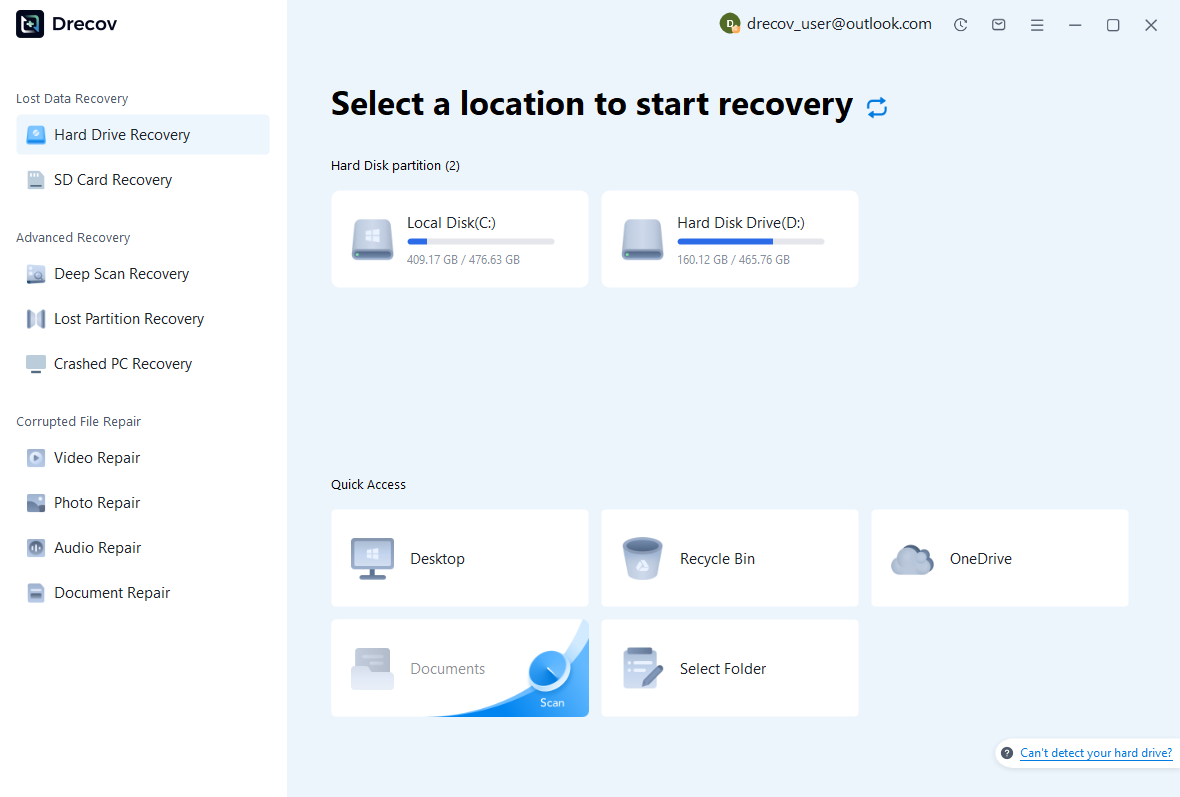
Step 1: choose the original storage location
Identify whether the scene, autosaves, and external assets lived on separate disks. Select the supported source that held the missing component. Avoid installing software, rendering new sequences, or baking caches there. If the disk disconnects or reports read problems, stop repeated scans and assess the device. Stable storage access matters before any recovery utility can produce reliable project candidates.
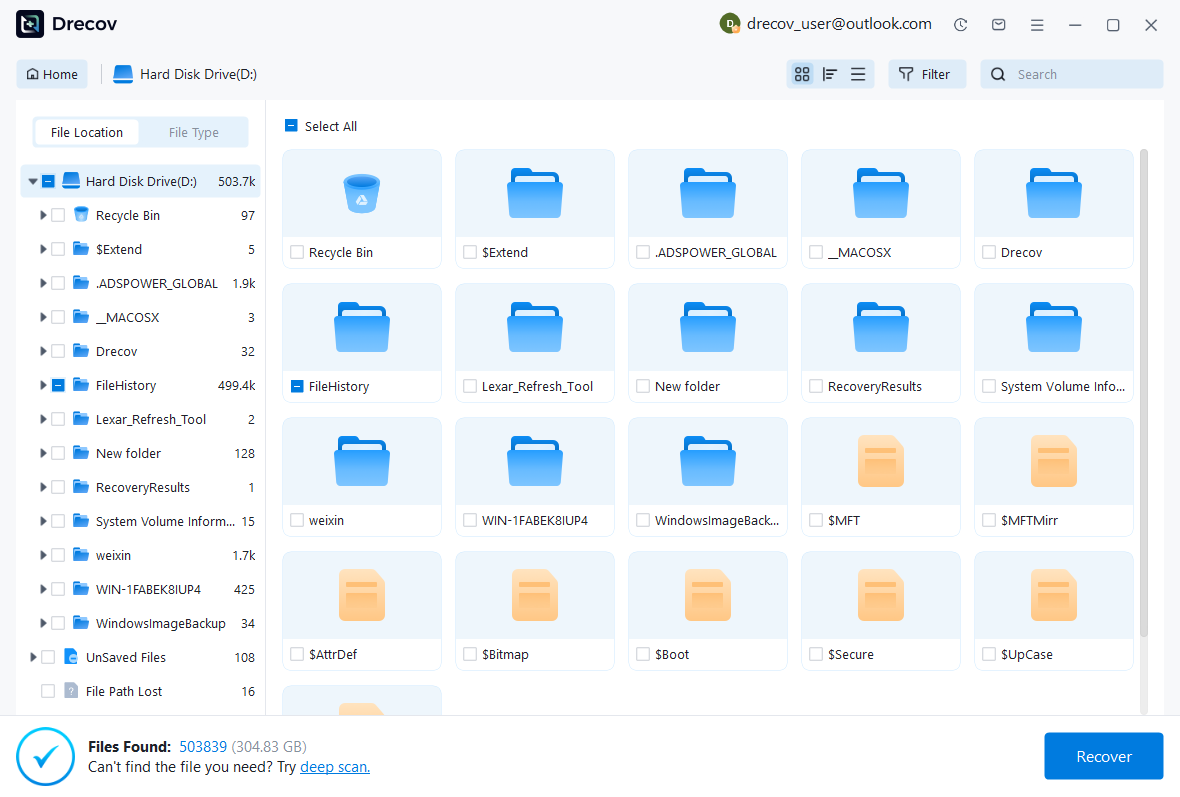
Step 2: preserve plausible scenes and dependencies
Use available name, path, date, and format filters. Keep several plausible scene versions when the editing milestone is unclear. A large BLEND does not prove that its data is complete, and a familiar preview may not expose animation problems. Also retain matching libraries and textures when the project depends on them. Record the source details for each candidate so later comparisons remain meaningful.
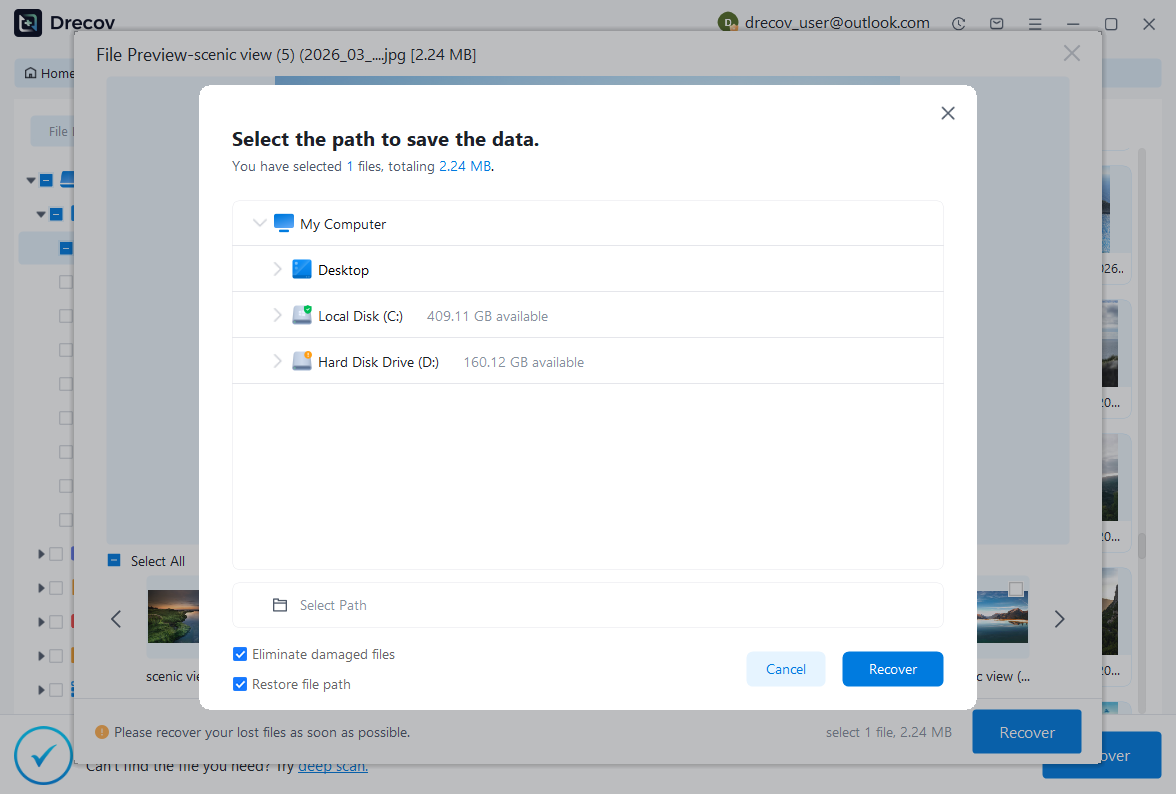
Step 3: recover elsewhere and test in Blender
Save useful candidates to a different healthy physical disk. Review current licensing and preview limitations before purchasing. If a proprietary scene has no preview, acknowledge that uncertainty rather than treating the filename as proof of success. Then open copies in Blender and inspect the actual data. Validate dependencies and representative renders before accepting the recovered project for continued production.
Validate the saved scene
Check object and collection counts where meaningful, scene scale, cameras, lighting, materials, modifiers, constraints, animation range, and external paths. Inspect the exact changes made before the incident. Next, save, close, and reopen the accepted BLEND. Render representative frames using the intended settings. This tests a usable saved project rather than a temporary viewport state that might depend on an incomplete recovery session.
Keep the original candidates, accepted scene, asset inventory, and reference renders until review finishes. Document any missing simulation or manually reconstructed relationship. Afterwards, maintain suitable autosave and save-version settings, preserve major milestones independently, and protect external resources. A backup that stores only the BLEND may still leave a production unusable when its textures, linked models, or source media disappear.
Questions that prevent false expectations
Can rendered frames restore the original model?
Ordinary rendered frames contain the visible output rather than the full scene geometry, materials, rig, and editing relationships. They can guide a manual reconstruction or preserve a finished visual deliverable, but they are not equivalent to a BLEND backup. Keep searching for scene candidates when editability matters. If reconstruction is necessary, document which components you rebuilt and retain the frames as reference evidence.
Is the newest candidate always best?
No. A newer autosave may preserve an unwanted deletion or the same instability, while an older save version contains the missing object. Compare the specific project requirements and keep complementary candidates. Once you accept a recovered baseline, save it outside temporary storage and back it up independently. This preserves a clear starting point before you add new work and makes any remaining reconstruction easier to review.
Related recovery resources
Explore the relevant recovery options: Hard drive recovery, External hard drive recovery.
For another recovery case and its practical checks, read the related recovery guide.
Check the vendor guidance for the installed version: official recovery documentation 1, official recovery documentation 2.





