







An AutoCAD host drawing can open with a familiar thumbnail while its referenced geometry is missing from the live view. The background may live in a separate Xref DWG, image, or underlay whose path no longer resolves. Start by preserving the host and its reference information. Then locate the actual missing component before attempting drawing repair or scanning the host’s disk for geometry that never lived there.
Quick answer: recover the reference relationship first
Open XREF in a working host copy and inspect missing or unloaded sources. Reconnect an existing verified file through its path controls. If a nested reference is missing, inspect its parent drawing. An existing complete project package can supply the source without a recovery purchase. When the source genuinely disappeared, use an earlier verified project copy or a storage recovery assessment on the device that actually held it.
Do not confuse a saved thumbnail with editable referenced geometry. Also distinguish a source that loads but remains hidden from a source that cannot be found. Layers, viewports, insertion context, and reference nesting can affect visibility. The goal is a host that resolves the correct revision and produces verified sheet output, rather than a drawing whose warning simply disappeared after selecting any similarly named DWG.
Identify what disappeared before choosing a tool
Distinguish geometry loss from a display problem
Open a working copy and inspect the relevant layout and model space. Check whether layers are off or frozen, whether a viewport uses different layer settings, and whether the view points to an unexpected area. A drawing can appear empty while its objects remain elsewhere. Therefore, compare object visibility and extents before concluding that the file has lost data. Avoid indiscriminate edits that could obscure the original symptom.
Record one or two specific missing items, such as a revised staircase, a dimension chain, or a particular sheet. This gives every recovery attempt the same acceptance test. For example, a candidate with the correct sheet count may still lack the last structural revision. Conversely, an older candidate may contain that revision in a separate layout. Judge the drawing against the work requirement rather than against its file size.
Separate the main drawing from its dependencies
An external reference remains a separate drawing unless your workflow deliberately incorporates it. Similarly, images, fonts, plot styles, and data links can live outside the DWG. If the main drawing opens with missing backgrounds, inspect the reference paths before repairing its geometry. Copy the project folder structure to the destination where possible. A complete-looking main file cannot compensate for a missing referenced survey or linked spreadsheet.
Create a short dependency inventory before moving files again. Note each reference name, its expected folder, and whether an independent copy exists. Also record the AutoCAD version and any specialist toolset that created the project. Objects from an unavailable toolset may display differently without indicating physical file damage. This distinction prevents you from replacing a valid current drawing with an older backup just because the viewing environment changed.
Free route 1: reconnect an existing reference
- Open a working copy of the host drawing and enter XREF.
- Select the missing reference and inspect its saved path and expected filename.
- Locate the verified source DWG and use Select New Path in the reference interface.
- Reload the reference, inspect its content, and save a separately named host drawing.
This route repairs a broken path when the referenced drawing still exists. It does not recover deleted geometry from the host, because that geometry may never have lived there. Compare the found source with the intended project revision. Two disciplines can use similar filenames for different issues, so check a distinctive object and revision note before accepting the link. Also preserve the host’s original reference information in your recovery notes.
Confirm the actual resolved source
Inspect the path AutoCAD actually uses after reloading, not just the filename shown in the list. An older duplicate in another folder can load successfully and still show outdated design work. Compare the source drawing directly with the intended revision. If the host displays an old arrangement, verify the resolved location before assuming that AutoCAD ignored your edits. A successful load proves availability, while content comparison establishes correctness.
After relinking, save and reopen the host from its intended project location. Confirm that the reference still resolves there. A path that works only while the investigator’s temporary folder exists is not a portable recovery. Keep the source drawing and required dependencies in a clear project structure. Also record whether the accepted path is relative or absolute so another workstation can use the project consistently.
Free route 2: resolve a missing nested reference
- In the External References palette, inspect the reference tree rather than only the flat list.
- Identify which parent drawing contains the missing child reference.
- Open a copy of that parent and reconnect the verified child through its reference interface.
- Save the parent candidate, reload it in the host, and inspect the restored content.
A host can load its immediate reference while a nested child remains unavailable. This explains some cases where only part of a background appears. Preserve the reference hierarchy before changing it. Do not detach an unfamiliar child merely to remove a warning, because it may contain the missing survey or architectural detail. Instead, identify its role and locate an existing project copy where available.
Check content in the referenced drawing
Open the source drawing independently and confirm that the expected objects exist in the appropriate model context. A reference can load while showing none of the content you expected. For example, the source may hold different material from the intended file, or the required objects may not belong to the referenced model content. Compare the project structure before modifying geometry in the host to compensate for a wrong source.
Also inspect the nesting behavior required by your workflow. An overlay relationship does not behave identically to every attachment through additional reference levels. Record the original configuration and consult the relevant version’s guidance before changing it. A deliberate change may solve a visibility requirement, but it should not silently alter how other discipline drawings inherit references. Save a new revision and review its effect in the complete project.
Free route 3: restore a complete existing project package
- Locate your own received or issued drawing package that includes the missing references.
- Extract it into a separate recovery folder while preserving its hierarchy.
- Compare the reference revisions and reconnect the appropriate sources to a working host copy.
- Reopen the project and verify geometry, annotations, and sheet output.
A complete package can restore context that a loose host DWG lacks. However, compare its actual contents and issue date. An older package may supply a missing base drawing while its host contains outdated revisions. Keep the newer useful host and the verified reference separate until you understand the relationship. Combining them deliberately can preserve recent annotations without sacrificing the background geometry needed for a readable plan.
Use available copies before a storage scan
Check existing project archives and authorized collaboration folders for the exact referenced filename. The source may remain available under a changed parent path. Compare recognizable design details and revision identifiers rather than choosing the first search result. Also preserve any associated image or underlay referenced by that source. Restoring one DWG can reveal another missing dependency, so follow the hierarchy until the required project content is complete.
If no existing source survives, document the expected filename and role before scanning supported storage. Search the device that actually held the missing reference, which may differ from the host’s disk. A host thumbnail is only a saved visual clue, not a hidden copy of all referenced geometry. Therefore, do not promise that the background can be extracted from the preview at full editable quality.
Check visibility after references resolve
Layers, viewports, and drawing extents
A resolved reference can remain invisible because of layer or viewport settings. Inspect the relevant layer states in a working copy and compare model space with the required layout. Use a suitable view or extents check to determine whether content lies outside the current view. Preserve original settings before broad changes. Turning everything on may help diagnosis, but it is not automatically the correct production configuration for every sheet.
Also compare scale and insertion context before moving referenced geometry. A misplaced source can be intact but appear far from the expected plan. Check known coordinates and dimensions rather than dragging it into an approximate visual position. If the project uses shared discipline coordinates, an arbitrary move can create a more serious coordination problem. Record any necessary adjustment and obtain the appropriate design review.
Distinguish source damage from broken paths
If the referenced DWG fails independently, investigate a duplicate of that source rather than repeatedly changing the host path. A broken path and a damaged source can coexist. Keep both originals and record which problem each test addresses. An earlier backup or repaired reference may provide a candidate, but compare its revision before reconnecting it. The host should use the intended verified source, not simply the first file that opens.
If the source is genuinely deleted, a previous project issue or recoverable file may restore some of the missing content. State its age and limitations clearly. Reconnecting an older survey can make a drawing look complete while introducing obsolete information. Therefore, treat the recovered reference as a candidate requiring design verification. Application warnings can disappear before the engineering problem is actually resolved.
Additional route: use RECOVER for a damaged source copy
- Keep an unchanged original and create a clearly named test copy.
- Start a blank AutoCAD session and run RECOVER against the test drawing.
- Review the recovery messages and save any usable result under another name.
- Inspect the geometry, layouts, references, and plotting behavior before accepting it.
Use this route when a drawing exists but fails to open or reports structural problems. It addresses drawing integrity rather than deleted files. Consequently, a successful recovery operation cannot retrieve an entirely absent revision from unrelated disk space. Record any reported removals or errors. If the tool opens the drawing after discarding damaged objects, the result requires a detailed comparison with a known design milestone.
Do not confuse a clean report with complete engineering content
A repair tool may produce a drawing that the application can read while some intended objects remain absent. For that reason, inspect critical areas using the original design brief, issue drawings, or approved plots. Check dimensions numerically where appropriate rather than relying only on a visual thumbnail. Also verify units and scale, especially when you transfer surviving objects into a new drawing during a manual rebuild.
Treat any professional design review as a separate acceptance stage. Recovering the storage file does not certify a building plan, mechanical assembly, or survey. The person responsible for the drawing should confirm the recovered revision and its consequences. Keep the pre-repair candidate alongside the repaired output until that review finishes. This preserves another opportunity to extract content if a later comparison reveals a missing detail.
Use a project package or issued drawing intelligently
An earlier project delivery can be more complete than a loose DWG because it may include references and plotting resources. Search your own issued folders, approved collaboration space, and existing correspondence for the relevant package. Copy it locally and inspect it without replacing the current project. Then compare its revision date and drawing identifiers. This route costs no additional recovery software, but its usefulness depends on what the package actually contains.
A PDF plot can help reconstruct dimensions, notes, and sheet order when editable geometry has no surviving copy. However, it is a reference or reconstruction source rather than an equivalent DWG backup. Curves, blocks, layers, and model coordinates may not survive a conversion back into CAD. Keep any reconstructed drawing clearly labeled and ask the drawing owner to review it before using it as the current design.
A practical example: restore a missing survey background
Imagine that a drafter moves a project folder to another disk. The host drawing still contains current annotations, but its survey background disappears. The XREF palette points to an old absolute path, while the complete survey DWG remains in the moved package. In this case, reconnecting the verified survey is the appropriate first route. Restoring an older host backup would unnecessarily discard recent annotations without solving the underlying path relationship.
Next, compare the restored background with the last issued PDF and survey revision note. Check known coordinates and confirm that annotations align with the intended source. Save the accepted host as a new recovery revision, then reopen it from the destination folder and generate a test plot. Finally, retain the original host and reference candidates until review finishes. This verifies both the correct geometry and a durable reference relationship.
Compare drawings with a revision matrix
Record each candidate’s design milestone
Create a simple matrix with one row per candidate and columns for the missing revision, reference status, layout count, and opening warnings. Use meaningful observations such as door moved, dimension unchanged, or survey reference absent. Avoid a vague good or bad label. This lets you compare a BAK, an SV$, and a repaired DWG using the same evidence. It also reveals when no single file contains the entire desired revision and a controlled combination may be necessary.
Keep the matrix beside the recovered files rather than inside the only drawing. If a colleague takes over, they can see why you selected a candidate without repeating every test. Also distinguish observations from assumptions. For example, a later timestamp suggests a possible later state, while the presence of a specific revised wall confirms that element. This small discipline reduces the chance of promoting an outdated drawing simply because it opened with fewer warnings.
Set a stopping point for repeated recovery tests
Decide which evidence would justify another attempt. A newly found autosave, a different error, or an independently preserved project package can all provide a reason. Reopening the same unchanged candidate without a new hypothesis usually does not. Once you have checked the configured locations and compared the available files, identify the exact missing design work. Then assess whether a controlled rebuild from verified instructions is more productive than another identical search.
Preserve the evidence even when you choose reconstruction. A future specialist review may recover an object that the first pass missed. Meanwhile, separate the reconstructed revision from the untouched candidates and document who reviewed it. This keeps engineering decisions traceable and prevents a partial recovery from silently becoming the authoritative design. A clear recovery boundary also helps estimate the remaining work without promising that the next software scan will solve every gap.
Check CAD-specific details that a thumbnail cannot show
Units, coordinates, and insertion behavior
A recovered object can look correct while carrying an unexpected scale or insertion relationship. Compare known dimensions and project units against a verified reference. If you transfer surviving content into a new drawing, test a small known element before importing a large group. Check that its placement and scale match the intended project. A visually similar floor plan at the wrong scale is not a successful production recovery.
Also inspect the coordinate context relevant to your workflow. Survey-based and discipline-coordinated drawings can depend on consistent locations. Do not move everything to an arbitrary origin merely to make the view easier to inspect. Instead, compare known reference points and preserve the original coordinate information where possible. If reconstruction changes the coordinate basis, record that explicitly and obtain the appropriate project review before other disciplines use the drawing.
Blocks, attributes, and annotations
Inspect representative block instances, especially those with attributes or dynamic behavior. A recovered symbol may display while its attribute values or intended variation differ. Compare a few high-value objects against the issued drawing and design notes. Also check text and dimension styles. Missing fonts or substituted resources can change readability without proving that the geometry itself disappeared, so resolve those dependencies before judging the candidate’s content.
For annotated drawings, verify that labels still refer to the correct objects after any manual transfer. A copied dimension can appear in the right place while no longer reflecting the intended geometry relationship. Therefore, check critical measurements independently and review association-sensitive behavior according to the project’s requirements. Do not accept the drawing solely because all expected lines are visible. Its information must remain meaningful and consistent with the design.
Layouts, viewports, and plotting
Open every required layout and inspect viewport content, scale, clipping, and layer visibility. A recovered model can be intact while sheet output remains incomplete. Compare title blocks, revision notes, and page identifiers with the issue set. Then generate a test plot using the intended plotting resources. This catches missing plot styles, unexpected lineweights, and omitted references that may not stand out in model space.
If a plotting resource is absent, recover or locate that resource separately instead of changing the design until the output looks approximately right. Keep any temporary substitute clearly identified. For example, a test PDF can support a visual comparison while the final production configuration remains unresolved. State that limitation in the recovery note. This prevents a diagnostic plot from circulating as an approved issue drawing before the output requirements have been met.
Reconcile conflicting candidates without overwriting either
Transfer only verified missing content
When one candidate contains the correct geometry and another contains a useful revision, preserve both before combining them. Identify the smallest meaningful set of objects to transfer and compare its dependencies. A whole-drawing merge can introduce duplicate blocks, conflicting styles, or obsolete references. Start with a controlled copy in a new working revision, then inspect the result against the design instructions and the candidate matrix.
Record the origin of the transferred content and review adjacent annotations. Also check whether the transfer creates duplicates at the same coordinates. Overlapping objects can look harmless while causing plotting or editing problems later. After reconciliation, save and reopen the new drawing, then repeat the critical geometry and output checks. Keep the source candidates until the responsible drafter accepts the combined result.
Hand off the recovered project clearly
Deliver the accepted DWG with its verified references and a brief note identifying the recovered revision. Include any unresolved asset or reconstructed detail that affects use. Avoid burying uncertainty inside a folder full of similarly named final versions. A reviewer should be able to identify the working master and understand its limits without opening every candidate or reading a long troubleshooting diary.
Keep the technical evidence in a separate retained folder: original DWG, BAK, SV$, repair messages, and comparison notes. The production handoff can remain concise while the evidence stays available. Finally, confirm that the accepted project opens from its intended destination and no longer depends on temporary recovery paths. This last check makes the recovery portable and prevents a drawing that works only on the investigator’s workstation from becoming the next access problem.
When deleted-file recovery becomes relevant
Consider PandaOffice Drecov only after you distinguish absent files from damaged or outdated ones. A storage scan may help find a deleted DWG or related project asset on a supported disk. It does not replace AutoCAD’s drawing repair tools, rebuild missing external references automatically, or guarantee recovery of SV$ and proprietary formats. Check the current format support and the available result before treating the software as a suitable option.
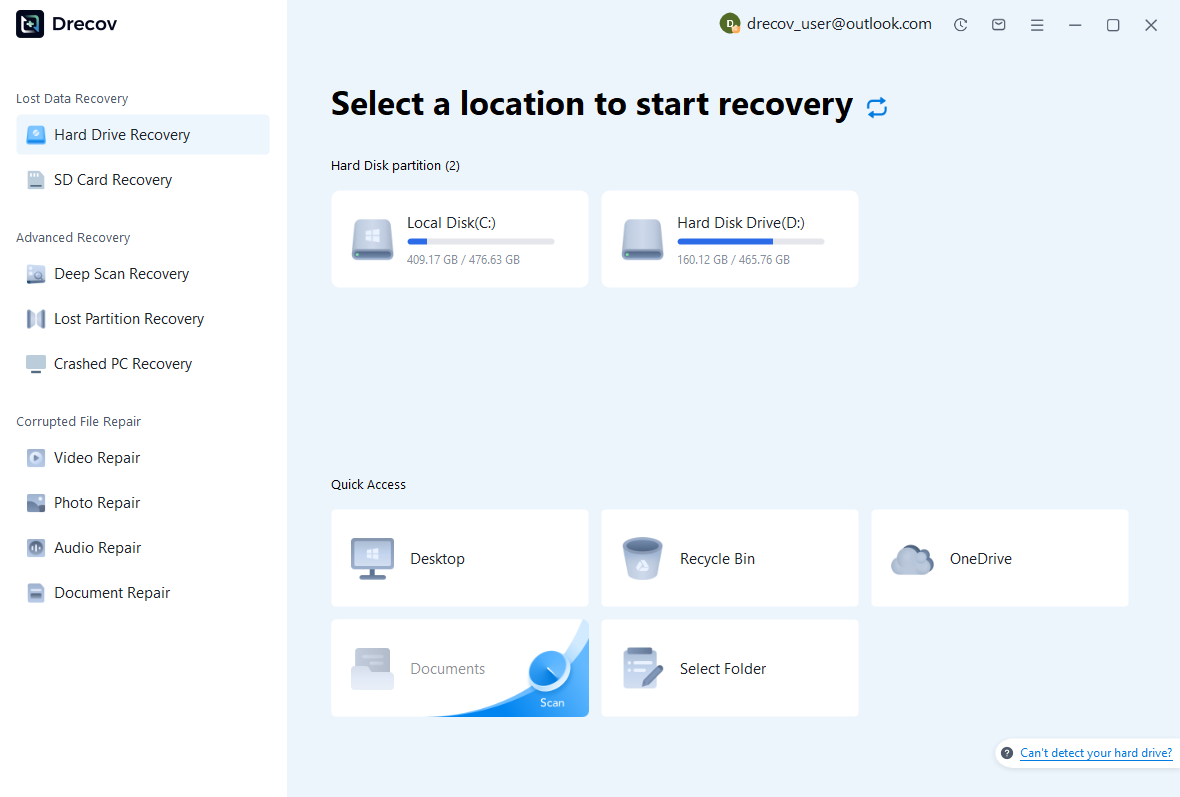
Step 1: select the storage that held the drawing
Choose the supported disk or partition where the missing drawing actually lived. If the autosave folder was on the system disk and the project was on another drive, those are different search locations. Avoid installing the tool or saving downloads onto the affected source. Also stop if the disk disconnects, makes unusual noises, or repeatedly fails to read. Unstable hardware needs a different recovery approach.
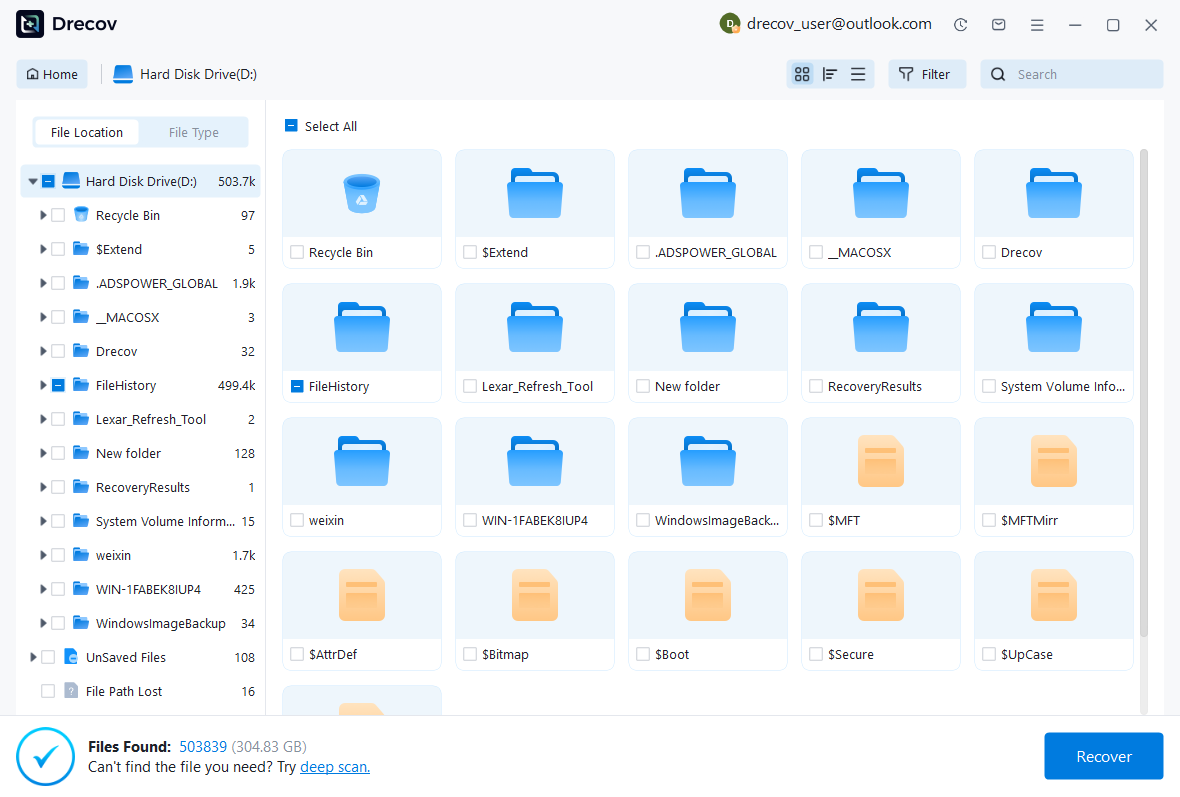
Step 2: compare candidates and preserve project context
Search available results using the drawing name and relevant file types where the interface supports them. Compare paths, sizes, and dates, but retain multiple plausible candidates when an overwritten revision is involved. A filename match does not establish that the recovered bytes form a healthy drawing. Additionally, look for associated reference drawings and images if the main project depends on them. Preserve folder relationships when the results allow it.
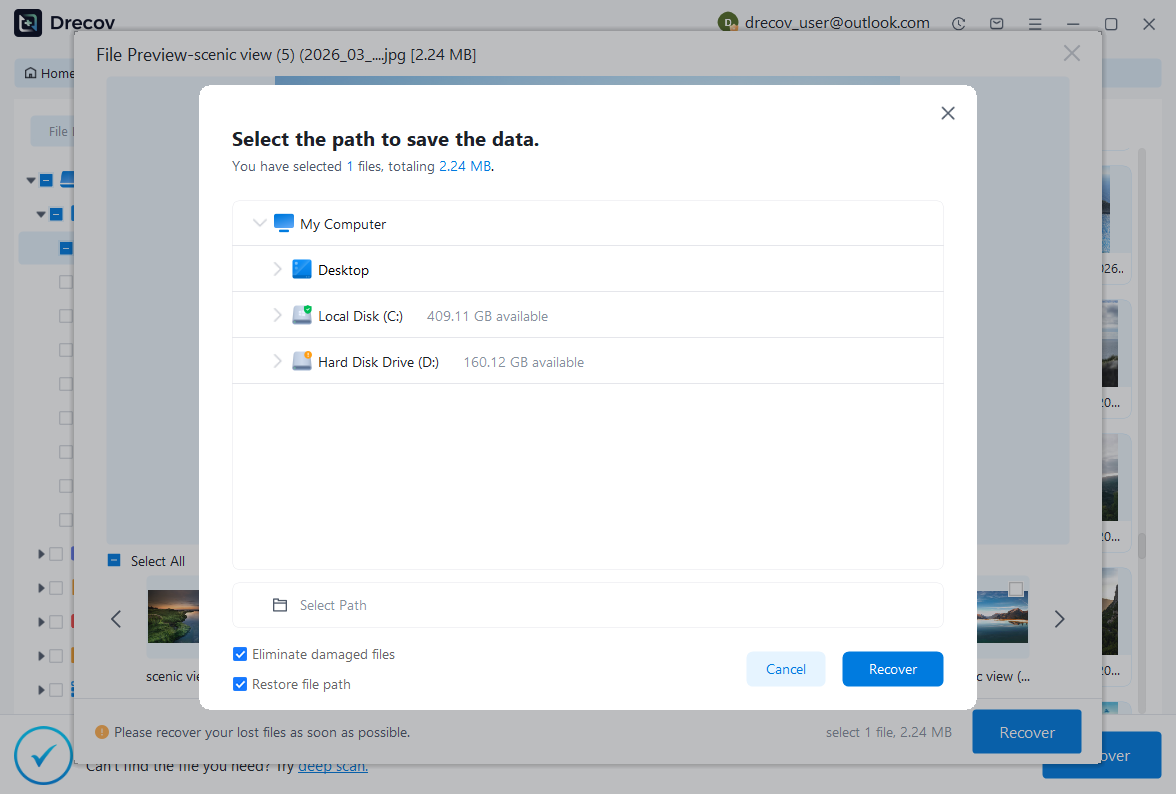
Step 3: recover elsewhere and validate in AutoCAD
Save candidates to a different healthy physical disk. If the software cannot preview a proprietary drawing, treat that limitation honestly and test the saved candidate in AutoCAD. Do not purchase based only on a familiar filename. Review current licensing and recovery limits before committing. Once a candidate opens, repeat the same geometry and dependency checks you used for BAK and SV$ copies rather than declaring success at the download stage.
Verify the result before resuming production
Check model space, every required layout, visible layers, reference status, dimensions, text, and plot output. Then inspect the exact area edited before the crash. For drawings with blocks or specialist objects, confirm that the expected toolset displays them correctly. A useful recovery note should identify which revision survived and which details you reconstructed. This helps colleagues avoid treating a partial result as the final approved drawing.
Save the accepted DWG, close it normally, and reopen that saved copy. Next, create a separate backup of the recovered project and its dependencies. If reopening produces new warnings, keep the investigation open. A drawing that appears stable only within one recovery session may still need attention. Also retain the test plot so that you can compare later changes against the verified state without reopening every earlier candidate.
Questions that change the recovery decision
Why does the thumbnail show geometry that the drawing cannot display?
The thumbnail records a saved view rather than a complete editable copy of every external source. A missing reference can therefore leave a familiar preview while the live drawing lacks its background. Inspect the reference list and expected paths, then locate the actual source. Do not enlarge or trace the thumbnail and describe that as recovery of the original survey geometry. Use an issued plot only as a clearly identified reconstruction reference.
What if the referenced drawing is genuinely gone?
Check existing complete project packages and verified earlier source revisions. If none survives, assess recoverable files on the storage that actually held the reference. Scanning the host’s disk may be irrelevant when the source lived elsewhere. Also record the missing drawing’s revision and role. An older recovered source needs design review before use, because removing the warning does not establish that the restored background represents the current project.
Should I keep working in the recovered version immediately?
First establish a clean baseline. Save the useful result separately, reopen it, and verify the missing revision before adding fresh changes. Otherwise, a new design edit can become mixed with an unverified recovery. After acceptance, return to normal work with a clear revision name. Keep automatic save enabled, preserve meaningful project milestones, and include references in your backup plan so that the next recovery has more than one drawing file to rely on.
Related recovery resources
Explore the relevant recovery options: Hard drive recovery, External hard drive recovery.
For another recovery case and its practical checks, read the related recovery guide.
Check the vendor guidance for the installed version: official recovery documentation 1, official recovery documentation 2, official recovery documentation 3.





