







An Audacity AUP3 project is not an ordinary audio recording with a different extension. It holds an editable project database, while exported WAV or FLAC files hold rendered audio. After a crash, Audacity may recover the project through its own recovery process. If that fails, the remaining AUP3 and its related files need careful handling. Start by preserving them, then decide whether you need editable tracks, audible content, or both.
Quick answer: preserve the project before trying recovery
If Audacity offers Automatic Crash Recovery after restart, inspect the affected project and choose recovery rather than discarding it. Save a useful result separately and verify the audio. If the project remains unreadable, preserve the closed project’s AUP3 and any matching WAL or SHM files together before seeking further guidance. An earlier project copy or an existing audio export provides a separate free fallback with different limitations.
Audacity’s native recovery and ordinary use are free. However, no tool can recreate recorded sound that never reached recoverable storage. Also, a successful waveform display does not prove that every track or final recording segment survived. Define the expected duration, channels, track arrangement, and latest edits before judging the result. This makes the difference between a usable recovered session and a misleading preview clear.
Understand the files you have
AUP3 project versus exported audio
The AUP3 project preserves editing information and audio within Audacity’s project structure. A WAV or FLAC export preserves playable audio according to the export settings, but it does not normally preserve the complete editing session. For example, a stereo mix may combine separate voice, music, and effects tracks. Keep those targets separate during recovery. A usable mix can meet a playback need while leaving the multitrack project incomplete.
Also distinguish current AUP3 projects from older AUP projects and their associated data folders. Instructions written for one generation do not automatically apply to the other. Record the Audacity version that created the session and the version attempting recovery. If you encounter older project material, follow the matching official documentation rather than renaming it to AUP3 or treating every data folder as a current database backup.
Why WAL and SHM companions matter
During project activity, Audacity’s database can use temporary companion files with names such as session.aup3-wal and session.aup3-shm. Do not delete or move them while the project is open. After a crash, preserve any matching companions alongside the AUP3 when the application is fully closed. They are not independent playable recordings, and their presence does not guarantee that recovery will succeed.
Keep the original filenames and folder relationship intact in your preserved copy. Mixing a WAL from one session with an unrelated AUP3 can make the evidence harder to interpret. Furthermore, a missing companion does not automatically prove that the project has lost data, because normal closure changes temporary-file behavior. The correct next step depends on the actual project state and error, not on a rule that every healthy project must have three files.
Free route 1: use Automatic Crash Recovery
- Preserve available project material and avoid temporary-file cleanup after the crash.
- Restart Audacity and inspect the Automatic Crash Recovery dialog if it appears.
- Select the affected project for recovery and allow the process to finish.
- Save a separate usable project copy and verify its tracks and audio.
The recovery dialog can list more than one interrupted project. Check names carefully before choosing an action. Discarding a project tells Audacity to abandon that recovery candidate, so do not use it merely to clear the dialog. If you recover one session successfully, inspect it before dismissing the remaining entries. This preserves options when several recordings were open during the same interruption.
Check the final recording segment first
Start near the point where recording stopped unexpectedly. Listen for the last complete phrase, then compare the expected duration with the recovered ending. A waveform can appear substantial while omitting the final take. Also inspect channel balance and any separately recorded track. If the ending is incomplete, record exactly what remains missing so you can assess another candidate or plan a targeted rerecording.
Next, play sections from the beginning and middle. Check synchronization between tracks and inspect known edit points. A recovered session may retain the audio but miss a recent arrangement change. Save the initial recovery before making corrections, then create a working revision. This lets you return to the recovered baseline if a later edit accidentally hides a segment you still need.
Free route 2: open an independent AUP3 copy
- Locate an earlier separately saved project or verified project backup.
- Copy it to a healthy local recovery folder without replacing the current candidate.
- Open the copy in a suitable Audacity version and compare the missing tracks or edits.
- Save the accepted result separately and document any work that needs reapplying.
An independent AUP3 copy may preserve an earlier editing milestone even when the crash candidate is unusable. However, it only contains the session state captured when that copy was made. Compare content rather than trusting a filename such as final. For a long interview, check the recording end and the latest edit markers. An older but complete recording can be more valuable than a newer project with an unreadable database.
Avoid testing the only original repeatedly
Make a working copy of the closed project set before trying version changes or specialist recovery instructions. Keep another untouched copy as evidence. Do not open the same project simultaneously in several Audacity instances or synchronize active database files through an unreliable workflow. A controlled test on a local copy is easier to interpret than repeated attempts that keep changing the only remaining candidate.
If a project fails to open, preserve the exact error and inspect Audacity’s diagnostic information where appropriate. That can help distinguish a file problem from an application or storage problem. Avoid running generic SQLite write commands against the sole project merely because AUP3 uses a database structure. Database integrity operations do not automatically understand the audio project’s requirements, and an apparently repaired database may still omit essential sound.
Free route 3: rebuild from existing audio exports
- Locate your own WAV, FLAC, or other existing exports and original source recordings.
- Copy them into a new recovery workspace and inspect their duration and channels.
- Import usable audio into a new Audacity project and arrange it against a reference.
- Save the rebuilt project separately and label any missing edits or isolated tracks.
An earlier export can preserve the audible result when the editable project fails. Its value depends on what you exported. Separate track exports can support a detailed rebuild, while a stereo mix usually offers fewer editing options. Therefore, inventory the actual exports before deciding how much work remains. Also check whether a recorder or another application kept the original source takes independently of Audacity.
Keep quality and provenance visible
Prefer the best surviving source for the task. A lossless export generally preserves more useful audio information than a heavily compressed listening copy, but it still may omit project-level structure. Compare sample rate, channels, duration, and audible quality. Do not repeatedly convert a compressed file and describe the larger output as higher-quality recovered audio. A new container cannot restore information that the surviving source lacks.
If you rebuild an interview from separate recordings, align them using identifiable sounds or a known reference. Then listen across edits rather than assuming visual waveform alignment proves synchronization. Also preserve unprocessed originals. Noise reduction, normalization, and other effects may help a new production, but they are fresh processing decisions rather than recovery of the exact earlier session state.
Free route 4: recover source takes from the recording workflow
- Check whether the microphone recorder, conferencing tool, or field recorder saved an independent recording.
- Retrieve the existing source through that tool’s supported interface or your own archive.
- Compare the take, speaker, time range, and channel layout with the lost session.
- Import a verified copy into a new Audacity project and rebuild only the missing editing work.
This route is especially useful when Audacity edited imported audio rather than capturing the only recording. The original recorder may hold a complete take even if the project lost recent edits. However, do not assume a live meeting or stream automatically created a recording. Confirm that a saved source actually exists. If it does, preserve it independently before performing any cleanup or new export.
Separate missing audio from missing processing
An intact raw take can restore the words while leaving noise reduction, cuts, fades, and track arrangement to rebuild. Write down those differences clearly. For example, you may recover the complete interview but need to recreate the introduction and remove repeated answers. This is a manageable editorial task when the original audio survives. Calling it a full project recovery would hide the work still required.
Conversely, a polished stereo export may preserve processing while losing isolated voices and original takes. Keep both sources when available because they complement each other. Use the raw recording for editability and the export as a reference for timing and sound. Additionally, retain any written edit notes. They can make reconstruction faster without relying on risky manipulation of a damaged project database.
Handle unreadable projects with useful diagnostic evidence
If Audacity reports an opening error, record it exactly and preserve the log information available through its diagnostics. Note whether the project lived on local storage, a synchronized folder, or a device that disconnected. Also test whether a known healthy project opens. These observations help focus the investigation without proving a cause. Avoid changing several settings and project files at once, because that obscures which step affected the result.
Some specialist recovery procedures may salvage audio from damaged AUP3 projects, but their suitability depends on the version and damage. Use current official Audacity guidance or support resources on copies. Do not promise a universal database command. Even a method that extracts audible blocks may lose timing or project structure. Preserve the original evidence and state the difference between extracted audio and a recovered editable session.
Example: restore a podcast after an interrupted save
Suppose a podcast project has three voice tracks, a music bed, and a recently edited ending. After a crash, Audacity offers recovery. The candidate contains all voices but misses the final crossfade. First save that recovered project separately. Then compare its ending with the last listening export. Recreating one documented crossfade is safer and faster than discarding the candidate to chase a theoretically perfect temporary file.
If the AUP3 fails entirely, inspect the independent voice recordings and the listening export. The source takes can support a new multitrack project, while the export provides timing and processing reference. Check each speaker’s track length before rebuilding. Finally, label the result as reconstructed where necessary and preserve the damaged project for further investigation. This produces a clear deliverable without overstating what the recovery method achieved.
Compare recovered sessions by audible milestones
Build a recording checklist
Write down the expected speakers, track count, approximate duration, and recognizable moments near the beginning and end. For a music session, include important takes and arrangement changes. For an interview, include the final question and closing response. Apply the same checklist to every candidate. This prevents a large waveform or familiar project name from replacing an actual assessment of which sound survived.
Also distinguish a raw recording from an edited program. A source take may be longer because it includes retakes, while an edited export may be shorter by design. Compare the content and purpose rather than treating duration alone as proof of completeness. Record what each candidate contains and which editing work remains. This gives you a practical basis for choosing between project recovery and reconstruction from independent audio.
Listen to the recording boundary
The interruption point deserves careful review because the last written audio can differ from what you heard while recording. Listen near the end for an abrupt cut, missing syllables, or a repeated section. Compare it with notes or another existing recording if available. Do not infer the final sentence from a waveform shape. Only audible content or an independent source can establish what actually remains.
If the final segment is absent, define its exact scope and plan a targeted replacement where possible. A short rerecording can be more useful than repeated attempts to extract unwritten sound. Preserve the existing result, however, because it may contain background or timing information that helps the edit. Label replacement material as new production work rather than claiming it came from the damaged project.
Validate technical audio properties
Channels and sample rate
Check whether a recovered track is mono or stereo and whether the session uses the intended sample rate. Also inspect channel content. A stereo file can carry useful audio on only one side, while separate microphone tracks can look similar but contain different speakers. Listen to the channels deliberately before downmixing. A convenient conversion can hide a missing channel rather than solve the original problem.
Keep the best surviving source unchanged. If you need a new sample rate or channel layout for delivery, create a separate derivative through the normal audio workflow. A format conversion does not improve the original recording or restore absent content. Document any processing and compare the output audibly. This preserves a clear distinction between recovered source material and the production changes you apply after recovery.
Track timing and alignment
When reconstructing from separate takes, align recognizable events and verify timing at several points. A match at the beginning does not prove the recordings remain aligned throughout a long program. Listen for drifting dialogue or repeated transients. Also compare clip boundaries around edits. Small timing errors can make a recovered multitrack session difficult to use even when every individual source file plays correctly.
If the session requires timing correction, perform it in a new working project and preserve the original takes. Note which tracks you adjusted and why. This makes later revisions much easier, especially when another editor receives the project. Furthermore, keep any reference export available. It can help reproduce the intended pacing while the raw sources preserve the flexibility to improve the reconstructed edit.
Effects and destructive processing
A recovered project may retain audio while missing the latest processing or arrangement. Compare fades, volume changes, and essential effects against a known export. Do not immediately normalize or denoise every candidate to make it sound finished. Those operations can obscure differences between sources and make it harder to identify the strongest recovery. Save the initial candidate before adding new processing.
If a flat export already contains the intended effects, keep it as a reference rather than stacking the same processing again. A reconstructed session from raw takes may need fresh adjustments, but those are new production decisions. Document them and review the result audibly. This avoids claiming that the original processing survived when you actually recreated an approximation after the database recovery failed.
Handle a project that remains unreadable
Collect evidence before seeking specialist help
Preserve the closed project set, exact opening error, Audacity version, and relevant diagnostic log. Note the original storage location and whether a disconnection or full disk preceded the failure. Also record which copies you tested and what changed. This compact evidence package helps a specialist evaluate the problem without asking you to repeat every step or risk the only original during another experiment.
Do not upload private recordings to an unfamiliar repair service merely because it promises a quick fix. Prefer supported local diagnostics and an appropriate trusted support route. If you choose a specialist extraction procedure, run it against a duplicate and retain the complete original set. Any extracted audio still needs listening and timing checks. A database that opens or a folder of audio blocks does not automatically equal the original editable session.
Decide when reconstruction is the practical result
If an independent recorder preserved the full take and the damaged project contained only a modest edit, reconstruction may be the best next step. List the missing cuts, fades, and arrangement changes, then rebuild them in a new project. Use an existing listening export as a reference where available. Keep the task bounded by the actual production requirement rather than pursuing every lost undo state.
After acceptance, save a verified AUP3 and separate lossless audio outputs. Reopen the project and listen to the exported program. Retain the source takes and recovery evidence until review finishes. For future sessions, test your independent backup routine with a real restore. This protects both the ability to edit and the ability to hear the recording through another tool if the project format becomes the next obstacle.
When PandaOffice Drecov may help
A deleted-file scan may help when the AUP3 or source recording is absent from supported storage. PandaOffice Drecov does not guarantee repair of an existing damaged Audacity database or reconstruction of its temporary transaction state. Check current support for the actual file type and inspect available results. Also recover matching companion material where relevant, while keeping filenames and relationships intact for later Audacity testing.
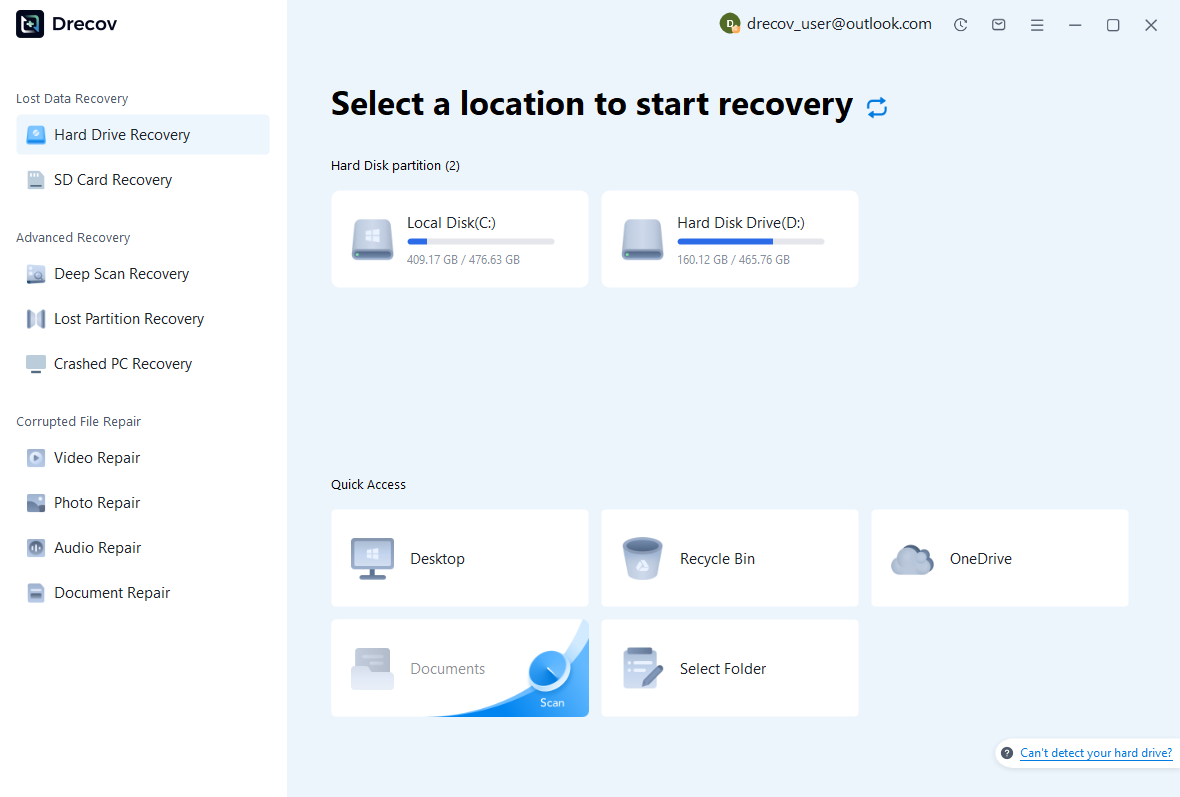
Step 1: select the storage that held the missing recording
Identify whether the project and original takes lived on different disks. Select the supported source that actually contained the missing file. Avoid recording new sessions or installing recovery software there. If the source reports read errors or repeatedly disconnects, stop repeated scans and assess the device. A storage problem needs attention before a long software search can produce reliable candidates.
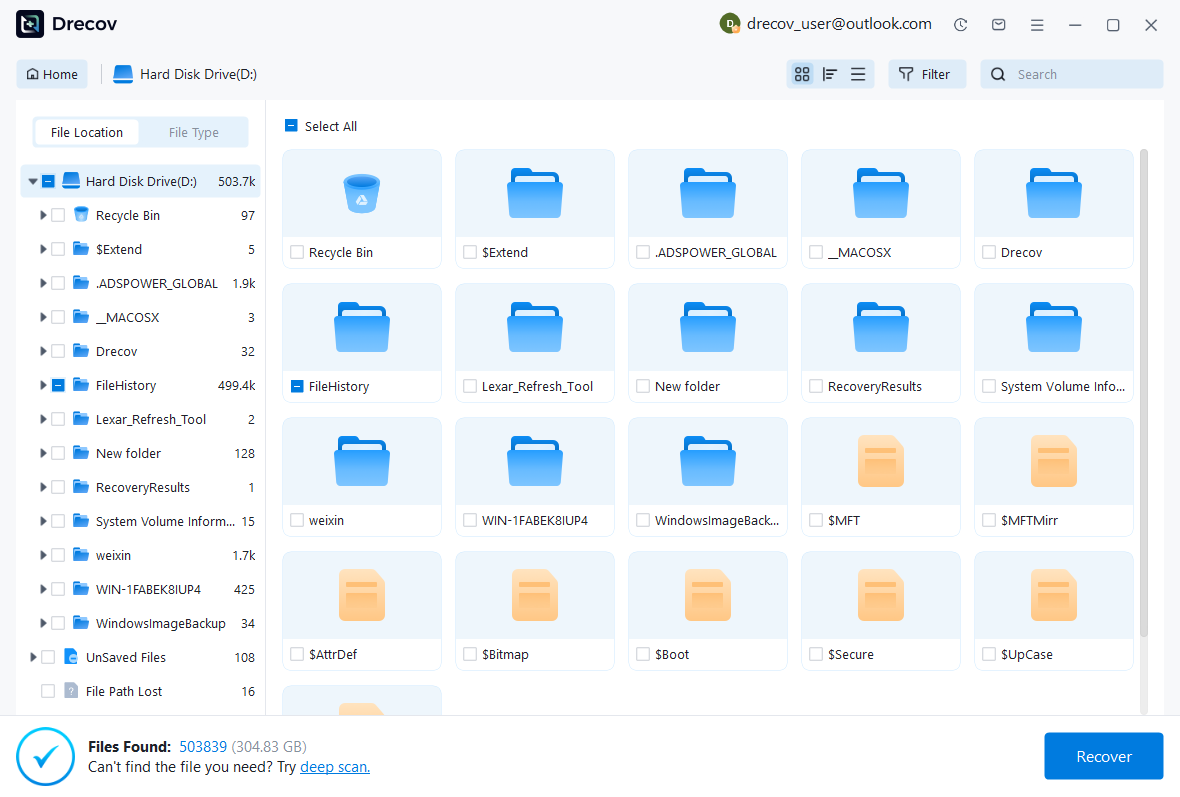
Step 2: compare project and audio candidates
Use available name, path, date, and format filters. Preserve multiple plausible project versions and any independent audio exports. A large AUP3 does not prove a healthy session, and a familiar WAV name does not prove the complete take. Compare previewed audio where the tool supports it. Keep candidate sources documented so you can distinguish a raw take from an edited export during reconstruction.
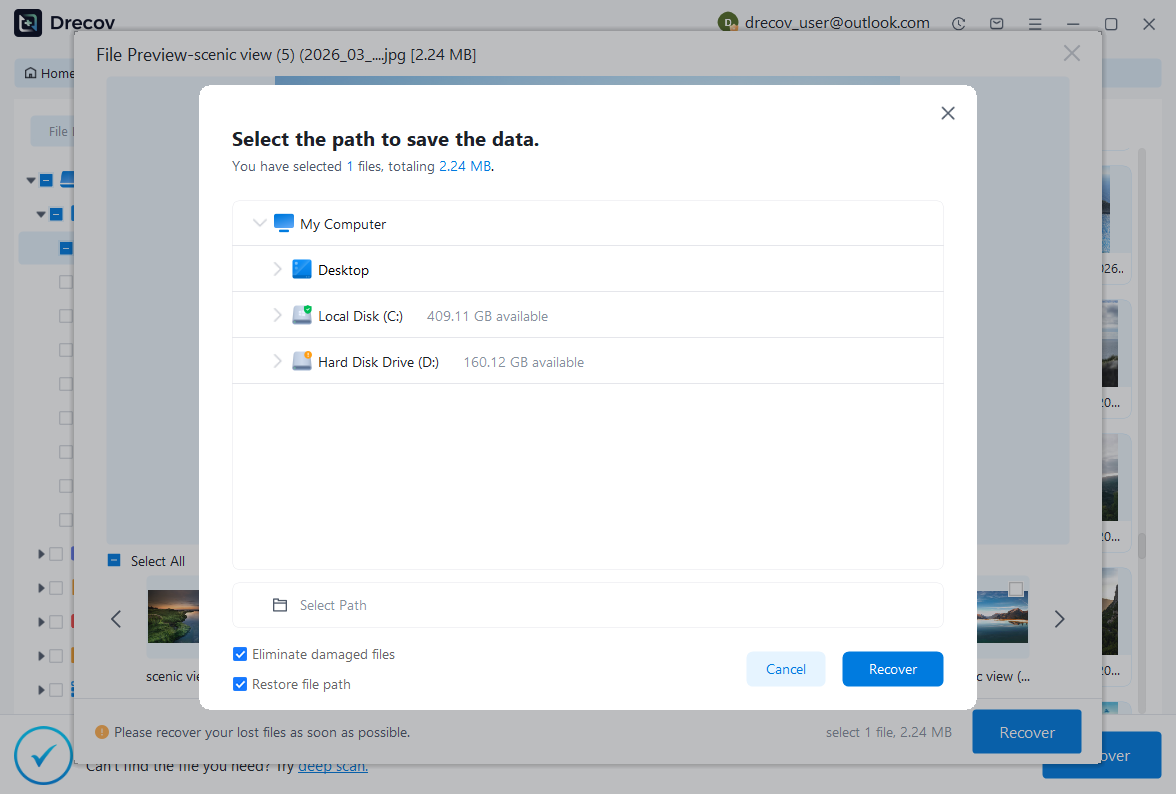
Step 3: recover elsewhere and listen to the result
Save useful candidates to a different healthy physical disk. Then test project copies in Audacity and listen to recovered audio throughout the important sections. If the tool cannot preview AUP3, treat that as a limit rather than a successful demonstration. Review current licensing before purchasing. Finally, verify the complete session or export against your acceptance list, including the recording end and track synchronization.
Validate sound and project integrity
Inspect track count, channels, sample rates, duration, clip arrangement, labels, and recent edits. Listen at the beginning, middle, end, and every critical join. Then save, close, and reopen the accepted AUP3. Export a separate listening copy and compare it with the intended program. A waveform display and a file size are useful clues, but audible review determines whether the recovered material actually serves the production.
Keep the original candidate set, accepted project, source takes, and reference export until review finishes. Document any missing segment or reconstructed processing. Afterwards, preserve periodic independent project copies and source recordings. AUP3 backups protect editability, while lossless exports protect access to sound through other tools. Together they provide different fallback routes when the next crash does not yield a complete automatic recovery.
Questions that prevent avoidable loss
Can I rename AUP3 to WAV?
Renaming the extension does not convert a project database into playable PCM audio. Open a healthy project in Audacity and export audio through the supported interface. If the project is damaged, use appropriate recovery guidance on a copy instead. Random extension changes can make the evidence confusing without restoring sound. Keep the original names so you can still identify the correct project and companions later.
Should I delete WAL and SHM files to force the project open?
Do not delete or move these files while the project is open. After a crash, preserve the closed project set before following any version-specific troubleshooting guidance. Temporary companions may contain relevant state, and arbitrary deletion can reduce options. If recovery fails, retain the error and diagnostics. A careful preserved copy supports further investigation far better than a folder repeatedly altered by unrelated database tips.
Related recovery resources
Explore the relevant recovery options: Hard drive recovery, External hard drive recovery.
For another recovery case and its practical checks, read the related recovery guide.
Check the vendor guidance for the installed version: official recovery documentation 1, official recovery documentation 2, official recovery documentation 3.





