







A USB flash drive is supposed to provide the total storage space advertised on its packaging. If you need to restore usb sandisk drive back to full capacity, it is often because a 64GB or 128GB drive suddenly appears as only a few megabytes in Windows Explorer. This common issue usually stems from corrupted partition tables or “ghost” partitions created by bootable media software. You can find technical specifications and official firmware updates on the SanDisk Official Support website to assist with hardware verification. By following the correct repartitioning steps, you can easily restore usb sandisk drive back to full capacity and reclaim your missing gigabytes.
SanDisk USB drives are widely trusted because of their speed and durability. Whether you use a SanDisk Ultra USB Flash Drive for work files or system recovery tools, losing usable storage capacity can become extremely frustrating. Fortunately, restoring a SanDisk USB drive back to full capacity is usually possible using built-in Windows tools, command-line utilities, and professional recovery methods.
Why a SanDisk USB Drive Loses Capacity
This problem is more common than most people realize. Many users accidentally reduce USB drive capacity while creating bootable drives, partitioning storage, installing operating systems, or using disk imaging software. Viruses, formatting errors, hidden partitions, and damaged file systems can also cause storage space to disappear. The good news is that in many cases, the missing capacity is not actually gone. The storage still exists physically on the USB drive, but the operating system cannot access it properly because the partition structure has been altered or corrupted.
A SanDisk USB drive may show reduced storage capacity for several reasons. Understanding the cause helps determine the best recovery method to restore usb sandisk drive back to full capacity.
Common Causes of Shrinking USB Space
- Bootable USB creation: Installation media changes partitions significantly.
- Hidden partitions: Unallocated space becomes inaccessible to Windows Explorer.
- Corrupted partition tables: The system cannot recognize the full storage map.
- Malware or viruses: Damage to the file system or partition headers.
- Improper formatting: Storage allocated incorrectly during a previous format.
Think of a USB drive like a large apartment building. Sometimes the rooms still exist physically, but the operating system loses the map showing where those rooms are located. To restore usb sandisk drive back to full capacity, we essentially need a new map.
Recover data from SanDisk USB before restoring capacity
Before you attempt to restore usb sandisk drive back to full capacity, you must understand one critical fact: the restoration process usually involves formatting or “cleaning” the drive, which deletes all existing data. If you have important photos, documents, or work files on that drive, you need to get them out first.
PandaOffice Drecov data recovery software for SanDisk Drives
When your drive is showing the wrong capacity or appears as “RAW,” standard copy-paste methods won’t work. This is where professional tools like PandaOffice Drecov data recovery software become essential. This software can “see” past the corrupted partition layers to find your original files.
How to use PandaOffice Drecov to save your files:
- Step 1:Connect your SanDisk USB to the computer and launch the software. Select the USB drive from the list of available storage devices. Even if the capacity is wrong, the software will scan the physical sectors.

- Step 2: Click “Scan.” The software will perform a deep analysis to locate lost partitions and files.

- Step 3: Preview the found files. PandaOffice Drecov allows you to see images and documents before recovery.

- Step 4: Select the files you need and click “Recover.” Save them to your local hard drive, never back onto the faulty USB.
Warning: Once you start the process to restore usb sandisk drive back to full capacity using DiskPart or formatting tools, data recovery becomes significantly harder. Always recover first!
After completing the data recovery steps, you might find these other guides helpful:
How to fix corrupted SanDisk USB without losing data
If the drive is simply acting “glitchy” but the capacity is still mostly visible, you might want to try a non-destructive repair before a full wipe. Windows includes a utility called CHKDSK that can sometimes fix logical errors.
- Step 1: Plug in your SanDisk USB drive.

- Step 2: Type
cmdin the Windows Search bar, right-click it, and select Run as Administrator. - Step 3: Type the command
chkdsk E: /f(Replace E: with the actual letter of your USB drive). - Step 4: Press Enter. Windows will attempt to fix file system errors.
If this doesn’t restore usb sandisk drive back to full capacity, it means the partition table itself is likely the issue, and a more aggressive approach is required.
SanDisk USB capacity restore tool free and Built-in Windows Options
While there are many paid utilities, you can actually restore usb sandisk drive back to full capacity using free tools already built into your PC. The two most effective are Disk Management (Graphical) and DiskPart (Command Line).
Method 1: Using Windows Disk Management
Disk Management is the easiest visual method for most users to manage their partitions.
- Step 1: Press Windows + X on your keyboard and choose Disk Management.
- Step 2: Locate your SanDisk USB in the list. You will likely see one small “Healthy” partition and a large block of “Unallocated” space.
- Step 3: Right-click the existing partition on the USB and select Delete Volume.
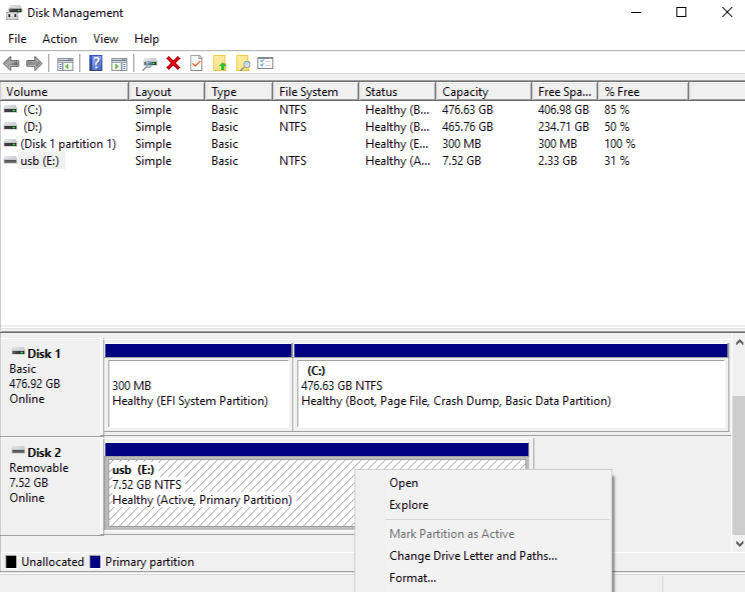
- Step 4: Once the entire drive shows as “Unallocated,” right-click that black bar and select New Simple Volume.
- Step 5: Follow the wizard to format the drive. We recommend choosing exFAT for SanDisk drives to ensure compatibility with both Windows and Mac.
Method 2: Using DiskPart
If Disk Management gives you an error like “The operation timed out” or “Access Denied,” DiskPart is the ultimate SanDisk USB capacity restore tool free of charge.
- Step 1: Open the Command Prompt as an Administrator.
- Step 2: Type
diskpartand press Enter. - Step 3: Type
list diskto see all drives. Look for the one that matches your USB size (e.g., Disk 2). - Step 4: Type
select disk X(Replace X with your USB’s number. Be careful! Selecting the wrong disk will erase your hard drive). - Step 5: Type
clean. This command wipes the partition configuration completely. - Step 6: Type
create partition primary. This tells the drive to use all available space for one partition. - Step 7: Type
format fs=exfat quickto restore usb sandisk drive back to full capacity. - Step 8: Type
assignto give it a drive letter so it appears in “This PC.”
Best File System for SanDisk USB Drives
Choosing the correct file system is a vital part of the effort to restore usb sandisk drive back to full capacity. If you choose an older system like FAT32 on a large drive, you might encounter limitations.
| File System | Max File Size | Compatibility | Recommended Use |
| FAT32 | 4GB | Very High (Old TVs, Car Stereos) | Small drives, legacy devices |
| exFAT | 16EB (Virtually Unlimited) | High (Windows, Mac, Android) | Best for SanDisk USBs |
| NTFS | 16TB | Windows Only | System drives or Windows backups |
Preventing Capacity Problems in the Future
Once you successfully restore usb sandisk drive back to full capacity, you want to keep it that way. Most capacity loss occurs due to “unclean” removals or software errors.
- Always Safely Eject: Use the “Safely Remove Hardware” icon in the system tray. This ensures all “write” operations are finished before power is cut.
- Avoid Interrupting Formats: If you are formatting or creating a bootable drive, never unplug the USB until the progress bar hits 100%.
- Check for “Fake” Drives: If your drive consistently loses capacity, it might be a counterfeit. Genuine SanDisk products are sold by authorized retailers. You can use a tool like H2testw to verify the physical integrity of the flash memory.
Conclusion
Losing storage capacity on a SanDisk USB drive can feel alarming at first, especially when a large flash drive suddenly shrinks to only a few gigabytes. Fortunately, in most cases, the storage is not truly gone. The problem usually comes from hidden partitions, corrupted file systems, or bootable USB configurations that prevent the operating system from recognizing the full available space.
By using the methods outlined above—especially starting with PandaOffice Drecov data recovery software to protect your files—you can confidently restore usb sandisk drive back to full capacity. Whether you prefer the visual interface of Disk Management or the raw power of DiskPart, your SanDisk drive will be back to its original performance in no time. Remember to always buy genuine hardware and maintain good “ejection habits” to ensure your data stays safe and your storage stays full.





