








An Illustrator file can fail in several different ways. A crash may leave unsaved recovery data, a damaged AI document may still contain a readable PDF representation, or the document may open while linked images remain missing. These situations need different methods. Before changing extensions or clearing preferences, preserve the original file and any recovery folder. Then decide whether your priority is editable artwork, a usable visual output, or a missing external asset.
Quick answer: protect recovery data and check PDF compatibility
After a crash, restart Illustrator once and save any recovered document under a new name. If no document appears, inspect the recovery location appropriate to your installed version. For an existing damaged AI file, a PDF-compatible representation may offer a separate salvage route. However, this depends on how the document was originally saved. A file without PDF content cannot acquire that content through a filename change.
Built-in recovery and Acrobat Reader checks require no separate recovery utility purchase, although editing in Illustrator still needs normal application access. Treat recovered editable objects and salvaged PDF artwork as different results. A usable PDF may preserve the design’s appearance while losing important Illustrator structure. Therefore, define the required outcome before choosing a candidate and do not overwrite the damaged original after the first encouraging preview.
Identify the missing component
Unsaved work, damaged AI, or broken links?
Write down what happened immediately before the problem. A forced shutdown suggests recovery data may matter. An incomplete transfer suggests obtaining a fresh source copy may be faster. A document that opens with blank placed-image frames suggests missing linked assets. These clues narrow the investigation without proving a cause. Also record the exact error, Illustrator version, original storage path, and whether other files open normally.
Check the full filename and actual folder rather than relying solely on Recent Files. A recent entry can point to an unavailable location or an older duplicate. If you find several candidates, copy them to separate folders and preserve their original names. Next, compare recognizable artwork elements. Dates and file sizes help organize the search, but they cannot confirm that a document contains the latest client changes.
Decide whether editability matters
For a logo master, you may need separate paths, live text, artboards, symbols, and color definitions. For a one-time proof, a correct visual PDF may meet a narrower requirement. Write down that difference before using a salvage route. Otherwise, you might accept an attractive preview that cannot support the next revision. Keep any partial result clearly labeled so a colleague does not mistake it for the original editable source.
List a few concrete acceptance points, such as the revised brand color, a new artboard, and the latest legal line. Also include any essential placed images. This creates a short repeatable test for every recovered candidate. Furthermore, it reveals which omissions you can reconstruct from an approved proof and which require a genuine source file. Recovery becomes a comparison against specific evidence rather than a search for a reassuring filename.
Free route 1: use Illustrator’s automatic recovery
- Preserve the project and available recovery material after the crash.
- Restart Illustrator and allow its recovery process to finish.
- Inspect documents marked Recovered for the missing artwork and recent edits.
- Use Save As to create a new AI file, then reopen that saved copy.
Automatic recovery can preserve an editing state that the main AI file never received. However, it depends on recovery information from before the interruption. It may omit work completed after the last snapshot. Therefore, compare the area you edited last before accepting the candidate. If Illustrator crashes again during recovery, stop repeating the same launch sequence indefinitely and preserve the recovery folder before trying environment troubleshooting.
Inspect the recovered object structure
Open the Layers panel and compare artboards, major groups, clipping masks, and placed artwork. Zoom into text and small paths rather than judging only the overview. Also check whether a recovered object remains editable in the way your project requires. An apparently complete composition can conceal an outdated text line or a missing hidden alternative. Save the automatic candidate before making these checks so that you retain its initial state.
Avoid immediately flattening transparency, expanding everything, or converting all text to outlines in the recovered master. Those operations may help a specific delivery, but they change editability and complicate comparison. Instead, create a separate production copy after you accept the source. This preserves a clear chain from recovery candidate to verified master to exported deliverable and prevents troubleshooting from silently becoming a destructive redesign.
Free route 2: inspect the version-appropriate recovery folder
- Confirm the installed Illustrator release and its configured recovery location.
- With Illustrator closed, preserve a copy of the relevant recovery folder.
- For releases that support standalone AI or AID candidates, open duplicates through Illustrator.
- Save any useful artwork separately and compare it with the last known design revision.
On Windows, Adobe documents a recovery path beneath the user’s AppData Roaming Adobe Illustrator settings, locale, and x64 folders. However, recovery formats differ by release. In particular, Adobe excludes versions 29.2 through 29.8 from its simple AI or AID folder-opening procedure because those releases use AISHM recovery material. Check the official instructions for your version instead of renaming unfamiliar files and assuming they are normal AI documents.
Keep version limitations visible
An AID candidate from one release and AISHM material from another do not necessarily support the same manual procedure. Preserve the original folder structure and record the creating version. If the documented route does not apply, acknowledge that limitation and use the application’s supported recovery or vendor guidance. Do not describe arbitrary cache manipulation as a reliable free method. The absence of a simple manual step is better than a confident instruction that destroys useful data.
Also inspect the correct user profile. A migrated workstation or a different Windows account may hold an earlier recovery directory. Search those locations only where you have legitimate access, and copy promising candidates before testing them. Furthermore, keep a short note of which folder produced each file. This helps distinguish an old recovered design from the actual crash session when several installations contain similar project names.
Free route 3: salvage the PDF-compatible representation
- Keep the original AI unchanged and work on a duplicate.
- Try opening that duplicate in Acrobat Reader when the AI includes PDF-compatible content.
- Save an available PDF copy through the supported interface without overwriting the AI.
- Open the PDF in Illustrator if needed, inspect its structure, and save a new salvage document.
This route uses PDF content that already exists inside the AI file. It cannot restore objects that the PDF representation never contained. Consequently, a recovered PDF may preserve visible artwork while altering groups, effects, text, or other editable structure. Compare its appearance and editability separately. If Acrobat reports that no PDF content exists, move to another candidate instead of repeatedly changing the extension and expecting a different result.
Verify artboards and type carefully
Check every required page or artboard, not just the first preview. Inspect line breaks, special characters, clipping boundaries, transparency, and gradients. Then compare the design with an approved export. A visually plausible recovery can still use substituted fonts or omit an important bleed area. Also test whether the recovered text remains live when the next task requires wording changes. Treat that as an explicit acceptance criterion rather than an incidental convenience.
When the PDF salvage meets an immediate output need, save it with a descriptive name that states its origin. Keep the editable-source search open if you still need symbols, live effects, or reusable artwork variants. For example, an intact PDF can support a reprint while a future brand update still requires reconstruction. Documenting this boundary prevents a short-term success from hiding a longer-term production problem.
Free route 4: restore linked artwork without replacing the AI
- Open a copy of the AI and inspect its Links panel for missing assets.
- Identify each expected filename and the folder where the project originally stored it.
- Locate an existing original or verified project-package copy and relink it through Illustrator.
- Check cropping, scale, color, and appearance before saving a new recovered project.
A missing placed photograph can make a valid AI document look damaged. Relinking addresses the reference rather than repairing the vector file. Therefore, use the exact intended asset when possible. Two images can share a filename but differ in crop, resolution, or revision. Compare the restored image against a known proof and inspect its effective quality. A low-resolution preview is not a substitute for the production source.
Preserve a usable handoff structure
After relinking, collect the recovered AI and its dependencies in a clear project folder using the tools and permissions appropriate to your workflow. Include any necessary font information without distributing fonts beyond their license. Next, reopen the project from the recovered location to confirm that it no longer depends on a temporary search folder. This test catches links that work only on the recovery workstation.
If the linked source is genuinely absent, look for its own original, export, or project archive. A storage recovery tool may help retrieve that separate image on supported media, but it does not create it from an empty frame. Meanwhile, preserve the AI with its layout information. Even an incomplete project can reduce reconstruction effort because it retains placement, size, and surrounding artwork that a flat proof cannot fully describe.
Isolate environment problems before judging every file
If multiple unrelated AI files fail, inspect application health and available local storage. Copy a readable test file to a healthy local folder and compare behavior. A network interruption, permission problem, or unavailable asset path can block opening without changing the document’s content. However, avoid moving the only original around repeatedly. Use copies and record the outcome of each narrow test so the evidence remains understandable.
If one file consistently fails while other files open, focus on that document and its alternatives. Try a suitable existing second installation only when it supports the format and your project requirements. Differences in fonts, plugins, or Illustrator versions can change appearance without proving corruption. Consequently, compare both error behavior and actual content. A file that opens elsewhere still needs validation before it becomes the accepted master.
Example: recover a multi-artboard packaging design
Suppose a crash affects a package design with four artboards, linked product photography, live type, and a newly revised ingredient panel. Automatic recovery opens a candidate, but the photograph appears missing. First preserve that candidate and inspect the ingredient text. If the text is current, the recovery may already contain the essential vector changes. Next, relink the verified product photograph rather than replacing the AI with an older packaged project.
Now compare all four artboards with the approved proof. Inspect the fine legal text and the clipping mask around the product image. If a damaged layer prevents a clean open, test a separate PDF-compatible salvage while retaining the recovered AI. You may use the PDF for an urgent reference, but document any loss of editability. Finally, save the accepted master and a fresh proof as separate deliverables.
Build an artwork comparison record
Compare one recognizable change at a time
Create a short record for each recovered candidate. Include the artboard count, revised text, latest color change, linked-image status, and any opening warning. Use observations that another designer can reproduce. For example, new label present but old ingredient line gives more useful information than mostly recovered. This helps you choose between an automatic recovery candidate and a PDF salvage without confusing visual completeness with editable structure.
Keep the candidates unchanged while you compare them. If you need to test a font substitution or relink an image, create a separate working version. Also note which application opened each candidate. A PDF view in Reader confirms different information from an editable AI open in Illustrator. Maintaining that distinction prevents a successful preview from becoming an unsupported claim that the original object hierarchy survived.
Decide which losses are acceptable for the next task
A print rerun may require correct appearance and output settings, while a brand redesign may require reusable paths and live type. Define those requirements explicitly. If a PDF salvage meets the rerun need, preserve it as a valid limited result while continuing the editable-source investigation separately. Do not reject useful partial content, but do not hide its limitations inside a generic recovered filename either.
For collaborative work, include the intended use in the handoff note. State whether the candidate supports further editing, reference only, or a particular delivery. Also identify any manually reconstructed artwork. This gives the project owner a concrete acceptance decision and reduces duplicated rebuilding work. A clear limited recovery can be more useful than an apparently complete file whose missing features emerge only during the next production change.
Inspect vector details beyond the preview
Paths, clipping groups, and fine elements
Zoom into thin strokes, small icons, and clipping boundaries. Compare the recovered geometry with a known proof and inspect representative paths where editability matters. A PDF-based salvage can preserve appearance while dividing artwork into a different structure. Therefore, test a realistic edit, such as moving a symbol or changing a label, before deciding whether the candidate works as a reusable master.
Avoid immediately simplifying paths or releasing every clipping mask. Those operations can alter a candidate that still contains useful relationships. Instead, preserve the initial salvage, then troubleshoot one group in a working copy. If you rebuild a complex element from the proof, record that work separately. The result may be entirely usable, but its provenance should remain clear for future designers who depend on predictable object behavior.
Color definitions and output behavior
Inspect the color definitions relevant to the job, including any named production colors. A close screen match does not establish that the output uses the intended separations or color workflow. Compare the candidate with the production specification and generate a controlled test export. Also check transparency and overprint behavior where they matter. These checks belong to production validation rather than to the storage scan itself.
If the recovered PDF changes the internal color structure, decide whether it can still serve the limited delivery need. Do not silently replace a reusable brand master with artwork that only approximates the screen appearance. Preserve the best editable candidate and document any output compromise. This keeps a successful emergency print from becoming the starting point for a later campaign with incorrect color definitions.
Live text and font substitution
Inspect line breaks, special characters, spacing, and text inside clipping groups. A font substitution can preserve readable words while changing the layout. Compare small legal text and narrow labels particularly carefully. Also test whether the recovered text remains live when future wording changes matter. Outlined text may support output while requiring manual rebuilding for editing, which is a different recovery outcome.
Use your normal licensed font workflow to restore the intended typography. Avoid converting every candidate to outlines before you identify the best source. That can remove editability from a document that already recovered successfully. Instead, keep an editable master and create any outlined production copy separately. Document missing fonts so another designer understands why a candidate’s appearance differs from the approved proof.
Recover a project with both AI and asset loss
Prioritize the irreplaceable component
When the AI and a placed photograph are both missing, inventory independent sources for each. The photograph may exist in a camera archive, while the AI may survive only in Illustrator recovery data. Prioritize preserving the vulnerable recovery material first, then locate the independent image copy. A broad scan of every disk is less useful than a map of where each component actually lived.
If you recover several AI candidates, compare their image frame placement and crop before relinking. Then select the correct photograph revision and inspect the result. Also keep any approved proof showing the intended crop. This prevents a technically successful relink from introducing the wrong product angle or outdated image treatment. The goal is a coherent recovered project, not simply a document with no missing-link warning.
Package a portable accepted result
After validation, place the accepted AI and its required dependencies in a clear project location. Reopen it from there and confirm that links resolve without temporary folders. Keep a proof export with the project so another designer can compare expected appearance. Also include a short note identifying any PDF-derived or manually reconstructed elements. This makes the recovery reviewable without exposing the recipient to every intermediate candidate.
Retain the originals and recovery evidence separately until approval finishes. Then protect meaningful editable milestones and dependency packages independently. A single final PDF provides a useful visual fallback, but it does not replace the reusable vector source. Planning for both forms of preservation gives the next incident several different recovery routes rather than forcing another choice between an old editable file and a new flat representation.
When deleted-file recovery is appropriate
PandaOffice Drecov may be relevant when an AI file or linked asset is missing from supported storage. A disk scan does not reconstruct Illustrator recovery caches automatically, guarantee AID or AISHM support, or restore live objects from a flat export. Check current format support and inspect the available candidates. Also distinguish a deleted file from an existing damaged one, because the two problems require different evidence and validation.
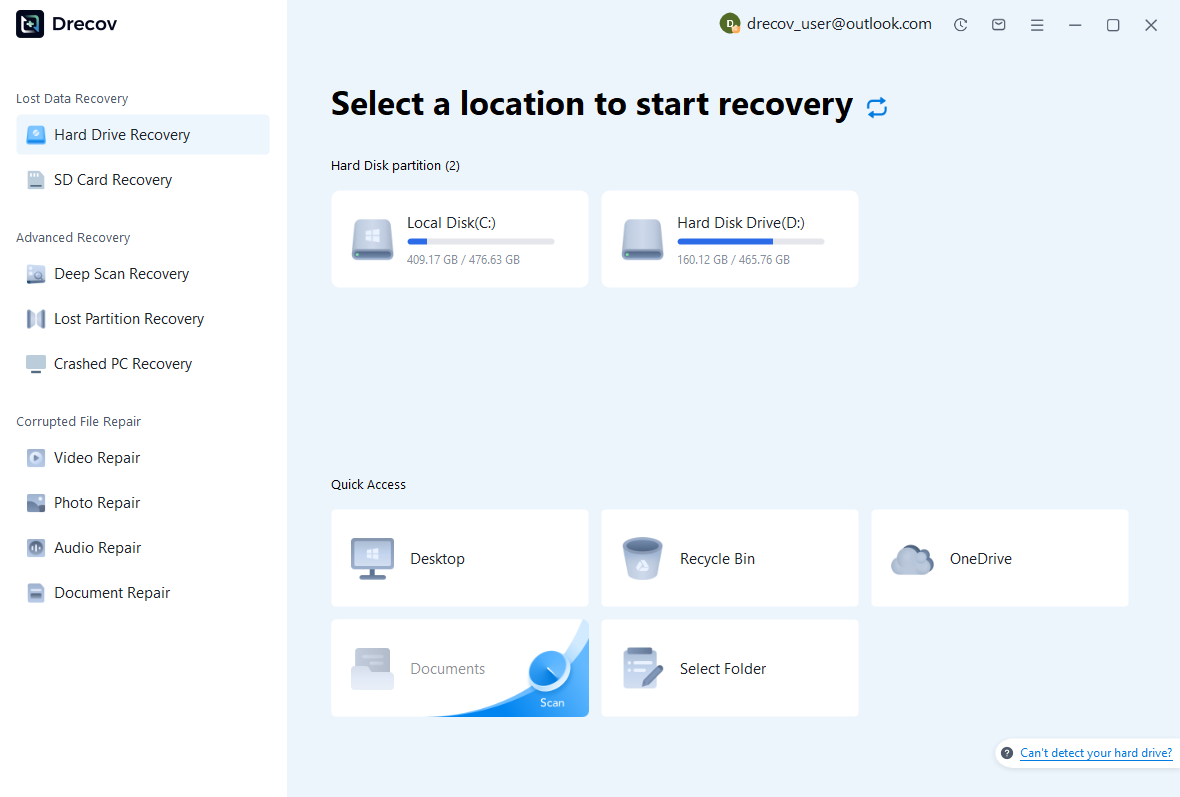
Step 1: select the disk that held the missing asset
Identify whether the AI, recovery folder, and placed images lived on the same disk. Select the relevant supported source rather than scanning an unrelated download folder. Avoid installing software or writing new project packages onto that source. If the device becomes unstable, stop repeated scans and assess the hardware problem. Reliable reading is a prerequisite for a useful software recovery attempt.
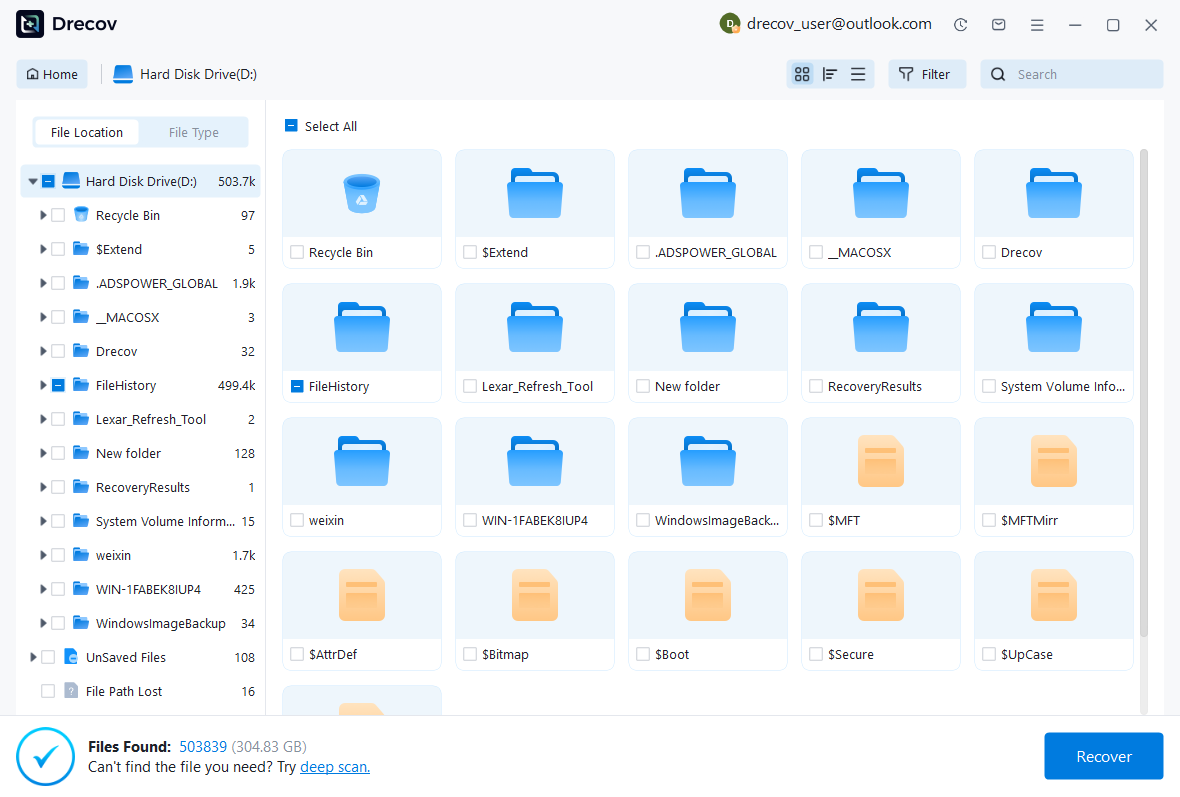
Step 2: compare names, paths, and revisions
Use available filters to locate plausible AI files and linked images. Preserve multiple candidates when the project history is uncertain. A name match or large size does not prove a healthy design, and a preview may not expose all artboards. Keep source paths and dates in your notes. This makes it easier to pair an AI candidate with the correct photograph or reference package during later testing.
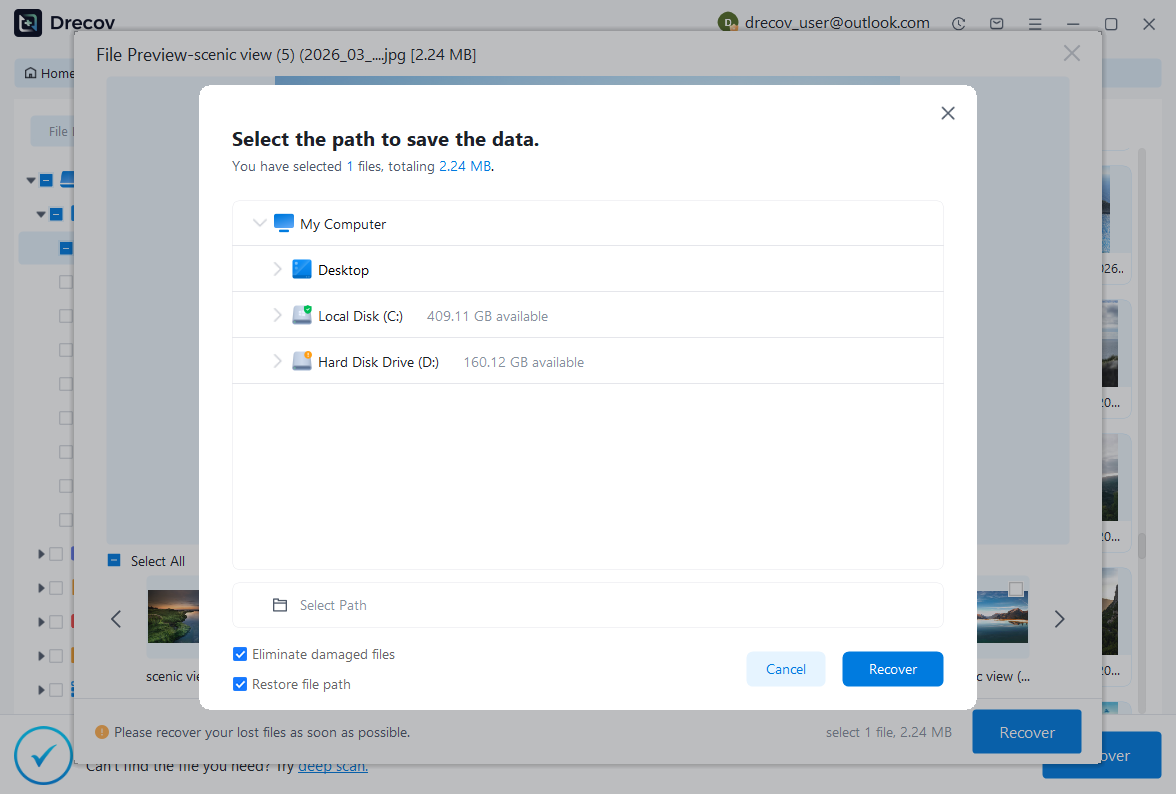
Step 3: recover to another disk and test in the application
Save useful candidates to a different healthy physical disk. Then open copies through Illustrator or the appropriate asset application. If the tool cannot preview your format, acknowledge that limitation before purchasing or promising success. Check current licensing and recovery limits. Finally, verify the design’s actual structure and dependencies. The storage scan only supplies candidates; Illustrator inspection determines whether they meet the project requirement.
Validate the recovered artwork
Check artboard count and size, layers, clipping masks, paths, live text, linked images, color definitions, and export appearance. Compare the exact elements edited before the incident. Then save, close, and reopen the accepted AI from its recovered project location. Generate a test PDF through the normal workflow and review every required page. This confirms a usable saved project rather than a temporary screen preview.
Keep a recovery note that identifies the selected source and any compromises. For example, state that the main artwork remains editable but one image came from an older delivery. Also retain the damaged original and useful alternatives until the project owner accepts the result. Afterwards, preserve independent milestone copies and package dependencies deliberately. A backup plan should protect the editable project, not merely a single final PDF.
Questions that affect the next step
Will changing AI to PDF repair the file?
A new extension does not repair damaged content or create a missing PDF representation. The PDF salvage route works only when compatible content already survives. Therefore, test a duplicate using the supported application workflow and retain the original. If the representation does not exist, focus on automatic recovery, another editable candidate, or reconstruction from a verified export instead of repeating the same rename operation.
Why is the recovered design visually correct but hard to edit?
A PDF-based salvage may preserve the page appearance while changing the internal object structure. Some elements can become fragmented or lose the original editing relationships. Compare the requirements of the next production task before accepting it. A reprint and a full redesign have different needs. Keep the salvage useful for its actual purpose, while clearly labeling any missing live text, effects, or reusable source elements.
Can I discard the recovery folder after saving?
First reopen the saved candidate and complete the artwork checks. If important content remains missing, retain the preserved recovery material and other versions until the investigation finishes. A successful Save As does not prove that you chose the best candidate. Once the project owner accepts the recovered master and you have an independent backup, handle temporary material according to the application’s guidance and your normal retention policy.
Related recovery resources
Explore the relevant recovery options: Hard drive recovery, External hard drive recovery.
For another recovery case and its practical checks, read the related recovery guide.
Check the vendor guidance for the installed version: official recovery documentation 1, official recovery documentation 2.





