








InDesign recovery is about more than finding an INDD with a familiar name. A publication also depends on linked pictures, fonts, page structure, and the most recent editorial changes. After a crash, temporary recovery data may preserve unsaved work. If the saved document still opens, an IDML round trip may provide a different route to a usable copy. Start by preserving the project and identifying which part of the publication actually failed.
Quick answer: preserve the document and its recovery data
Restart InDesign and let its recovery process finish if the application remains stable. Save any recovered document under a new name. If the document opens but behaves erratically, test an IDML export and reopen that export as a separate candidate. If startup repeatedly crashes, preserve the recovery folder before following Adobe’s cleanup guidance. Clearing recovery data can restore application access while sacrificing the only unsaved changes, so those goals need separate decisions.
These native routes require no additional recovery purchase for an existing InDesign user. However, they cannot reconstruct a publication from missing source files that never reached disk. Also, a repaired INDD does not automatically restore absent linked pictures. Keep the document, its dependencies, and any issued PDF available during the investigation. A comparison against the intended publication provides better evidence than a successful open alone.
Classify the publication problem
Is the INDD missing, damaged, or simply incomplete?
Check the actual project path and full filename. A recent-document entry may refer to an old folder or a disconnected drive. If the INDD exists, record the exact error and its size before testing a duplicate. If it opens, inspect the page count and the area edited last. A document with missing pictures may need relinking rather than a structural repair. Conversely, repeated crashes on one page can justify a document-specific investigation.
Write down the last known good milestone, the crash time, and the expected editorial changes. For example, a revised contents page and a corrected caption give you two concrete acceptance points. Also note the InDesign version and any plugins involved. A missing plugin or font can affect a valid document’s behavior, so do not immediately classify every opening warning as physical corruption of the INDD.
Inventory the supporting files
List the INDD, linked images, fonts information, any IDML export, and the most recent PDF proof. If the publication belongs to a book, include the related chapter documents and book file in your inventory. Preserve the readable project folder structure when possible. This helps you distinguish a recovered document with broken paths from a document that has genuinely lost its content.
Keep a package copy separate from an issued PDF. The package may contain editable source material, while the PDF primarily records the output. Both can support recovery, but they solve different problems. Furthermore, an older package may contain the correct pictures even when its INDD lacks recent text edits. You can use those assets to repair links in a newer recovered document without replacing the newer editorial work.
Free route 1: recover the interrupted editing session
- Preserve readable project files and avoid clearing the InDesign recovery folder.
- Start InDesign and allow automatic recovery or repair to complete.
- Inspect any document marked Recovered for the expected pages and recent changes.
- Use Save As to save a new INDD, then reopen that saved candidate.
InDesign keeps temporary recovery information separately from the original document while you work. A successful crash recovery may incorporate changes that the last deliberate save lacks. However, temporary data is not a permanent version archive. Normal saving or closing can remove it. Therefore, inspect the recovered session promptly and preserve a separate candidate before experimenting with relinking, preferences, or conversion.
Check editorial changes before accepting the candidate
Start with the exact story or page you edited before the interruption. Compare its final paragraph, captions, tables, and any cross-references. Then inspect the page count and text flow around that area. A restored story can reflow when a font or image changes, so the presence of the words alone does not prove the layout is ready for production. Record any reflow that still needs editorial review.
Also inspect content outside the visible page area. Overset text, hidden layers, and alternate layout elements can matter to the publication. Avoid deleting them just to make an error indicator disappear. Instead, compare them with the design requirements and the earlier proof. This protects legitimate content while helping you identify changes that recovery did not preserve. Save the initial recovered candidate before making corrective edits.
Free route 2: rebuild a readable document through IDML
- Open a duplicate of the affected document if it remains readable.
- Export it as InDesign Markup, or IDML, using the supported export interface.
- Open that IDML as a new document and inspect the rebuilt result.
- Save a new INDD and compare its pages, styles, links, and output with the original candidate.
An IDML round trip can help when an existing document opens but carries problematic internal structure. It is not a method for retrieving a deleted INDD, and it cannot export content the application cannot read. Also, conversion can change features or layout behavior. Therefore, keep both candidates and compare them rather than automatically replacing the original with the converted version after one successful launch.
Validate the converted publication
Review paragraph and character styles, parent pages, tables, anchored objects, footnotes, and interactive features relevant to the job. Then inspect text flow and page breaks. Pay particular attention to long documents where one changed line can shift later pages. If you work with several chapters, compare chapter starts and numbering. A stable IDML conversion still requires an editorial and production check before it becomes the accepted master.
Generate a test PDF from the converted document using the normal output settings. Compare that PDF with a known proof and the intended latest changes. Do not judge only the first spread. For example, a conversion may open cleanly while a table on a later page needs adjustment. Document any difference so a reviewer can distinguish a recovery compromise from a deliberate design change.
Free route 3: use an existing package or IDML delivery
- Locate your own project package, handoff archive, or earlier editable delivery.
- Copy it to a separate recovery location and inspect its contents.
- Open the relevant INDD or IDML and compare the revision against the current requirement.
- Reuse verified dependencies or source content without overwriting newer recovered work.
A package can preserve the surrounding project context that a loose INDD lacks. However, package completeness depends on how the original handoff collected links and other resources. Check what is actually present. An older package may be the best source for a missing photograph while the crash recovery candidate remains the best source for current text. Combine them deliberately and record the origin of each recovered component.
An issued PDF can show page order, captions, visible text, and design intent. It can therefore support a manual reconstruction when editable copies fail. However, it does not normally preserve the original InDesign styles, story structure, or linked-source relationships. Extracted text may require careful reading and reformatting. Keep a reconstruction note rather than describing a rebuilt publication as a complete recovery of the original source.
If you must rebuild several pages, prioritize the editorial content that no other source preserves. Next, restore the layout from the proof and relink the original assets where available. Compare punctuation, special characters, and tables carefully after text extraction. Furthermore, obtain normal editorial approval for reconstructed pages. Storage recovery and design reconstruction can reduce the loss, but they do not remove the need to review the result.
Free route 4: restore missing links in a valid INDD
- Open a working copy and inspect the Links panel for missing or modified assets.
- Locate the verified original image or a suitable existing project copy.
- Relink through InDesign and check cropping, scale, and effective resolution.
- Save the recovered project separately and reopen it from the new location.
This route is appropriate when the document structure remains sound but pictures disappear after a folder move. A low-resolution preview inside the layout may still display, which can make the problem easy to miss until export. Confirm that each link points to the intended production asset. A different photograph with the same name can produce a plausible yet incorrect publication, so use visual and revision checks together.
Confirm font and flow consistency
Missing or substituted fonts can change line breaks, page count, and overset text without damaging the INDD itself. Inspect the document’s font warnings and resolve them through your normal licensed workflow. Do not silently accept a substitute just because it makes the file open. After restoring the intended fonts, recheck text flow and anchored objects. This is especially important for contents pages, indexes, and long captions near column limits.
Keep a separate note of unresolved dependencies. For example, a recovered layout may remain useful even if one original illustration is still missing. State that limitation explicitly and preserve the frame, caption, and expected source name. Those details can guide a later asset recovery. Meanwhile, avoid exporting a final production file that conceals the missing dependency behind an embedded preview or placeholder.
Handle a recovery crash loop without losing the only evidence
If InDesign crashes at every launch, stop repeating the same recovery attempt. With the application closed, preserve a copy of the documented recovery folder before following Adobe’s instructions for removing damaged recovery data. The configured path appears in File Handling preferences when the application can open. Version and locale folders can differ, so confirm the correct location rather than deleting every Adobe cache you find.
Clearing damaged recovery data may allow the application to start, but it does not itself restore the unsaved publication. Keep that distinction visible. Afterwards, test a duplicate of the saved INDD and inspect existing IDML or package alternatives. If plugins appear relevant, use the vendor’s troubleshooting guidance and maintain a record of the creating environment. Do not mix repeated startup resets with edits to the sole remaining document.
Example: restore a magazine after a late crash
Imagine a forty-page magazine with two revised interviews, updated captions, and a new cover photograph. Automatic recovery opens the current text, but several pictures show missing-link warnings. An older package contains the correct originals. In this situation, preserve the recovered INDD first, then relink the package assets. Replacing the whole project with the older packaged INDD would lose the interview changes unnecessarily.
Next, compare the recovered interviews and captions against the editorial notes. Inspect the contents page and all affected spreads for reflow. If one page remains unstable, test an IDML conversion on a separate copy and compare its PDF output. Finally, record which candidate became the master and which assets came from the package. This creates a usable, reviewable publication rather than a collection of unexplained recovery files.
Review long-document structure systematically
Page count and text flow
Compare page count, chapter starts, and the final paragraph of each major story. A small font or style change near the beginning can alter many later pages. Therefore, do not inspect only the spread where the crash occurred. Use an issued PDF and editorial notes to identify the expected structure. If the recovered version reflows, determine whether that reflects missing content, substituted resources, or an intentional difference from the reference.
Keep a record of each discrepancy and its likely scope. For example, a one-page shift after a long table deserves a different investigation from an entirely absent story. This helps the editor focus review effort. Also avoid forcing the page count to match by deleting text or reducing type sizes. First establish whether the recovered content is complete, then resolve layout differences through the normal design workflow.
Inspect page numbering, chapter numbering, contents entries, cross-references, and footnotes relevant to the publication. These features can appear plausible while pointing to outdated locations after reflow. Update fields or navigation through the supported workflow only after you preserve the recovered baseline. Then compare the result with the intended editorial structure. A document that opens cleanly can still contain inaccurate navigation that affects its usefulness.
For a book project, check the relationship between chapter files and the book structure. Recovering one chapter does not automatically restore every book-level setting or missing chapter. Keep the components and their order documented. Also preserve any existing book file candidate separately. This lets you rebuild the publication deliberately rather than assuming that opening the longest INDD restores the entire multi-document project.
Evaluate an IDML candidate against the original
Styles and object behavior
Compare representative paragraph, character, table, and object styles. Look for changed overrides, unexpected substitutions, and elements that no longer behave as intended. A successful IDML import can provide a stable candidate while still requiring cleanup. Test the types of edits the next production stage will need. For example, changing a table entry should not unexpectedly alter surrounding text or detach a required caption.
Preserve the pre-conversion candidate and the IDML itself. If a later comparison reveals a difference, you can trace it back without repeating the entire recovery. Also record the application versions used for export and reopening. Version-specific feature handling can affect the result. This context helps distinguish a conversion difference from content that the crash had already lost before you created the IDML.
Images, anchored objects, and captions
Inspect anchored images and their relationship to the surrounding text. A picture may remain visible while its anchor position or wrapping behavior changes. Compare the affected spreads after text reflow and at the intended output size. Also verify captions against the correct images. A publication with every image present can still be editorially wrong if a recovered or relinked asset no longer matches its caption.
When a package supplies an older asset, compare its actual content and crop rather than relying on the filename. If the correct version is unavailable, mark the substitute clearly in the recovery note and request normal editorial review through your workflow. Do not hide the uncertainty behind a clean Links panel. Application status indicators confirm file availability, while the editor must confirm that the publication uses the intended material.
Rebuild only the pages that truly need it
Use the strongest editable base
If most of the INDD survives, preserve it as a baseline and isolate the damaged area. An earlier IDML may provide a useful page or story, while a PDF supplies the latest wording. Combine those sources in a new working revision rather than replacing the entire publication with an older backup. Document the origin of the rebuilt content so reviewers can concentrate on the changed pages.
Compare paragraph order and special characters after any extraction. PDF text can contain line-break artifacts, misplaced hyphens, or an unexpected reading order around columns. Tables and footnotes need particularly careful checking. A rebuilt page may look similar while carrying subtle wording errors. Therefore, treat reconstruction as editorial work with a focused proofread, not as an automatic consequence of finding a readable PDF.
Distinguish a proof from a production deliverable
A comparison PDF helps validate the recovered layout, but it may not use the final production settings. Label it as a proof until the publication passes its normal output review. Check bleed, page range, image quality, fonts, and any required interactive features. Also review the exact pages reconstructed after recovery. A technically readable PDF can still be unsuitable for the intended printer or distribution channel.
Keep the accepted source and production output paired by revision name. This prevents a reviewer from comparing an old proof with a newer recovered INDD and reporting differences that no longer apply. Furthermore, retain a brief list of known compromises. A clear handoff makes the remaining review practical and avoids the false impression that recovery software has certified the publication’s editorial or production correctness.
Preserve a complete recovered project
Test from the destination folder
After collecting the accepted document and dependencies, reopen the project from its intended working location. Confirm that links no longer point to temporary recovery directories. Then generate a test output without relying on the original recovery session. This portability check catches projects that appear complete only because the investigator’s workstation still has assets available in unrelated folders or cached locations.
Keep evidence and production material in separate clearly named folders. The evidence can include damaged originals, recovery data, IDML candidates, and comparison notes. The production folder should identify one accepted master and its verified dependencies. Afterwards, protect both meaningful editorial milestones and complete project packages independently. This provides future recovery routes for source structure, assets, and visible output rather than relying on one rotating temporary mechanism.
When file recovery software fits
PandaOffice Drecov may help locate a deleted INDD or a missing linked asset on supported storage. It does not reconstruct InDesign’s temporary recovery mechanism, guarantee proprietary format repair, or restore styles from a PDF automatically. Check current file-type support and the available results first. Use this route for absent files after the native candidates and existing project deliveries have failed to provide a usable copy.
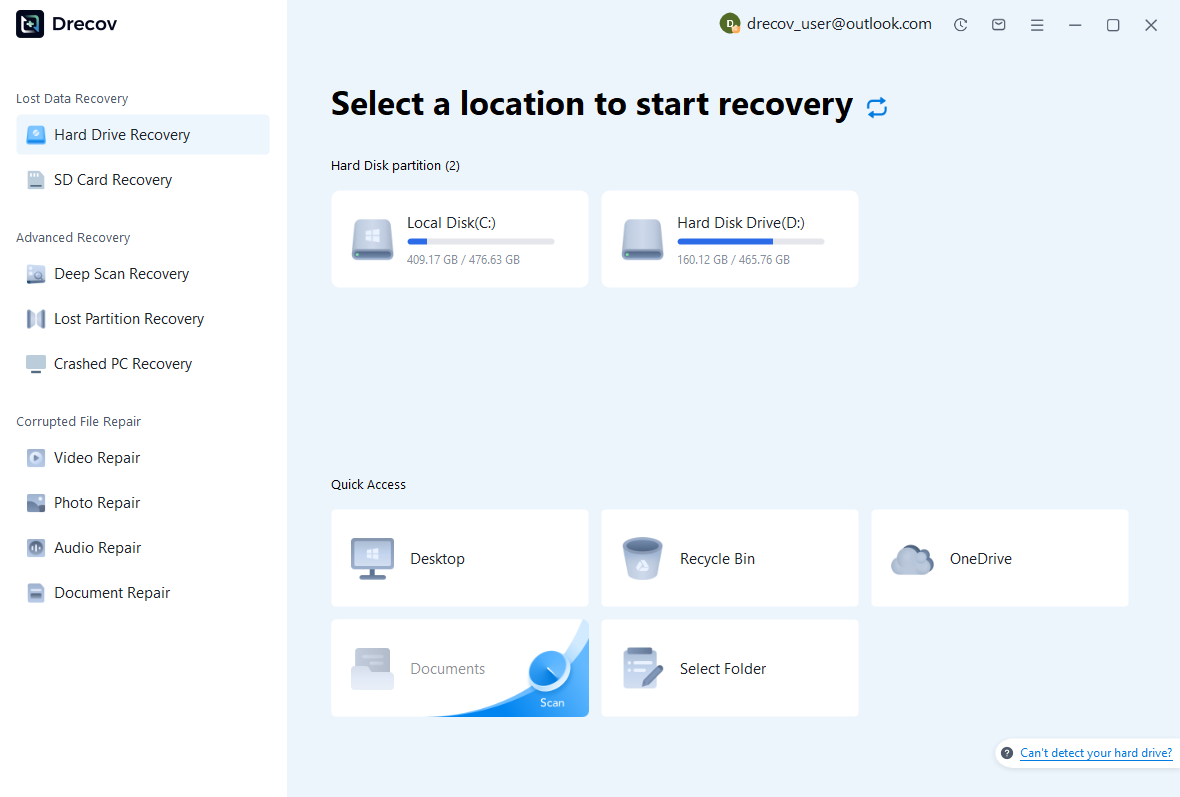
Step 1: select the storage that held the missing component
Identify whether the document, recovery data, and linked pictures lived on different disks. Select the supported source that actually contained the missing file. Avoid installing software or creating fresh production exports there. If the disk repeatedly disconnects or reports read problems, stop repeated software attempts and assess the hardware condition. Stable reading matters more than trying another file filter on a failing device.
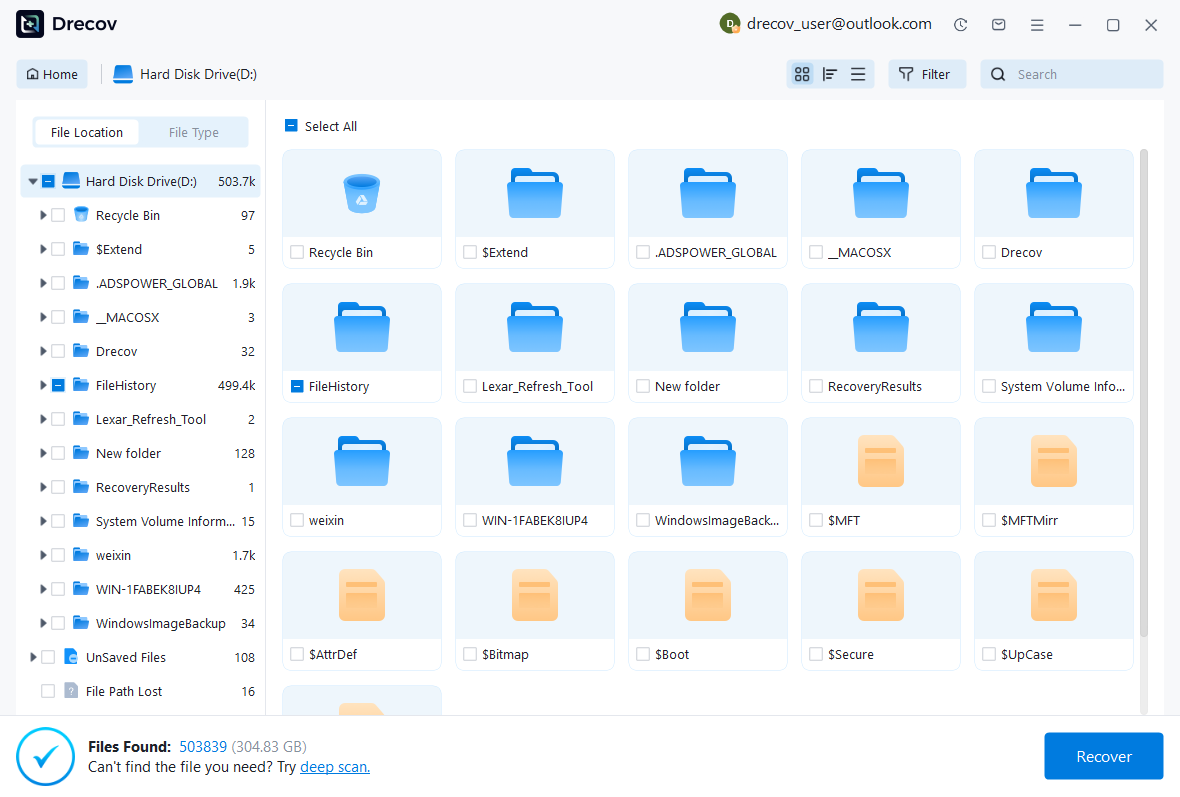
Step 2: collect plausible project candidates
Use available filename, path, date, and format filters to compare candidates. Include linked assets when the publication needs them, and preserve multiple INDD versions if the revision is uncertain. A large file or familiar thumbnail does not prove completeness. Also keep the source details in your notes so you can pair the recovered document with the appropriate editorial milestone and asset set during application testing.
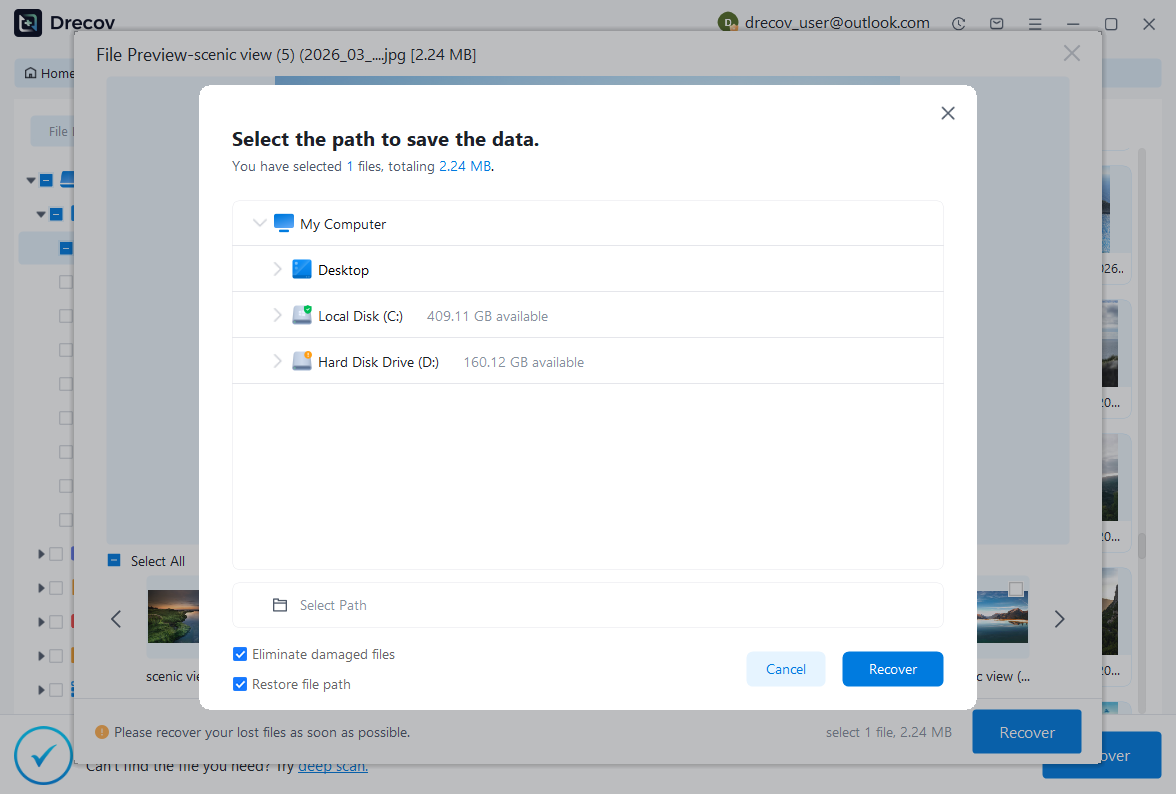
Step 3: recover elsewhere and inspect in InDesign
Save useful candidates to a different healthy physical disk. If a proprietary document has no preview, treat that as a validation limit rather than evidence of success. Review current licensing before purchasing. Then open copies in InDesign and perform the publication checks. A recovered filename is only a candidate; a saved, reopened, and reviewed publication is the result you can responsibly return to production.
Validate the complete publication
Review page count, parent pages, styles, stories, tables, footnotes, links, fonts, and overset text. Inspect the exact editorial changes made before the incident. Next, save and reopen the accepted INDD, then generate a test PDF through the usual output workflow. Use the publication’s normal preflight requirements. A clean open and a clean preflight answer different questions, so complete both where the job requires them.
Keep the damaged original, preserved recovery data, accepted master, dependencies, and comparison proof until approval finishes. Also document any reconstructed pages or older assets. Afterwards, protect meaningful editorial milestones and complete project packages independently. A backup strategy that stores only a final PDF may preserve reading access while leaving the next editable revision expensive to rebuild. Protect the source publication and its supporting material together.
Questions that prevent an incomplete recovery
Can IDML recover a document that will not open at all?
You need a readable document or an existing IDML export for the normal round-trip method. If InDesign cannot open the INDD, it cannot simply export its missing content. Look for automatic recovery, a prior editable delivery, or a recoverable deleted file instead. An existing IDML can still be valuable, but compare its revision and features before treating it as equivalent to the lost current master.
Should I delete the recovery folder to fix startup?
Preserve it first when it may contain the only unsaved changes. Follow the official procedure for the relevant version and understand that restoring application startup differs from restoring the publication. Once InDesign opens, test copies of saved documents and compare alternatives. If recovery continues to fail, retain the evidence for further support rather than repeatedly deleting temporary material and losing track of what remains.
Related recovery resources
Explore the relevant recovery options: Hard drive recovery, External hard drive recovery.
For another recovery case and its practical checks, read the related recovery guide.
Check the vendor guidance for the installed version: official recovery documentation 1, official recovery documentation 2, official recovery documentation 3.





