








A Premiere project and its source footage are different recovery targets. The PRPROJ stores editing decisions and references, while the camera clips, audio, graphics, and other assets usually remain separate. After a crash, a recent Auto-Save may restore the timeline without restoring a missing media folder. Start by preserving the project candidates and identifying which component is absent. Then choose a method that solves that specific problem.
Quick answer: restore the timeline before rebuilding media links
Restart Premiere and inspect its crash recovery prompt if it appears. Save a useful restored project under a new name. If the prompt is unavailable or the result is outdated, compare files in the project’s Auto-Save or Recovery Projects folders. Next, relink verified source media where necessary. Do not replace a current timeline with an older project simply because the older one happens to find its footage automatically.
These native methods require no additional recovery utility for an existing Premiere user. However, they cannot recreate camera clips that no surviving storage contains. Also, the project’s modification time does not prove which sequence contains the final cut. Define the required edit, media, and output checks before accepting a candidate. A successful project open is a starting point rather than a finished recovery.
Determine what the project actually lost
Separate timeline decisions from source media
Check whether the PRPROJ is missing, fails to open, or opens with offline clips. A missing project calls for recovery candidates or existing deliveries. An offline clip calls for locating its source. A black frame on one track may instead involve an effect, disabled clip, or unavailable asset. Record the exact symptom and affected sequence rather than treating every playback problem as a corrupted project.
Make an inventory of source footage, audio, stills, graphics, captions, and any linked compositions. Include proxy and full-resolution locations separately. A proxy can help continue an edit while the original remains unavailable, but it may not satisfy final output requirements. Furthermore, a rendered preview can preserve a visual reference without preserving the underlying editing decisions. Label these resources according to what they actually contain.
Define the edit you need to recover
Record the intended sequence name, approximate duration, last revision, and critical changes. For example, a new opening shot and a corrected interview cut provide concrete comparison points. Also note important markers, captions, and audio adjustments. This lets you compare Auto-Save candidates quickly without watching every export from beginning to end before you know which project is relevant.
Keep the last approved export available as a reference. It can reveal missing shots or an older title, but it does not normally contain the editable timeline. Therefore, compare both the sequence structure and its rendered result. A candidate may look right while pointing to low-resolution proxies, or it may contain the right media with outdated cuts. Recovery needs the appropriate combination of editing state and source assets.
Free route 1: use the crash recovery prompt
- Preserve the project folder and readable candidates after the crash.
- Relaunch Premiere and inspect its unexpected-quit recovery prompt.
- Reopen available projects and compare the restored timeline with the intended edit.
- Use Save As to preserve a new recovery project outside the candidate folder.
Premiere can offer to reopen projects after an unexpected shutdown. However, the prompt may not appear again after dismissal or another launch. Therefore, inspect it deliberately rather than closing it while you troubleshoot unrelated settings. A restored project can contain useful recent work, but compare its content before allowing it to replace the main file. Keep the original and recovered versions separately named.
Inspect the sequence edited immediately before the crash
Open the sequence that received the latest changes and compare its end, beginning, and recent edit points. Check whether Premiere restored the intended active sequence rather than an older duplicate. Also inspect nested sequences and essential graphics where the project uses them. A project can contain several almost identical cuts, so the most recently displayed timeline is not automatically the approved candidate.
Save the initial restored state before reconnecting media or changing effects. This gives you a stable comparison point if a plugin or source asset causes another crash. Next, record what the recovery preserved and what remains missing. For example, note that the timeline includes the final interview edit but lacks the title revision. A short precise note is more useful than naming every candidate final-recovered-new.
Free route 2: compare Auto-Save and Recovery Projects
- Locate the project’s actual Auto-Save or Recovery Projects folder.
- Copy promising PRPROJ candidates to a separate working folder.
- Open candidates around the crash or unwanted-change time and compare the key edit points.
- Save the best candidate under a new project name outside the rotating backup location.
Premiere’s Auto-Save settings control how often it creates backup project states and how many versions it retains. Defaults and folder behavior can vary with the release and project configuration. Inspect the actual settings instead of promising a universal number of snapshots. Also distinguish timestamped versions from an emergency backup with a similar base name. Candidate contents remain the final evidence of which editing state survived.
Find the best revision efficiently
Start with candidates that bracket the incident, then test the specific changes on your acceptance list. If a newer candidate repeats the same failure, compare an earlier one rather than repeatedly opening it. Keep notes on sequence duration, recent shots, and title state. This narrows the search while preserving useful alternatives. Furthermore, it prevents two editors from unknowingly working in different recovery versions of the same project.
Do not continue normal editing inside the rotating Auto-Save folder. A later backup cycle can make its contents harder to interpret. Instead, save the accepted candidate in a clear working project location and establish a new revision name. Keep the earlier candidates until review finishes. This separates the recovery evidence from the project you intend to maintain after the incident.
Free route 3: relink existing source media
- Open a working project copy and inspect the missing media information.
- Locate the verified original clip using its path, filename, and available identifying details.
- Relink through Premiere and verify any automatically matched neighboring files.
- Check picture, sound, duration, and synchronization in the affected sequences.
Relinking repairs a broken reference when the media still exists. It does not recover deleted camera data. Be careful with repeated filenames from different camera cards, because two unrelated clips can share a name. Compare duration, source timecode where available, and visible content. A successful automatic match can still connect the wrong take, so inspect representative clips from every affected folder.
Distinguish proxies from original footage
A project may offer usable proxy playback while full-resolution originals remain offline. That can help you preserve editing progress, but verify which media the final export will use. Do not assume the existence of a small proxy proves that the original survived. Also retain the proxy relationship and original path information. Those details can help reconnect recovered full-resolution footage later without rebuilding every edit.
If the originals are absent, inspect existing camera archives and verified ingest copies before scanning the editing disk. The source may never have lived there. Additionally, avoid transcoding everything just to make offline warnings disappear. A new transcode can change names, timing, or audio layout and complicate relinking. First recover or locate the correct source; then perform any necessary compatibility work on a separate copy.
Free route 4: use an existing project handoff or interchange file
- Search your own delivery folders for an earlier PRPROJ, collected project, or appropriate interchange export.
- Copy that material into a separate recovery workspace.
- Import or open it through Premiere’s supported interface and inspect the resulting sequences.
- Compare effects, transitions, captions, audio routing, and media references before accepting it.
An existing handoff can preserve a useful editing milestone when local recovery candidates fail. However, interchange formats may not carry every Premiere-specific feature. A sequence can recover basic cuts while losing effects or complex audio relationships. Therefore, treat the imported result as a candidate that needs comparison, not as a guaranteed complete substitute. Keep the original handoff and any reference export alongside it.
Use rendered output to guide a controlled rebuild
A final export can provide timing and visual evidence when no editable project survives. You may rebuild cuts from that reference and the original footage, but the export does not normally reveal every hidden track or effect setting. Record which decisions you reconstructed manually. For a short piece, this may be the fastest practical route. For a complex project, prioritize the sequences with the highest editorial value.
Compare reconstructed audio carefully. A flat stereo export may combine dialogue, music, and effects that the original project kept separate. It cannot automatically restore isolated stems. Similarly, burned-in captions do not restore editable caption timing. Keep these limitations visible in the handoff. A partial rebuild can still be valuable when everyone understands which editable elements remain missing.
Troubleshoot a project that crashes on opening
Preserve the project before changing caches, plugins, or preferences. If other projects open normally, test an earlier Auto-Save or import a copy into a new project using the supported workflow. If every project fails, investigate the application environment separately. Change one relevant factor at a time and record the result. This avoids confusing a plugin problem with damage to every PRPROJ on the workstation.
Media cache and preview files serve different purposes from the project and camera originals. Deleting them is not a general recovery method and can remove useful working material without fixing a damaged timeline. Follow current vendor guidance for a specific troubleshooting reason. Meanwhile, keep the project candidates intact. If one source clip triggers the failure, isolate that dependency on a copy rather than permanently removing it from the sole surviving project.
Example: recover an interview edit after a power failure
Suppose a twelve-minute interview project contains a final dialogue cut, new captions, and several offline B-roll clips. The last manual PRPROJ lacks the caption changes. An Auto-Save preserves them, but it still points to the old media drive letter. In this case, preserve the Auto-Save as a new working project and relink the verified footage. Reverting to the manual project would lose useful caption work unnecessarily.
Next, compare interview cut points and inspect the caption ending. Check B-roll filenames against the correct camera-card folders, because repeated clip names can mislead automatic relinking. Then export a short section containing dialogue, captions, and B-roll. After that passes, review the full sequence and final output settings. Keep the recovery note with the project so another editor knows which candidate became the master.
Compare project candidates using an edit map
Record sequence identity and recent changes
Create a short edit map with the intended sequence name, duration, opening shot, ending, title revision, and last major audio change. Apply it to every candidate. This is more efficient than watching complete projects before you know which timeline matters. Also distinguish duplicate sequences within a single PRPROJ. A project can contain an old cut and the current cut together, so the first sequence that opens may not represent the best recovery.
Keep observations specific. For example, new ending present but captions outdated tells another editor what remains to do. A vague latest version label does not. Record the candidate path and preserve the initial file before relinking or updating effects. This lets you compare the original recovery state with later corrections and prevents a useful Auto-Save from becoming indistinguishable from a manually reconstructed working project.
Find a defensible recovery point
If no candidate contains every final change, choose the strongest verifiable base. A project with current cuts and one missing title may be preferable to an older fully linked project. Reapply the missing title from an approved reference and record that reconstruction. Do not assume a newer timestamp means a more complete edit, especially after file transfers or automatic backup cycles that may change dates without changing the relevant sequence.
Set a practical limit on repeated tests. A new candidate or a different error can justify another attempt; reopening the same unchanged project usually cannot. Once the available Auto-Saves and handoffs are compared, list the exact missing work. This turns recovery into a manageable editorial task and avoids promising an indefinite search for a perfect snapshot that may never have reached disk.
Validate media matching at clip level
Repeated camera names and source identity
Camera cards often restart familiar naming patterns. Before broad relinking, compare a representative clip’s subject, duration, and identifying metadata. Then inspect neighboring automatically matched clips. A wrong take can fit the timeline length well enough to escape a quick check. Use the project bin and reference export together so you verify both the source identity and its use in the sequence.
If several cards share filenames, preserve their folder boundaries in the recovery workspace. Do not flatten every recovered clip into one directory. That can create collisions and make relinking less reliable. Also record where each source came from. A clear archive structure helps the next editor understand why a particular clip is correct without repeating the entire recovery search.
Audio channels and synchronization
Inspect dialogue, music, and effects separately where the project uses isolated tracks. A source clip can reconnect correctly for picture while its channel interpretation differs from the original workflow. Listen across representative edits and compare lip synchronization. Also check longer sections, because a small timing mismatch can become obvious only later. A single successful preview near the beginning does not validate the whole sequence.
If you use an independent audio recording to replace a missing source, preserve the original and align a copy deliberately. Check multiple reference points rather than only one clap or spoken word. Document any timing correction or processing you add. This distinguishes a reconstructed soundtrack from recovery of the original source relationship and makes the resulting project easier to maintain.
Graphics, effects, and external compositions
Inspect titles, lower thirds, motion graphics, and linked compositions relevant to the delivery. A recovered timeline can preserve clip placement while an unavailable font or plugin changes appearance. Compare those sections with the approved export. Also identify which missing items are assets and which are application dependencies. Recovering a project file does not grant access to unavailable software or restore its settings automatically.
When a dependency is unavailable, keep the original timeline structure and create a separate workaround revision if necessary. A rendered replacement can support an urgent output while reducing editability. Label that compromise clearly. Do not delete the original linked item merely to remove a warning. Its name, timing, and source path may guide a later recovery or a more faithful reconstruction.
Use exports as a reference with clear limits
An export can reveal shot order, timing, titles, and the audible mix. It generally cannot show hidden tracks, alternate takes, editable captions, or plugin parameters. Therefore, use it to verify the visible program while inspecting the project itself for reusable structure. If only the export survives, acknowledge that a rebuild will create new editing decisions around a rendered reference rather than restore the exact original project.
For a partial reconstruction, prioritize the elements the next production stage needs. A social cutdown may require clean source shots and editable titles, while an archive copy may only need the approved program. Define that target before rebuilding complex effects. This keeps the recovery effort useful and avoids spending hours recreating hidden structure that the actual deliverable does not require.
Check the final output path
After accepting the recovered project, verify output resolution, frame rate, audio configuration, captions, and source-media quality. Export a representative test that includes the risky sections, then complete the normal review of the final program. Also reopen the project from its intended folder. This confirms that a temporary recovery path or cached asset is not the only reason the edit currently works.
Keep the accepted project, verified media archive, and approved export associated by revision. Retain the damaged originals and useful candidates until review finishes. Afterwards, protect project milestones separately from camera originals and audio sources. Those backups answer different recovery questions: one preserves editorial decisions, while the other preserves the material needed to render and revise them.
When PandaOffice Drecov may help
Use a storage recovery assessment when the PRPROJ or source assets are actually missing from supported media. PandaOffice Drecov does not rebuild Premiere timelines from rendered videos or automatically restore absent plugins. Also, a recovered clip name does not prove a playable recording. Check current support, available previews, and the specific missing file before choosing a paid recovery route.
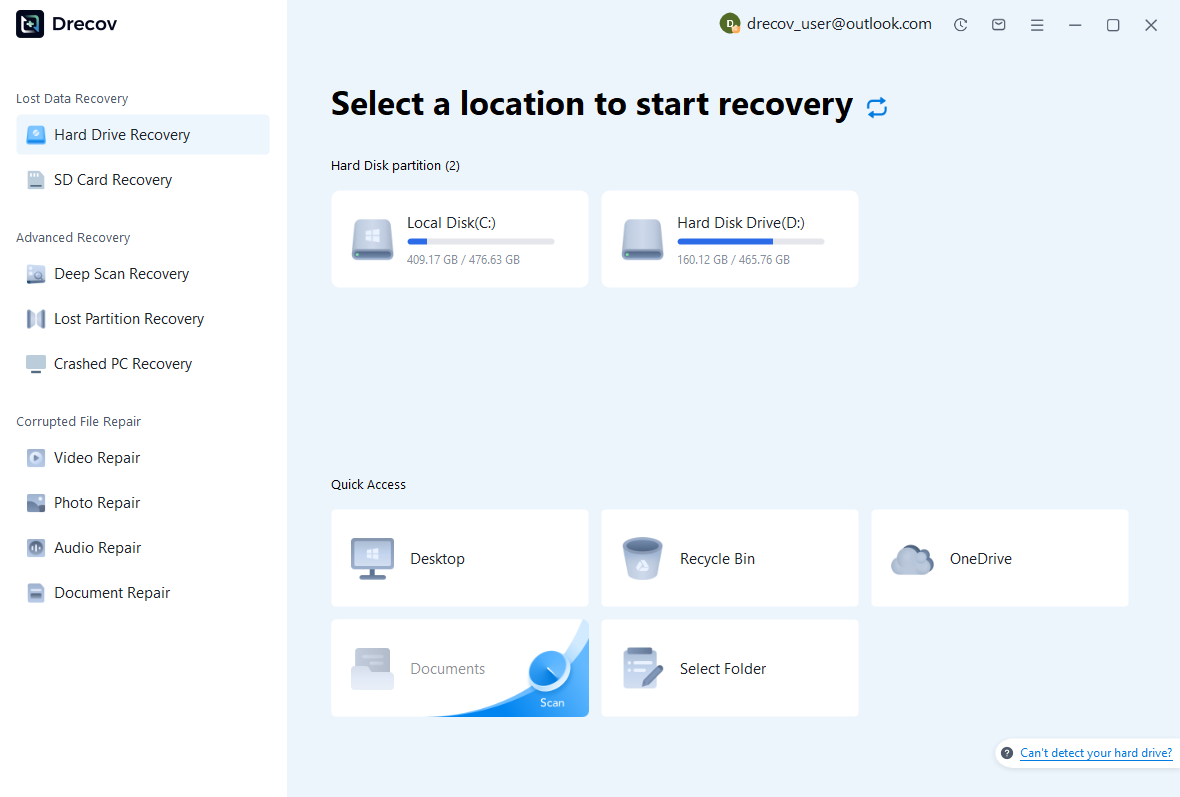
Step 1: select the source that held the missing file
The editing project, Auto-Save folder, and camera archive may live on different disks. Identify the relevant location before scanning. Avoid installing software or rendering fresh exports to the affected source. If the disk becomes unstable, stop repeated software attempts. A failing device can require a different approach, and scanning an unrelated healthy project drive will not retrieve footage that only existed on a camera card.
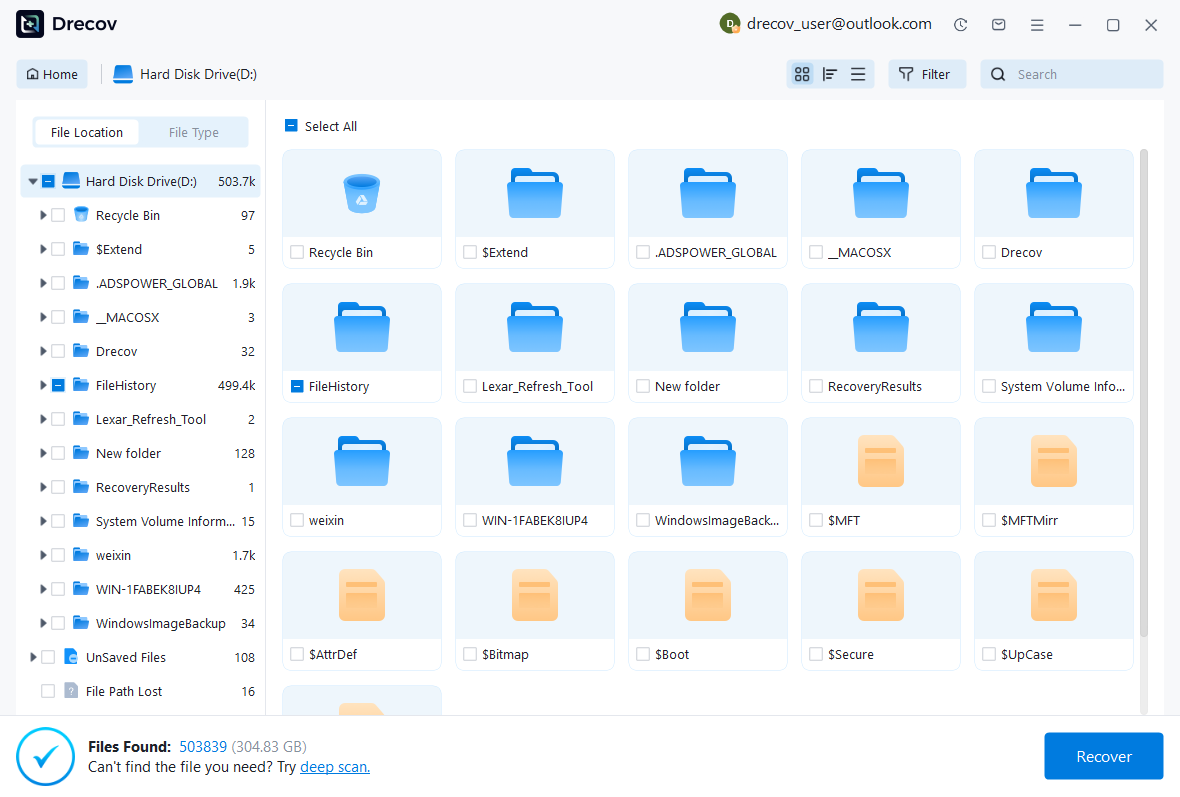
Step 2: compare project and media candidates
Use available filename, folder, date, and format filters. Preserve more than one project candidate if the revision remains uncertain. For media, compare expected size and duration where the interface allows it, but do not rely on those clues alone. Also retain accompanying audio or metadata files when they matter to the workflow. Keep candidate sources documented so you can reconnect the appropriate assets later.
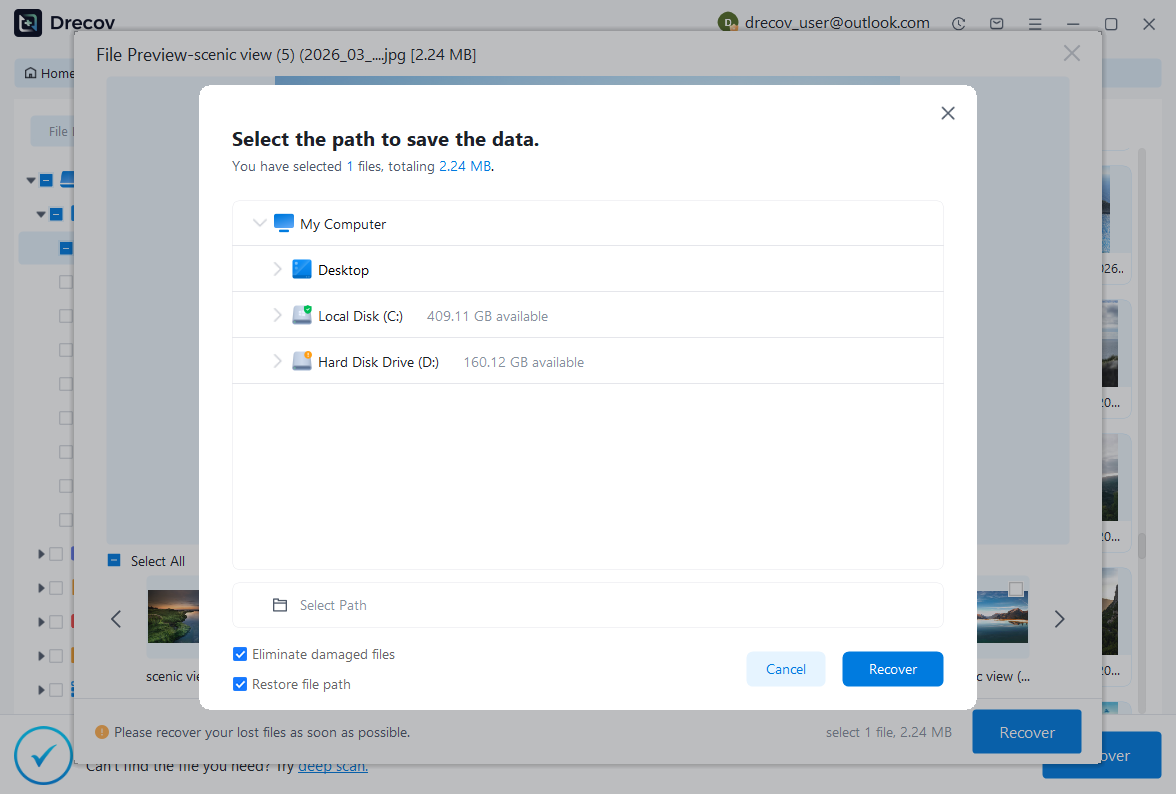
Step 3: recover elsewhere and test the edit
Save useful results to a different healthy physical disk. Then open project copies in Premiere and test recovered media in the appropriate application. If preview is unavailable for a proprietary project, acknowledge that limit before purchasing. Check current licensing and recovery conditions. Finally, reconnect candidates and repeat the sequence acceptance checks. The meaningful result is a usable project with verified media, not merely a list of recovered filenames.
Validate picture, sound, and the saved project
Inspect sequence duration, frame rate, track layout, nested sequences, titles, captions, markers, and audio routing. Play across important edits and compare synchronization. Next, save, close, and reopen the accepted project. This confirms that the new working file survives beyond the recovery session. Also verify final output settings and media resolution so a proxy-based preview does not conceal an unsuitable production export.
Generate a test export that covers the risky sections, then review the complete final deliverable through your usual editorial process. Document missing effects or reconstructed edits. Afterwards, back up the accepted PRPROJ and the media independently. A project backup protects editing decisions, while a camera archive protects the material those decisions reference. Both matter when you need to restore an editable production later.
Questions that change the recovery plan
Does a PRPROJ contain all the footage?
Ordinary Premiere projects reference external source media rather than embedding the entire production. Therefore, recovering the project alone may restore the timeline while leaving clips offline. Look for the original camera archive and collected project assets. If only an export survives, use it as a reference or limited output copy and describe any reconstruction honestly. Do not promise isolated source tracks from a flattened movie.
Can an older Auto-Save be the better candidate?
Yes. A newer snapshot may preserve the same damaging change or crash trigger. Compare the specific editing milestone rather than choosing by date alone. Keep useful versions until review finishes, and move the accepted candidate out of the rotating backup folder. For future projects, set an appropriate Auto-Save policy and preserve major editorial milestones independently so one accidental change does not consume every available fallback.
Related recovery resources
Explore the relevant recovery options: Hard drive recovery, External hard drive recovery.
For another recovery case and its practical checks, read the related recovery guide.
Check the vendor guidance for the installed version: official recovery documentation 1, official recovery documentation 2, official recovery documentation 3.





