







Please help! 😭 Some important files in my SSD were deleted by mistake, and now I can’t find them at all, even the Recycle Bin is empty… Is there any way to recover deleted files from SSD? Here’s what happened: A few days ago, I cleaned up the disk, thinking of freeing up some space for the C drive, but I was too quick to do it and Shift + Deleted a working folder directly… I didn’t realize it at the time, and later when I needed to use it, I found that it was all gone! I thought I could still find it in the Recycle Bin, but the SSD directly skipped the Recycle Bin and deleted it. I was really desperate!—from Microsoft Store
Introduction to SSD Data Recovery
Overview of SSD Data Loss
Solid-State Drives (SSD) have become the preferred storage solution for many users due to their fast speed, low power consumption, and durability. However, like any digital storage device, SSDs are not immune to data loss. SSD data can become inaccessible due to accidental deletion, formatting, virus attacks, physical damage, or logical corruption. Understanding ssd data recovery is essential for businesses and personal users alike, as lost data can include critical files, documents, or multimedia content.
⚠️Warning: SSDs have a unique architecture, which makes recovery more complex than traditional hard drives. Attempting DIY recovery without proper knowledge may worsen the situation.
Key Features of SSDs Affecting Data Recovery
Unlike traditional HDDs, SSDs use flash memory and an internal controller that manages data placement through processes like TRIM. TRIM helps maintain performance by erasing blocks of data marked for deletion, but it also reduces the chances of successful recovery ssd operations if the deleted data has been trimmed. Other factors, such as firmware updates or power failures, may complicate data recovery from ssd. Therefore, a thorough understanding of the underlying technology is essential for effective SSD recovery.
Common Causes of SSD Data Loss
Logical Errors and File Deletion
One of the most frequent reasons for data loss is accidental deletion or formatting. Users often remove files unintentionally or perform a quick format on their SSD, assuming the data can be easily restored. While ssd recovery tools can retrieve lost files, logical errors such as corrupted file systems, bad sectors, or virus attacks can impede the recovery process.
Physical Damage and Hardware Failures
Physical issues like controller failure, NAND chip damage, or power surges can render an SSD completely inaccessible. In such cases, standard software recovery is ineffective, and professional ssd data recovery service may be required.
⚠️Warning: Attempting to repair physically damaged SSDs at home may lead to permanent data loss.
Impact of TRIM and Firmware Updates
The TRIM command, while beneficial for SSD performance, actively clears deleted data blocks. Firmware updates can also unintentionally overwrite critical data or introduce incompatibility issues. Users often underestimate the complexity of recovering data recovery ssd under these circumstances, which makes choosing the right recovery approach critical.
Effective Methods for SSD Recovery
MMethod 1: Using Data Recovery Software
Test Environment: Windows 11, 500GB SSD, 50 accidentally deleted files including documents, photos, and videos.
Step-by-Step Instructions:
- Immediately stop using the SSD to avoid overwriting lost files.
- Connect the SSD to your computer using a reliable interface (SATA, NVMe adapter).
- Install a trusted ssd data recovery software on a separate drive, not the SSD being recovered.
- Launch the software and select the SSD for scanning. Choose “Quick Scan” first for recently deleted files.
- If Quick Scan doesn’t recover all files, perform a “Deep Scan” to search sector by sector.
- Preview recoverable files and select the ones to restore. Save them to a different storage device.
Tips: Always recover to a separate drive to avoid overwriting existing data.
Method 2: Restoring From Backup
Test Environment: SSD previously backed up to NAS device; 200GB of files lost.
Step-by-Step Instructions:
- Verify your backup source (cloud storage, external drive, or NAS).
- Connect the backup device to your computer.
- Open your backup software and navigate to the lost files.
- Select the files or folders to restore.
- Choose a safe location on a separate storage device (not the SSD with data loss).
- Verify that the restored files are complete and not corrupted.
⚠️Warning: Restoring directly to the damaged SSD may overwrite recoverable data.
Method 3: Using Pandaoffice Drecov for SSD Data Recovery
Test Environment: 1TB SSD on Windows 10, accidentally formatted with 200GB of mixed data (documents, images, videos).
Download DrecovStep-by-Step Instructions:
- Install Pandaoffice Drecov on a separate drive.
- Connect the SSD to the computer and launch the software.
- Select the SSD and choose “Deep Scan” for thorough analysis.
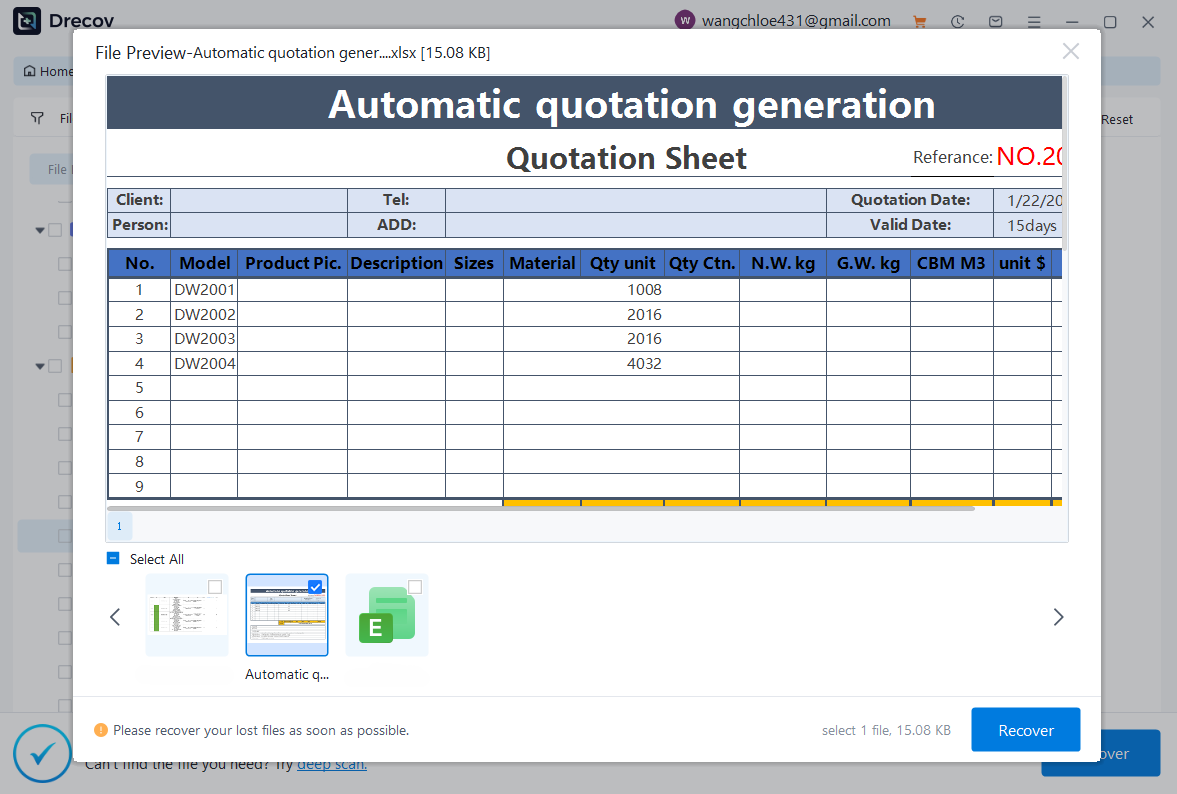
- Review scan results and select files for recovery.
- Click “Recover” and save the files to a different storage location.
- After recovery, verify that files are intact and accessible.


Why Choose Pandaoffice Drecov?
Data loss can occur unexpectedly due to accidental deletion, system crashes, formatting errors, or software failures. Whether you need to restore Windows previous date, perform recover Excel files,or handle deleted PowerPoint recovery, Pandaoffice Drecov provides a reliable and efficient solution designed to restore important documents quickly and safely.
Pandaoffice Drecov is a professional PowerPoint Recovery Software that supports recovery for multiple document types, including Excel spreadsheets, Word documents, and PowerPoint presentations. With advanced scanning technology, the software can detect and recover files even after deletion, formatting, or unexpected system shutdowns. This makes it an ideal tool for users who urgently need Document Recovery from hard drives, SSDs, USB drives, memory cards, and other storage devices.
One of the key advantages of Pandaoffice Drecov is its intelligent deep-scan engine. It carefully analyzes storage sectors to locate lost or hidden files that standard recovery tools often miss. Whether you accidentally deleted a presentation and require deleted PowerPoint recovery, or you lost critical spreadsheets and need to recover Excel files, the software provides fast scanning and high recovery success rates.
The software also features a user-friendly interface that allows beginners and professionals alike to complete recovery tasks in just a few steps. Users can preview recoverable files before restoring them, ensuring that only the needed data is recovered. In situations where files were lost due to system errors, the software can also help recover documents after attempts to restore Windows previous date.
Key Advantage: Pandaoffice Drecov uses advanced algorithms to handle severe logical errors, partially trimmed data, and formatted SSDs, ensuring high success rates.
Method 4: Rebuilding the SSD File System Manually
Test Environment: 256GB SSD with corrupted NTFS file system due to sudden power loss.
Step-by-Step Instructions:
- Create a complete disk image of the SSD to preserve all recoverable data.
- Use disk management tools (e.g., Windows DiskPart, Linux GParted) to inspect partitions.
- Identify corrupted or missing partitions.
- Attempt to repair the file system using commands like
chkdsk /f(Windows) orfsck(Linux). - If partitions are inaccessible, consider using professional ssd data recovery service for reconstruction.
- Verify recovered files and restore them to a separate storage device.
⚠️Warning: Manual file system repair is high-risk; incorrect operations can make data recovery from ssd impossible.
Method 5: Using Command-Line Tools for SSD Recovery
Test Environment: 256GB SSD on Windows 10 with corrupted NTFS due to improper ejection during file transfer.
Step-by-Step Instructions:
- Immediately stop writing to the SSD to prevent overwriting recoverable files.
- Open Command Prompt as Administrator (Windows) or Terminal (Linux/macOS).
- For Windows, type
chkdsk X: /f /r(replace X with your SSD drive letter) to repair file system errors and recover readable information. - For Linux/macOS, use
fsck /dev/sdX(replace sdX with your SSD device) to check and fix file system integrity. - Wait for the process to complete; this may take several hours depending on SSD size and used space.
- After repair, check the SSD for recovered files and copy them to a separate storage device.
⚠️Warning: Incorrect commands can overwrite sectors and make ssd data recovery impossible. Use disk images if possible.
Method 6: Recovering SSD Data via Disk Imaging
Test Environment: 1TB SSD on Windows 11; 500GB of critical documents lost.
Step-by-Step Instructions:
- Connect a large external drive to store the disk image.
- Use disk imaging software to create a sector-by-sector copy of the SSD.
- Verify that the disk image matches the original SSD size and structure.
- Load the disk image into recovery software capable of scanning image files.
- Perform Quick Scan or Deep Scan on the image to locate lost files.
- Recover the selected files to a separate storage device for verification.
Key Tip: Working on a disk image protects the original SSD and maximizes recovery chances.
Method 7: Professional SSD Data Recovery Services
Test Environment: 2TB SSD with controller failure, inaccessible by any software; files include business projects and multimedia content.
Step-by-Step Instructions:
- Stop using the damaged SSD immediately.
- Choose a professional ssd data recovery service like a certified data recovery lab.
- Ship the SSD following the lab’s recommended packaging and precautions.
- Technicians perform diagnostics to determine the cause of failure.
- In a cleanroom, they extract data directly from NAND chips or rebuild the SSD controller environment.
- Recover the files to a secure storage device and return to the client.
⚠️Warning: Do not attempt to open the SSD yourself; this may permanently destroy data.
Frequently Asked Questions (FAQ)
How Successful Are SSD Data Recovery Attempts?
Success depends on the type of data loss, SSD brand, and whether TRIM has been executed. Quick deletions and minor formatting have high recovery success with software. Severe logical errors, physical damage, or TRIM-affected SSDs may require professional ssd data recovery service.
Can TRIM Affect SSD Data Recovery?
Yes. TRIM permanently erases deleted blocks. If TRIM is enabled, the earlier you attempt recovery, the higher the chance of success. ⚠️Warning: Continuing to write data can overwrite files, making data recovery from ssd impossible.
Is It Safe to Use SSDs After Data Loss?
No. Using an SSD after data loss risks overwriting recoverable files. Create a disk image or consult professionals before any recovery attempts to protect ssd data recovery opportunities.
Can I Recover Data from a Formatted SSD?
Yes, if the drive has not been heavily used after formatting. Quick Scan retrieves recently deleted files, while Deep Scan can recover files affected by formatting or partial TRIM. Professional tools like Pandaoffice Drecov increase success rates for complex cases.
Do SSD Brands Affect Recovery Success?
Yes. Different controllers, firmware, and NAND types can affect software-based recovery. Tools like Pandaoffice Drecov support multiple brands, improving overall ssd recovery success rates.
Conclusion and Key Takeaways
Why SSD Data Recovery Matters
SSDs provide speed and reliability but are not immune to data loss. SSD data recovery protects personal and business-critical files. Awareness of SSD-specific issues like TRIM, firmware updates, and physical failures is vital for planning recovery.
Best Practices to Minimize Data Loss
- Maintain regular backups (external drives, NAS, cloud).
- Stop using SSD immediately after detecting data loss.
- Create disk images before attempting recovery.
- Use professional ssd data recovery service for severe damage.
Final Thoughts on SSD Recovery Methods
Combining careful software use, backups, disk imaging, and professional services ensures the highest chance of success. Tools like Pandaoffice Drecov offer advanced algorithms for recovering formatted, logically damaged, or partially trimmed SSDs.
⚠️Warning: Never attempt to physically repair an SSD yourself; professional handling preserves the possibility of data recovery from ssd.
By following these strategies, users can maximize ssd data recovery success while minimizing the risk of permanent data loss.






